
1. تعارف اور اوورview
The ORICO 8628SUS3-C is a versatile, tool-free docking station designed for 2.5-inch and 3.5-inch SATA hard drives and SSDs. It provides high-speed connectivity to your computer via SuperSpeed USB 3.0 and eSATA interfaces, facilitating data backup, transfer, and drive management. Its top slot-loading design ensures easy installation and removal of drives. This docking station also supports standalone cloning, allowing you to duplicate drives without a host computer connection.
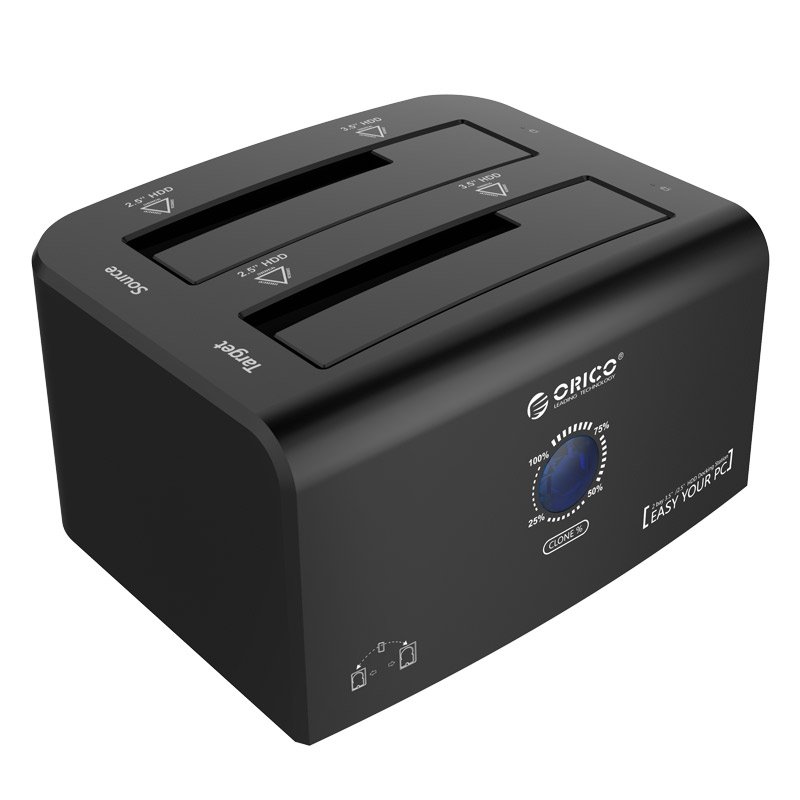
The ORICO 8628SUS3-C docking station, showcasing its dual slots accommodating both 2.5-inch and 3.5-inch SATA hard drives or SSDs.
2. باکس میں کیا ہے۔
براہ کرم تصدیق کریں کہ تمام اشیاء پیکیج میں موجود ہیں:
- 1 x ORICO 2.5 & 3.5 inch Hard Drive Docking Station (Model: 8628SUS3-C)
- 1 x 12V4A پاور اڈاپٹر
- 1 x 3.3Ft. USB 3.0 Cable
- 1 x eSATA Cable
- 1 ایکس یوزر مینوئل (یہ دستاویز)
- 1 ایکس سروس کارڈ
3. سیٹ اپ ہدایات
Follow these steps to set up your ORICO docking station:
- پاور اڈاپٹر کو جوڑیں: Plug the 12V4A power adapter into the DC port on the back of the docking station and then into a power outlet.
- کمپیوٹر سے جڑیں: کنکشن کا اپنا پسندیدہ طریقہ منتخب کریں:
- USB 3.0: Connect one end of the provided USB 3.0 cable to the USB 3.0 port on the docking station and the other end to an available USB 3.0 port on your computer.
- eSATA: Connect one end of the provided eSATA cable to the eSATA port on the docking station and the other end to an available eSATA port on your computer.
- ہارڈ ڈرائیوز داخل کریں: Gently slide your 2.5-inch or 3.5-inch SATA HDD/SSD into the designated slots on top of the docking station. Ensure the drive is fully seated. The docking station supports two drives simultaneously.
- پاور آن: Press the power switch on the back of the docking station to turn it on. The LED indicators will illuminate.

An illustrative diagram detailing the connection process: 1) DC adapter, 2) USB cable to PC, 3) SSD/HDD insertion, and 4) power on/off button.
4. آپریٹنگ ہدایات
4.1. ڈیٹا ٹرانسفر موڈ
Once connected to your computer and powered on, the inserted drives will be recognized by your operating system. You can then access them like any other external storage device.
- سپر اسپیڈ USB 3.0: Offers data transfer rates up to 5Gbps. It is backward compatible with USB 2.0 and 1.1.
- eSATA: Provides data transfer rates up to 3Gbps.
- پلگ اینڈ پلے: The device supports hot-swapping, allowing you to insert or remove drives while the docking station is powered on, without needing to restart your computer. No drivers are typically required for Windows, Linux, or Mac operating systems.

This image illustrates the ORICO docking station connected to a laptop via USB, with both 2.5-inch and 3.5-inch drives inserted, highlighting its broad compatibility.
4.2. Standalone Clone Function (Offline Duplication)
The ORICO 8628SUS3-C supports standalone cloning, allowing you to duplicate a source drive to a target drive without connecting to a computer.
- ڈرائیوز تیار کریں: Ensure both the Source drive (the drive you want to copy FROM) and the Target drive (the drive you want to copy TO) are unformatted or contain data you are willing to overwrite. The Target drive must be equal to or larger in capacity than the Source drive.
- ڈرائیوز داخل کریں: Insert the Source drive into the 'Source' slot and the Target drive into the 'Target' slot on the docking station.
- پی سی سے رابطہ منقطع کریں: Ensure the docking station is disconnected from your computer (USB or eSATA cable).
- پاور آن: Turn on the docking station using the power switch.
- کلون شروع کریں: Press and hold the 'Clone' button (often labeled 'PC-Clone Button' or similar) on the back of the docking station for approximately 3-5 seconds until the cloning process begins. The progress indicator LEDs will light up, showing the cloning status (e.g., 25%, 50%, 75%, 100%).
- تکمیل: The cloning process is complete when all progress indicator LEDs are solid. Power off the docking station and safely remove the drives.
اہم نوٹ: All data on the Target drive will be erased during the cloning process. Back up any important data on the Target drive before proceeding.

This image provides a close-up of the docking station's rear panel, showing the PC-Clone button, Power Switch, DC Port, USB 3.0, and eSATA interfaces. The top view highlights the Source and Target drive slots and LED lights.

The docking station is shown performing an offline clone operation, capable of cloning up to 8TB. Product dimensions are provided: W 217x D 142 x H 80 (mm) or W 8.54x D 5.59 x H 3.14 (in).
5 دیکھ بھال
To ensure the longevity and optimal performance of your ORICO docking station:
- آلے کو صاف اور دھول سے پاک رکھیں۔ صفائی کے لیے نرم، خشک کپڑا استعمال کریں۔
- Avoid exposing the docking station to extreme temperatures, humidity, or direct sunlight.
- Do not block the ventilation openings, if any, to prevent overheating.
- Handle hard drives carefully when inserting or removing them to prevent damage to the drive connectors or the docking station slots.
- Always power off the docking station before disconnecting the power adapter.
6 خرابیوں کا سراغ لگانا
If you encounter issues with your ORICO docking station, refer to the following common problems and solutions:
| مسئلہ | ممکنہ وجہ/حل |
|---|---|
| Drive not detected by computer |
|
| Slow data transfer speeds |
|
| Cloning process fails or does not start |
|
| Docking station not powering on |
|
7. وضاحتیں
| فیچر | تفصیل |
|---|---|
| ماڈل نمبر | ORICO 8628SUS3-C |
| ہارڈ ویئر انٹرفیس | USB 3.0, eSATA |
| Compatible Drives | 2.5 inch / 3.5 inch SATA HDD & SSD |
| Supported Devices Quantity | 2 |
| Data Transfer Rate (USB 3.0) | 5 گیگا بٹس فی سیکنڈ تک (جی بی پی ایس) |
| Data Transfer Rate (eSATA) | 3 گیگا بٹس فی سیکنڈ تک (جی بی پی ایس) |
| Offline Clone Capacity | 8TB تک |
| آپریٹنگ سسٹم کی مطابقت | Windows XP/7/8/8.1, Linux, Mac 9.1 or later |
| پاور اڈاپٹر | 12V4A |
| طول و عرض (L x W x H) | 217 x 142 x 80 ملی میٹر (8.54 x 5.59 x 3.14 انچ) |
| شے کا وزن | 1.7 پاؤنڈز |
8. وارنٹی اور سپورٹ
Your ORICO 8628SUS3-C Hard Drive Docking Station comes with a service card. For warranty information, technical support, or any inquiries regarding your product, please refer to the contact details provided on the service card or visit the official ORICO webسائٹ وارنٹی کے دعووں کے لیے براہ کرم اپنی خریداری کا ثبوت اپنے پاس رکھیں۔