
1. تعارف
The SteelSeries Kana Optical Gaming Mouse is engineered for precision and versatility, designed to accommodate all three primary grip styles: palm, claw, and fingertip. This ambidextrous mouse features an ergonomic button layout and size, developed in collaboration with professional gaming teams to ensure consistent performance and accuracy in competitive environments. This manual provides comprehensive instructions for setup, operation, maintenance, and troubleshooting to help you maximize your gaming experience.
2. پیکیج کے مشمولات
- SteelSeries Kana Optical Gaming Mouse (White)
- Quick Start Guide (integrated into this manual)
3. پروڈکٹ ختمview
Familiarize yourself with the key components of your SteelSeries Kana mouse:
- بائیں کلک کے بٹن: پرائمری ایکشن بٹن۔
- دائیں کلک کے بٹن: سیکنڈری ایکشن بٹن۔
- اسکرول وہیل: For scrolling and a clickable middle button. The scroll wheel is illuminated.
- CPI Toggle Button: Located centrally, allows quick switching between sensitivity settings.
- Side Buttons (x2): One on each side, large and easily accessible for rapid-fire actions. These can be customized or disabled via software.
- آپٹیکل سینسر: نیچے کی طرف واقع ہے، عین مطابق ٹریکنگ فراہم کرتا ہے۔
- USB کنیکٹر: ماؤس کو اپنے کمپیوٹر سے جوڑنے کے لیے۔
- لٹ کیبل: Durable, tangle-free nylon cord.
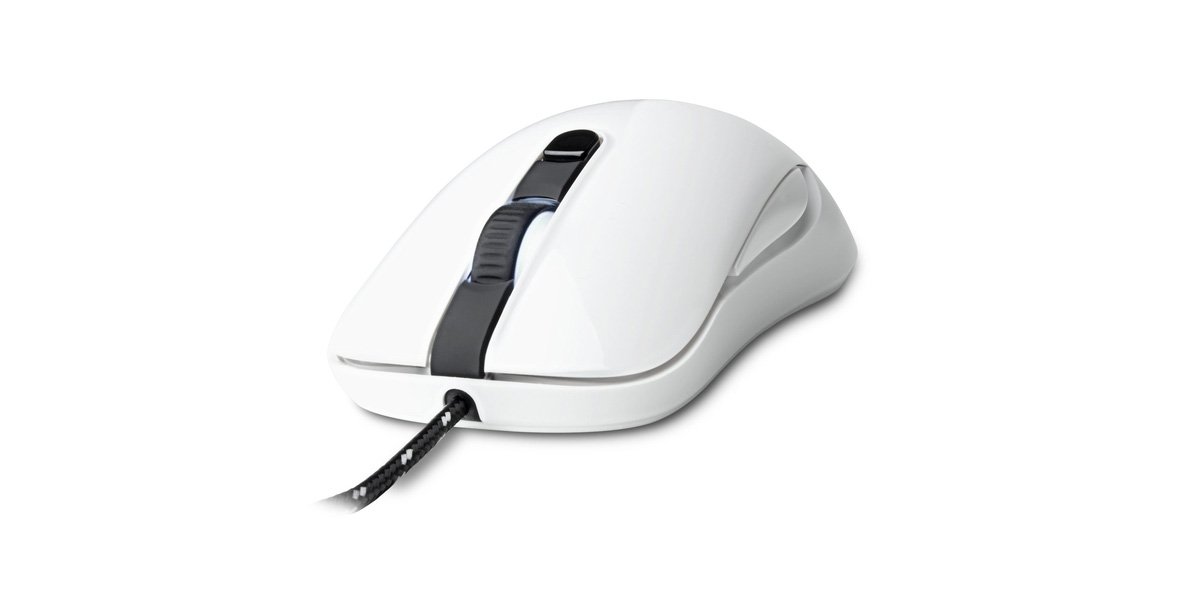
Image of the SteelSeries Kana Optical Gaming Mouse in white, showcasing its ambidextrous design, illuminated scroll wheel, and side buttons.
4. سیٹ اپ
4.1 ہارڈ ویئر کنکشن
- اپنے کمپیوٹر پر دستیاب USB پورٹ تلاش کریں۔
- Plug the USB connector of the SteelSeries Kana mouse into the USB port.
- Your operating system should automatically detect and install basic drivers for the mouse.
4.2 Software Installation (SteelSeries Engine)
To unlock the full customization potential of your SteelSeries Kana mouse, including CPI settings, button programming, macros, and LED intensity, install the SteelSeries Engine software.
- Visit the official SteelSeries webسائٹ: اسٹیلسیریز / اینجائن
- Download the SteelSeries Engine software compatible with your operating system (Windows or macOS).
- انسٹالیشن مکمل کرنے کے لیے آن اسکرین ہدایات پر عمل کریں۔
- Once installed, launch the SteelSeries Engine to configure your mouse settings.
میک صارفین کے لیے نوٹ: Compatibility with macOS versions 10.9 and later for SteelSeries Engine 2.0 (required for Kana) has historically been inconsistent. Please check the official SteelSeries website for the latest software updates and compatibility information before installation.
5. آپریٹنگ ہدایات
5.1 بنیادی فعالیت
- حرکت: Move the mouse across a surface to control the cursor on your screen.
- کلک کرنا: بنیادی اور ثانوی کارروائیوں کے لیے بائیں اور دائیں بٹن استعمال کریں۔
- سکرولنگ: Rotate the scroll wheel to navigate documents and web pages. Press the scroll wheel for its assigned middle-click function.
5.2 Adjusting CPI (Counts Per Inch)
The centrally located CPI toggle button allows you to switch between two pre-defined sensitivity settings instantly. The default CPI settings are optimized for gaming, but can be customized using the SteelSeries Engine software. The maximum CPI supported is 3200.
- Press the CPI toggle button once to switch to the alternate CPI setting.
- Press it again to revert to the previous setting.
5.3 Customizing with SteelSeries Engine
The SteelSeries Engine software provides extensive customization options:
- CPI Settings: Fine-tune or set custom CPI values beyond the pre-defined options.
- بٹن پروگرامنگ: Assign custom functions, keyboard shortcuts, or macros to any of the 6 programmable buttons (including side buttons and scroll wheel click).
- میکرو: Create and assign complex sequences of commands with precise timing control.
- LED Intensity: Adjust the brightness of the illuminated scroll wheel.
- پروfiles: متعدد پرو بنائیں اور محفوظ کریں۔files for different games or applications, with automatic switching based on game triggers.
6 دیکھ بھال
6.1 Cleaning Your Mouse
To ensure optimal performance and longevity, keep your mouse clean.
- بیرونی: تھوڑا سا نرم، لنٹ سے پاک کپڑا استعمال کریں۔ampماؤس کی سطح کو مسح کرنے کے لئے پانی یا ہلکے صفائی کے محلول کے ساتھ ختم کریں۔ سخت کیمیکلز یا کھرچنے والے مواد سے پرہیز کریں۔
- آپٹیکل سینسر: Gently clean the optical sensor lens on the underside of the mouse with a dry cotton swab or compressed air to remove dust or debris.
- ماؤس فٹ: Ensure the mouse feet are clean and free of obstructions for smooth gliding.
احتیاط: Do not immerse the mouse in water or any cleaning solution. Avoid spraying liquids directly onto the mouse.
7 خرابیوں کا سراغ لگانا
| مسئلہ | ممکنہ حل |
|---|---|
| Mouse not detected / Not responding |
|
| Inaccurate or erratic tracking |
|
| Buttons not responding or performing incorrectly |
|
| SteelSeries Engine software not recognizing mouse (Mac OS) |
|
8. وضاحتیں
| برانڈ | اسٹیل سیریز |
| ماڈل نمبر | 62029 |
| رنگ | سفید |
| موومنٹ ڈیٹیکشن ٹکنالوجی | آپٹیکل |
| بٹنوں کی تعداد | 6 (قابل پروگرام) |
| ہاتھ کی واقفیت | Ambidextrous (Left, Right) |
| ہارڈ ویئر پلیٹ فارم | PC |
| کیبل کی قسم | لٹ نایلان |
| شے کا وزن | 0.16 کلوگرام |
| خصوصی خصوصیت | Ergonomic Design, Illuminated Scroll Wheel |
9. وارنٹی اور سپورٹ
9.1 وارنٹی کی معلومات
The SteelSeries Kana Optical Gaming Mouse comes with a 1 سال کی محدود وارنٹی خریداری کی تاریخ سے. یہ وارنٹی عام استعمال کے تحت مینوفیکچرنگ نقائص اور کاریگری کا احاطہ کرتی ہے۔ یہ غلط استعمال، حادثات، غیر مجاز ترمیم، یا عام ٹوٹ پھوٹ سے ہونے والے نقصان کو پورا نہیں کرتا ہے۔ وارنٹی کے دعووں کے لیے براہ کرم اپنی خریداری کا ثبوت اپنے پاس رکھیں۔
9.2 کسٹمر سپورٹ
For technical assistance, warranty claims, or further information, please visit the official SteelSeries support webسائٹ:
You can find FAQs, driver downloads, and contact information for customer service on their webسائٹ