
Gioteck E5SUNI-11-MU
Gioteck EX-05S Universal High Definition Stereo Headset User Manual
Model: EX-05S
1. پروڈکٹ ختمview
The Gioteck EX-05S High Definition Headset is designed to deliver superior stereo game sound and crystal-clear voice communication. It is compatible with multiple platforms including PS4, PS3, Xbox 360, PC, and Mac. This headset features 40mm high-quality stereo drivers, a noise-isolating microphone, and breathable micro-fibre ear cups for extended comfort.
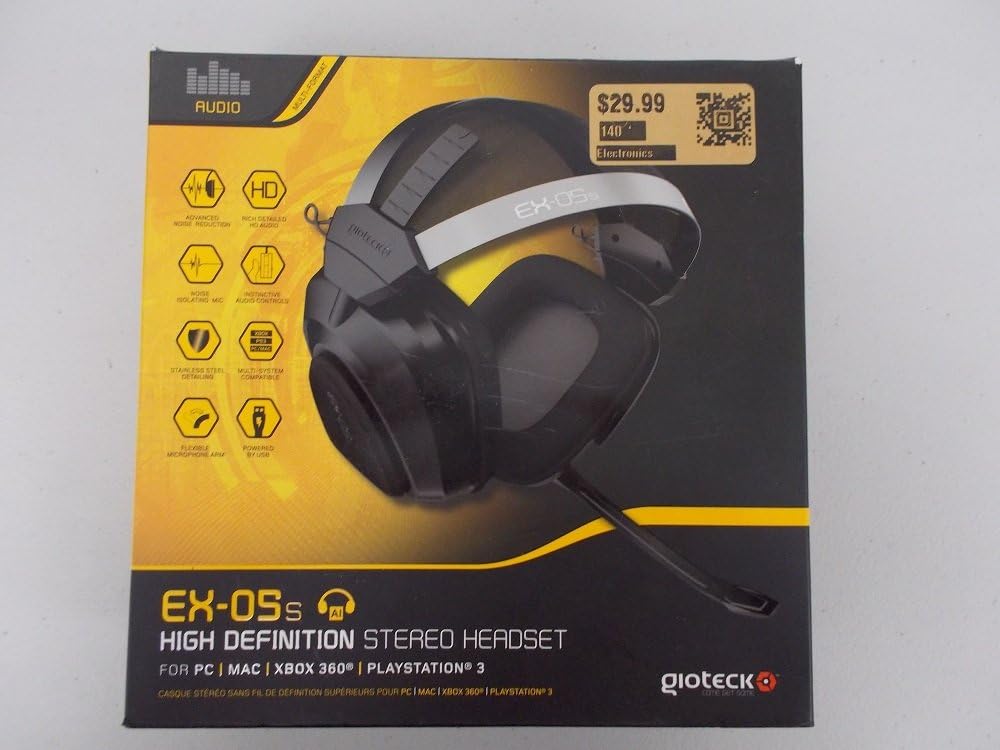
Figure 1.1: Gioteck EX-05S Headset packaging, highlighting key features and compatibility.

شکل 1.2: طرف view of the Gioteck EX-05S Headset, showing the ear cup and microphone arm.
2 خصوصیات
- 40mm High Quality Stereo Drivers: Delivering rich, detailed audio for an immersive gaming experience.
- Noise Isolating Microphone: Designed to eliminate echo and external noise for clear communication.
- Breathable Micro-Fibre Ear Cups: Ensures comfort during long gaming sessions.
- اعلی درجے کی شور کی کمی: Minimizes game sound interference from external speakers.
- Flexible and 180-Degree Rotating Microphone Arm: Allows for optimal microphone positioning.
- Instinctive and Accessible Controls: Conveniently located controls for voice and game sound adjustments.
- Stainless Steel Detailing: Provides durability and a premium finish.
- ملٹی پلیٹ فارم مطابقت: Works with PS4, PS3, Xbox 360, PC, and Mac.
3. پیکیج کے مشمولات
Please ensure all the following items are present in your package:
- Gioteck EX-05S Universal High Definition Stereo Headset
4. سیٹ اپ گائیڈ
4.1 Connecting to Gaming Consoles (PS4, PS3, Xbox 360)
- Locate the 3.5mm audio jack on your gaming controller or console.
- Insert the 3.5mm connector from the EX-05S headset firmly into the audio jack.
- Ensure your console's audio settings are configured to output game audio and chat through the connected headset. Refer to your console's system settings for specific audio output configurations.
4.2 PC/Mac سے جڑنا
- For PCs with separate audio and microphone jacks, you may need a PC splitter cable (not included) to connect the single 3.5mm headset jack to your computer's audio output and microphone input ports.
- For devices with a combined 3.5mm audio/microphone jack, simply plug the headset's 3.5mm connector directly into the port.
- Adjust your computer's sound settings to select the EX-05S headset as the default playback and recording device.
5. آپریٹنگ ہدایات
5.1 والیوم کنٹرول
The EX-05S headset features an inline control box on the cable. Use the volume dial to adjust the overall audio level of your game and chat sound.
5.2 مائیکروفون خاموش
A switch or button on the inline control box allows you to quickly mute or unmute your microphone. Ensure the microphone is unmuted when you wish to communicate.
5.3 Microphone Positioning
The flexible microphone arm can be rotated 180 degrees. Position the microphone approximately 1-2 inches from your mouth for optimal voice clarity and to minimize background noise.
6. دیکھ بھال اور دیکھ بھال
- صفائی: Use a soft, dry cloth to clean the headset. For ear cups, a slightly damp cloth can be used, but ensure no moisture enters the speaker grilles. Do not use harsh chemicals or abrasive cleaners.
- ذخیرہ: Store the headset in a cool, dry place away from direct sunlight and extreme temperatures. Avoid tangling the cable.
- ہینڈلنگ: Always grasp the plug when disconnecting the cable, rather than pulling on the cable itself, to prevent damage to the wiring.
- Ear Cups: The breathable micro-fibre ear cups can be gently wiped clean. Avoid excessive pressure or stretching.
7 خرابیوں کا سراغ لگانا
7.1 ہیڈسیٹ سے کوئی آواز نہیں۔
- یقینی بنائیں کہ 3.5mm جیک آڈیو پورٹ میں پوری طرح سے داخل ہے۔
- Check the inline volume control on the headset cable and ensure it is turned up.
- Verify your device's (console, PC, Mac) audio output settings are configured to send sound to the headset.
- ڈیوائس کے مخصوص مسئلے کو مسترد کرنے کے لیے ہیڈسیٹ کو دوسرے ڈیوائس پر ٹیسٹ کریں۔
7.2 مائیکروفون کام نہیں کر رہا ہے۔
- Check the microphone mute switch on the inline control box and ensure it is unmuted.
- Verify your device's (console, PC, Mac) microphone input settings are configured to receive input from the headset.
- Ensure the microphone arm is positioned correctly and not obstructed.
- Test the microphone on another device or application to confirm functionality.
7.3 Static or Distorted Audio
- یقینی بنائیں کہ کنکشن محفوظ ہے اور ملبے سے پاک ہے۔
- Try adjusting the volume levels on both the headset and the connected device.
- Move away from potential sources of electromagnetic interference (e.g., Wi-Fi routers, cordless phones).
- دوسرے آڈیو سورس یا ڈیوائس سے ٹیسٹ کریں۔
8. وضاحتیں
| فیچر | تفصیل |
|---|---|
| ماڈل کا نام | E5SUNI-11-MU |
| کنیکٹوٹی ٹیکنالوجی | وائرڈ |
| شامل اجزاء | ہیڈ فون |
| عمر کی حد (تفصیل) | بالغ |
| مواد | سٹینلیس سٹیل |
| مصنوعات کے لیے مخصوص استعمال | گیمنگ |
| ہم آہنگ آلات | Gaming Consoles, Computers |
| کنٹرول کی قسم | والیوم کنٹرول |
| کیبل کی خصوصیت | قابل واپسی |
| شے کا وزن | 669 گرام (1.47 پاؤنڈ) |
| کنٹرول کا طریقہ | آواز |
| آڈیو ڈرائیور کی قسم | متحرک ڈرائیور |
| ایئر پیس کی شکل | کان سے زیادہ |
| ہیڈ فون جیک | 3.5 ملی میٹر جیک |
| مصنوعات کے طول و عرض | 8.46 x 7.87 x 3.94 انچ |
9. وارنٹی اور سپورٹ
Gioteck products are manufactured to high standards and undergo rigorous testing. For information regarding warranty coverage, technical support, or service, please refer to the official Gioteck webسائٹ یا ان کے کسٹمر سپورٹ سے براہ راست رابطہ کریں۔ کسی بھی وارنٹی دعووں کے لیے اپنی خریداری کا ثبوت رکھیں۔
سب سے تازہ ترین سپورٹ کی معلومات کے لیے، براہ کرم ملاحظہ کریں: www.gioteck.com/support
Ask a question about this manual
Ask about setup, troubleshooting, compatibility, parts, safety, or missing instructions. Manuals+ will review the question and use this page’s manual context to help answer it.