
1. تعارف
This manual provides detailed instructions for the setup, operation, maintenance, and troubleshooting of your LUXUL XWC-1000 Stand Alone Wireless Controller. Please read this manual thoroughly before using the device to ensure proper functionality and to maximize its performance.
2. پروڈکٹ ختمview
The LUXUL XWC-1000 is a stand-alone wireless controller designed to manage Luxul access points within a network environment. It provides centralized control for simplified network management.

Figure 2.1: The LUXUL XWC-1000 Stand Alone Wireless Controller unit.

Figure 2.2: Packaging detail showing the LUXUL XWC-1000 Wireless Controller model name.
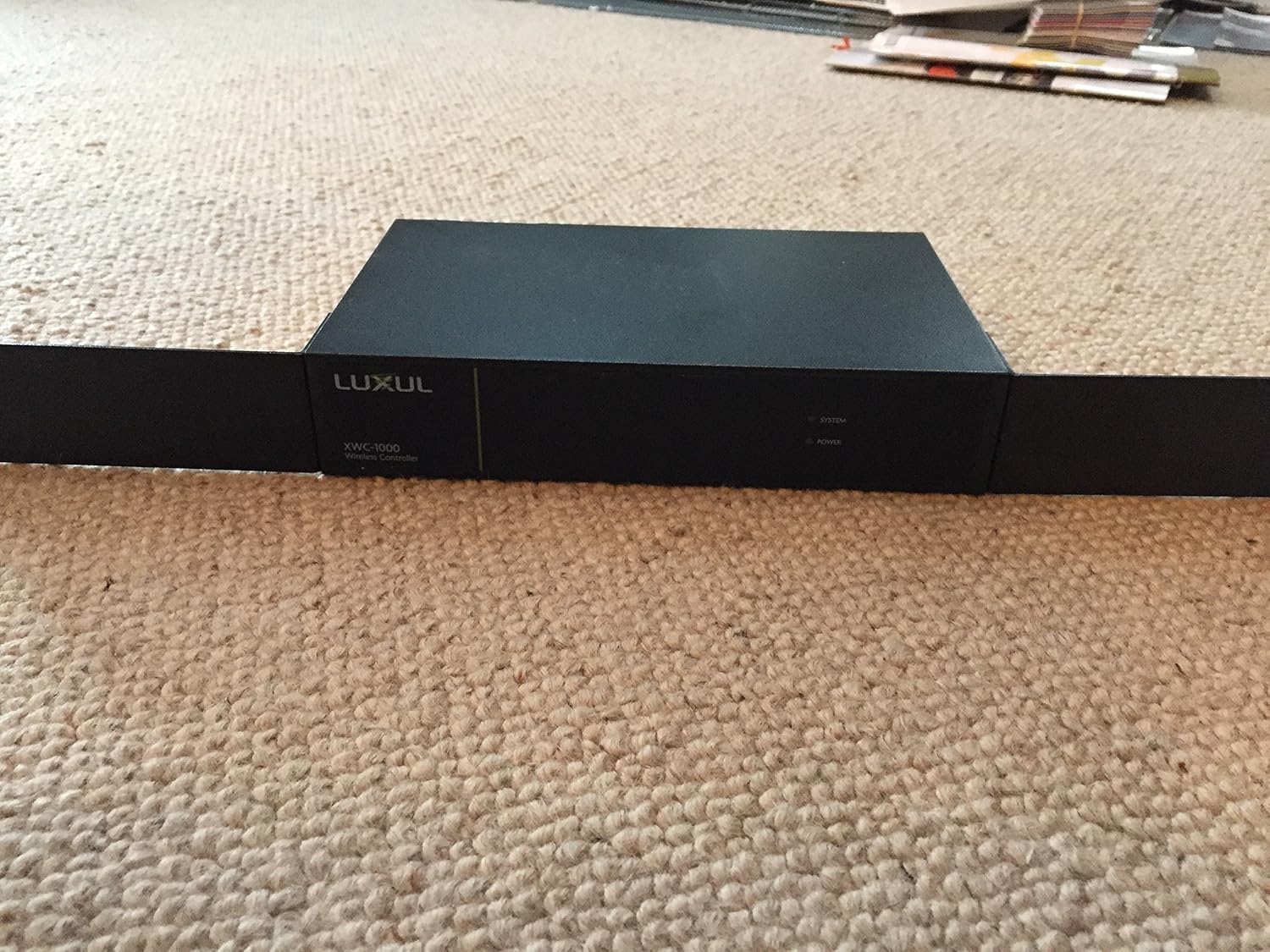
Figure 2.3: Product label displaying essential information including Model No.: XWC-1000, Vers. 2, default IP Address: 192.168.0.19, User Name: admin, Password: admin, Power: 100-240VAC 50/60Hz 0.6A. Serial numbers are XWC100010151097 and A4134E294581.

Figure 2.4: Front panel of the controller, showing SYSTEM, POWER, and RESET indicators, along with the LAN port and its LINK/ACTIVITY and 1000Mbps status lights.
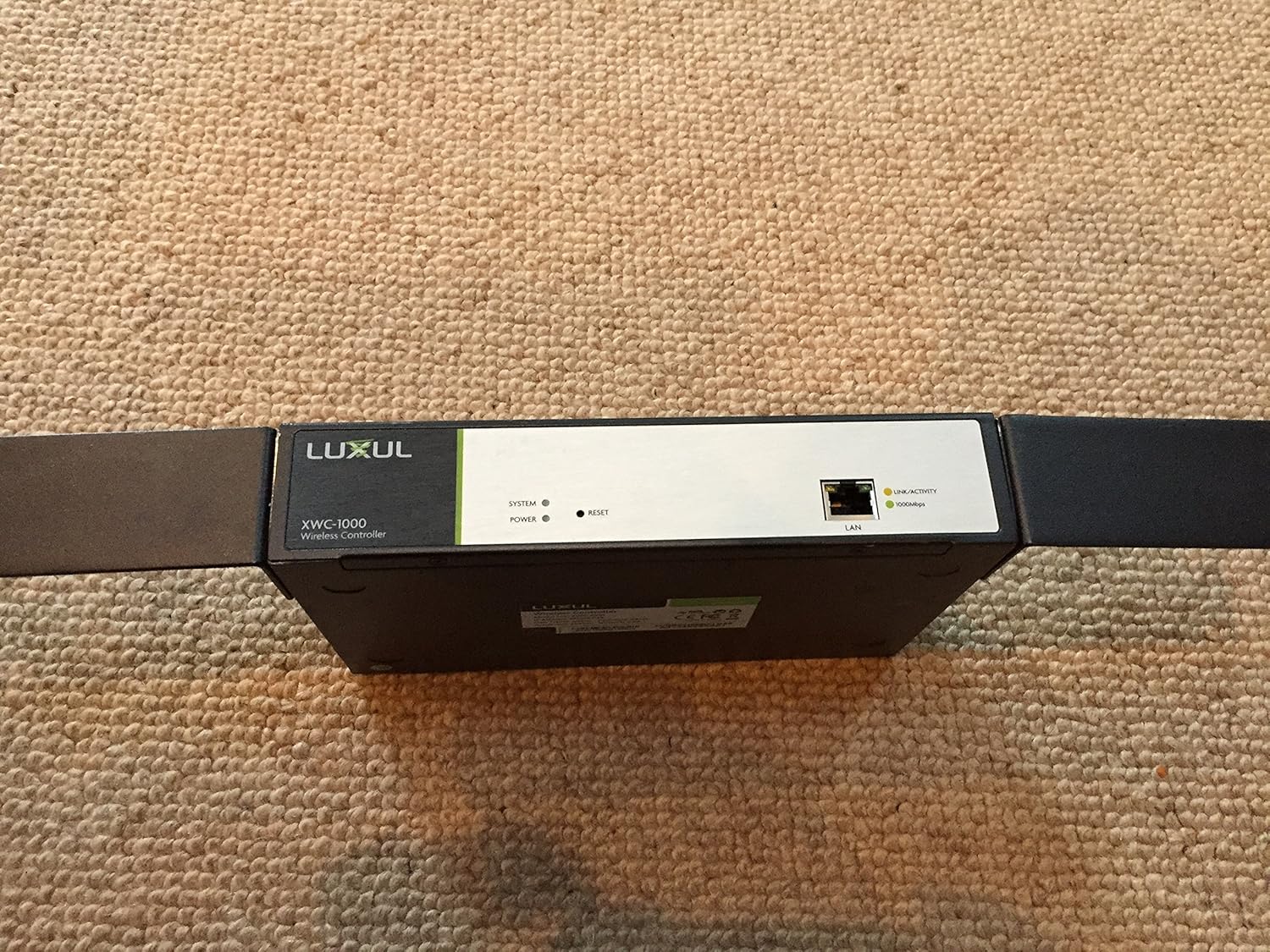
Figure 2.5: Close-up of the LAN port area, highlighting the BLUE/GREEN indicator switch, LAN port, and RESET button, along with LINK/ACTIVITY and 1000Mbps indicators.
3. سیٹ اپ
- پیک کھولنا: Carefully remove the XWC-1000 controller from its packaging. Ensure all components are present.
- پاور کنکشن: Connect the provided power adapter to the XWC-1000 and then to a suitable power outlet (100-240VAC, 50/60Hz). The POWER indicator light should illuminate.
- نیٹ ورک کنکشن: Connect an Ethernet cable from your network router or switch to the LAN port on the XWC-1000. The LINK/ACTIVITY and 1000Mbps indicators should show network activity.
- ابتدائی رسائی: To access the controller's web انٹرفیس، کھولیں a web browser and navigate to the default IP address: 192.168.0.19. Use the default credentials: User Name: منتظم, پاس ورڈ: منتظم. حفاظتی مقاصد کے لیے پہلے لاگ ان کے فوراً بعد پہلے سے طے شدہ پاس ورڈ کو تبدیل کرنے کی انتہائی سفارش کی جاتی ہے۔
- Access Point Integration: Once logged in, follow the on-screen instructions or refer to the controller's internal help documentation to discover and integrate your Luxul Access Points (APs).
4. آپریٹنگ ہدایات
The LUXUL XWC-1000 provides a centralized interface for managing your wireless network. Key operational aspects include:
- Access Point Management: View the status of connected APs, configure their settings, and monitor their performance.
- وائرلیس نیٹ ورک کنفیگریشن: Set up SSIDs, security protocols (WPA2/WPA3), and guest network access.
- فرم ویئر اپ ڈیٹس: Regularly check for and apply firmware updates to the controller and connected APs to ensure optimal performance and security.
- نظام کی نگرانی: Monitor network traffic, client connections, and system logs for diagnostic purposes.
- صارفی انتظام: Create and manage user accounts with different access levels for the controller interface.
5 دیکھ بھال
- باقاعدہ فرم ویئر اپ ڈیٹس: Periodically check the Luxul website for the latest firmware versions for your XWC-1000 and connected access points. Updating firmware can resolve issues and introduce new features.
- جسمانی صفائی: Keep the device free from dust and debris. Use a soft, dry cloth for cleaning. Do not use liquid cleaners directly on the device.
- ماحولیاتی حالات: Ensure the controller is operated within its specified temperature and humidity ranges to prevent damage. Avoid placing it near heat sources or in direct sunlight.
- بیک اپ کنفیگریشن: Regularly back up your controller's configuration settings. This allows for quick restoration in case of a system reset or replacement.
6 خرابیوں کا سراغ لگانا
If you encounter issues with your LUXUL XWC-1000, consider the following troubleshooting steps:
- کنٹرولر آن نہیں ہو رہا ہے: Verify the power adapter is securely connected to both the device and the power outlet. Check the power outlet with another device.
- رسائی نہیں ہو سکتی Web انٹرفیس:
- Ensure your computer is on the same network segment as the controller (e.g., if the controller is 192.168.0.19, your computer should be 192.168.0.x).
- Confirm the Ethernet cable is properly connected and the LAN port indicators are active.
- Try resetting the controller by pressing the RESET button (refer to Figure 2.5).
- Verify you are using the correct IP address (default is 192.168.0.19) and login credentials.
- Access Points Not Recognized:
- Ensure your access points are Luxul brand and compatible with the XWC-1000.
- Check that the APs are powered on and properly connected to the network.
- Verify that the controller's firmware is up to date. Outdated firmware can sometimes cause compatibility issues with newer AP models.
- Consult the Luxul support documentation for specific AP discovery procedures.
- نیٹ ورک کنیکٹیویٹی کے مسائل: Check all network cables and ensure your router/switch is functioning correctly.
If problems persist, contact Luxul technical support for further assistance.
7. وضاحتیں
| فیچر | تفصیل |
|---|---|
| برانڈ | لکسول |
| سلسلہ | XWC-1000 |
| ماڈل نمبر | XWC-1000 |
| شے کا وزن | 2.58 پاؤنڈ |
| پروڈکٹ کے طول و عرض (LxWxH) | 1 x 1 x 1 انچ |
| طاقت کا منبع | Battery Powered (Note: This may refer to internal clock battery or general power source type, actual operation is via AC adapter) |
| کارخانہ دار | لکسول |
| ASIN | B0144D61GA |
| پہلی تاریخ دستیاب ہے۔ | 11 اگست 2015 |
8. وارنٹی اور سپورٹ
For warranty information, please refer to the documentation included with your product or visit the official LUXUL webسائٹ تکنیکی مدد، پروڈکٹ رجسٹریشن، یا جدید ترین ڈرائیورز اور فرم ویئر ڈاؤن لوڈ کرنے کے لیے، براہ کرم ملاحظہ کریں۔ www.luxul.com or contact Luxul customer service directly.