
1. تعارف
This manual provides essential information for the safe and efficient use of your Alienware AW3418DW 34.1-inch Curved Gaming Monitor. This monitor features a WQHD (3440x1440) resolution, a 120Hz refresh rate (overclocked), and NVIDIA G-SYNC technology for an immersive gaming experience. Please read this manual thoroughly before operating the device.
2. حفاظتی معلومات
- Always disconnect the power cable from the wall outlet before cleaning the monitor.
- آگ یا جھٹکے کے خطرات سے بچنے کے لیے مانیٹر کو بارش یا نمی کے سامنے نہ رکھیں۔
- مانیٹر نہ کھولیں casinجی اندر کوئی صارف کے قابل خدمت حصے نہیں ہیں۔ تمام سروسنگ کو اہل سروس اہلکاروں سے رجوع کریں۔
- مانیٹر کو ایک مستحکم، چپٹی سطح پر رکھیں تاکہ اسے گرنے سے روکا جا سکے۔
- مانیٹر کے ارد گرد مناسب وینٹیلیشن کو یقینی بنائیں۔ وینٹیلیشن کے سوراخوں کو مسدود نہ کریں۔
- مانیٹر کے ساتھ فراہم کردہ پاور اڈاپٹر اور کیبلز ہی استعمال کریں۔
3. پیکیج کے مشمولات
تصدیق کریں کہ پیکیج میں تمام اجزاء موجود ہیں:
- Alienware AW3418DW Monitor
- مانیٹر اسٹینڈ (بیس اور رائزر)
- پاور کیبل
- ڈسپلے پورٹ کیبل
- HDMI کیبل
- USB 3.0 اپ اسٹریم کیبل
- Documentation (Quick Setup Guide, Safety Information)
4. سیٹ اپ
4.1 فزیکل سیٹ اپ
Carefully remove the monitor and its components from the packaging. Place the monitor face down on a soft cloth or cushion to prevent scratches.
اسٹینڈ کو جوڑنا
- Attach the stand riser to the monitor panel until it clicks into place.
- Attach the stand base to the stand riser and tighten the captive screw.

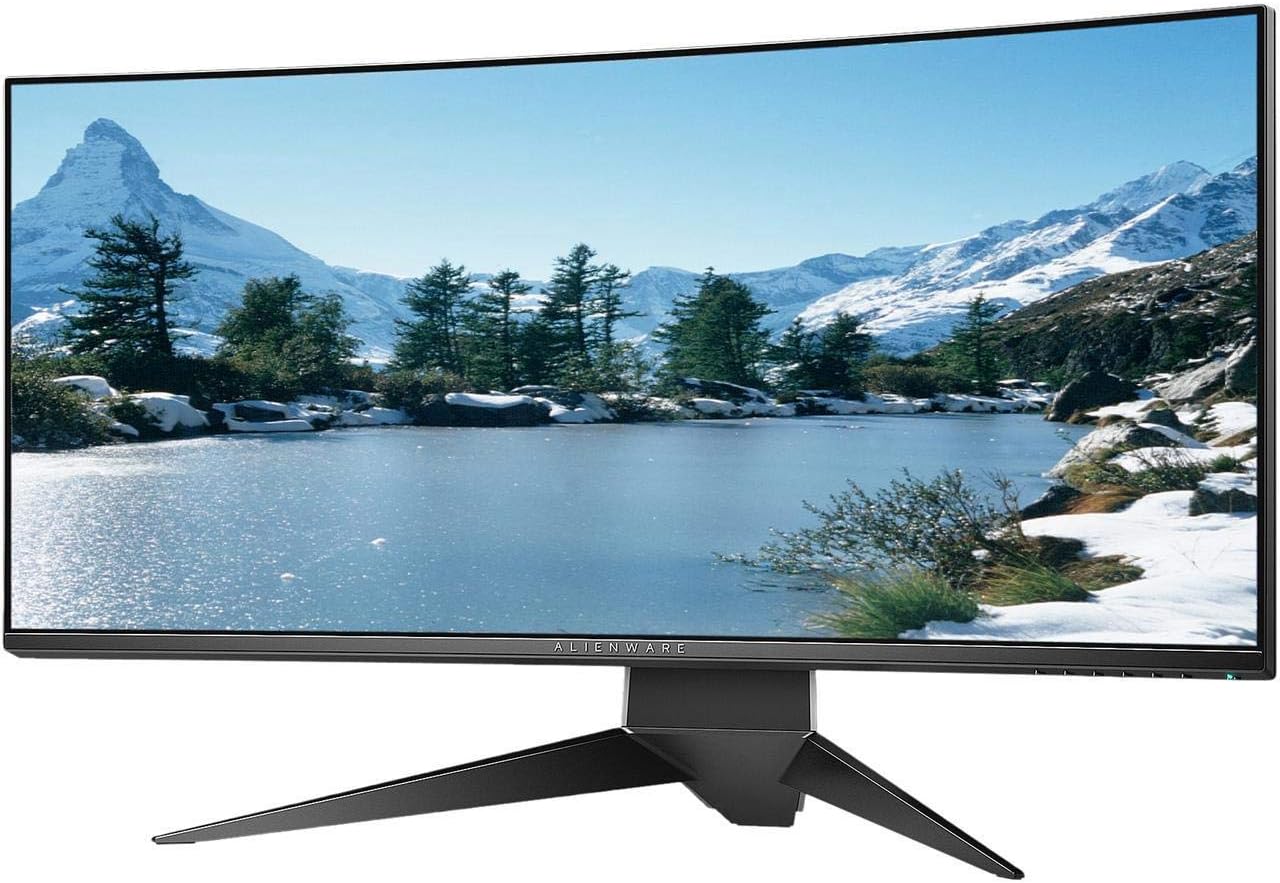
شکل 4.1: سامنے view of the Alienware AW3418DW monitor with its stand attached.

شکل 4.2: طرف view of the Alienware AW3418DW monitor with its stand.
شکل 4.3: پیچھے view of the Alienware AW3418DW monitor showing the stand and AlienFX lighting.
VESA بڑھتے ہوئے
The monitor supports VESA mounting (100 x 100 mm). Remove the stand riser by pressing the release button and then attach the VESA-compatible mount to the monitor using appropriate screws. Ensure the mount can support the monitor's weight of 26.1 pounds (without stand).

Figure 4.4: Monitor dimensions for VESA mount compatibility.
4.2 کنیکٹنگ کیبلز
Connect the necessary cables to your monitor and computer.
- بجلی کی تار: Connect the power cable to the monitor's power port and then to a wall outlet.
- ویڈیو کیبل: Connect either the DisplayPort cable or the HDMI cable from your computer's graphics card to the corresponding port on the monitor. For optimal performance, especially for 120Hz refresh rate and G-SYNC, use the DisplayPort connection.
- USB اپ اسٹریم کیبل: Connect the USB 3.0 upstream cable from your computer to the monitor's upstream USB port to enable the monitor's USB hub functionality.
- USB ڈاؤن اسٹریم پورٹس: Connect your USB devices (e.g., keyboard, mouse, webcam) to the four USB 3.0 downstream ports on the monitor.
5. آپریٹنگ ہدایات
5.1 پاور آن/آف
Press the power button located on the monitor to turn it on or off. The power LED will indicate the monitor's status.
5.2 آن اسکرین ڈسپلے (OSD) نیویگیشن
The On-Screen Display (OSD) menu allows you to adjust various monitor settings. Use the control buttons, typically located on the bottom right or rear of the monitor, to navigate the OSD.
- OSD مینو کو چالو کرنے کے لیے ایک کنٹرول بٹن دبائیں۔
- مینو کے اختیارات سے گزرنے کے لیے نیویگیشن بٹن (اوپر/نیچے/بائیں/دائیں) استعمال کریں۔
- Press the select button to confirm a selection or enter a sub-menu.
- Use the back/exit button to return to the previous menu or exit the OSD.
5.3 ڈسپلے کی ترتیبات
بہترین کے لیے ڈسپلے کی ترتیبات کو ایڈجسٹ کریں۔ viewing and gaming performance.
- قرارداد: Set your computer's display resolution to 3440x1440 for the native WQHD experience.
- ریفریش ریٹ: The monitor supports up to 120Hz refresh rate (overclocked). Ensure your graphics card drivers are updated and the refresh rate is set in your operating system's display settings or graphics control panel.
- NVIDIA G-SYNC: For tear-free and smooth gameplay, enable G-SYNC in your NVIDIA Control Panel. This feature synchronizes the monitor's refresh rate with your GPU's frame rate.
- چمک / تضاد: Adjust these settings in the OSD menu to suit your environment and preference.
5.4 AlienFX Lighting
Customize the AlienFX lighting zones on your monitor through the OSD menu or Alienware Command Center software (if installed on your PC). You can select colors, effects, and synchronize lighting with other Alienware devices.
5.5 USB حب کا استعمال
The monitor acts as a USB 3.0 hub, providing convenient access to four downstream USB ports for connecting peripherals. Ensure the USB upstream cable is connected to your computer for this feature to function.
6 دیکھ بھال
6.1 مانیٹر کی صفائی
- Always unplug the monitor from the electrical outlet before cleaning.
- ہلکے سے نرم، لنٹ سے پاک کپڑا استعمال کریں۔ampپانی یا غیر کھرچنے والی اسکرین کلینر کے ساتھ ختم کیا گیا ہے۔
- کلینر کو براہ راست اسکرین پر نہ چھڑکیں۔
- دھول اور دھبوں کو دور کرنے کے لیے اسکرین کو آہستہ سے صاف کریں۔
- باہر کی صفائی casing ایک نرم، خشک کپڑے کے ساتھ.
6.2 اسٹوریج
If storing the monitor for an extended period, disconnect all cables, carefully disassemble the stand (if applicable), and store it in its original packaging in a cool, dry place.
7 خرابیوں کا سراغ لگانا
اگر آپ کو اپنے مانیٹر کے ساتھ مسائل کا سامنا کرنا پڑتا ہے تو، مندرجہ ذیل عام ٹربل شوٹنگ کے اقدامات سے رجوع کریں:
- کوئی ڈسپلے نہیں: Ensure all power and video cables are securely connected. Check if the monitor is powered on and the correct input source is selected in the OSD.
- Flickering/Stuttering: Verify that your graphics drivers are up to date. Ensure G-SYNC is properly configured in the NVIDIA Control Panel. Check for interference from other electronic devices.
- غلط ریزولوشن/ریفریش ریٹ: Adjust the display settings in your operating system or graphics control panel to the native resolution (3440x1440) and desired refresh rate (up to 120Hz).
- ڈیڈ پکسلز: The Alienware AW3418DW comes with a Premium Panel Guarantee. Refer to the warranty information for details on pixel policy.
- USB پورٹس کام نہیں کر رہے: Ensure the USB 3.0 upstream cable is connected from the monitor to your computer.
8. وضاحتیں
| فیچر | تفصیلات |
|---|---|
| برانڈ | ایلین ویئر |
| ماڈل نمبر | AW3418DW۔ |
| اسکرین کا سائز | 34.1 انچ |
| قرارداد | WQHD (3440 x 1440 Pixels) |
| پہلو کا تناسب | 21:9 |
| ریفریش ریٹ | 120 Hz (Overclocked) |
| رسپانس ٹائم | 4 ملی سیکنڈز |
| موافقت پذیری کی ٹیکنالوجی | NVIDIA جی- SYNC |
| ڈسپلے کی قسم | LED IPS |
| گھماؤ | 1900R |
| چمک | 300 cd/m² |
| کنٹراسٹ ریشو | 1000:1 |
| Viewآئی اینگل | 178 ڈگری |
| کنیکٹوٹی | 1x DisplayPort (1.2), 1x HDMI (1.4), 4x USB 3.0 Downstream, 1x USB 3.0 Upstream |
| شے کا وزن | 26.1 پاؤنڈ (اسٹینڈ کے بغیر) |
| چڑھنے کی قسم | VESA Compatible (100 x 100 mm) |
9. وارنٹی اور سپورٹ
Your Alienware AW3418DW monitor is covered by a 3 Years Limited Hardware Warranty اور 3 Years Advance Exchange Service، بشمول ایک Premium Panel Guarantee. The Premium Panel Guarantee ensures a free panel replacement during the limited hardware warranty period even if only one bright pixel is found.
For technical support, warranty claims, or additional information, please visit the official Alienware or Dell support website. You may also find updated drivers and firmware there.
آن لائن مدد: www.dell.com/support