
WISE TIGER WT-RT8501
WISE TIGER AC1200 Wireless Router User Manual
Model: WT-RT8501
1. پروڈکٹ ختمview
The WISE TIGER AC1200 Wireless Router is a high-speed dual-band router designed for robust wireless internet connectivity in homes, offices, and restaurants. It features 802.11AC/N/G/B/A Wi-Fi technology, beamforming for enhanced signal reliability, and four external 5dBi antennas to ensure long-range coverage, even in basements or attics.
This router supports up to 300Mbps at 2.4GHz and 866Mbps at 5GHz, providing smooth online gaming and video streaming experiences. It also includes a WAN port and four LAN Fast ports (10/100Mbps) for wired connections. Security features include WPA/WPA2-PSK encryption, firewall, parental controls, and guest network capabilities.

شکل 1: سامنے view of the WISE TIGER AC1200 Wireless Router.
2. پیکیج کے مشمولات
براہ کرم تصدیق کریں کہ تمام اشیاء آپ کے پیکیج میں موجود ہیں:
- AC1200 وائرلیس ڈوئل بینڈ راؤٹر
- پاور سپلائی یونٹ
- فوری انسٹالیشن گائیڈ
- نیٹ ورک کیبل
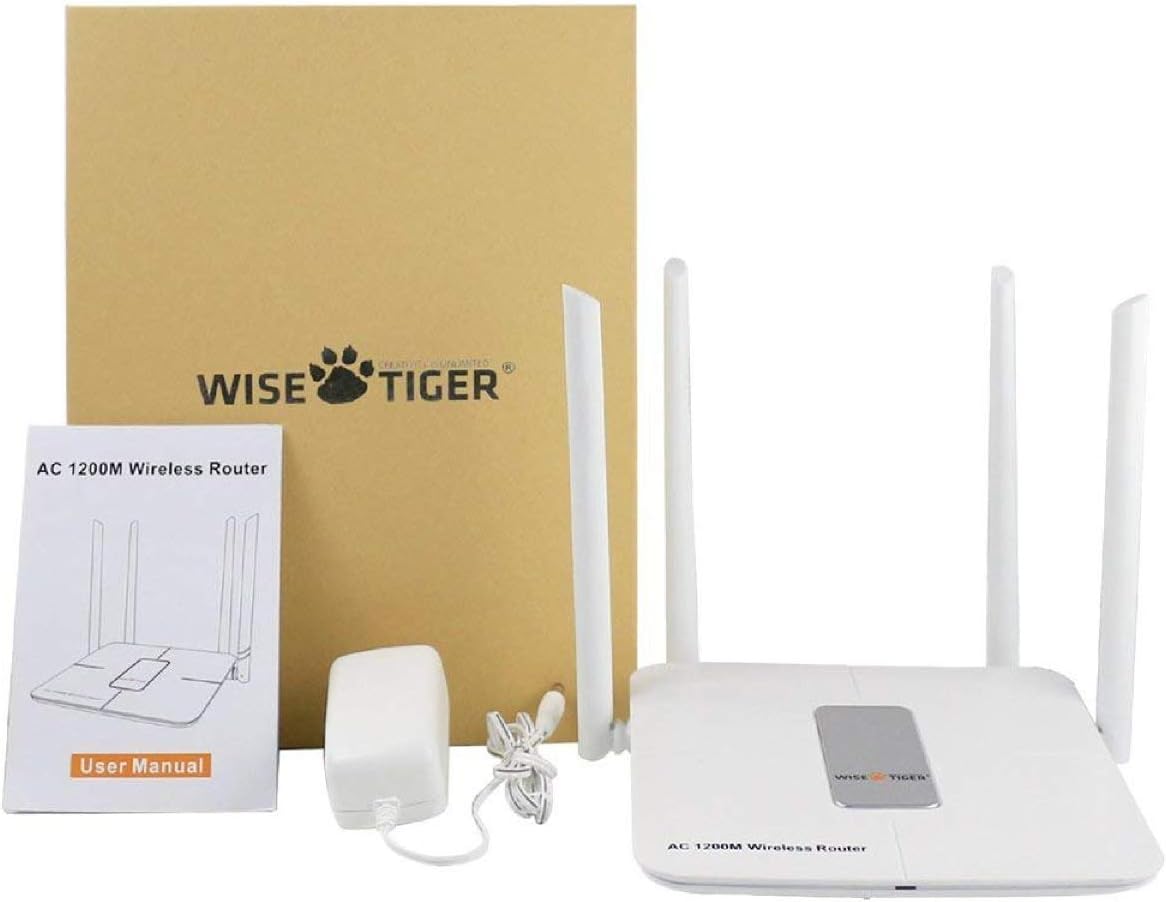
Figure 2: All components included in the WISE TIGER AC1200 Wireless Router package.
3. Product Diagram and Ports
Familiarize yourself with the router's physical layout and ports:

شکل 3: پیچھے view of the router with labeled ports.
- LAN پورٹس (x4): Connect your wired devices such as computers, gaming consoles, or smart TVs.
- Internet Port (WAN): Connect your modem's Ethernet cable to this port to receive internet access.
- پاور ان پٹ: فراہم کردہ پاور اڈاپٹر کو یہاں جوڑیں۔
- ری سیٹ بٹن: Used to restore the router to factory default settings. Press and hold for several seconds while the router is powered on.
- WPS بٹن: For quick and secure wireless connection setup with WPS-compatible devices.
4. وضاحتیں
| فیچر | تفصیلات |
|---|---|
| برانڈ | WISE TIGER |
| ماڈل کا نام | WT-RT8501 |
| وائرلیس قسم | 802.11a/b/g/n/ac |
| فریکوئنسی بینڈ کلاس | ڈوئل بینڈ (2.4 GHz اور 5 GHz) |
| ڈیٹا کی منتقلی کی شرح | 300Mbps (2.4GHz)، 866Mbps (5GHz) تک |
| اینٹینا | 4 x 5dBi بیرونی اینٹینا |
| ایتھرنیٹ پورٹس | 1 x WAN, 4 x LAN (10/100Mbps) |
| بٹن | WPS, Reset |
| سیکورٹی | WPA/WPA2-PSK, Firewall, Parental Controls, Guest Network |
| آپریٹنگ سسٹم کی مطابقت | Windows XP/7/8/10/Vista, Mac, Android |
| شے کا وزن | 2.75 اونس |
| مصنوعات کے طول و عرض | 1.48 x 6.6 x 5.58 انچ |

Figure 4: Router dimensions for placement planning.
5. سیٹ اپ گائیڈ
Follow these steps to set up your WISE TIGER AC1200 Wireless Router:
5.1 ابتدائی ہارڈ ویئر کنکشن
- WAN کیبل کو جوڑیں: Plug the broadband wire from your modem into the blue WAN port on the router.
- Connect LAN Cable (Optional): For wired devices, connect one end of the network patch cable to a yellow LAN port on the router and the other end to your PC's LAN network port.
- پاور آن: پاور اڈاپٹر کو روٹر کے پاور ان پٹ سے جوڑیں اور اسے الیکٹریکل آؤٹ لیٹ میں لگائیں۔
5.2 تک رسائی حاصل کرنا Web انٹرفیس
- Join Wi-Fi: On your computer or mobile device, connect to the router's default Wi-Fi network. The default Wi-Fi name (SSID) and password can usually be found on a sticker on the bottom of the router.
- براؤزر کھولیں: کھولنا a web براؤزر (جیسے کروم، فائر فاکس، ایج)۔
- آئی پی ایڈریس درج کریں: ایڈریس بار میں، ٹائپ کریں۔
192.168.0.1اور انٹر دبائیں۔ - لاگ ان: Enter the default username and password. Typically, both are
admin.
5.3 WAN Setup (Internet Connection Type)
Select the connection type provided by your Internet Service Provider (ISP):
- پی پی پی او ای: If your ISP provides a username and password for internet access, select PPPoE and enter the credentials.
- جامد IP: If your ISP provided a fixed IP address, subnet mask, default gateway, and DNS settings, select Static IP and input these details.
- متحرک IP: If your ISP uses a DHCP server, select Dynamic IP. The router will automatically obtain network settings. No account or static IP info is needed.
- PPTP/L2TP: If your ISP provided PPTP/L2TP connection details including a server IP or domain, select this option and enter the required information.
- WISP (Wireless ISP): This mode allows the router to connect to another Wi-Fi network as its internet source, acting as a Wi-Fi repeater. Select a Wi-Fi network from the list and log in with its password.
5.4 وائرلیس ترتیبات
Configure your Wi-Fi networks for both 2.4GHz and 5GHz bands:
- Wi-Fi نام (SSID): Change the default Wi-Fi name to a custom one for easy identification.
- خفیہ کاری: Select a strong encryption type, such as WPA2-PSK, for network security.
- Wi-Fi پاس ورڈ: Set a strong, unique password for your Wi-Fi network.
- بینڈ چوڑائی: Adjust the channel width for optimal performance (e.g., 20/40MHz for 2.4GHz, 40/80MHz for 5GHz).
Video 1: Official product video demonstrating the unboxing, features, and installation process of the WISE TIGER AC1200 Wireless Router.
6. آپ کے راؤٹر کو آپریٹ کرنا
6.1 بہترین جگہ کا تعین
For the best wireless performance, place your router in a central location, away from obstructions like thick walls, metal objects, and other electronic devices that may cause interference. The four high-gain external antennas are designed to provide extensive coverage.

Figure 5: Illustration of the router's high-power signal penetration.

Figure 6: Visual representation of 2.4GHz (longer distance) and 5GHz (faster transmission) band characteristics.
6.2 اعلی درجے کی خصوصیات
- والدین کے کنٹرول: Manage and restrict internet access for specific devices or users.
- مہمان نیٹ ورک: Create separate Wi-Fi networks for guests, providing internet access without sharing your main network password or resources. The router supports up to 3 guest access points.
- فائر وال: The built-in firewall helps protect your network from unauthorized access and malicious attacks.
- MAC Filtering (Restricted List): You can block or allow specific devices on your network based on their MAC addresses. This feature is found under the 'Restricted list' in the web انٹرفیس
- بینڈوتھ کنٹرول: Allocate specific download and upload limits to connected devices to manage network traffic effectively. This can be configured in the 'Bandwidth Control' section of the web انٹرفیس
7 دیکھ بھال
باقاعدگی سے دیکھ بھال آپ کے روٹر کی بہترین کارکردگی اور لمبی عمر کو یقینی بناتی ہے:
- فرم ویئر اپ ڈیٹس: Periodically check the WISE TIGER official website for firmware updates. Updating firmware can improve performance, add new features, and fix bugs.
- باقاعدہ ریبوٹ: Rebooting your router every few weeks can help clear its memory and resolve minor connectivity issues. Simply unplug the power adapter, wait 10 seconds, and plug it back in.
- صفائی: راؤٹر کو صاف اور دھول سے پاک رکھیں۔ بیرونی حصے کو صاف کرنے کے لیے نرم، خشک کپڑا استعمال کریں۔ اس بات کو یقینی بنائیں کہ وینٹیلیشن کے سوراخوں کو مسدود نہیں کیا گیا ہے۔
8 خرابیوں کا سراغ لگانا
اگر آپ کو اپنے راؤٹر کے ساتھ مسائل کا سامنا ہے، تو درج ذیل حل آزمائیں:
- انٹرنیٹ تک رسائی نہیں:
- Check all cable connections (WAN, LAN, Power) to ensure they are secure.
- Verify your modem is working correctly. Try rebooting both the modem and the router.
- Confirm your WAN settings in the router's web interface match your ISP's requirements.
- کمزور وائی فائی سگنل یا ڈیڈ زون:
- راؤٹر کو اپنے گھر/دفتر میں زیادہ مرکزی مقام پر منتقل کریں۔
- سگنل کی بہتر سمت کے لیے روٹر کے اینٹینا کو ایڈجسٹ کریں۔
- دیگر الیکٹرانک آلات (کارڈ لیس فون، مائیکرو ویوز) سے مداخلت کو کم سے کم کریں۔
- Consider using the WISP mode to extend coverage if you have another Wi-Fi network.
- راؤٹر تک رسائی حاصل نہیں کر سکتے Web انٹرفیس:
- Ensure your device is connected to the router's Wi-Fi or via an Ethernet cable to a LAN port.
- تصدیق کریں کہ آپ درست IP ایڈریس ٹائپ کر رہے ہیں (
192.168.0.1). - اپنے براؤزر کے کیشے اور کوکیز کو صاف کریں، یا کوئی مختلف براؤزر آزمائیں۔
- If you forgot your login credentials, you may need to perform a factory reset.
- از سرے نو ترتیب: If all else fails, use a paperclip or pin to press and hold the Reset button on the back of the router for about 10 seconds while it is powered on. This will restore all settings to their factory defaults, including Wi-Fi name and password. You will then need to reconfigure the router.
9. وارنٹی اور سپورٹ
WISE TIGER provides a 1 سال کی وارنٹی for this product. In case the product does not meet your satisfaction or experiences issues within this period, a new replacement will be provided.
For technical support or warranty claims, please refer to the contact information provided in your product packaging or visit the official WISE TIGER webسب سے تازہ ترین سپورٹ وسائل کے لیے سائٹ۔
وارنٹی مقاصد کے لیے براہ کرم اپنی خریداری کا ثبوت اپنے پاس رکھیں۔
Ask a question about this manual
Ask about setup, troubleshooting, compatibility, parts, safety, or missing instructions. Manuals+ will review the question and use this page’s manual context to help answer it.