
VIISAN VF3240
VIISAN VF3240 Large Format Flatbed Scanner User Manual
Comprehensive instructions for setup, operation, maintenance, and troubleshooting of your VIISAN VF3240 A3 Flatbed Scanner.
1. تعارف
This manual provides detailed instructions for the installation, operation, and maintenance of your VIISAN VF3240 Large Format Flatbed Scanner. Please read this manual thoroughly before using the device to ensure proper functionality and to prevent damage.
The VIISAN VF3240 is an A3 large format flatbed scanner designed for high-quality scanning of various documents and media, including photos, books, magazines, newspapers, and CAD drawings. It supports scanning items up to 12'' x 17'' (297 x 420 mm).
2. پروڈکٹ ختمview
2.1 کلیدی خصوصیات
- Large Format Scanning: A3 size (297 x 420 mm / 11.7" x 16.7") for various documents and media.
- اعلی قرارداد: Maximum optical resolution of 2400 x 2400 dpi with 48-bit color depth.
- تیز اسکیننگ کی رفتار: Scans an A3-sized color document in approximately 4 seconds at 200 dpi.
- صارف دوست ڈیزائن: Frameless and narrow boundary design, with four-panel buttons for quick functions (Scan, Email, Print, PDF).
- آٹو اسکین فنکشن: Automatically initiates scanning when the scanner lid is closed, enhancing continuous scanning efficiency.
- ایل ای ڈی روشنی ماخذ: Energy-efficient with no warm-up time required.
- Adjustable Lid: Designed to accommodate scanning of thick books and bound materials.
- CIS Sensor: Utilizes a Contact Image Sensor, suitable for scanning flat paper images. Not recommended for three-dimensional objects.
2.2 Package Contents (In The Box)
تصدیق کریں کہ تمام اشیاء پیکیج میں موجود ہیں:
- VIISAN VF3240 Flatbed Scanner
- پاور اڈاپٹر
- USB کیبل
- Installation Disc (containing drivers and software)

Image: Contents of the VIISAN VF3240 package, including the scanner, power adapter, USB cable, and installation disc.
3. سیٹ اپ
3.1 ہارڈ ویئر کی تنصیب
- سکینر کھولیں: پیکنگ سے سکینر اور تمام لوازمات کو احتیاط سے ہٹا دیں۔
- سکینر رکھیں: Position the scanner on a stable, flat surface near your computer. Ensure adequate space for opening the scanner lid.
- پاور سے رابطہ کریں: Connect the power adapter to the scanner's power input port, then plug the adapter into an electrical outlet.
- کمپیوٹر سے جڑیں: Connect one end of the provided USB cable to the scanner's USB port and the other end to an available USB port on your computer.

Image: The VIISAN VF3240 scanner with a document being scanned, illustrating its large format capability.
3.2 سافٹ ویئر کی تنصیب
The VIISAN VF3240 requires driver and software installation for full functionality. Use the provided installation disc or download the latest software from the official VIISAN webسائٹ
- Insert Installation Disc: If using the disc, insert it into your computer's CD/DVD drive. The installer should launch automatically. If not, navigate to the disc drive and run the setup file.
- Download Software (Alternative): If your computer lacks a disc drive or for the latest versions, visit the official VIISAN website. Navigate to the support or download section for the VF3240 model.
- آن اسکرین ہدایات پر عمل کریں: Proceed with the installation wizard, accepting license agreements and choosing installation locations as prompted.
- کمپیوٹر کو دوبارہ شروع کریں: انسٹالیشن مکمل ہونے کے بعد، تمام ڈرائیوروں کو صحیح طریقے سے لوڈ کرنے کو یقینی بنانے کے لیے اپنے کمپیوٹر کو دوبارہ شروع کرنے کی سفارش کی جاتی ہے۔

Image: Guide for downloading VIISAN OfficeCam software from the official website, illustrating product and software selection.
ڈرائیور مطابقت:
- ونڈوز: Supports TWAIN and WIA drivers. Compatible with Windows 7/8.1/10/11. For 2400 dpi scanning, use the supplied ViiScan software. Note that WIA currently supports up to 600 dpi due to Microsoft limitations.
- macOS: Supports ICA (Image Capture) driver. Compatible with macOS 10.15 or later. The VF3240 scanner software can achieve 2400 dpi for full-size A3 documents on macOS.

Image: Driver and software compatibility table for Windows and macOS, detailing supported versions and software.

Image: The VIISAN VF3240 scanner interface within the macOS Image Capture application, demonstrating M1/M2 Mac compatibility.
4. آپریٹنگ ہدایات
4.1 بنیادی سکیننگ کا طریقہ کار
- پاور آن: Press the Power button on the scanner. The indicator light will illuminate.
- جگہ کی دستاویز: Lift the scanner lid and place the document face down on the scanner glass. Align the document with the corner guide. For thick items like books, the lid can be slightly raised to accommodate.
- ڑککن بند کریں: اسکینر کے ڈھکن کو آہستہ سے بند کریں۔
- اسکین شروع کریں:
- Using Scanner Buttons: Press one of the four function buttons on the scanner (Scan, Email, Print, PDF) to perform a quick action.
- سافٹ ویئر کا استعمال: Open the ViiScan software (Windows) or Image Capture (macOS) on your computer and select the desired scanning options (resolution, color mode, file format, destination). Click the "Scan" button within the software.
- آٹو اسکین فنکشن: If enabled in the software, the scanner can automatically begin scanning when the lid is closed, facilitating continuous scanning.
- Retrieve Scan: Once scanning is complete, the image will be saved to the specified location on your computer.

Image: The VIISAN VF3240 scanner with an A3 document on the flatbed, highlighting its large scanning area and frameless design.

Image: The scanner's one-touch buttons for various functions (Power, Print, Email, PDF, Scan) and supported output file formats like BMP, PNG, JPEG, PDF, TIF, GIF, and multi-page PDF/TIF.
4.2 Scanning Thick Materials
The VIISAN VF3240 features an adjustable lid design, allowing it to scan thick items such as books or magazines without damaging the binding or the scanner. Simply lift the lid to the desired height and place the item on the glass. The lid will rest gently on the item, ensuring even pressure during scanning.

Image: The adjustable lid of the VIISAN VF3240 scanner, demonstrating its ability to scan thick books up to 2.4 cm.
4.3 Resolution and Quality Settings
The scanner offers various resolution settings to suit different scanning needs. Higher DPI (dots per inch) results in more detailed images but also larger file sizes and longer scanning times.
| ڈی پی آئی | عام استعمال | Scan Speed (A3 Color) |
|---|---|---|
| 100-300 dpi | Simple papers, cards, documents for quick digital archiving. | ~4-6 seconds |
| 600 ڈی پی آئی | Documents with photos, detailed text, general purpose high-quality scans. | ~21 سیکنڈ |
| 1200-2400 dpi | Artwork, publications, photos for professional use or high-detail preservation. | ~100-400 seconds (depending on area and OS) |
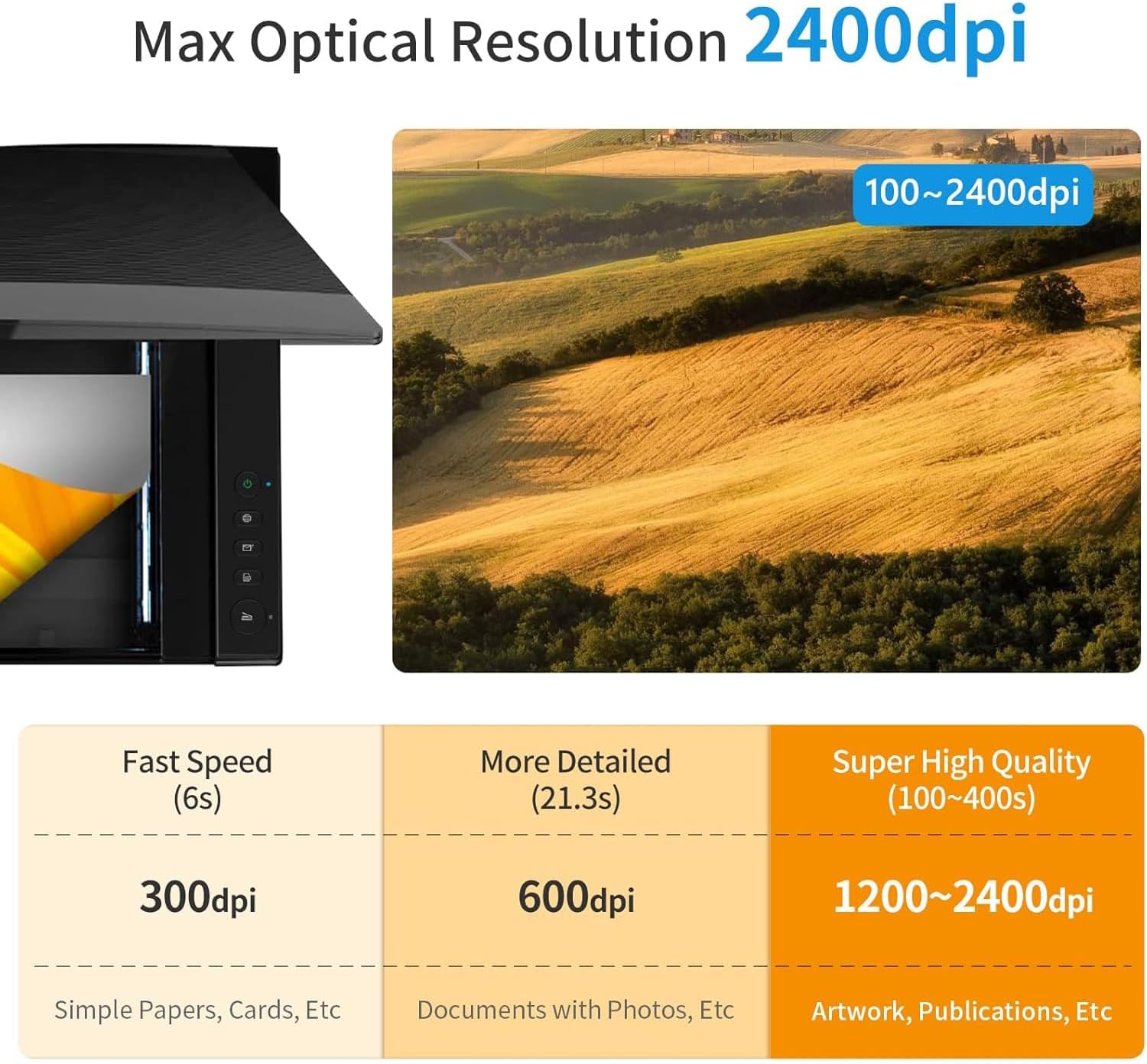
Image: Visual representation of scan quality and speed at various DPI settings, from 300dpi to 2400dpi.

Image: Detailed comparison of scan quality at 600 dpi and 2400 dpi, illustrating the enhanced detail captured at higher resolutions.
5 دیکھ بھال
5.1 سکینر کی صفائی
Regular cleaning helps maintain optimal scan quality. Dust or debris on the scanner glass can cause lines or spots on scanned images.
- بجلی بند: Ensure the scanner is powered off and unplugged from the electrical outlet before cleaning.
- صاف شیشے کی سطح: ہلکے سے نرم، لنٹ سے پاک کپڑا استعمال کریں۔ampened with a mild, non-abrasive glass cleaner. Wipe the scanner glass gently. Avoid spraying cleaner directly onto the glass.
- صاف بیرونی: Wipe the exterior of the scanner with a soft, dry cloth.
- خشک کرنے کی اجازت دیں: Ensure all surfaces are completely dry before plugging the scanner back in and powering it on.
اہم نوٹ: If white lines appear during scanning, it often indicates that the scanner glass needs cleaning. Refer to the troubleshooting section or contact customer service for guidance on proper cleaning procedures if the issue persists.
6 خرابیوں کا سراغ لگانا
6.1 عام مسائل اور حل
- سکینر آن نہیں ہو رہا ہے:
- Check if the power adapter is securely connected to both the scanner and a working electrical outlet.
- Ensure the power button on the scanner is pressed.
- سکینر کا کمپیوٹر سے پتہ نہیں چلا:
- Verify the USB cable is securely connected to both the scanner and the computer. Try a different USB port.
- Ensure the scanner drivers are correctly installed. Reinstall drivers if necessary.
- اپنے کمپیوٹر کو دوبارہ شروع کریں۔
- White Lines or Spots on Scanned Images:
- This typically indicates dust or smudges on the scanner glass. Refer to Section 5.1 for cleaning instructions.
- اگر صفائی کے بعد بھی مسئلہ برقرار رہتا ہے تو کسٹمر سپورٹ سے رابطہ کریں۔
- Blurred Areas in Scans:
- Ensure the document is laid perfectly flat on the scanner glass. Folds or uneven surfaces can cause blurriness, especially with CIS sensors.
- Verify the scanner lid is fully closed or resting evenly on the document.
- سست سکیننگ کی رفتار:
- Check the selected DPI setting. Higher resolutions (e.g., 2400 dpi) will naturally take longer.
- Ensure your computer meets the minimum system requirements and has sufficient free RAM and processor power.
7. وضاحتیں
| فیچر | تفصیل |
|---|---|
| ماڈل کا نام | VIISAN VF3240 |
| سکینر کی قسم | Flatbed, Photo, Document, Book |
| زیادہ سے زیادہ اسکین سائز | A3 (297 x 420 mm / 11.7" x 16.7") |
| آپٹیکل قرارداد | 2400 x 2400 dpi |
| رنگ کی گہرائی | 48 بٹ |
| سینسر کی قسم | سی آئی ایس (رابطہ سینسر) |
| اسکین کی رفتار | ~4 seconds (A3 color, 200 dpi) |
| کنیکٹوٹی | یو ایس بی |
| مصنوعات کے طول و عرض | 15.51"D x 22.24"W x 2.4"H (39.4 x 56.5 x 6.1 سینٹی میٹر) |
| شے کا وزن | 14.65 پاؤنڈ (6.65 کلوگرام) |
| واٹtage | 9 واٹ |
| تعاون یافتہ OS | Windows 7/8.1/10/11, macOS 10.15 or later |
8. وارنٹی اور سپورٹ
8.1 محدود وارنٹی
The VIISAN VF3240 scanner comes with a 1 سال کی محدود وارنٹی covering non-man-made damage from the date of purchase. Please retain your proof of purchase for warranty claims.
This warranty does not cover damage resulting from misuse, accidents, unauthorized modifications, or failure to follow the instructions in this manual.
8.2 کسٹمر سپورٹ
For technical assistance, usage guidance, software updates, or warranty inquiries, please contact VIISAN customer service:
- ای میل: info@viisan.com
- Importer Support Email: support@spedaltech.com
When contacting support, please provide your product model (VF3240) and a detailed description of the issue.


Image: VIISAN warranty and customer support details, including contact information.
متعلقہ دستاویزات - VF3240
 |
VIISAN Scanner: How to Use Image Capture on Mac for Scanning Learn how to use Apple's Image Capture application on your Mac with VIISAN scanners. This guide covers driver installation, scanning settings, and troubleshooting for VIISAN A3 flatbed scanner models like VF3240 and VF3120, suitable for documents, photos, and books. |
 |
VIISAN VF3120/VF3240 A3 High Speed Flatbed Scanners Quick Start Guide Quick start guide for VIISAN VF3120 and VF3240 A3 High Speed Flatbed Scanners, covering unpacking, software installation, hardware connection, and scanning operations using Event Utility and ViiScan software. |
 |
VIISAN VF3240/VF3120 A3 High Speed Flatbed Scanner User Manual Comprehensive user manual for the VIISAN VF3240 and VF3120 A3 High Speed Flatbed Scanners, covering installation, software usage (ViiScan, Event Utility), scanning operations, image processing, maintenance, troubleshooting, and technical specifications. |
 |
VIISAN A3 High Speed Flatbed Scanner Quick Start Guide A quick start guide for the VIISAN A3 High Speed Flatbed Scanner (Models VF3240, VF3120), covering software installation, scanner connection, using scanning utilities (Event Utility, ViiScan), scan button functions, LED status, and essential safety precautions. |
 |
VIISAN A3 سکینر: میک پر امیج کیپچر کا استعمال اور ICA ڈرائیور کی تنصیب کا مسئلہ حل کرنا MacOS پر VIISAN A3 اسکینرز کے ساتھ Apple کی امیج کیپچر ایپلی کیشن کے استعمال کے بارے میں ایک جامع گائیڈ، بشمول ICA ڈرائیور کی تنصیب کے مسائل کے سیٹ اپ، سکیننگ، اور ٹربل شوٹنگ کے تفصیلی اقدامات۔ |
 |
VIISAN OfficeCam صارف دستی برائے میک میک او ایس پر VIISAN OfficeCam اسکیننگ سوفٹ ویئر کے لیے یوزر مینوئل، انسٹالیشن، فیچرز، اور دستاویز، کتاب، بارکوڈ، ID، اور ویڈیو اسکیننگ کے لیے ٹربل شوٹنگ کی تفصیل۔ |
Ask a question about this manual
Ask about setup, troubleshooting, compatibility, parts, safety, or missing instructions. Manuals+ will review the question and use this page’s manual context to help answer it.