
MERCUSYS MR50G
Mercusys MR50G AC1900 Dual-Band Wi-Fi 5 Router User Manual
Model: MR50G
تعارف
This manual provides comprehensive instructions for setting up, operating, maintaining, and troubleshooting your Mercusys MR50G AC1900 Dual-Band Wi-Fi 5 Router. The MR50G is designed to deliver high-speed wireless connectivity with AC1900 speeds, Gigabit Ethernet ports, and advanced features like MU-MIMO and Beamforming.

تصویر: سامنے view of the Mercusys MR50G router, illustrating its dual-band capabilities with 5GHz (1300 Mbps) and 2.4GHz (600 Mbps) speeds.
سیٹ اپ گائیڈ
1. پیکیج کے مشمولات
تصدیق کریں کہ آپ کے پیکیج میں درج ذیل آئٹمز ہیں:
- Mercusys MR50G AC1900 Dual-Band Wi-Fi 5 Router
- پاور اڈاپٹر
- ایتھرنیٹ کیبل
- Quick Installation Guide (User Guide)
2. جسمانی تعلق
اپنے راؤٹر کو جوڑنے کے لیے ان اقدامات پر عمل کریں:
- بجلی بند: اپنے موڈیم اور روٹر سے پاور منقطع کریں (اگر قابل اطلاق ہو)۔
- موڈیم کو راؤٹر سے جوڑیں: Connect one end of the provided Ethernet cable to the WAN port (usually blue) on your MR50G router and the other end to your modem's Ethernet port.
- کنیکٹ ڈیوائسز (اختیاری): For wired connections, connect your computer or other devices to the LAN ports (yellow) on the MR50G router using Ethernet cables.
- پاور آن: Connect the power adapter to the router's power port and plug it into a power outlet. Power on your modem, then power on the MR50G router.
- اشارے کا انتظار کریں: Wait for the router's LED indicators to stabilize. The Power LED should be solid green.
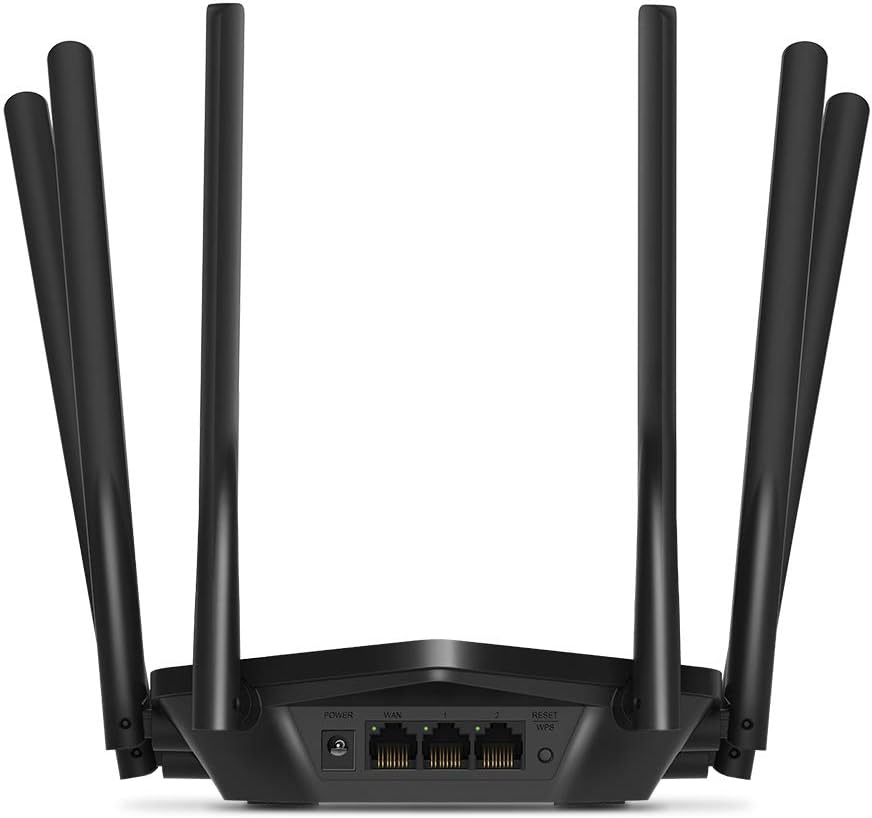
تصویر: پیچھے view of the Mercusys MR50G router, illustrating the power input, WAN port (blue), and three LAN ports (yellow) for wired connections, along with the Reset/WPS button.
3. ابتدائی ترتیب
پہلی بار اپنے راؤٹر کو کنفیگر کرنے کے لیے:
- Wi-Fi سے جڑیں: Connect your computer or mobile device to the router's default Wi-Fi network (SSID and password are typically printed on a label on the bottom of the router).
- رسائی Web انٹرفیس: کھولنا a web براؤزر اور ٹائپ کریں۔
mwlogin.netor192.168.1.1ایڈریس بار میں - لاگ ان پاس ورڈ بنائیں: Follow the on-screen instructions to create a login password for the router's management page.
- Follow Quick Setup: The Quick Setup wizard will guide you through basic internet and wireless settings.
آپریٹنگ ہدایات
1. Basic Wi-Fi Settings
لاگ ان کرنے کے بعد web انٹرفیس:
- نیٹ ورک کا نام (SSID): Navigate to the Wireless settings to change your Wi-Fi network names (SSIDs) for both 2.4 GHz and 5 GHz bands.
- پاس ورڈ: Set a strong, unique password for your Wi-Fi networks. The MR50G supports WPA3 for enhanced security.
- سیکورٹی کی قسم: It is recommended to use WPA2-PSK/WPA3-Personal for optimal security.
2 ڈوئل بینڈ آپریشن
The MR50G operates on two frequency bands:
- 2.4 GHz: وسیع کوریج اور دیواروں کے ذریعے بہتر رسائی فراہم کرتا ہے، عام انٹرنیٹ کے استعمال اور پرانے آلات کے لیے موزوں ہے۔
- 5 GHz: Offers faster speeds and less interference, ideal for bandwidth-intensive activities like 4K streaming and online gaming, but with a shorter range.
You can configure separate SSIDs for each band or use Smart Connect to combine them into a single SSID, allowing the router to automatically assign devices to the optimal band.
3 رسائی پوائنٹ موڈ
To use the MR50G as an Access Point (AP) to extend an existing wired network:
- جڑیں: Connect an Ethernet cable from your existing router's LAN port to one of the MR50G's LAN ports (not the WAN port).
- تشکیل دیں: Log into the MR50G's web interface, navigate to the Operation Mode settings, and select "Access Point Mode". Follow the prompts to complete the setup.
4. اعلی درجے کی خصوصیات
- MU-MIMO: Multi-User, Multiple-Input, Multiple-Output technology allows the router to communicate with multiple devices simultaneously, improving network efficiency.
- بیم فارمنگ: Focuses Wi-Fi signals towards connected devices, enhancing signal strength and range.
- وی پی این سپورٹ: The router supports VPN functionality, allowing for secure remote access or connection to VPN services. Refer to the router's web interface for specific VPN client/server configurations.
- والدین کے کنٹرول: Manage and restrict internet access for specific devices or users.
- مہمان نیٹ ورک: اپنے مرکزی نیٹ ورک کو محفوظ رکھتے ہوئے مہمانوں کے لیے علیحدہ وائی فائی نیٹ ورک بنائیں۔
دیکھ بھال
1. فرم ویئر اپڈیٹس
Regularly check for and install firmware updates to ensure optimal performance, security, and access to new features. Firmware updates can typically be found in the router's web interface under System Tools or Advanced settings.
2. راؤٹر کو دوبارہ ترتیب دینا
If you encounter persistent issues or forget your login password, you may need to reset the router to its factory default settings:
- With the router powered on, press and hold the Reset/WPS button on the back panel for approximately 5-10 seconds until the LED indicators flash.
- Release the button and wait for the router to restart. All settings will be restored to factory defaults.
3. بہترین جگہ کا تعین
For the best Wi-Fi coverage and performance:
- Place the router in a central location in your home or office.
- Avoid placing it near obstructions like thick walls, metal objects, or large appliances (microwaves, refrigerators) that can interfere with Wi-Fi signals.
- Elevate the router if possible, as Wi-Fi signals tend to spread downwards.

Image: Mercusys MR50G router positioned on a table, demonstrating a typical placement for optimal signal distribution within a living space.
خرابی کا سراغ لگانا
1 انٹرنیٹ تک رسائی نہیں ہے۔
- کنکشن چیک کریں: یقینی بنائیں کہ تمام ایتھرنیٹ کیبلز صحیح پورٹس سے محفوظ طریقے سے جڑی ہوئی ہیں (WAN سے موڈیم، LAN سے ڈیوائسز)۔
- آلات کو دوبارہ شروع کریں: اپنے موڈیم، پھر راؤٹر، اور پھر اپنے منسلک آلات کو پاور سائیکل کریں۔
- Check WAN LED: Verify that the WAN LED on the router is lit, indicating a connection to the modem.
- آئی ایس پی کی حیثیت: اپنے انٹرنیٹ سروس پرووائیڈر (ISP) سے رابطہ کریں اس بات کی تصدیق کرنے کے لیے کہ وہاں کوئی سروس نہیں ہے۔tagآپ کے علاقے میں ہے.
2 سست Wi-Fi کی رفتار
- راؤٹر کی جگہ کا تعین: Ensure the router is placed optimally (refer to "Optimal Placement" section).
- مداخلت: Move the router away from other electronic devices that may cause interference.
- بینڈ انتخاب: For speed-critical applications, ensure your device is connected to the 5 GHz band.
- چینل کی اصلاح: In the router's web interface, try changing the Wi-Fi channel for both 2.4 GHz and 5 GHz bands to a less congested one.
- فرم ویئر: یقینی بنائیں کہ آپ کے راؤٹر کا فرم ویئر اپ ٹو ڈیٹ ہے۔
3. Cannot Access Router Management Page
- آئی پی ایڈریس: Ensure you are using the correct address (
mwlogin.netor192.168.1.1). - وائرڈ کنکشن: Try accessing the page from a computer connected directly to the router via an Ethernet cable.
- براؤزر کیش کو صاف کریں: اپنے کو صاف کریں۔ web براؤزر کی کیش اور کوکیز، یا ایک مختلف براؤزر آزمائیں۔
- فائر وال/اینٹی وائرس: اپنے کمپیوٹر پر کسی بھی فائر وال یا اینٹی وائرس سافٹ ویئر کو عارضی طور پر غیر فعال کریں جو رسائی کو روک رہا ہو۔
- راؤٹر کو دوبارہ ترتیب دیں: If all else fails, perform a factory reset (refer to "Resetting the Router" section).
وضاحتیں
| ماڈل | MR50G (EU) |
| وائرلیس معیارات | IEEE 802.11a / b / g / n / ac |
| تعدد | 2.4 GHz and 5 GHz (Dual-Band) |
| ڈیٹا کی شرح | AC1900 (2.4 GHz پر 600 Mbps، 5 GHz پر 1300 Mbps) |
| ایتھرنیٹ پورٹس | 1x گیگابٹ WAN پورٹ، 3x گیگابٹ LAN پورٹس |
| انٹینا | 6x Fixed Omni-Directional Antennas |
| سیکورٹی | WPA-PSK / WPA2-PSK / WPA3-Personal |
| طول و عرض (W x D x H) | 15.72 x 17.56 x 4.5 سینٹی میٹر |
| وزن | 450 گرام |
| خصوصی خصوصیات | MU-MIMO, Beamforming, Access Point Mode, VPN Support, Parental Controls, Guest Network |
| پاور ان پٹ | 100-240V ~ 50/60Hz |
وارنٹی اور سپورٹ
Mercusys products come with a limited warranty. For detailed warranty information, please refer to the warranty card included with your product or visit the official Mercusys webسائٹ
For technical support, firmware updates, and additional resources, please visit the Mercusys support website. You can typically find contact information and FAQs there.
Official Mercusys Webسائٹ: www.mercusys.com
Ask a question about this manual
Ask about setup, troubleshooting, compatibility, parts, safety, or missing instructions. Manuals+ will review the question and use this page’s manual context to help answer it.