
VENZ R4040-V2
VENZ Indoor Camera R4040-V2 User Manual
Model: R4040-V2 | Brand: VENZ
پروڈکٹ ختمview
The VENZ Indoor Camera R4040-V2 is a 1080P HD home security camera designed for indoor use. It features 360° pan-tilt-zoom (PTZ) capabilities, two-way audio, motion detection, and night vision, making it suitable for monitoring babies, pets, or general home security.
کلیدی خصوصیات
- 1080P ایچ ڈی ریزولوشن: Provides clear and smooth video.
- 360° PTZ Functionality: Offers 360° horizontal rotation and 104° vertical view جامع کوریج کے لیے۔
- دو طرفہ آڈیو: مواصلات کے لیے بلٹ ان مائکروفون اور اسپیکر۔
- حرکت کا پتہ لگانا اور ٹریکنگ: Sends instant alerts and tracks detected movement.
- نائٹ ویژن: IR LEDs provide clear vision up to 28 feet in low light.
- ایک سے زیادہ اسٹوریج کے اختیارات: Supports cloud storage and up to 128GB Micro SD card (not included).
- وائس کنٹرول مطابقت: Works with Echo Show/Spot/Fire TV and Google Nest Hub/Chromecast.
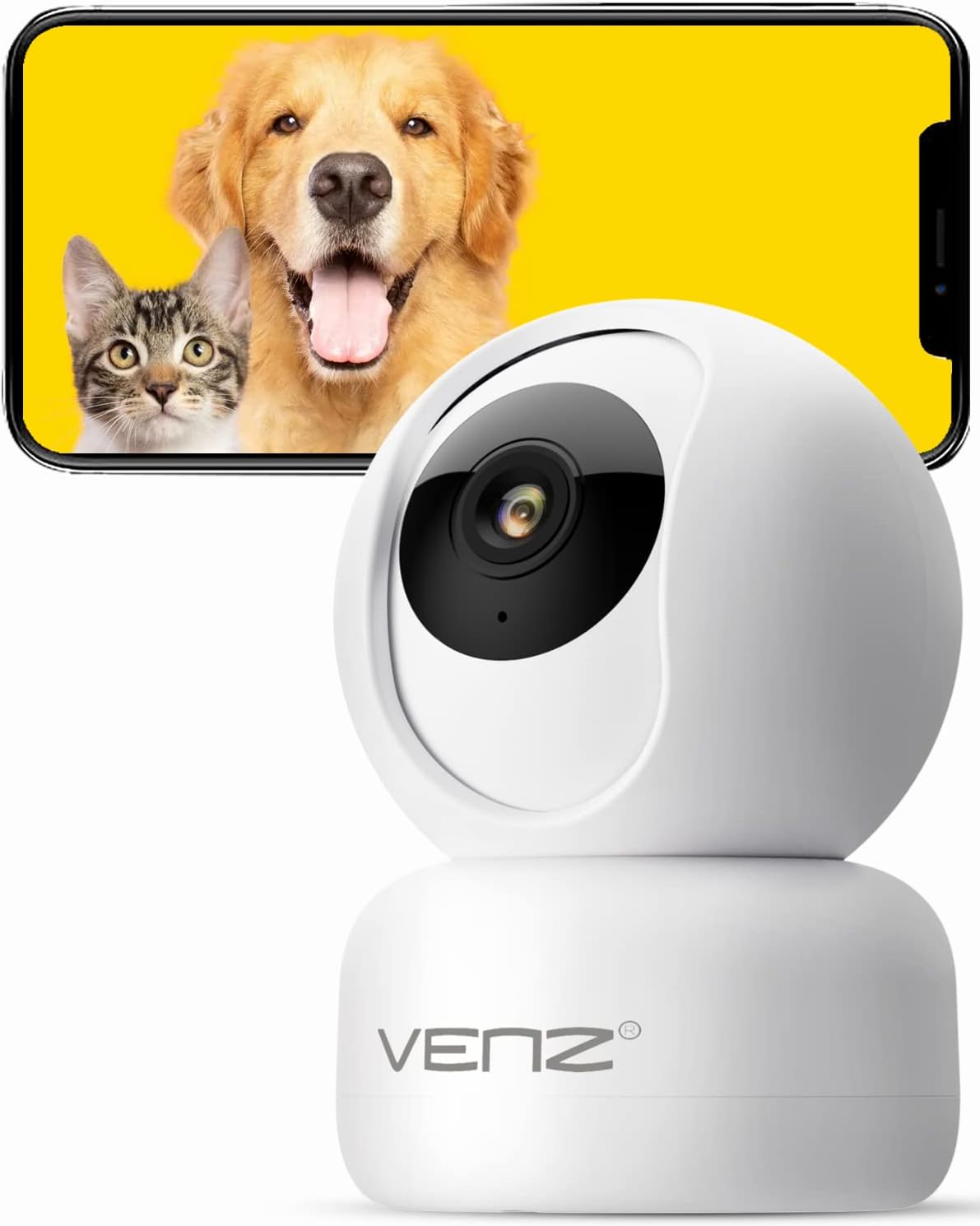
Image: The VENZ Indoor Camera R4040-V2, a white dome-shaped camera, shown next to a smartphone displaying live feed of a dog and a cat, illustrating its use for pet monitoring.
باکس میں کیا ہے۔
تنصیب کے ساتھ آگے بڑھنے سے پہلے تصدیق کریں کہ تمام اجزاء موجود ہیں۔
- اسمارٹ پی ٹی زیڈ کیمرہ x 1
- USB کیبل x 1
- یوزر مینوئل x 1
- بڑھتے ہوئے بریکٹ x 1
- اڈاپٹر x 1
- سکرو بیگ x 1۔
- پنچڈ اسٹیکر x 1
- پن x 1 کو دوبارہ ترتیب دیں۔
سیٹ اپ گائیڈ
1. کیمرہ آن کرنا
- Connect the provided USB cable to the camera's power port.
- Plug the USB cable into the adapter.
- Plug the adapter into a standard electrical outlet (DC 5V).
- کیمرے کی انڈیکیٹر لائٹ کے فلیش ہونے کا انتظار کریں، یہ بتاتا ہے کہ یہ سیٹ اپ کے لیے تیار ہے۔
2. ایپ انسٹال کرنا اور اکاؤنٹ بنانا
The VENZ Indoor Camera operates via the Woox Home App.
- Download the "Woox Home" app from the گوگل پلے اسٹور or ایپل ایپ اسٹور.
- Open the app and register for a new account if you don't have one, or log in with existing credentials.

Image: The Woox Home App logo, indicating compatibility with Amazon Alexa and Google Assistant, and showing the app interface on a smartphone and a smart display.
3. ایپ میں کیمرہ شامل کرنا
- In the Woox Home app, tap the "+" icon to add a new device.
- ڈیوائس کی فہرست سے "کیمرہ" یا "سیکیورٹی کیمرہ" منتخب کریں۔
- Follow the on-screen instructions to connect the camera to your 2.4GHz Wi-Fi network. Ensure your Wi-Fi password is correct.
- The app will display a QR code. Position your camera to scan this QR code from your phone screen. Hold the phone approximately 6-8 inches (15-20 cm) from the camera lens.
- Once the camera successfully scans the QR code, it will emit a confirmation sound. Tap "I heard a prompt" in the app.
- The camera will then connect to your Wi-Fi network. Once connected, you can name your camera and begin using it.

Image: A hand holding a smartphone displaying a QR code, with the VENZ Indoor Camera positioned to scan it, illustrating the quick setup process.
4. کیمرہ لگانا (اختیاری)
The camera can be placed on a flat surface or mounted to a wall or ceiling using the included bracket.
- Choose a suitable location for mounting, ensuring it has a clear view اور Wi-Fi رینج کے اندر ہے۔
- Use the punched sticker to mark the drilling positions on the wall/ceiling.
- سوراخ کریں اور دیوار کے اینکرز ڈالیں۔
- فراہم کردہ پیچ کا استعمال کرتے ہوئے بڑھتے ہوئے بریکٹ کو دیوار/چھت سے جوڑیں۔
- Secure the camera onto the mounting bracket by twisting it into place.
کیمرہ آپریٹ کرنا
جیو View اور PTZ کنٹرول
- Open the Woox Home app and select your camera from the device list.
- لائیو ویڈیو فیڈ ظاہر ہوگا۔
- Use the on-screen joystick or directional arrows to pan (rotate horizontally 360°) and tilt (rotate vertically 104°) the camera lens.
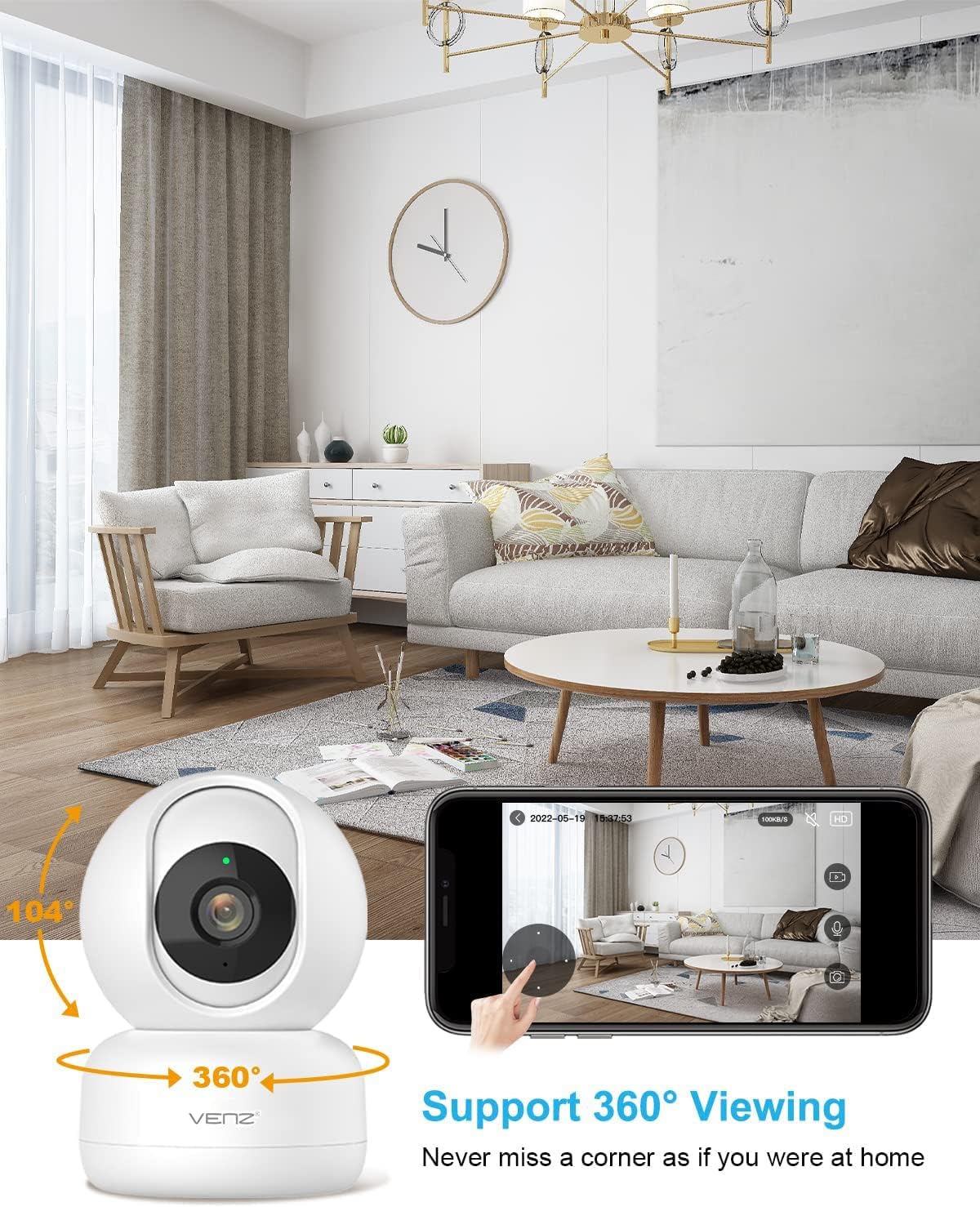
Image: The VENZ Indoor Camera with arrows indicating its 360-degree horizontal rotation and 104-degree vertical tilt capabilities, alongside a smartphone displaying the live view انٹرفیس
دو طرفہ آڈیو
- لائیو میں رہتے ہوئے ۔ view، کیمرے کے ذریعے بات کرنے کے لیے ایپ میں مائکروفون آئیکن کو تھپتھپائیں۔
- کیمرے کے ارد گرد سے آڈیو سننے کے لیے اسپیکر کے آئیکن کو تھپتھپائیں۔

Image: Illustrations showing a woman speaking into her phone and a child interacting with a dog near the camera, demonstrating the two-way audio communication feature.
حرکت کا پتہ لگانا اور ٹریکنگ
- Navigate to the camera settings within the Woox Home app.
- Enable "Motion Detection" to receive instant alerts on your phone when movement is detected.
- Activate "Motion Tracking" for the camera to automatically follow and keep the detected subject within its field of view.
- Adjust sensitivity levels and set activity areas as needed.

Image: A child and an adult entering a room, with the camera's motion tracking feature highlighted by red boxes, and a smartphone displaying a "Motion Tracking Detection" notification from the Woox Home app.

Image: Two cats in a living room, with one jumping and the other sitting, demonstrating the camera's motion tracking capability by highlighting the subjects with yellow crosses, and a smartphone showing real-time motion detection notifications.
نائٹ ویژن
- کم روشنی والے حالات میں کیمرہ خود بخود نائٹ ویژن موڈ میں بدل جاتا ہے۔
- Infrared LEDs provide clear black-and-white video up to 28 feet (8.5 meters).
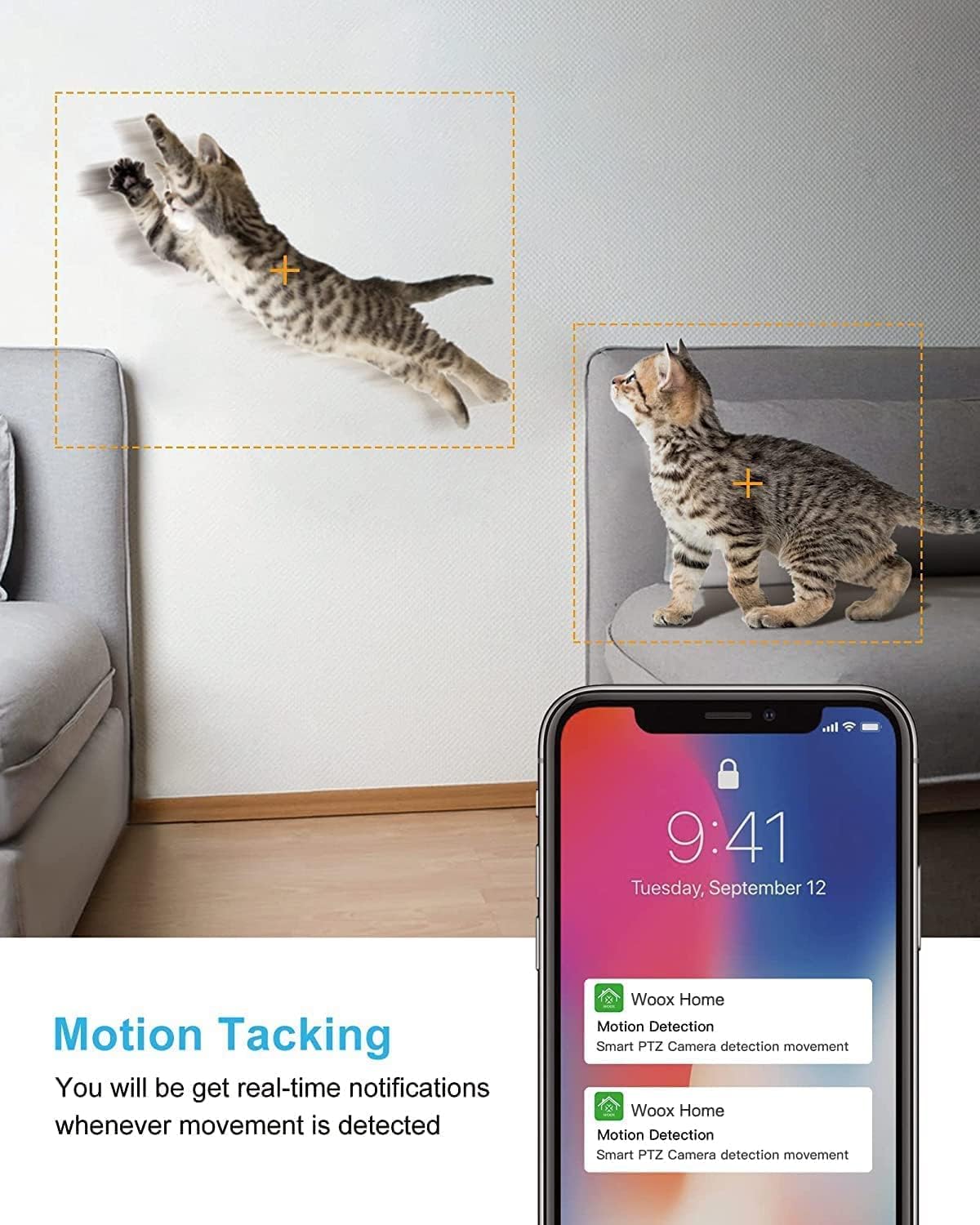
Image: A split image showing a baby sleeping in a crib in a dark room (top, black and white) and a woman viewing a clear image on her phone in bed (bottom), illustrating the camera's clear night vision capability.
اسٹوریج اور پلے بیک
- مائیکرو ایسڈی کارڈ: Insert a Micro SD card (up to 128GB, not included) into the camera's slot for local storage of recordings.
- کلاؤڈ اسٹوریج: Subscribe to the optional cloud storage service via the Woox Home app for secure, encrypted data storage.
- ریکارڈ شدہ foo تک رسائی حاصل کریں۔tagایپ میں "پلے بیک" یا "ہسٹری" سیکشن کے ذریعے۔

Image: The VENZ Indoor Camera with an arrow pointing to its Micro SD card slot and a cloud icon with a shield, illustrating both local (Micro SD) and cloud storage options for recording and playback.
Multi-User and Multi-Device Access
- Share camera access with family members through the Woox Home app.
- ایپ سپورٹ کرتی ہے۔ viewing multiple Wi-Fi cameras simultaneously (up to 4 live videos on one screen).
دیکھ بھال
- صفائی: کیمرے کے لینس اور جسم کو صاف کرنے کے لیے نرم، خشک کپڑا استعمال کریں۔ کھرچنے والے کلینر یا سالوینٹس سے پرہیز کریں۔
- فرم ویئر اپ ڈیٹس: Regularly check for and install firmware updates through the Woox Home app to ensure optimal performance and security.
- نیٹ ورک استحکام: Ensure your Wi-Fi network is stable and strong to prevent connection issues and maintain continuous monitoring.
- ایسڈی کارڈ مینجمنٹ: If using a Micro SD card, periodically check its storage capacity and format it if necessary to prevent data corruption.
خرابی کا سراغ لگانا
| مسئلہ | ممکنہ وجہ | حل |
|---|---|---|
| کیمرا آف لائن/وائی فائی سے منسلک نہیں ہو سکتا |
|
|
| Poor video quality/Lagging feed |
|
|
| حرکت کا پتہ لگانا کام نہیں کر رہا ہے۔ |
|
|
| No audio/Poor two-way audio |
|
|
| SD کارڈ ریکارڈنگ نہیں کر رہا ہے۔ |
|
|
وضاحتیں
| فیچر | تفصیل |
|---|---|
| ماڈل نمبر | R4040-V2 |
| انڈور / آؤٹ ڈور استعمال | انڈور |
| ویڈیو کیپچر ریزولوشن | 1080ص |
| فیلڈ آف۔ View | 360 ڈگری (پین)، 104 ڈگری (جھکاؤ) |
| نائٹ ویژن رینج۔ | 28 فٹ (8.5 میٹر) |
| کنیکٹیویٹی پروٹوکول | Wi-Fi (صرف 2.4GHz) |
| طاقت کا منبع | کورڈڈ الیکٹرک (DC 5V) |
| کنٹرولر کی قسم | گوگل اسسٹنٹ ، ایمیزون الیکسا |
| اسٹوریج کے اختیارات | کلاؤڈ اسٹوریج، مائیکرو ایس ڈی کارڈ (128 جی بی تک) |
| طول و عرض (L x W x H) | 2.91 x 2.91 x 4.21 انچ |
| شے کا وزن | 13.1 اونس |
| مواد | پیویسی |
| یو پی سی | 751004742501 |
وارنٹی اور سپورٹ
وارنٹی کی معلومات
وارنٹی کی مخصوص تفصیلات عام طور پر آپ کی خریداری کی دستاویزات کے ساتھ یا مینوفیکچرر کے اہلکار پر فراہم کی جاتی ہیں۔ website. Please refer to the warranty card included in your product packaging for the most accurate and up-to-date information regarding coverage and duration.
کسٹمر سپورٹ
For technical assistance, troubleshooting, or any inquiries regarding your VENZ Indoor Camera, please visit the official VENZ website or contact their customer support team. You can often find contact information (email, phone, or support portal) on the product packaging or the brand's online presence.
Visit the official VENZ Store for more information and support: VENZ Store on Amazon
Ask a question about this manual
Ask about setup, troubleshooting, compatibility, parts, safety, or missing instructions. Manuals+ will review the question and use this page’s manual context to help answer it.