
1. پروڈکٹ ختمview
The SIIG JU-DK0L11-S1 is a versatile USB 3.0 Dual Monitor Docking Station designed to expand your laptop or desktop's connectivity and display capabilities. It supports up to two 1080p@60Hz Full HD video displays via two HDMI ports, along with multiple USB ports, Gigabit Ethernet, and a 3.5mm audio jack. This docking station is compatible with both Windows and macOS operating systems, including Mac M1/M2/M3 Pro&Max.
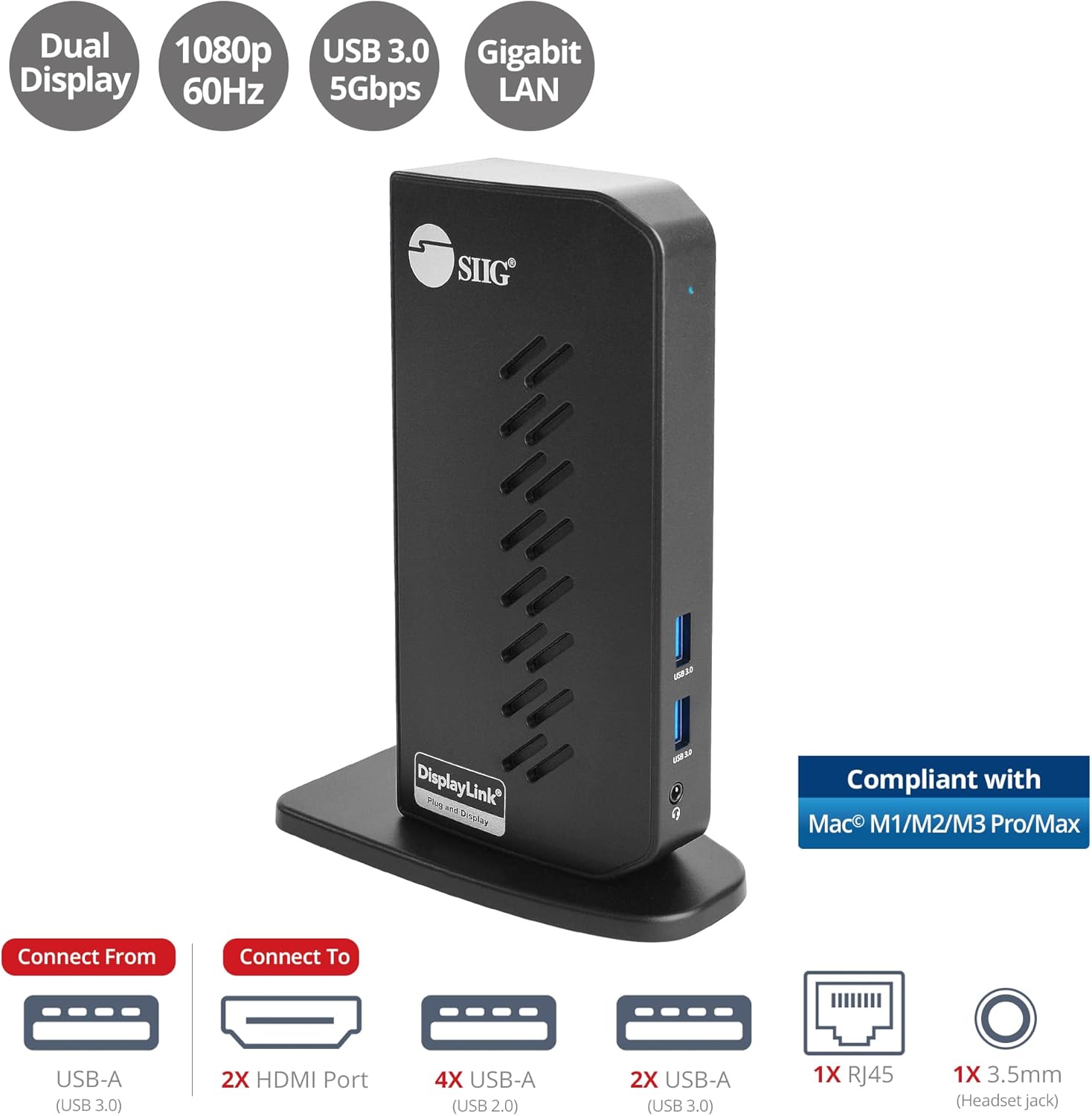
Image 1.1: The SIIG JU-DK0L11-S1 Dual Monitor Docking Station, showcasing its compact vertical design and various connectivity options.
2. پیکیج کے مشمولات
تنصیب کے ساتھ آگے بڑھنے سے پہلے تصدیق کریں کہ تمام اشیاء پیکیج میں موجود ہیں۔
- SIIG JU-DK0L11-S1 Dual Head Full HD HDMI Video Docking Station
- پاور اڈاپٹر (12V/2A)
- USB 3.0 Type-A to Type-B Cable
- Driver CD (Drivers can also be downloaded from the official SIIG webسائٹ)
- صارف دستی

Image 2.1: All components included in the SIIG JU-DK0L11-S1 docking station package, including the docking station, power adapter, USB cable, driver CD, and user manual.
3. ہارڈ ویئر لے آؤٹ
Familiarize yourself with the ports and indicators on the docking station.
فرنٹ پینل
- پاور ایل ای ڈی: طاقت کی حیثیت کی نشاندہی کرتا ہے۔
- 2x USB 3.0 پورٹس: For connecting high-speed USB devices (5Gbps, 4.5W/900mA).
- 3.5 ملی میٹر ہیڈسیٹ جیک: For connecting headphones or stereo speakers with microphone input.
پیچھے والا پینل
- 4x USB 2.0 پورٹس: For connecting standard USB devices (480Mbps, 5V/900mA).
- RJ45 گیگابٹ ایتھرنیٹ پورٹ: For wired network connection (10/100/1000Mbps).
- 2x HDMI Outputs: For connecting external displays (up to 1080p@60Hz).
- USB 3.0 Type-B Port: For connecting the docking station to your host computer.
- پاور جیک: For connecting the 12V/2A power adapter.

تصویر 3.1: تفصیلی view of the front and rear panels of the docking station, highlighting all available ports and their functions.
4. سیٹ اپ ہدایات
Follow these steps to set up your docking station:
- ڈسپلے لنک ڈرائیورز انسٹال کریں: Before connecting the docking station, install the necessary DisplayLink drivers on your computer. You can use the included driver CD or download the latest drivers from the official DisplayLink webسائٹ (www.displaylink.com/downloads۔) or SIIG's support page.
- پاور سے رابطہ کریں: Plug the provided 12V/2A power adapter into the docking station's power jack and then into a wall outlet. The Power LED on the front panel should illuminate.
- میزبان کمپیوٹر سے جڑیں: Use the supplied USB 3.0 Type-A to Type-B cable to connect the docking station's USB 3.0 Type-B port to an available USB 3.0 Type-A port on your laptop or desktop computer.
- کنیکٹ ڈسپلے: Connect your external monitors to the two HDMI output ports on the rear of the docking station using HDMI cables.
- پیری فیرلز کو جوڑیں: Connect your USB devices (keyboard, mouse, printer, flash drives, etc.) to the available USB 3.0 and USB 2.0 ports. Connect an Ethernet cable to the RJ45 port for a wired network connection. Plug your headset or speakers into the 3.5mm audio jack.
Video 4.1: An official video demonstrating the setup and connectivity of the SIIG JU-DK0L11-S1 Dual Head Full HD HDMI Docking Station, showing how to connect monitors and peripherals.
5. آپریٹنگ ہدایات
Once the docking station is set up, you can configure your display settings and utilize the connected peripherals.
ڈسپلے موڈز
The docking station supports three primary display modes:
- آئینہ موڈ: Duplicates your primary display onto the external monitors.
- توسیع موڈ: Extends your desktop across multiple screens, allowing for increased workspace.
- بنیادی وضع: Designates one of the connected displays as the main display.
You can configure these settings through your operating system's display settings (e.g., Windows Display Settings or macOS System Settings > Displays).

Image 5.1: A typical dual 1080p monitor setup utilizing the SIIG docking station, demonstrating an extended display configuration for enhanced productivity.
USB کنیکٹیویٹی
The docking station provides two USB 3.0 ports for high-speed data transfer (e.g., external hard drives, SSDs) and four USB 2.0 ports for standard peripherals (e.g., keyboard, mouse, printer). Simply plug your devices into the corresponding ports.
گیگابٹ ایتھرنیٹ
For a stable and fast internet connection, connect an Ethernet cable from your router or modem to the RJ45 port on the docking station. This provides a more reliable connection than Wi-Fi, supporting 10/100/1000 BASE-T wired networks.

تصویر 5.2: کلوز اپ view of the Gigabit RJ45 Ethernet port and USB ports, illustrating their use for network and high-speed data transmission.
آڈیو کنکشن
The 3.5mm headset jack allows you to connect headphones, speakers, or a microphone. Ensure your operating system's audio settings are configured to use the docking station's audio output/input.
6. Specifications (Model: JU-DK0L11-S1)
| برانڈ | ایس آئی آئی جی |
| ماڈل نمبر | JU-DK0L11-S1۔ |
| ہارڈ ویئر انٹرفیس | 3.5mm Audio, Ethernet, HDMI, USB 1.1, USB 2.0, USB 3.0 |
| ہم آہنگ آلات | Desktop or laptop computer with an available USB 3.0 Type-A port. Compatible with Windows® 11/10/8.1/8/7 and macOS® 11 / 10.15 to 10.10. |
| کل USB پورٹس | 6 (2x USB 3.0, 4x USB 2.0) |
| کل HDMI پورٹس | 2 |
| زیادہ سے زیادہ قرارداد | 1080p@60Hz (per display) |
| ایتھرنیٹ کی رفتار | Gigabit (10/100/1000Mbps) |
| ان پٹ جلدtage | 100 وولٹ (AC) |
| پروڈکٹ کے طول و عرض (L x W x H) | 5.31" x 2.87" x 7.36" |
| شے کا وزن | 0.75 پاؤنڈز |

Image 6.1: Physical dimensions of the SIIG JU-DK0L11-S1 docking station, illustrating its compact and space-saving design.
7 خرابیوں کا سراغ لگانا
- کوئی ڈسپلے آؤٹ پٹ نہیں:
- Ensure the docking station is powered on and the Power LED is lit.
- Verify that the USB 3.0 cable is securely connected between the docking station and your computer.
- Check that HDMI cables are firmly connected to both the docking station and your monitors.
- Confirm that DisplayLink drivers are correctly installed and up to date.
- اپنے کمپیوٹر کو دوبارہ شروع کرنے کی کوشش کریں۔
- USB آلات کی شناخت نہیں ہوئی:
- Ensure the docking station is powered and connected to your computer.
- USB ڈیوائس کو ڈاکنگ اسٹیشن پر کسی مختلف پورٹ سے جوڑنے کی کوشش کریں۔
- Connect the USB device directly to your computer to rule out device issues.
- کوئی نیٹ ورک کنکشن نہیں:
- Verify the Ethernet cable is securely connected to the RJ45 port on the docking station and your network source.
- Check your computer's network settings to ensure the Ethernet adapter is enabled.
- Confirm that your router/modem is functioning correctly.
- آڈیو کے مسائل:
- Ensure your headset/speakers are properly plugged into the 3.5mm jack.
- Check your computer's sound settings to select the docking station as the default audio output/input device.
8 دیکھ بھال
To ensure the longevity and optimal performance of your SIIG docking station, follow these maintenance guidelines:
- آلے کو نرم، خشک کپڑے سے صاف کرکے صاف رکھیں۔ مائع کلینر یا ایروسول استعمال کرنے سے گریز کریں۔
- Ensure proper ventilation around the docking station to prevent overheating. The vertical design with heat dissipation features aids in this.
- ڈیوائس کو انتہائی درجہ حرارت، نمی، یا براہ راست سورج کی روشنی کے سامنے لانے سے گریز کریں۔
- نقصان سے بچنے کے لیے کیبلز اور کنیکٹرز کو آہستہ سے ہینڈل کریں۔
9. وارنٹی اور سپورٹ
For warranty information and technical support, please refer to the documentation included with your product or visit the official SIIG website. SIIG is committed to providing reliable products and customer assistance.
For further assistance, you may contact SIIG customer support directly through their webسائٹ یا آپ کے پروڈکٹ کی پیکیجنگ میں فراہم کردہ رابطے کی معلومات۔