
تعارف
This manual provides detailed instructions for the BINIZE Portable Carplay Screen Navigation system. It covers setup, operation, and maintenance to ensure optimal performance and user experience.
حفاظتی معلومات
- اس بات کو یقینی بنائیں کہ آلہ محفوظ طریقے سے نصب ہے اور آپ کی راہ میں رکاوٹ نہیں ڈالتا ہے۔ view یا گاڑی کے کنٹرول میں مداخلت کریں۔
- Connect the power cord only to a 12V cigarette lighter port.
- ڈیوائس کو الگ کرنے یا اس میں ترمیم کرنے کی کوشش نہ کریں۔
- ہمیشہ محفوظ ڈرائیونگ کو ترجیح دیں۔ ڈیوائس کو اس طرح نہ چلائیں جس سے آپ کا دھیان سڑک سے ہٹ جائے۔
پیکیج کے مشمولات
تصدیق کریں کہ تمام اشیاء پیکیج میں موجود ہیں:
- BINIZE Portable Carplay Screen Navigation Unit
- سگریٹ لائٹر پاور کیبل
- یوایسبی توسیع کیبل
- آڈیو آؤٹ پٹ کیبل (RCA)
- Mounting Bracket with 3M Adhesive
- ریموٹ کنٹرول
- صارف دستی (یہ دستاویز)
سیٹ اپ
1. ڈیوائس کو لگانا
Choose a suitable location on your dashboard that does not obstruct your view یا گاڑیوں کے کنٹرول۔

The base of the mounting bracket comes with 3M adhesive. Clean the dashboard surface thoroughly before attaching the base. Securely attach the unit to the bracket.

Adjust the screen angle for optimal viewing
2. پاور کنکشن
Connect the cigarette lighter power cable to the device and insert it into your vehicle's 12V cigarette lighter port. The device will power on automatically.

Ensure the vehicle's voltage 12V اور 14V کے درمیان ہے۔
This video demonstrates the initial power-up sequence of the BINIZE Portable Carplay Screen Navigation unit by connecting it to a cigarette lighter port. It shows the "welcome" screen appearing upon successful power-on.
آپریٹنگ ہدایات
1. ابتدائی سیٹ اپ اور زبان کا انتخاب
Upon first power-on, the device will display the home screen. Navigate to the "Settings" menu to select your preferred language.

2. آڈیو آؤٹ پٹ کے اختیارات
The monitor itself does not have internal speakers. Sound is routed through your original car audio system.
ایف ایم ٹرانسمیٹر
To use the FM transmitter, set the device's FM frequency to match an unused FM channel on your car's stereo.

Ensure both the device and your car stereo are tuned to the same FM frequency for audio output.
آر سی اے آڈیو آؤٹ پٹ
For additional audio requirements, such as connecting to a subwoofer or amplifier, use the two RCA ports (White: Audio Out Left, Red: Audio Out Right).
3. Apple CarPlay Connection
To use Apple CarPlay, connect your iPhone to the device using an original Apple data cable via the USB port on the right side of the player.
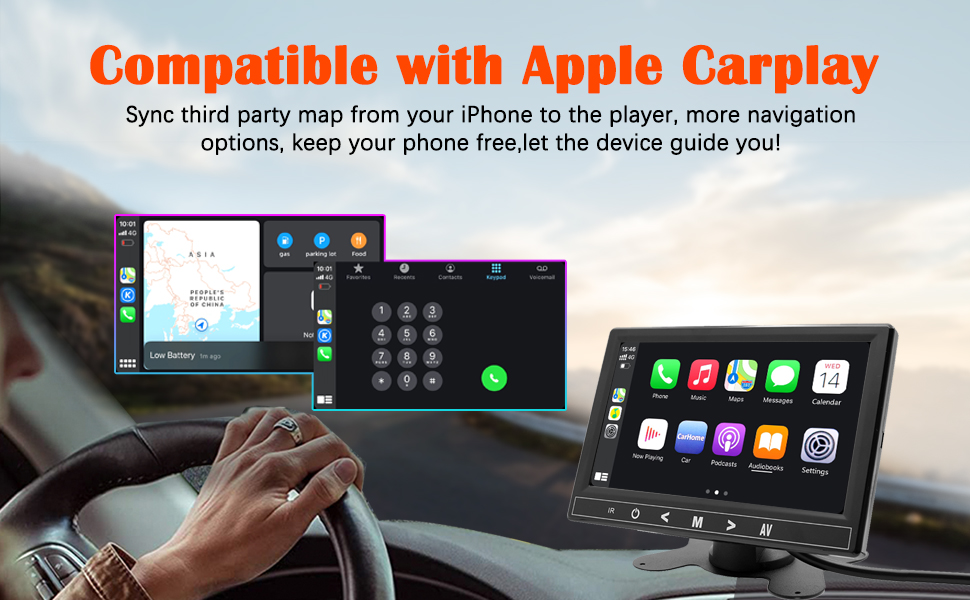
Select "i-Play" in the device settings. Grant any necessary permissions on your iPhone.
This video demonstrates how to connect an iPhone to the BINIZE Portable Carplay Screen Navigation for Apple CarPlay functionality. It shows the steps to select "i-Play" in settings and connect the original data cable.
4. Android Auto Connection
To use Android Auto, connect your Android phone to the device using an original data cable via the USB port on the right side of the player.

Select "A-Auto" in the device settings. Grant any necessary permissions on your Android phone.
This video illustrates the process of connecting an Android phone to the BINIZE Portable Carplay Screen Navigation for Android Auto. It guides the user to select "A-Auto" in settings and connect the data cable.
5. MirrorLink (iPhone)
To mirror your iPhone screen, connect your iPhone to the device using an original Apple data cable via the USB port on the right side of the player.
Select "i-Mirror" in the device settings. Grant permissions on your iPhone. The iPhone screen will be projected onto the player's screen.
This video demonstrates the MirrorLink function for iPhone, showing how to connect the device and mirror the phone's display.
6. MirrorLink (Android Phone)
To mirror your Android phone screen, connect your Android phone to the device using an original data cable via the USB port on the right side of the player.
Select "A-Link" in the device settings. Grant permissions on your Android phone. The Android phone screen will be projected onto the player's screen.
This video demonstrates the MirrorLink function for Android phones, showing how to connect the device and mirror the phone's display.
7. USB Flash Drive Reading
Insert a USB flash drive into the USB extension cable to play music or videos. The device supports various media formats.
8. فون چارج کرنا
The USB extension cable can also be used to charge your mobile phone.
دیکھ بھال
- نرم، خشک کپڑے کا استعمال کرتے ہوئے اسکرین کو صاف رکھیں۔ کھرچنے والے کلینر سے پرہیز کریں۔
- یقینی بنائیں کہ تمام کیبل کنکشن محفوظ ہیں۔
- طویل عرصے تک آلہ کو انتہائی درجہ حرارت یا براہ راست سورج کی روشنی کے سامنے آنے سے گریز کریں۔
خرابی کا سراغ لگانا
| مسئلہ | ممکنہ وجہ | حل |
|---|---|---|
| ڈیوائس آن نہیں ہوتی ہے۔ | No power from cigarette lighter. | Check vehicle's 12V port. Ensure power cable is securely connected. |
| کوئی آواز آؤٹ پٹ نہیں ہے۔ | FM frequency not synchronized or incorrect RCA connection. | Match FM frequency on device and car stereo. Verify RCA cable connections. |
| CarPlay/Android Auto منسلک نہیں ہو رہا ہے۔ | Non-original data cable, incorrect settings, or phone permissions. | Use original data cable. Check "i-Play" or "A-Auto" settings. Grant all necessary phone permissions. |
| MirrorLink not working. | Incorrect settings or phone permissions. | Check "i-Mirror" or "A-Link" settings. Grant all necessary phone permissions. |
| Screen freezes or is unresponsive. | سافٹ ویئر کی عارضی خرابی۔ | Restart the device by unplugging and re-plugging the power cable. |
For further assistance, please contact BINIZE customer support.
وضاحتیں
| فیچر | تفصیل |
|---|---|
| برانڈ | BINIZE |
| ماڈل نمبر | B09DSMJ59X |
| کنیکٹوٹی ٹیکنالوجی | بلوٹوتھ، آر سی اے، یو ایس بی |
| کنٹرولر کی قسم | Android, Google Assistant |
| خصوصی خصوصیت | ٹچ اسکرین |
| ہم آہنگ آلات | اسمارٹ فون |
| آڈیو آؤٹ پٹ وضع | سٹیریو |
| چینلز کی تعداد | 4 |
| ویڈیو انکوڈنگ | H.264, H.265/HEVC |
| کنٹرول کا طریقہ | چھوئے۔ |
| وائرلیس ٹیکنالوجی | بلوٹوتھ |
| پاور ان پٹ | 12V (via cigarette lighter) |
نوٹ: وضاحتیں پیشگی اطلاع کے بغیر تبدیل کی جاسکتی ہیں۔
وارنٹی اور سپورٹ
BINIZE products come with a standard manufacturer's warranty. Please refer to the warranty card included in your package for specific terms and conditions.
For technical support, warranty claims, or any other inquiries, please visit the official BINIZE webسائٹ یا ان کی کسٹمر سروس ٹیم سے رابطہ کریں۔