
1. پروڈکٹ ختمview
The Satechi USB-C Multiport MX Adapter is a versatile docking solution designed to expand the connectivity of your USB-C enabled devices, including MacBooks, Windows laptops, and iPads. It provides a comprehensive array of ports to enhance your productivity and multimedia experience.

Image: The Satechi USB-C Multiport MX Adapter, a compact and sleek device.
2. سیٹ اپ ہدایات
- اڈاپٹر کو جوڑیں: Plug the integrated USB-C cable from the Multiport MX Adapter into an available USB-C port on your host device (laptop, tablet, etc.).
- پاور کنکشن (اختیاری لیکن تجویز کردہ): For optimal performance and to charge your host device, connect your USB-C power adapter to the USB-C PD port on the Multiport MX Adapter. This port supports up to 100W Power Delivery.
- Dual HDMI Display Setup:
- Connect your HDMI-enabled monitors to the two HDMI ports on the adapter. One port supports 4K@60Hz, and the other supports 4K@30Hz.
- اہم: For both HDMI ports to function simultaneously, installation of the SiliconMotion software is required. Please refer to the official Satechi website for the latest software and installation guide.
- پیری فیرلز کو جوڑیں: Plug in your USB-A devices, Ethernet cable, Micro/SD cards, and audio devices into their respective ports on the adapter.

Image: The Satechi USB-C Multiport MX Adapter connected to a laptop via its integrated USB-C cable.
3. آپریٹنگ ہدایات
The Satechi USB-C Multiport MX Adapter is designed for plug-and-play functionality, requiring no additional drivers for most basic operations (except for dual HDMI as noted above). Simply connect your devices to the corresponding ports.
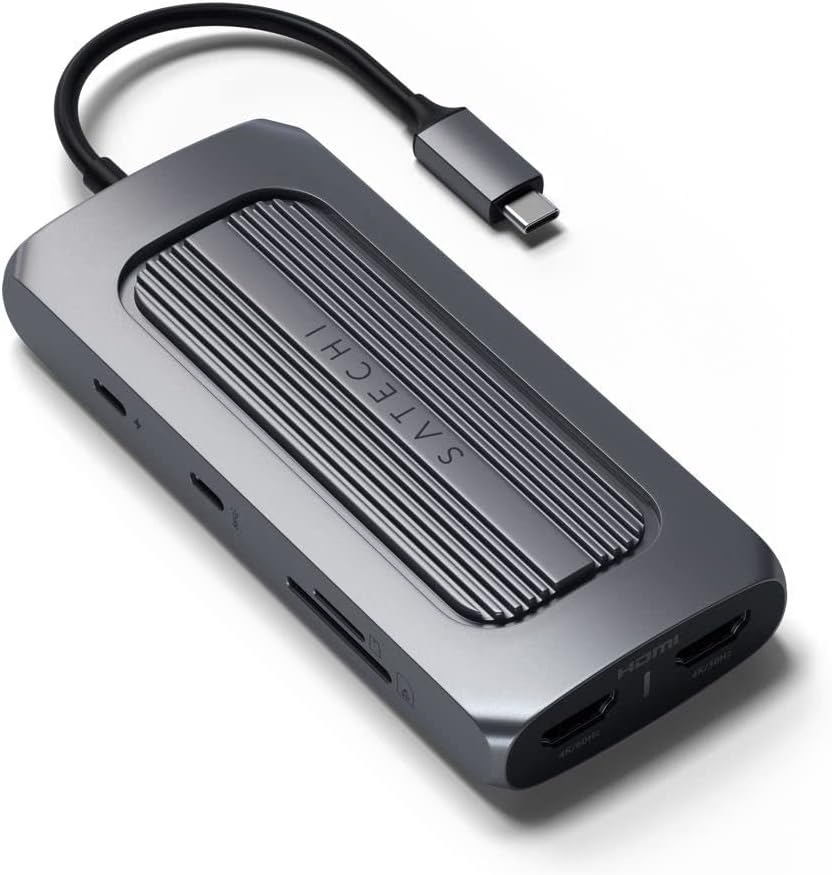
تصویر: سائیڈ view of the adapter highlighting USB-C PD, USB-C Data, SD, and MicroSD card slots.
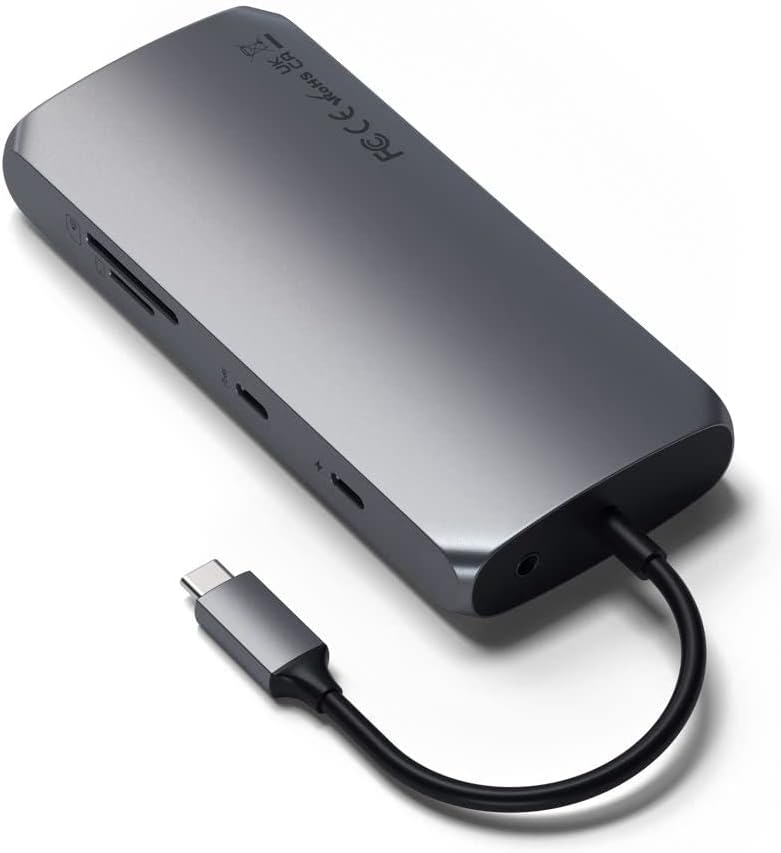
تصویر: سائیڈ view of the adapter highlighting Ethernet, USB-A 3.0 ports, and HDMI ports.
- USB-C پاور ڈیلیوری (PD) پورٹ: Use this port to power your host device and the adapter itself. It supports up to 100W input, with approximately 15W reserved for the adapter's operation.
- USB-C ڈیٹا پورٹ: Connect USB-C peripherals for data transfer speeds up to 5Gbps. This port is for data only and does not support video output.
- USB-A 3.0 پورٹس (x2): Connect traditional USB-A devices such as external hard drives, keyboards, mice, or flash drives. These ports offer data transfer speeds up to 5Gbps.
- Dual 4K HDMI Ports: Connect external monitors for extended or mirrored display. One port supports 4K resolution at 60Hz, and the other supports 4K resolution at 30Hz. Ensure SiliconMotion software is installed for dual display functionality.
- ایتھرنیٹ پورٹ: Provides a stable and fast wired network connection with Gigabit Ethernet speeds.
- مائیکرو/ایس ڈی کارڈ ریڈرز: Insert MicroSD and standard SD cards for quick data transfer (UHS-I speeds).
- آڈیو جیک: Connect headphones or speakers for audio output.
Video: Official Satechi overview of the USB-C Multiport MX Adapter, demonstrating its various ports and features.
4 دیکھ بھال
- صفائی: Use a soft, dry cloth to clean the adapter. Avoid using harsh chemicals or abrasive materials.
- ذخیرہ: اڈاپٹر کو براہ راست سورج کی روشنی اور انتہائی درجہ حرارت سے دور ٹھنڈی، خشک جگہ پر اسٹور کریں۔
- درجہ حرارت: The adapter is designed to operate within a temperature range of 30-50°C (86-122°F). Prolonged use outside this range may affect performance.
5 خرابیوں کا سراغ لگانا
- No Display on External Monitors:
- Ensure your HDMI cables are securely connected to both the adapter and the monitors.
- Verify that the SiliconMotion software is correctly installed on your host device. This software is crucial for dual HDMI output.
- Check your display settings on your computer to ensure the external monitors are detected and configured correctly (extended or mirrored).
- اڈاپٹر گرم محسوس ہوتا ہے: It is normal for the adapter to become warm during operation, especially when multiple ports are in use or when charging your device at high wattage. This is due to power conversion and data processing. If it becomes excessively hot, disconnect it and allow it to cool down.
- USB-C Port Not Functioning: Ensure your host device's USB-C port supports the necessary functions (Power Delivery, DisplayPort Alt Mode, data transfer) for the features you are trying to use. Not all USB-C ports have the same capabilities.
- سست ڈیٹا کی منتقلی: Ensure you are using high-quality cables and that your connected devices support the advertised speeds (e.g., USB 3.0 for 5Gbps).
- ایتھرنیٹ کنکشن کے مسائل: Check the Ethernet cable connection. Ensure your network drivers are up to date on your host device.
6. وضاحتیں
| برانڈ | ساتیچی |
| ماڈل | USB-C ملٹی پورٹ MX اڈاپٹر |
| ہارڈ ویئر انٹرفیس | USB قسم C |
| ہم آہنگ آلات | MacBook Pro 14/16-inch (2025 M5/M4/M3/M2/M1), MacBook Air 13/15-inch (2025 M4/M3/M2/M1), iPad Pro 11/13-inch (2025 M5/M4/M2/M1), iPad Air 11/13-inch (2025 M3/M2/M1), iPad Mini (2024 A17/6th Gen), Mac Mini (2024 M4/M2/M1), iMac (2024 M4/M3/M1), Mac Studio (2025 M4/M3/M2/M1), Lenovo ThinkPad, Microsoft Surface, Google Pixelbook |
| کل USB پورٹس | 4 (1x USB-C Data, 2x USB-A 3.0, 1x USB-C PD) |
| بندرگاہوں کی تعداد | 9 (including HDMI, Ethernet, Card Readers, Audio Jack) |
| مصنوعات کے طول و عرض | 5.12"L x 2.28"W x 0.79"H |
| شے کا وزن | 171 گرام |
| کل HDMI پورٹس | 2 (4K@60Hz, 4K@30Hz) |
| واٹtage | 100W پاور ڈلیوری |
| رنگ | خلائی گرے |
| یو پی سی | 810086360130 |
7. وارنٹی اور سپورٹ
ساٹیچی کی مصنوعات کا احاطہ کیا گیا ہے۔ 2 سال کی محدود وارنٹی against defects in materials and workmanship under normal use. For customer support, technical assistance, or warranty claims, please visit the official Satechi webسائٹ یا ان کے کسٹمر سروس ڈیپارٹمنٹ سے رابطہ کریں۔
For further assistance, please refer to the Satechi support page or contact their customer service directly.