
1. تعارف
This manual provides detailed instructions for the installation, operation, and maintenance of your INQMEGA Solar Security Camera. Please read this manual thoroughly before using the product to ensure proper function and safety. Keep this manual for future reference.
2. پروڈکٹ ختمview
2.1 پیکیج کے مشمولات
تصدیق کریں کہ آپ کے پیکیج میں تمام اجزاء موجود ہیں:
- 1 x Solar Tuya Camera
- 1 ایکس سولر پینل
- 1 ایکس بریکٹ
- 1 ایکس صارف دستی
- 1 x 5M long cable
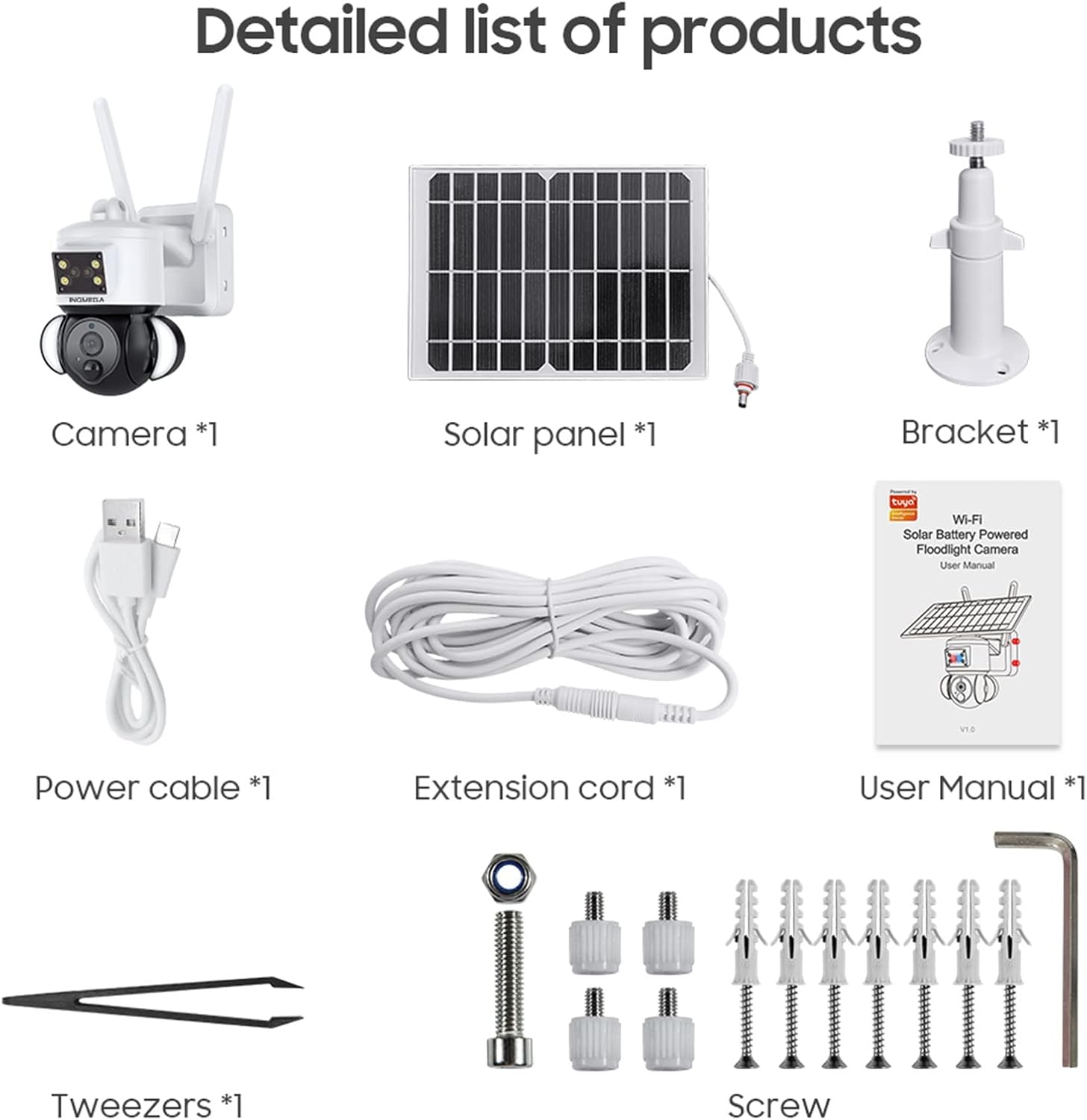
Figure 1: Package Contents. This image displays all items included in the INQMEGA Solar Security Camera package, such as the camera unit, solar panel, mounting bracket, power cable, extension cord, user manual, and installation hardware.
2.2 کلیدی خصوصیات
- 3MP FHD Resolution: واضح اور تفصیلی ویڈیو foo کیپچر کرتا ہے۔tage.
- شمسی توانائی سے چلنے والا: Equipped with a 15000mAh rechargeable battery and a solar panel for continuous operation with 2-3 hours of daily sunlight.
- 360° View (Pan & Tilt): Offers 355° horizontal pan and 120° vertical tilt for comprehensive area coverage, controllable via the TUYA SMART LIFE app.
- پیر تحریک کا پتہ لگانے: Built-in radar PIR motion sensor provides high sensitivity detection, sending instant alerts to your app.
- Floodlight with Siren: Features 10 LEDs for color night vision up to 90ft, with the floodlight activating upon motion detection. Includes a siren for deterrence.
- دو طرفہ آڈیو: Allows real-time communication through the camera via the app.
- 2.4GHz وائی فائی کنیکٹیویٹی: Ensures stable network reception with 5dBi dual antennas. (Note: Does not support 5G WiFi).
- ذخیرہ کرنے کے اختیارات: Supports 8-128GB SD card (not included) and cloud storage.
- الیکسا مطابقت: Can be paired with Alexa-enabled smart speakers for voice control.
- ویدر پروف: IP66 International Protection Rating for outdoor use in various weather conditions.

Figure 2: PIR Human Detection. This image illustrates the camera's ability to detect human motion, activate a smart floodlight, and send phone alarms.

Figure 3: 3MP HD Image Quality and PTZ Control. This image demonstrates the camera's high-definition video capture and the pan-tilt-zoom functionality controlled through a mobile application.
3. سیٹ اپ ہدایات
3.1 ابتدائی پاور آن
- تمام اجزاء کو کھولیں اور یقینی بنائیں کہ وہ برقرار ہیں۔
- Connect the solar panel cable to the camera's power input.
- Locate the power button/switch on the camera and turn it on.
- Observe the LED indicator. It should blink RED initially, then turn to blink BLUE, indicating it is ready for connection.
3.2 ایپ انسٹالیشن اور کنکشن
- Download the "TUYA SMART LIFE" app from your smartphone's app store (iOS or Android).
- رجسٹر یا اپنے اکاؤنٹ میں لاگ ان کریں۔
- In the app, select "Add Device" or the "+" icon to add a new camera.
- Follow the on-screen prompts to select your device type (e.g., "Security Camera").
- Confirm that the camera's LED is blinking blue.
- Enter your 2.4GHz Wi-Fi network name and password. (Note: 5GHz Wi-Fi is not supported).
- The app will generate a QR code. Aim your phone screen, displaying the QR code, in front of the camera lens at a distance of approximately 4-8 inches.
- The camera will emit a confirmation sound once the QR code is successfully scanned and connected.
- ایک بار منسلک ہونے کے بعد، آپ اپنے کیمرے کو نام دے سکتے ہیں اور لائیو شروع کر سکتے ہیں۔ viewing
Video 1: INQMEGA 528 Solar Security Cameras Packing list. This video demonstrates the unboxing and initial setup process for the INQMEGA solar security camera, including powering on and connecting to the mobile application.
3.3 کیمرہ لگانا
- کے ساتھ ایک مناسب بیرونی مقام کا انتخاب کریں۔ ample sunlight for the solar panel and a clear view کیمرے کے لئے.
- Use the provided bracket and screws to securely mount the camera to a wall or other stable surface.
- Ensure the solar panel is positioned to receive maximum direct sunlight throughout the day.
- Adjust the camera's angle for optimal surveillance coverage.

Figure 4: Outdoor Mounting and Solar Power. This image shows the camera and solar panel installed outdoors, emphasizing the solar charging capability and the use of a 16ft extension cord for flexible positioning of the solar panel.
4. آپریٹنگ ہدایات
4.1 لائیو View اور پلے بیک
- Open the TUYA SMART LIFE app and select your camera to view لائیو فیڈ.
- Use the playback function to review ریکارڈ شدہ footage stored on the SD card or cloud.
4.2 پین اور جھکاؤ کنٹرول
- لائیو کے اندر view interface, use the directional controls to remotely adjust the camera's horizontal (355°) and vertical (120°) angles.

Figure 5: PTZ App Control. This image illustrates how to control the camera's pan (355°) and tilt (90°) movements using the mobile application.
4.3 دو طرفہ آڈیو
- کیمرے کے اسپیکر کے ذریعے بولنے کے لیے ایپ میں موجود مائیکروفون آئیکن کو تھپتھپائیں۔
- کیمرے کے مقام سے آڈیو سننے کے لیے اسپیکر کے آئیکن کو تھپتھپائیں۔

Figure 6: Two-Way Audio Communication. This image shows the camera's two-way audio function, allowing users to speak and listen through the device via their smartphone.
4.4 نائٹ ویژن اور فلڈ لائٹ
- The camera automatically switches to night vision mode in low light conditions.
- Color night vision is enabled by the built-in floodlight, which activates upon motion detection.
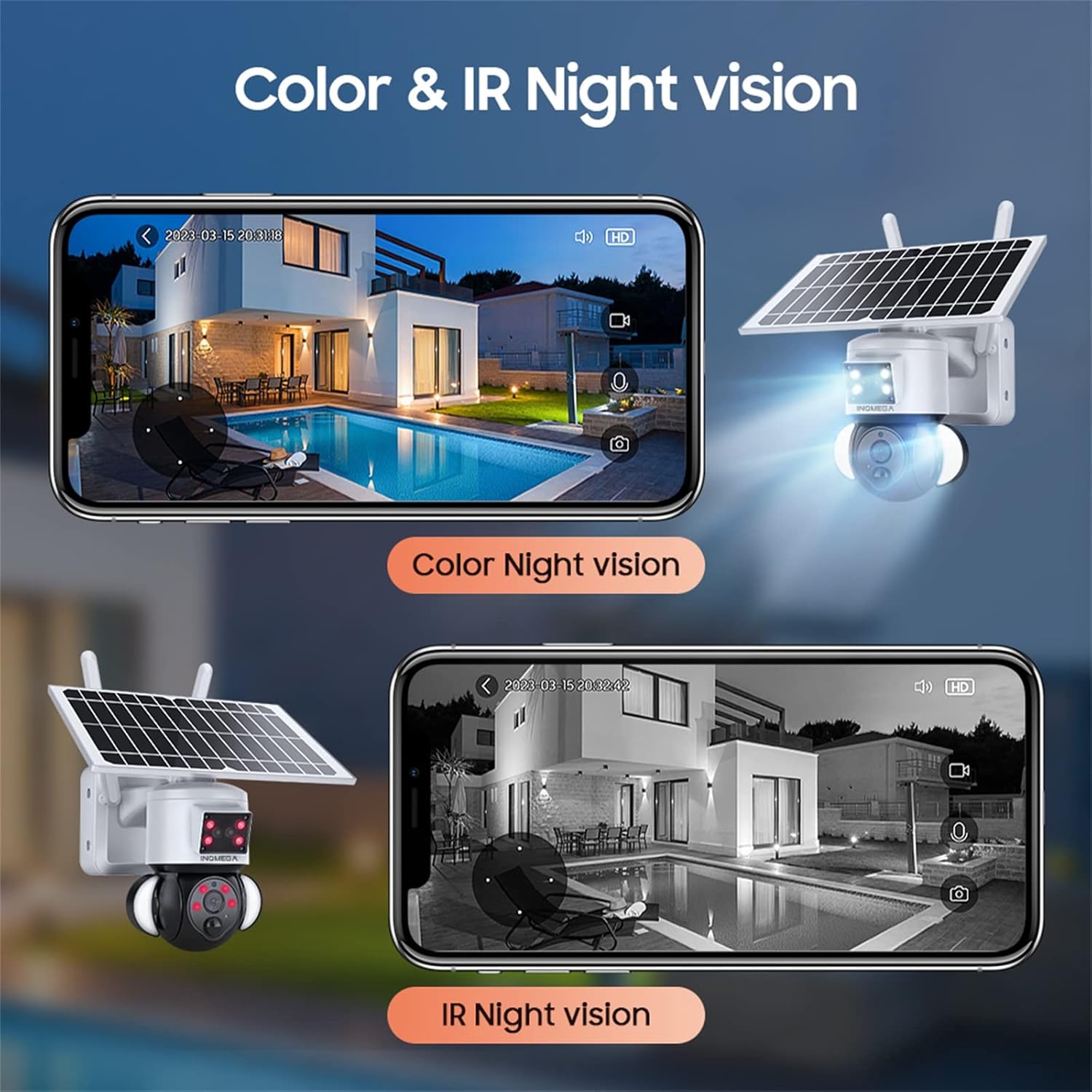
Figure 7: Color and IR Night Vision. This image compares the camera's color night vision, enabled by its floodlight, with traditional infrared (IR) night vision, both displayed on a smartphone.
4.5 حرکت کا پتہ لگانا اور الرٹس
- The PIR motion sensor detects movement and triggers recording.
- Receive instant alerts on your TUYA SMART LIFE app when motion is detected.
- Adjust sensitivity settings within the app to minimize false alarms.
5 دیکھ بھال
- سولر پینل کی صفائی: باقاعدگی سے سولر پینل کو نرم سے صاف کریں، ڈیamp cloth to remove dust, dirt, and debris. A clean panel ensures optimal charging efficiency.
- کیمرے کے لینس کی صفائی: واضح تصویر کے معیار کو برقرار رکھنے کے لیے کیمرے کے لینس کو مائکرو فائبر کپڑے سے آہستہ سے صاف کریں۔ کھرچنے والے مواد سے پرہیز کریں۔
- فرم ویئر اپ ڈیٹس: Check the TUYA SMART LIFE app periodically for available firmware updates to ensure your camera has the latest features and security enhancements.
- بیٹری کی صحت: While solar-powered, ensure the camera receives adequate sunlight. If the camera is in a shaded area for extended periods, consider temporarily relocating it or manually charging the battery if possible (refer to product specifications for charging options).
- ماحولیاتی تحفظ: Although the camera is IP66 rated, avoid direct high-pressure water jets or prolonged submersion.
6 خرابیوں کا سراغ لگانا
- کیمرہ وائی فائی سے منسلک نہیں ہو رہا ہے:
- یقینی بنائیں کہ آپ کا Wi-Fi نیٹ ورک 2.4GHz ہے۔ کیمرہ 5GHz Wi-Fi کو سپورٹ نہیں کرتا ہے۔
- تصدیق کریں کہ ایپ میں وائی فائی پاس ورڈ صحیح طریقے سے درج کیا گیا ہے۔
- چیک کریں کہ کیمرہ آپ کے وائی فائی روٹر کی حد میں ہے۔
- Restart the camera and your router, then attempt the connection process again.
- Ensure the camera's LED is blinking blue before scanning the QR code.
- خراب تصویری معیار:
- کیمرے کے لینس کو صاف کریں۔
- یقینی بنائیں کہ کیمرے کے فیلڈ میں کوئی رکاوٹ نہیں ہے۔ view.
- اپنے وائی فائی سگنل کی طاقت چیک کریں۔ کمزور سگنل سٹریمنگ کے معیار کو متاثر کر سکتا ہے۔
- بیٹری چارج نہیں ہو رہی:
- یقینی بنائیں کہ سولر پینل صاف اور رکاوٹوں سے پاک ہے۔
- Verify the solar panel is receiving direct sunlight for at least 2-3 hours daily.
- سولر پینل اور کیمرہ کے درمیان کنکشن چیک کریں۔
- Motion Detection Not Working or Too Sensitive:
- Adjust the PIR motion detection sensitivity settings in the TUYA SMART LIFE app.
- کیمرے کو یقینی بنائیں view رکاوٹ نہیں ہے.
- No Audio or Poor Two-Way Audio:
- اپنے اسمارٹ فون پر اور ایپ کے اندر والیوم سیٹنگز کو چیک کریں۔
- Ensure there is no interference near the camera's microphone or speaker.
7. وضاحتیں
| فیچر | تفصیلات |
|---|---|
| ماڈل کا نام | ST-S528M-3M-TY |
| برانڈ | INQMEGA |
| انڈور / آؤٹ ڈور استعمال | آؤٹ ڈور |
| طاقت کا منبع | شمسی توانائی سے چلنے والا |
| کنیکٹیویٹی پروٹوکول | Wi-Fi (صرف 2.4GHz) |
| ویڈیو کیپچر ریزولوشن | 3 MP |
| چڑھنے کی قسم | وال ماؤنٹ |
| نائٹ ویژن رینج۔ | Up to 90ft (Color Night Vision) |
| مواد | پلاسٹک |
| آئٹم کے طول و عرض (L x W x H) | 6 x 8.5 x 6 انچ |
| شے کا وزن | 3.74 پاؤنڈ (1.7 کلوگرام) |
| بیٹریاں | 3 Lithium Polymer batteries required (15000mAh capacity) |
| بین الاقوامی تحفظ کی درجہ بندی | آئی پی 66 |
| کنٹرول کا طریقہ | App (TUYA SMART LIFE) |
| خصوصی خصوصیات | Motion Sensor, Night Vision, Floodlight, Two-Way Audio |
8. وارنٹی اور سپورٹ
For warranty information, please refer to the documentation included with your product packaging or contact INQMEGA customer support directly. INQMEGA is committed to providing reliable brand reputation and professional technical services. If you encounter any product problems, please contact support in a timely manner.
For further assistance, please visit the official INQMEGA website or refer to the TUYA SMART LIFE app's help section.