
تعارف
This manual provides comprehensive instructions for the setup, operation, and maintenance of your XtremeMac Bluetooth Wireless Keyboard and Mouse. Please read this manual thoroughly before using the product to ensure optimal performance and longevity.
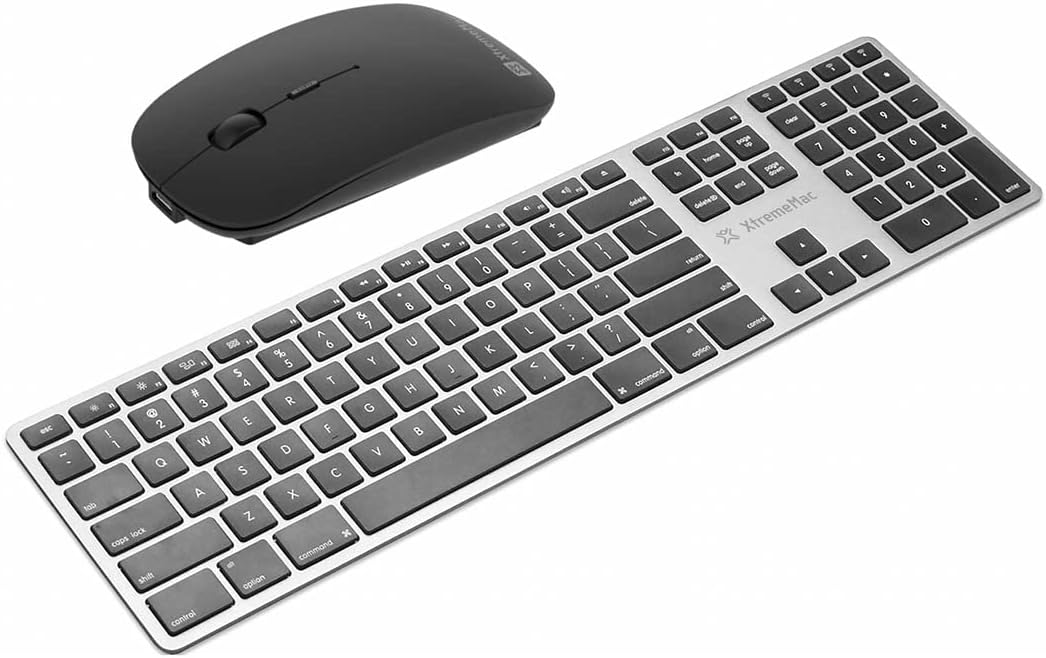
ایک اوور ہیڈ view of the XtremeMac Bluetooth wireless keyboard and mouse. The keyboard is silver with black keys, featuring a full layout including a numeric keypad. The mouse is black and has a sleek, ergonomic design.
پیکیج کے مشمولات
تصدیق کریں کہ تمام اشیاء پیکیج میں موجود ہیں:
- XtremeMac Bluetooth Wireless Keyboard
- XtremeMac Bluetooth Wireless Mouse
سیٹ اپ کی ہدایات
1. پاورنگ آن۔
کی بورڈ: Locate the power switch, usually on the top edge or underside of the keyboard. Slide it to the "ON" position. An indicator light may briefly illuminate.
ماؤس: Locate the power switch on the underside of the mouse. Slide it to the "ON" position. An optical sensor light may activate.
2. بلوٹوت جوڑی بنانا
Ensure your Mac's Bluetooth is enabled. Navigate to سسٹم کی ترتیبات (یا سسٹم کی ترجیحات on older macOS versions) > بلوٹوتھ.
کی بورڈ جوڑنا:
- With the keyboard powered on, press and hold the Bluetooth pairing button (often located on the underside or top edge, sometimes combined with a function key) until the indicator light begins to flash, indicating it is in pairing mode.
- On your Mac, look for "XtremeMac Keyboard" or a similar name in the list of nearby Bluetooth devices.
- Click "Connect" or "Pair." Follow any on-screen prompts, such as typing a code on the keyboard and pressing Enter.
- Once connected, the indicator light on the keyboard will stop flashing and remain solid or turn off.
ماؤس جوڑنا:
- With the mouse powered on, press and hold the Bluetooth pairing button (usually on the underside) until the indicator light begins to flash.
- On your Mac, look for "XtremeMac Mouse" or a similar name in the list of nearby Bluetooth devices.
- Click "Connect" or "Pair."
- Once connected, the indicator light on the mouse will stop flashing and remain solid or turn off.
نوٹ: The XtremeMac keyboard and mouse are designed for use with Mac OS. Compatibility with other operating systems may vary.
آپریٹنگ ہدایات
کی بورڈ کا استعمال
- معیاری ٹائپنگ: Use the keys as you would a standard keyboard.
- فنکشن کیز: The top row of keys typically includes media controls and system functions. These may require pressing the "Fn" key simultaneously for their secondary function, depending on your Mac's settings.
- میک مخصوص کلیدیں: Utilize the Command (⌘) and Option (⌥) keys for macOS shortcuts.
- عددی کی پیڈ: The dedicated numeric keypad allows for efficient data entry.
ماؤس کا استعمال
- بائیں کلک: بنیادی کارروائی، انتخاب۔
- دائیں کلک کریں: سیاق و سباق کا مینو۔
- اسکرول وہیل: دستاویزات کے ذریعے سکرول کریں اور web صفحات
- آپٹیکل ٹریکنگ: The mouse uses optical technology for precise cursor movement on most surfaces.
دیکھ بھال
- صفائی: تھوڑا سا نرم، لنٹ سے پاک کپڑا استعمال کریں۔ampened with water or a mild cleaning solution to clean the surfaces of the keyboard and mouse. Avoid excessive moisture.
- بیٹری کی تبدیلی: If the devices become unresponsive or the indicator lights dim, it may be time to replace the batteries. Refer to the battery compartment on the underside of each device for battery type and replacement instructions.
- ذخیرہ: When not in use for extended periods, turn off both devices to conserve battery life. Store them in a cool, dry place.
خرابی کا سراغ لگانا
Device Not Connecting or Unresponsive
- پاور چیک کریں: Ensure both the keyboard and mouse are powered on and have sufficient battery charge. Replace batteries if necessary.
- آلات کو دوبارہ جوڑیں: Go to your Mac's Bluetooth settings, remove the XtremeMac keyboard and mouse from the list of devices, and then repeat the pairing process as described in the "Setup Instructions" section.
- Bluetooth on Mac: Verify that Bluetooth is enabled on your Mac and that it is not in Airplane Mode.
- آلات کو دوبارہ شروع کریں: Turn off and then turn on both the keyboard, mouse, and your Mac.
- مداخلت: Move the devices closer to your Mac and away from other wireless devices that might cause interference (e.g., Wi-Fi routers, cordless phones).
Cursor Jumps or Lagging (Mouse)
- سطح: Ensure the mouse is used on a clean, non-reflective, and opaque surface.
- بیٹری: Replace the mouse batteries.
- آپٹیکل سینسر: Check the optical sensor on the underside of the mouse for any obstructions or dirt.
وضاحتیں
| برانڈ: | ایکسٹریمیک |
| ماڈل نمبر: | XWH-BBT-13 |
| کنیکٹوٹی ٹیکنالوجی: | بلوٹوتھ |
| ہم آہنگ آلات: | Laptop, Personal Computer (Mac OS) |
| Mouse Tracking Technology: | آپٹیکل |
| تخمینی ابعاد (پیکیج): | 54.5 x 14.4 x 3.4 سینٹی میٹر |
| Approximate Weight (Package): | 690 گرام |
وارنٹی اور سپورٹ
XtremeMac products are covered by a limited warranty. For detailed warranty information, product registration, or technical support, please visit the official XtremeMac webسائٹ یا ان کی کسٹمر سروس سے رابطہ کریں۔ وارنٹی کے دعووں کے لیے اپنی خریداری کا ثبوت رکھیں۔
مینوفیکچرر: XTREMEMAC