
1. تعارف
Welcome to the BOSGAME H77 Mini PC user manual. This guide provides essential information for setting up, operating, maintaining, and troubleshooting your new mini PC. Please read this manual thoroughly to ensure proper usage and to maximize the performance and longevity of your device.
2. پروڈکٹ ختمview
The BOSGAME H77 is a compact yet powerful mini PC designed for a wide range of applications, from daily productivity to light gaming. It features an AMD Ryzen 7 7735HS processor, 32GB DDR5 RAM, and a 512GB NVMe M.2 SSD, offering high performance in a small form factor.

Figure 2.1: Powerful Performance. This image illustrates the core specifications of the BOSGAME H77 Mini PC, emphasizing its AMD Ryzen 7 7735HS processor with 8 cores, 16 threads, a clock speed range of 3.2 to 4.75GHz, and a Thermal Design Power (TDP) of 35W. A benchmark comparison for Cinebench R23 (Multi-Core) is also shown, positioning the 7735HS favorably against other Ryzen models.

Figure 2.2: Speedy Response. This image highlights the gaming capabilities of the BOSGAME H77 Mini PC, powered by AMD Radeon 680M integrated graphics. It displays estimated frames per second (FPS) for popular games such as League of Legends (148.0 FPS), Fortnite (132.0 FPS), CS:GO (135.0 FPS), Grand Theft Auto (98.0 FPS), and DOTA 2 (178.0 FPS), indicating smooth performance. The image also notes the system's 32GB DDR5 RAM, 512GB SSD, and support for up to 2TB HDD.

Figure 2.3: Triple Screen Display Support. This image demonstrates the BOSGAME H77 Mini PC's ability to support up to three displays simultaneously. It features two HDMI 2.0 ports and one Type-C (USB4.0) port, allowing for a versatile multi-monitor setup suitable for daily tasks, work, and entertainment. Key features like Wi-Fi 6, Bluetooth 5.2, cooling fan with heat sink, and 4K 60Hz support are also highlighted.
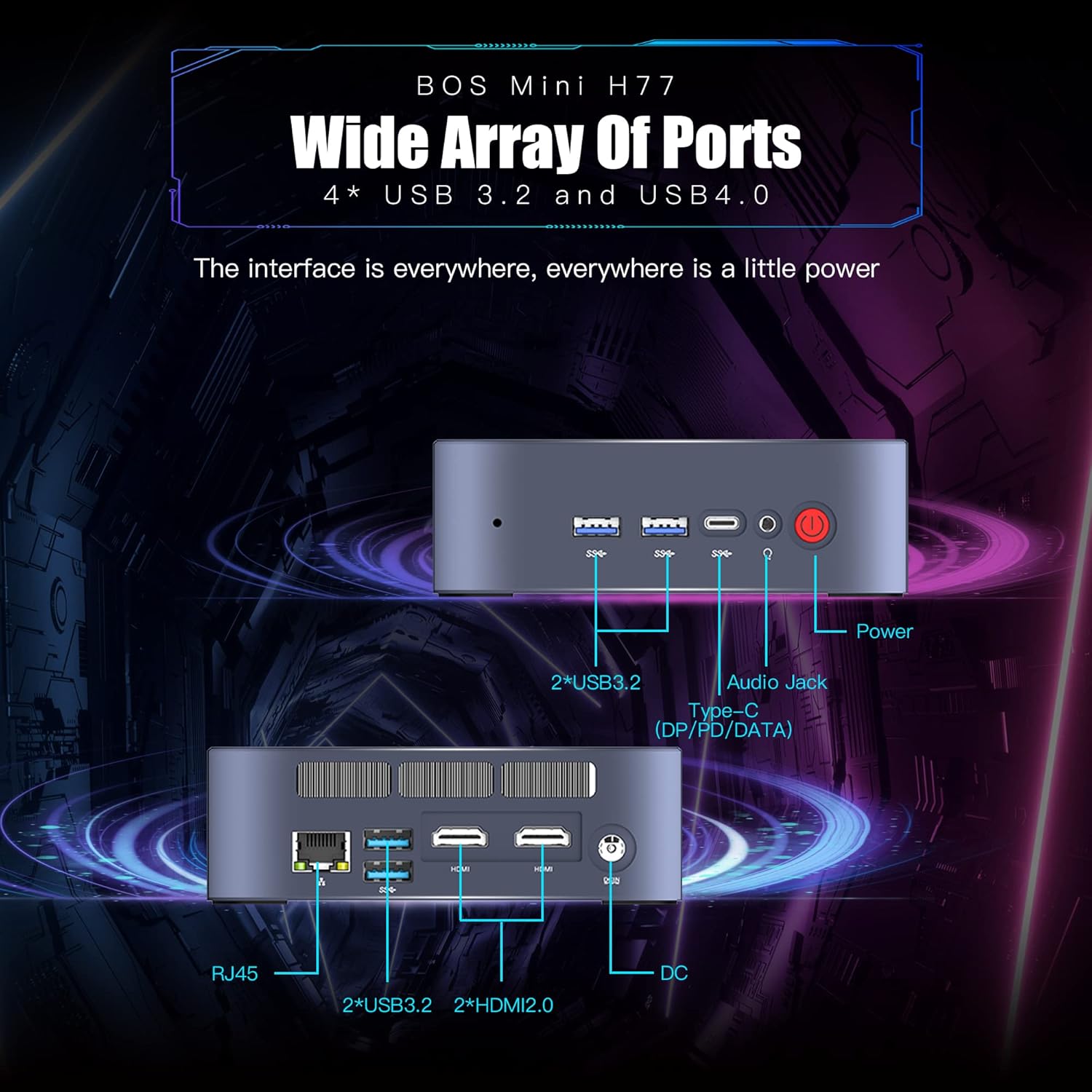
Figure 2.4: Wide Array of Ports. یہ تصویر ایک تفصیلی فراہم کرتی ہے۔ view of the BOSGAME H77 Mini PC's connectivity options. The front panel includes two USB 3.2 ports, one USB4.0 Type-C port (supporting DP/PD/DATA), an audio jack, and the power button. The rear panel features an RJ45 Ethernet port, two additional USB 3.2 ports, two HDMI 2.0 ports, and the DC power input. This comprehensive selection of ports ensures broad compatibility with various peripherals and displays.

شکل 2.5: کومپیکٹ ڈیزائن۔ This image emphasizes the compact and space-saving design of the BOSGAME H77 Mini PC. With a 0.6L body and dimensions of 126mm (length), 112mm (width), and 40.8mm (height), its honeycomb design is both aesthetically pleasing and functional, allowing it to fit into various environments without occupying much space.
3. سیٹ اپ گائیڈ
3.1 پیکیج کے مشمولات
آگے بڑھنے سے پہلے، یقینی بنائیں کہ تمام اشیاء پیکیج میں موجود ہیں:
- BOSGAME H77 Mini PC
- پاور اڈاپٹر
- HDMI کیبل
- صارف دستی (یہ دستاویز)
3.2 کنیکٹنگ پیری فیرلز
- کنیکٹ ڈسپلے: Use the provided HDMI cable to connect your monitor to one of the HDMI ports on the rear of the Mini PC. For triple display, connect additional monitors using the second HDMI port and the USB4.0 Type-C port (requires a compatible adapter, not included).
- کی بورڈ اور ماؤس کو جوڑیں: Plug your USB keyboard and mouse into any available USB 3.2 ports on the front or rear of the Mini PC.
- پاور سے رابطہ کریں: Connect the power adapter to the DC input port on the rear of the Mini PC, then plug the adapter into a power outlet.
- نیٹ ورک کنکشن (اختیاری): For a wired connection, plug an Ethernet cable into the RJ45 port on the rear. For wireless, ensure Wi-Fi is enabled during initial setup or via Windows settings.
3.3 ابتدائی بوٹ اپ
- Press the power button on the front of the Mini PC. The power indicator light will illuminate.
- Follow the on-screen instructions to complete the Windows 11 Pro setup. This typically involves selecting your region, language, creating a user account, and connecting to a network.
4. آپریٹنگ ہدایات
4.1 پاور آن/آف
- پاور آن: پاور بٹن کو ایک بار دبائیں۔
- بند کریں: Click the Windows Start button, then select Power > Shut down. Do not unplug the power adapter directly without proper shutdown to prevent data loss.
- دوبارہ شروع کریں: ونڈوز اسٹارٹ بٹن پر کلک کریں، پھر پاور> ری اسٹارٹ کو منتخب کریں۔
4.2 نیٹ ورک کنیکٹیویٹی
- وائی فائی: To connect to a wireless network, click the Wi-Fi icon in the taskbar, select your desired network, and enter the password. The device supports Wi-Fi 6 for fast wireless speeds.
- ایتھرنیٹ: If an Ethernet cable is connected, the system will automatically detect and connect to the wired network.
- بلوٹوتھ: To connect Bluetooth devices (e.g., headphones, speakers), go to Windows Settings > Bluetooth & devices, and pair your device. The Mini PC supports Bluetooth 5.2.
4.3 USB پورٹس کا استعمال
The BOSGAME H77 features multiple USB 3.2 ports and a versatile USB4.0 Type-C port. These ports can be used for connecting external storage, peripherals, or for data transfer.
- USB 3.2: Provides high-speed data transfer for compatible devices.
- USB4.0 Type-C: This port supports DisplayPort (DP) for video output, Power Delivery (PD) for charging compatible devices, and high-speed data transfer.
4.4 ٹرپل ڈسپلے سیٹ اپ
To utilize the triple display feature:
- اپنے بنیادی مانیٹر کو ایک HDMI پورٹ سے جوڑیں۔
- اپنے دوسرے مانیٹر کو دوسرے HDMI پورٹ سے جوڑیں۔
- Connect your third monitor to the USB4.0 Type-C port using a compatible USB-C to DisplayPort or USB-C to HDMI adapter (sold separately).
- Once connected, right-click on the desktop, select "Display settings," and configure your displays (extend, duplicate, etc.) as needed.
5 دیکھ بھال
5.1 Cleaning the Mini PC
Regular cleaning helps maintain optimal performance and extends the lifespan of your device.
- بیرونی: Use a soft, dry, lint-free cloth to wipe the exterior surfaces. For stubborn marks, slightly dampپانی کے ساتھ کپڑے. سخت کیمیکلز سے پرہیز کریں۔
- وینٹیلیشن: Periodically use compressed air to clear dust from the ventilation grilles to ensure proper airflow and prevent overheating.
5.2 سافٹ ویئر اپ ڈیٹس
Keep your Windows 11 Pro operating system and drivers updated to ensure security, stability, and performance.
- ونڈوز اپ ڈیٹس: Go to Windows Settings > Windows Update and check for available updates.
- ڈرائیور اپڈیٹس: Visit the BOSGAME official website for the latest drivers for your H77 Mini PC.
5.3 اسٹوریج مینجمنٹ
The 512GB NVMe M.2 SSD provides fast storage. To maintain performance:
- باقاعدگی سے غیر ضروری کو حذف کریں۔ files اور ایپلی کیشنز.
- Utilize Windows Disk Cleanup tool to free up space.
- Consider external storage solutions for large files if the internal SSD becomes full.
6 خرابیوں کا سراغ لگانا
This section addresses common issues you might encounter with your BOSGAME H77 Mini PC.
6.1 کوئی طاقت نہیں۔
- یقینی بنائیں کہ پاور اڈاپٹر منی پی سی اور ورکنگ پاور آؤٹ لیٹ دونوں سے محفوظ طریقے سے جڑا ہوا ہے۔
- دوسرے آلے میں پلگ لگا کر تصدیق کریں کہ پاور آؤٹ لیٹ فعال ہے۔
- کسی بھی نظر آنے والے نقصان کے لیے پاور اڈاپٹر کو چیک کریں۔
6.2 کوئی ڈسپلے نہیں۔
- Confirm the HDMI cable (or USB-C display cable) is securely connected to both the Mini PC and the monitor.
- Ensure the monitor is powered on and set to the correct input source (HDMI 1, HDMI 2, DisplayPort, etc.).
- Try connecting the Mini PC to a different monitor or TV to rule out monitor issues.
6.3 نیٹ ورک کنیکٹیویٹی کے مسائل
- وائی فائی: Check if Wi-Fi is enabled in Windows settings. Restart your router/modem. Ensure you are within range of your Wi-Fi network.
- ایتھرنیٹ: Verify the Ethernet cable is properly connected. Check your router/modem for internet access.
6.4 سسٹم کی سست روی یا جمنا
- پس منظر میں چلنے والی غیر ضروری ایپلی کیشنز کو بند کریں۔
- Check Task Manager (Ctrl+Shift+Esc) for processes consuming high CPU, RAM, or disk usage.
- Ensure your system is up-to-date with the latest Windows and driver updates.
- ڈسک کی صفائی کریں اور مالویئر کی جانچ کریں۔
If you encounter issues not covered here, please refer to the support section for further assistance.
7. وضاحتیں
| فیچر | تفصیلات |
|---|---|
| برانڈ | بوسگیم |
| ماڈل نمبر | H77 |
| آپریٹنگ سسٹم | ونڈوز 11 پرو |
| سی پی یو ماڈل | AMD Ryzen 7 7735HS (8 Cores, 16 Threads) |
| سی پی یو کی رفتار | Up to 4.75 GHz (Base 3.2 GHz) |
| گرافکس کا پروسیسر | Integrated AMD Radeon 680M Graphics |
| RAM میموری انسٹال شدہ سائز | 32 GB DDR5 SDRAM |
| میموری سلاٹس دستیاب ہیں۔ | 2 |
| ہارڈ ڈسک کی تفصیل | 512 GB NVMe M.2 SSD |
| ویڈیو آؤٹ پٹ انٹرفیس | 2x HDMI, 1x USB4.0 Type-C (DP support) |
| ڈسپلے ریزولوشن زیادہ سے زیادہ | 3840 x 2160 پکسلز (4K) |
| کل USB پورٹس | 4x USB 3.2, 1x USB4.0 Type-C |
| کنیکٹوٹی ٹیکنالوجی | Ethernet, HDMI, LAN, Wi-Fi |
| وائرلیس مطابقت | Wi-Fi 6 (802.11ax)، بلوٹوتھ 5.2 |
| کولنگ کا طریقہ | ہوا |
| رنگ | سیاہ |
| اضافی خصوصیات | میموری کارڈ ریڈر |
8. وارنٹی اور سپورٹ
Your BOSGAME H77 Mini PC comes with a standard manufacturer's warranty. Please refer to the warranty card included in your package for specific terms and conditions, including warranty duration and coverage details.
For technical support, troubleshooting assistance, or warranty claims, please visit the official BOSGAME website or contact their customer service. Keep your purchase receipt and product serial number handy when seeking support.