
1. تعارف
This manual provides detailed instructions for the setup, operation, and maintenance of your KiiBoom Phantom 81 V2 Mechanical Gaming Keyboard. Please read this manual thoroughly before using the product to ensure optimal performance and longevity.

Image: The KiiBoom Phantom 81 V2 Mechanical Gaming Keyboard, showcasing its transparent design and RGB backlighting.
2. پیکیج کے مشمولات
تصدیق کریں کہ تمام اشیاء پیکیج میں موجود ہیں:
- KiiBoom Phantom 81 V2 Mechanical Gaming Keyboard
- USB کیبل
- کیکپ پلر
- Switch Puller (often integrated with keycap puller)
- Extra Switches (typically 2)
3. کلیدی خصوصیات
The KiiBoom Phantom 81 V2 keyboard incorporates several advanced features:
- 75% لے آؤٹ: کومپیکٹ ڈیزائن ضروری چابیاں برقرار رکھتا ہے۔
- Transparent Acrylic Frame: Durable and aesthetically unique.
- گسکیٹ ماؤنٹ ڈیزائن: ٹائپنگ کے احساس اور آواز کو بہتر بناتا ہے۔
- PC Mounting Plate: Optimized for flexibility and sound profile.
- Full-key Hot-swappable PCB: سولڈرنگ کے بغیر آسان سوئچ کو تبدیل کرنے کی اجازت دیتا ہے۔
- South-facing RGB LEDs: Provides vibrant backlighting with reduced glare.
- ٹرپل موڈ کنیکٹیویٹی: Supports Type-C Wired, Bluetooth 5.0, and 2.4GHz wireless connections.
- ریچارج ایبل بیٹری: 4000mAh capacity for extended wireless use.
- مطابقت: Fully compatible with Mac and Windows operating systems.

تصویر: ایک اوورview graphic highlighting the KiiBoom Phantom 81 V2's main features including 75% layout, tri-mode, hot-swappable, gasket-mounted, PC plate, plate-mounted stabilizers, south-facing RGB, and acrylic design.

Image: A detailed exploded diagram illustrating the internal gasket structure of the KiiBoom Phantom 81 V2 keyboard, showing components like the metal knob, acrylic top case, switches, PC plate, sandwich cotton, switch pad, PCB, acrylic bottom case, metal nameplate, and keyboard pads.

Image: A close-up of the KiiBoom Phantom 81 V2 keyboard highlighting its transparent acrylic case and PC keycaps with an ASA profileشوکasing the clear design.
4. سیٹ اپ
4.1 ابتدائی چارجنگ
Before first use, connect the keyboard to a USB power source using the provided USB-C cable. The keyboard will charge automatically. A full charge is recommended for optimal battery life.
4.2 کنیکٹیویٹی موڈز
The Phantom 81 V2 supports three connection modes:
- Type-C Wired Mode: Connect the USB-C cable directly to your computer. Switch the mode selector on the back of the keyboard to "USB".
- بلوٹوتھ 5.0 موڈ:
- Switch the mode selector on the back of the keyboard to "BT".
- دبائیں Fn + 1۔, Fn + 2۔، یا Fn + 3۔ to select a Bluetooth profile. The indicator light will flash, indicating pairing mode.
- On your device (computer, tablet, smartphone), search for Bluetooth devices and select "KiiBoom Phantom 81".
- جڑ جانے کے بعد، اشارے کی روشنی چمکنا بند کر دے گی۔
- 2.4GHz وائرلیس موڈ:
- Switch the mode selector on the back of the keyboard to "2.4G".
- Insert the 2.4GHz USB receiver into an available USB port on your computer.
- دبائیں Fn + 4۔. The keyboard will automatically connect to the receiver. The indicator light will stop flashing once connected.

Image: A close-up of the KiiBoom Phantom 81 V2's side, showing the USB-C port and the physical switches for selecting between USB, Win/Mac, Bluetooth, and 2.4G wireless modes.
4.3 آپریٹنگ سسٹم کی مطابقت
The keyboard is compatible with both Windows and macOS. Use the dedicated switch on the back of the keyboard to select the appropriate operating system mode (WIN/MAC) for optimal key mapping.

Image: A visual representation of the KiiBoom Phantom 81 V2 keyboard being used with various operating systems, including macOS, Windows, and Android, indicating broad compatibility.
5. آپریٹنگ ہدایات
5.1 RGB بیک لائٹنگ کنٹرول
The Phantom 81 V2 features south-facing RGB LEDs for customizable backlighting. Use the following key combinations to adjust the lighting effects:
- Fn + \ |: Toggle Backlight Mode
- Fn + DEL: Toggle Backlight Direction
- Fn + ↑: چمک +
- Fn + ↓: Brightness -
- Fn + →: Speed +
- Fn + ←: Speed -

Image: A diagram illustrating the key combinations for controlling the south-facing RGB backlights on the KiiBoom Phantom 81 V2 keyboard, including mode, direction, brightness, and speed adjustments.
5.2 Surrounding Sidelights Control
The keyboard also features customizable sidelights. Use the following key combinations to adjust them:
- Fn + P: Toggle Sidelight Mode
- ایف این + بی۔: Toggle Sidelight Color
- Fn + X: Sidelight Brightness +
- Fn+Z: Sidelight Brightness -
- Fn + V: Sidelight Speed +
- Fn + C: Sidelight Speed -

Image: A diagram illustrating the key combinations for controlling the surrounding sidelights on the KiiBoom Phantom 81 V2 keyboard, including mode, color, brightness, and speed adjustments.
5.3 ملٹی فنکشنل نوب
The knob located on the top right of the keyboard provides quick access to media controls and can be customized:
- Rotate clockwise: Volume +
- Rotate counter-clockwise: Volume -
- دبائیں: خاموش / چالو کریں۔
- Long Press: Customizable Functions (refer to software for configuration)

Image: A close-up of the KiiBoom Phantom 81 V2's multifunctional knob, detailing its functions for volume control, mute, and customizable options.
5.4 Checking Battery Power
To check the current battery level, press Fn + بیک اسپیس. The indicator lights will display the approximate battery percentage.

Image: A diagram showing how to check the battery power of the KiiBoom Phantom 81 V2 keyboard by pressing Fn+Backspace, with visual indicators for 20%, 50%, and 100% charge levels.
5.5 گرم تبدیل کرنے کے قابل سوئچز
The Phantom 81 V2 features a full-key hot-swappable PCB, allowing you to change mechanical switches without soldering. This keyboard is compatible with both 3-pin and 5-pin mechanical switches.
- مطلوبہ کی کیپ کو احتیاط سے ہٹانے کے لیے فراہم کردہ کی کیپ پلر کا استعمال کریں۔
- Use the provided switch puller to gently grasp the switch from its top and bottom clips. Pull straight up to remove the switch from the PCB.
- پی سی بی کے سوراخوں کے ساتھ نئے سوئچ کے پنوں کو سیدھ میں رکھیں۔ اس بات کو یقینی بنائیں کہ پن موڑنے سے بچنے کے لیے سیدھے ہیں۔
- نئے سوئچ کو اس وقت تک دبائیں جب تک کہ اس پر کلک نہ ہو جائے۔
- کی کیپ کو دوبارہ منسلک کریں۔

تصویر: ایک قریبی اپ view of the KiiBoom Phantom 81 V2 keyboard with a keycap and switch removed, demonstrating the hot-swappable PCB plate compatible with 3-pin or 5-pin mechanical switches.

Image: A hand using a switch puller tool to remove a switch from the KiiBoom Phantom 81 V2 keyboard, illustrating the hot-swappable feature.
Different switch types offer varying typing experiences:
- KiiBoom Pink Switch: Linear type, Actuation Force: 38±15gf, Bottom Force: 42±15gf, Total Travel: 3.80±0.2mm, Pre Travel: 1.6±0.4mm.
- KiiBoom Purple Switch: Linear type, Actuation Force: 45±15gf, Bottom Force: 55±15gf, Total Travel: 3.80±0.2mm, Pre Travel: 1.6±0.4mm.
- KiiBoom Crystal Switch: Linear type, Actuation Force: 55±15gf, Bottom Force: 60±15gf, Total Travel: 3.60±0.2mm, Pre Travel: 1.6±0.4mm.

Image: A close-up of KiiBoom Purple Switches, illustrating their transparent design.

Image: A close-up of KiiBoom Pink Switches, illustrating their transparent design.

Image: A close-up of KiiBoom Crystal Switches, illustrating their transparent design.
5.6 سافٹ ویئر حسب ضرورت
Advanced customization for key remapping, macro creation, and lighting effects can be achieved through the dedicated KiiBoom software. Please visit the official KiiBoom website to download the latest software version for your keyboard model.
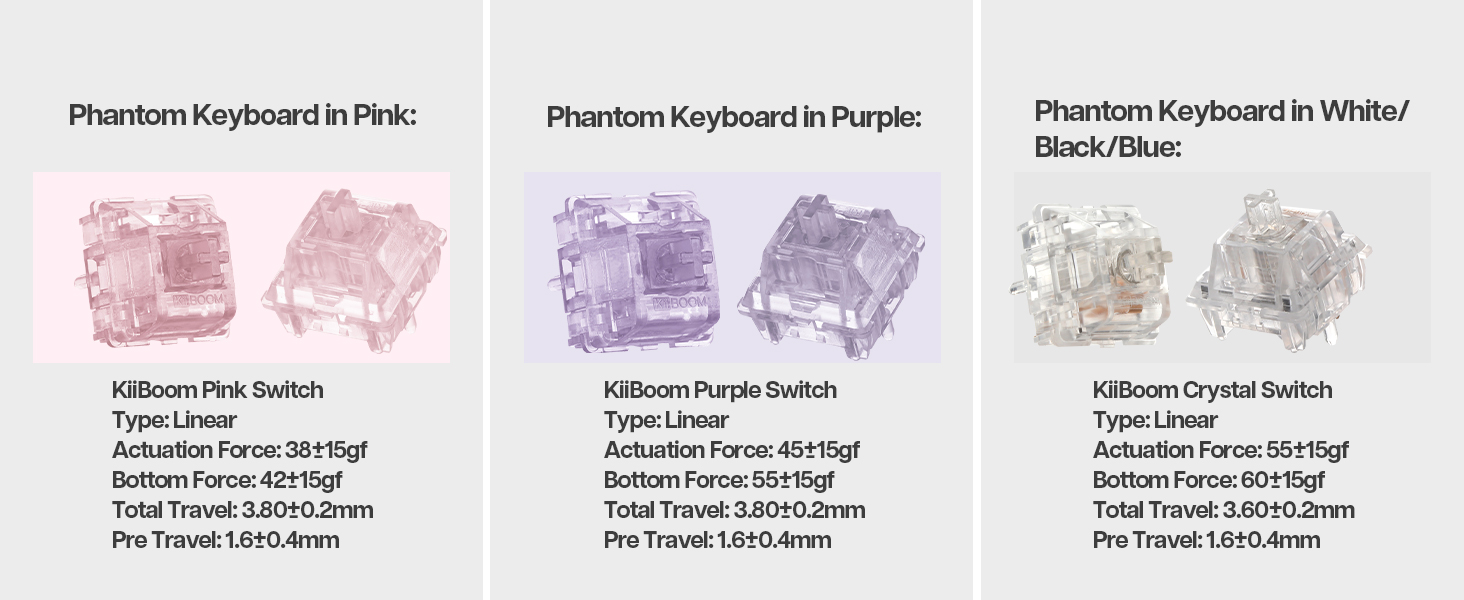
Image: A laptop screen displaying the KiiBoom software interface for customizing key settings, lighting, and other functions of the Phantom 81 V2 keyboard.
6 دیکھ بھال
6.1 صفائی
- کی کیپس: Use the keycap puller to remove keycaps. Clean them with a mild soap solution and a soft cloth. Ensure they are completely dry before reattaching.
- کی بورڈ باڈی: نرم، لنٹ فری کپڑا استعمال کریں، تھوڑا سا ڈیampened with water or a mild cleaning solution, to wipe the acrylic body. Avoid abrasive materials or harsh chemicals.
- چابیاں کے درمیان: سوئچ کے درمیان سے دھول اور ملبہ ہٹانے کے لیے کمپریسڈ ہوا کا استعمال کریں۔
6.2 عمومی نگہداشت
- Avoid exposing the keyboard to extreme temperatures, direct sunlight, or high humidity.
- Do not spill liquids on the keyboard. If a spill occurs, immediately disconnect power and allow it to dry completely before attempting to use it again.
- Handle with care to prevent drops or impacts that could damage the transparent acrylic.
7 خرابیوں کا سراغ لگانا
| مسئلہ | ممکنہ حل |
|---|---|
| کی بورڈ وائرلیس موڈ میں جواب نہیں دے رہا ہے۔ |
|
| آرجیبی لائٹنگ کام نہیں کررہی ہے یا غلط ہے۔ |
|
| کلیدیں رجسٹر یا ڈبل ٹائپنگ نہیں کر رہی ہیں۔ |
|
| بیٹری تیزی سے ختم ہو جاتی ہے۔ |
|
8. وضاحتیں
| فیچر | تفصیل |
|---|---|
| ماڈل | Phantom 81 V2 |
| لے آؤٹ | 75% |
| کنیکٹوٹی | 2.4Ghz وائرلیس، بلوٹوتھ 5.0، USB-C وائرڈ |
| بیٹری کی صلاحیت | 4000mAh (V2 version) |
| بیک لائٹنگ | جنوب کی طرف آرجیبی |
| گرم بدلنے والا | Yes, compatible with 3-pin/5-pin mechanical switches |
| کیس کا مواد | ایکریلک |
| پلیٹ کا مواد | پولی کاربونیٹ (PC) |
| شے کا وزن | 4.53 پاؤنڈ (تقریباً 2.05 کلوگرام) |
| پیکیج کے طول و عرض | 16.61 x 10.91 x 2.91 انچ |
| ہم آہنگ آلات | گیمنگ کنسول، لیپ ٹاپ، پی سی، اسمارٹ فون، ٹیبلٹ |
9. وارنٹی اور سپورٹ
For warranty information and technical support, please refer to the official KiiBoom webسائٹ یا ان کی کسٹمر سروس سے براہ راست رابطہ کریں۔ کسی بھی وارنٹی دعووں کے لیے اپنی خریداری کا ثبوت رکھیں۔
Official KiiBoom Webسائٹ: KiiBoom Store on Amazon (for general brand information and potential support links).