
1. تعارف
This manual provides detailed instructions for the setup, operation, maintenance, and troubleshooting of your Xprinter XP-233B Thermal Barcode Printer. The XP-233B is designed for efficient thermal printing of barcodes and labels, utilizing heat-sensitive paper without the need for ink or ribbons.
2. حفاظتی ہدایات
- Ensure the printer is connected to a power source with the correct voltage جیسا کہ پاور اڈاپٹر پر بیان کیا گیا ہے۔
- پرنٹر کو پانی یا ضرورت سے زیادہ نمی کے سامنے نہ رکھیں۔
- پرنٹر کو براہ راست سورج کی روشنی میں یا گرمی کے ذرائع کے قریب رکھنے سے گریز کریں۔
- Keep the printer away from dust and debris to prevent damage to internal components.
- Do not attempt to disassemble or repair the printer yourself. Contact qualified service personnel for assistance.
- Use only recommended thermal label rolls to ensure optimal print quality and printer longevity.
3. پیکیج کے مشمولات
تصدیق کریں کہ تمام اشیاء پیکیج میں موجود ہیں:
- Xprinter XP-233B Thermal Barcode Printer
- پاور اڈاپٹر
- USB کیبل
- فوری آغاز گائیڈ (اگر شامل ہو)
- Driver CD (if included, drivers can also be downloaded online)
4. پروڈکٹ ختمview
Familiarize yourself with the main components of the XP-233B printer.

تصویر 4.1: سامنے کی طرف view of the Xprinter XP-233B, showing the power switch, control panel, and label output slot.

تصویر 4.2: پیچھے view of the Xprinter XP-233B, highlighting the USB, Ethernet, and power input ports.
کنٹرول پینل کے افعال:
- فیڈ بٹن: Press to feed a blank label. Hold to perform a self-test print.
- توقف کا بٹن: پرنٹنگ کو روکتا ہے یا دوبارہ شروع کرتا ہے۔
- کینسل بٹن: موجودہ پرنٹ جاب کو منسوخ کرتا ہے۔
- ایل ای ڈی اشارے: Display printer status (e.g., Power, Error, Paper Out). Refer to troubleshooting for specific light patterns.
5. سیٹ اپ
5.1 پرنٹر کو جوڑنا
- Connect the power adapter to the printer's power input port and then plug it into a wall outlet.
- Connect the USB cable from the printer to your computer. For Ethernet connectivity, connect an Ethernet cable from the printer to your network router or switch.
- سائیڈ پر موجود پاور سوئچ کا استعمال کرتے ہوئے پرنٹر کو آن کریں۔
5.2 لیبل لوڈ ہو رہا ہے۔
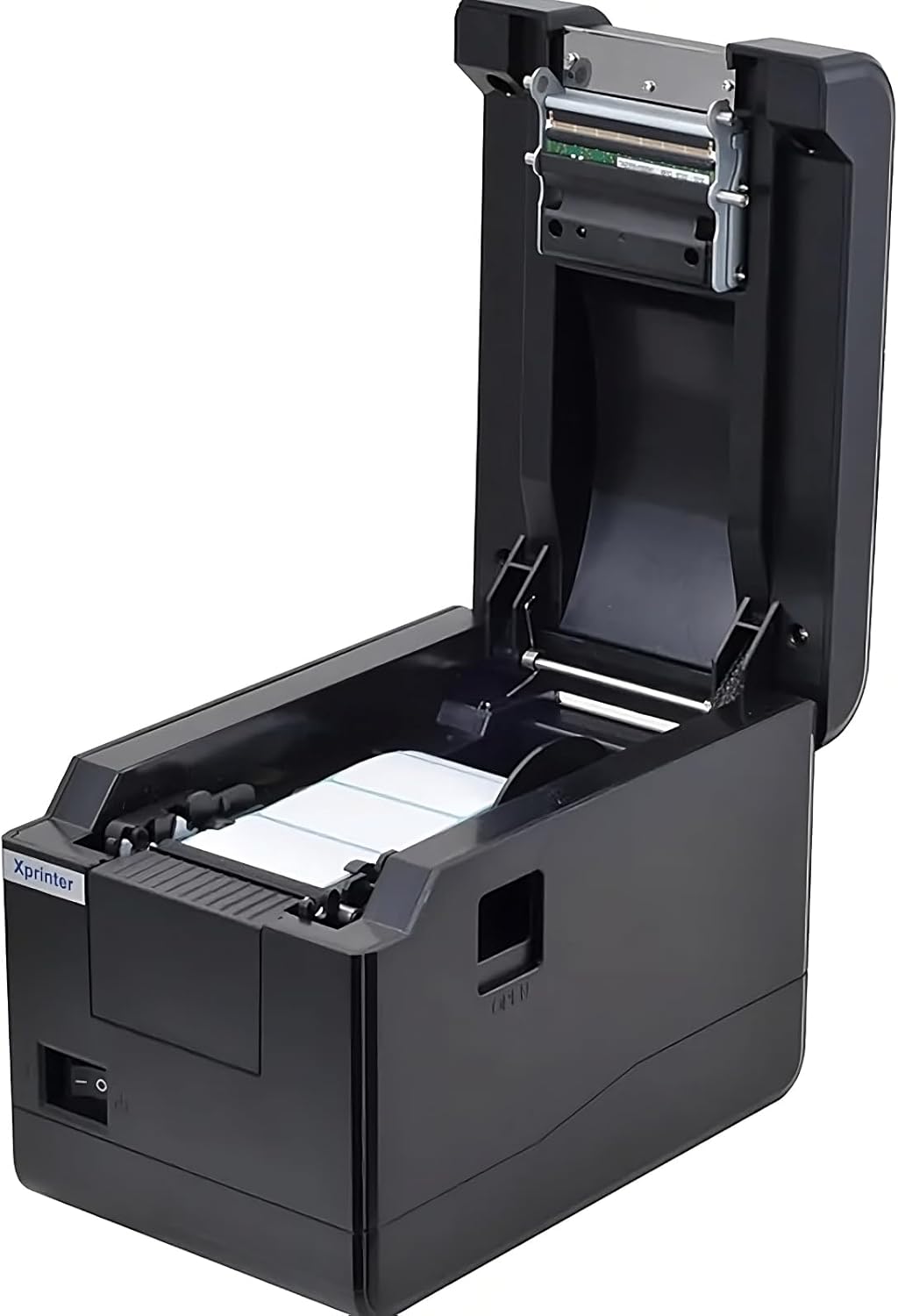
تصویر 5.1: اپر سے نیچے view of the Xprinter XP-233B with the cover open, illustrating the label loading area.
- Press the 'OPEN' button on the side of the printer to open the top cover.
- Place the thermal label roll into the label compartment, ensuring the labels feed from the bottom of the roll and the printable side faces upwards.
- Adjust the movable label guides to fit the width of your label roll snugly, without pinching the labels.
- Pull a few labels past the print head and out through the front slot.
- Close the top cover firmly until it clicks into place.
- The printer will automatically calibrate and feed a few labels to detect the label gap.
5.3 ڈرائیور کی تنصیب
Install the printer drivers on your computer. Drivers can typically be found on the included CD or downloaded from the official Xprinter webسائٹ انسٹالیشن کے لیے آن اسکرین ہدایات پر عمل کریں۔
6. پرنٹر چلانا
6.1 بنیادی پرنٹنگ
Once the printer is set up and drivers are installed, you can print labels from your application (e.g., label design software, shipping software). Ensure the correct printer model (Xprinter XP-233B) is selected in your application's print settings.
6.2 Self-Test Print
To perform a self-test print:
- Ensure the printer is powered on and labels are loaded.
- دبائیں اور تھامیں۔ فیڈ button for approximately 3-5 seconds until the printer starts printing.
- The self-test print will display printer information and a test pattern, confirming basic functionality.
7 دیکھ بھال
7.1 پرنٹ ہیڈ کو صاف کرنا
Regular cleaning of the print head ensures optimal print quality and extends the printer's lifespan. Clean the print head when print quality degrades or after every few rolls of labels.
- پرنٹر کو بند کریں اور بجلی کی ہڈی کو منقطع کریں۔
- اوپر کا احاطہ کھولیں۔
- Gently wipe the print head surface with a cotton swab lightly dampened with isopropyl alcohol (70% or higher).
- Allow the print head to dry completely (approximately 2-3 minutes) before closing the cover and turning on the printer.
7.2 باہر کی صفائی
پرنٹر کے بیرونی حصے کو نرم سے صاف کریں، ڈیamp کپڑا سخت کیمیکل یا کھرچنے والے کلینر کا استعمال نہ کریں۔
8 خرابیوں کا سراغ لگانا
| مسئلہ | ممکنہ وجہ | حل |
|---|---|---|
| پرنٹر آن نہیں ہو رہا ہے۔ | Power cord loose; power outlet faulty; power adapter damaged. | Check power connections; try a different outlet; replace power adapter if necessary. |
| No labels feeding | Labels incorrectly loaded; paper out; label guides too tight. | Reload labels correctly; replace label roll; adjust label guides. |
| Poor print quality (faded, lines) | Print head dirty; low-quality labels; print head damaged. | Clean print head (refer to Section 7.1); use recommended thermal labels; contact support if print head is damaged. |
| Printer not responding to print commands | Incorrect driver installed; USB/Ethernet cable loose; printer paused. | Reinstall drivers; check cable connections; press روکیں۔ دوبارہ شروع کرنے کے لئے بٹن. |
| Labels skipping or misaligning | Incorrect label sensor calibration; label guides not set correctly. | Perform a self-test print to recalibrate; adjust label guides. |
9. وضاحتیں
| فیچر | تفصیلات |
|---|---|
| ماڈل کا نام | Xprinter - Thermal barcode printer |
| آئٹم ماڈل نمبر | XP-233B |
| پرنٹر ٹیکنالوجی | تھرمل |
| کنیکٹوٹی ٹیکنالوجی | ایتھرنیٹ، یو ایس بی |
| پرنٹر آؤٹ پٹ | مونوکروم |
| پرنٹ میڈیا | لیبلز |
| زیادہ سے زیادہ شیٹ کی گنجائش | 100 (typical for roll capacity, actual sheet capacity depends on label size) |
| پروڈکٹ کے طول و عرض (D x W x H) | 26.8 x 18 x 17.2 سینٹی میٹر |
| شے کا وزن | 1.2 کلوگرام |
| رنگ | سیاہ |
10. وارنٹی کی معلومات
Xprinter products typically come with a limited manufacturer's warranty. Please refer to the warranty card included with your product or visit the official Xprinter website for specific warranty terms and conditions, including coverage duration and service procedures. Keep your purchase receipt as proof of purchase for warranty claims.
11. کسٹمر سپورٹ
For technical assistance, driver downloads, or further inquiries regarding your Xprinter XP-233B, please visit the official Xprinter support website or contact their customer service department. Contact information can usually be found on the Xprinter webسائٹ یا آپ کے پرنٹر کے ساتھ فراہم کردہ دستاویزات میں۔