
1. تعارف
This manual provides essential instructions for the installation, operation, and maintenance of your PureLink Vuelogic VB200 Huddle Space Videobar. Please read this manual thoroughly before using the product to ensure proper functionality and to prevent damage.
The PureLink Vuelogic VB200 is an all-in-one conferencing solution designed for huddle spaces and small to medium meeting rooms. It integrates a 4K camera, multiple microphones, and stereo speakers to provide a comprehensive audio and video experience.
2. حفاظتی معلومات
ڈیوائس کو پہنچنے والے نقصان کو روکنے اور صارف کی حفاظت کو یقینی بنانے کے لیے درج ذیل حفاظتی احتیاطی تدابیر پر عمل کریں:
- آلے کو پانی، نمی، یا انتہائی درجہ حرارت کے سامنے نہ رکھیں۔
- آلہ کو گرمی کے ذرائع کے قریب یا براہ راست سورج کی روشنی میں رکھنے سے گریز کریں۔
- صرف ڈیوائس کے ساتھ فراہم کردہ پاور اڈاپٹر استعمال کریں۔
- خود ڈیوائس کو کھولنے یا مرمت کرنے کی کوشش نہ کریں۔ تمام خدمات کو اہل اہلکاروں سے رجوع کریں۔
- آپریشن کے دوران آلہ کے ارد گرد مناسب وینٹیلیشن کو یقینی بنائیں۔
3. پروڈکٹ ختمview
The PureLink Vuelogic VB200 combines a high-quality camera, microphone array, and speakers into a single, compact unit for streamlined video conferencing.
3.1. پیکیج کے مشمولات
تصدیق کریں کہ تمام اشیاء پیکیج میں موجود ہیں:
- PureLink Vuelogic VB200 Videobar
- پاور اڈاپٹر
- USB کیبل
- Mounting Bracket (if included)
- کوئیک اسٹارٹ گائیڈ

Figure 3.1: The retail packaging for the PureLink Vuelogic VB200 Videobar, indicating it is an all-in-one conferencing solution.

شکل 3.2: تفصیلی view of the product packaging, showing the model number VL-VB200 and UPC 4251364736913.
3.2. ڈیوائس کے اجزاء
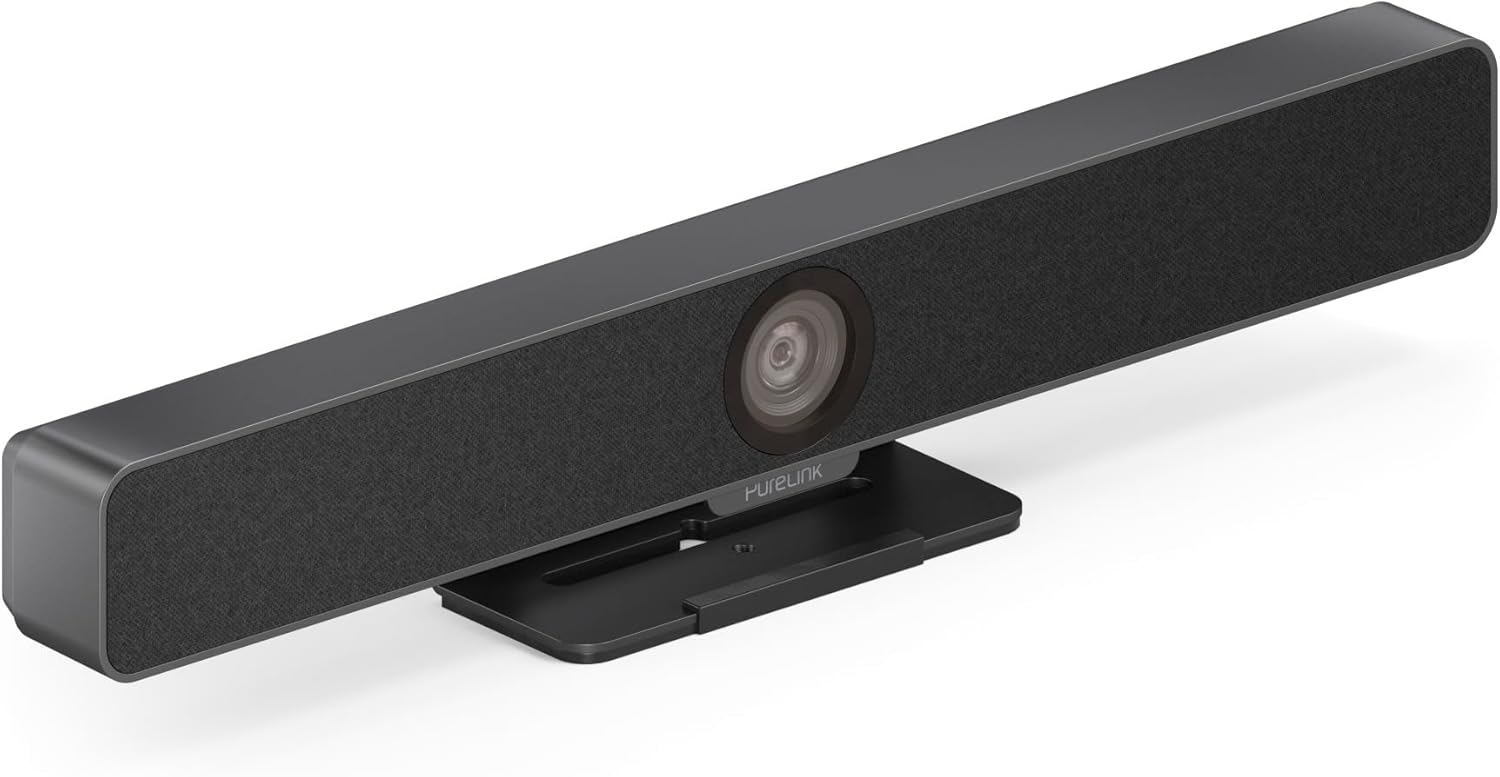
شکل 3.3: سامنے view of the PureLink Vuelogic VB200 Huddle Space Videobar, showcasing the integrated camera and speaker grille.

شکل 3.4: سامنے اور پیچھے views of the videobar. The rear view displays the power input, USB-C port, and other connectivity options.
- سامنے: Integrated 4K camera, speaker grille, PureLink branding.
- پیچھے: Power input, USB-C port for data and power, HDMI output (if applicable), mounting points.
4. سیٹ اپ
Follow these steps to set up your PureLink Vuelogic VB200 Videobar:
- جگہ کا تعین: Position the videobar on a stable surface, such as a table or monitor, ensuring the camera has a clear view of the meeting participants. The integrated stand allows for flexible placement.
- پاور کنکشن: Connect the provided power adapter to the videobar's power input and then to a wall outlet.
- USB کنکشن: Connect the videobar to your computer using the supplied USB-C cable. The device is plug-and-play and should be recognized automatically by your operating system.
- اختیاری HDMI کنکشن: If your setup requires video output to a display, connect an HDMI cable from the videobar's HDMI output (if available) to your display.
- سافٹ ویئر کی شناخت: Once connected, your computer's operating system (Windows, macOS, etc.) should detect the device. You may need to select the "PureLink Vuelogic VB200" as your preferred camera, microphone, and speaker in your video conferencing application settings (e.g., Zoom, Microsoft Teams, Webسابق)۔

Figure 4.1: The videobar positioned on a surface, demonstrating its flexible mounting options for various work environments.
5. آپریٹنگ ہدایات
The PureLink Vuelogic VB200 is designed for ease of use with popular video conferencing platforms.
5.1. Starting a Meeting
- Ensure the videobar is connected and powered on.
- Open your preferred video conferencing application (e.g., Zoom, Microsoft Teams, WebEx, Google Meet, Skype, Slack, GoToMeeting).
- In the application's audio and video settings, select "PureLink Vuelogic VB200" as your camera, microphone, and speaker device.
- Start or join your meeting.

Figure 5.1: The videobar is compatible with leading communication platforms such as Zoom, Slack, GoToMeeting, Google Hangouts, Skype, Microsoft Teams, and Google Meet.
5.2. کلیدی خصوصیات
- 4K ویڈیو کوالٹی: The 120° wide-angle lens captures sharp, high-resolution video, suitable for small to medium rooms.
- Intelligent Auto Framing and Tracking: The camera automatically adjusts its frame to keep all participants visible and can track the active speaker, ensuring optimal framing during dynamic meetings.
- High-Quality Audio Capture: Equipped with 4 MEMS digital microphone arrays, offering a 3-5m range and 180° coverage. Features like Acoustic Echo Cancellation (AEC), Automatic Gain Control (AGC), and Automatic Noise Suppression (ANS) ensure clear communication.
- Hi-Fi Stereo Speakers: Two 3W stereo speakers with bass boost provide clear and powerful audio output for an immersive sound experience.
6 دیکھ بھال
To ensure the longevity and optimal performance of your videobar:
- صفائی: Use a soft, dry cloth to clean the exterior of the device. For the camera lens, use a lens cleaning cloth and solution specifically designed for optics. Do not use abrasive cleaners or solvents.
- ذخیرہ: جب لمبے عرصے تک استعمال میں نہ ہو تو، آلے کو براہ راست سورج کی روشنی سے دور ٹھنڈی، خشک جگہ پر محفوظ کریں۔
- فرم ویئر اپ ڈیٹس: Periodically check the PureLink website for any available firmware updates to ensure your device has the latest features and performance enhancements.
7 خرابیوں کا سراغ لگانا
If you encounter issues with your PureLink Vuelogic VB200, refer to the following common problems and solutions:
| مسئلہ | ممکنہ وجہ | حل |
|---|---|---|
| کوئی ویڈیو آؤٹ پٹ/کیمرہ نہیں ملا | Loose USB connection, incorrect software settings, driver issue. |
|
| No audio from speakers / Microphone not working | Incorrect audio settings, muted device. |
|
| Auto-framing not functioning correctly | Poor lighting, obstruction, software glitch. |
|
8. وضاحتیں
| فیچر | تفصیل |
|---|---|
| برانڈ | پیور لنک |
| ماڈل نمبر | VL-VB200 |
| طول و عرض | 20.47 x 7.87 x 5.12 انچ |
| وزن | 2.2 پاؤنڈ |
| رنگ | سیاہ |
| ویڈیو کیپچر ریزولوشن | 4K |
| آپٹیکل زوم | 5x |
| فوٹو سینسر ٹیکنالوجی | CMOS |
| خصوصی خصوصیات | Auto Framing and Tracking |
| مائکروفون کی قسم | 4 MEMS Digital Microphone Arrays |
| مائیکروفون رینج | 3-5m, 180° coverage |
| آڈیو خصوصیات | اے ای سی، اے جی سی، اے این ایس |
| مقررین | Two 3W Stereo Speakers with Bass Boost |
| کنیکٹوٹی ٹیکنالوجی | HDMI، USB |
| تائید شدہ آڈیو فارمیٹ | AAC، MP3 |
| تائید شدہ ویڈیو فارمیٹ | MP4 |
| مطابقت | Windows, macOS, Zoom, WebEx, Tencent Meeting, Teams, etc. |
9. وارنٹی اور سپورٹ
PureLink products are designed for reliability and performance. For specific warranty information, please refer to the warranty card included with your product or visit the official PureLink webسائٹ
For technical support, troubleshooting assistance, or to inquire about service, please contact PureLink customer support through their official channels. Keep your purchase receipt and product model number (VL-VB200) handy when contacting support.
Official PureLink Webسائٹ: www.purelink.de