
1. تعارف
Thank you for choosing the ONIKUMA CW908 Wired Gaming Mouse. This manual provides detailed instructions on how to set up, operate, maintain, and troubleshoot your new gaming mouse. Please read this manual carefully before use to ensure optimal performance and longevity of your device.
2. پروڈکٹ ختمview
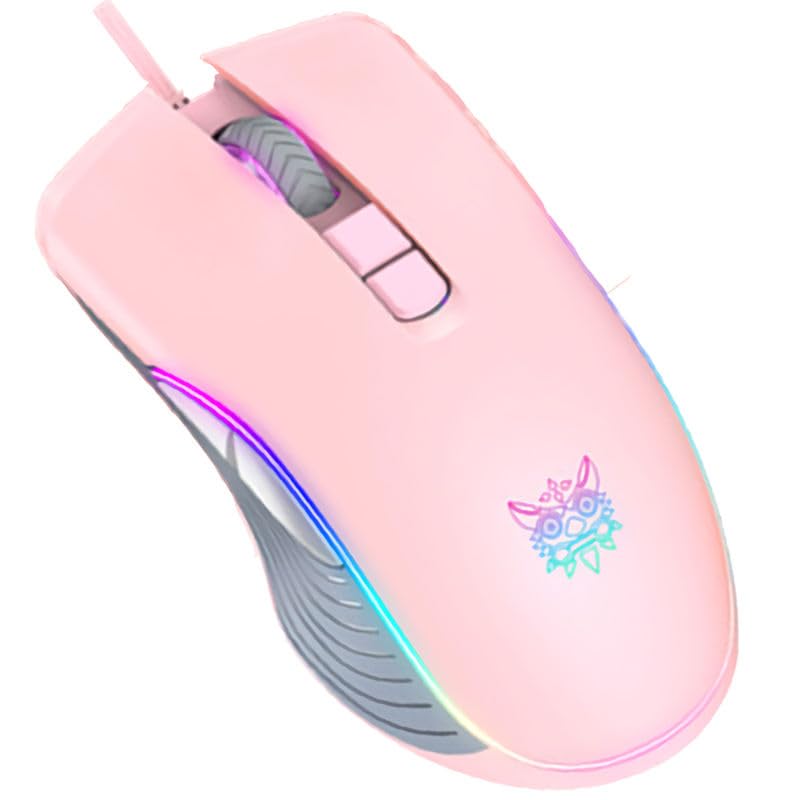
The ONIKUMA CW908 is a high-performance wired gaming mouse designed for comfort and precision. It features 7 programmable buttons, adjustable DPI up to 7200, and vibrant RGB lighting. Its ergonomic and lightweight design ensures comfortable use during extended gaming sessions.
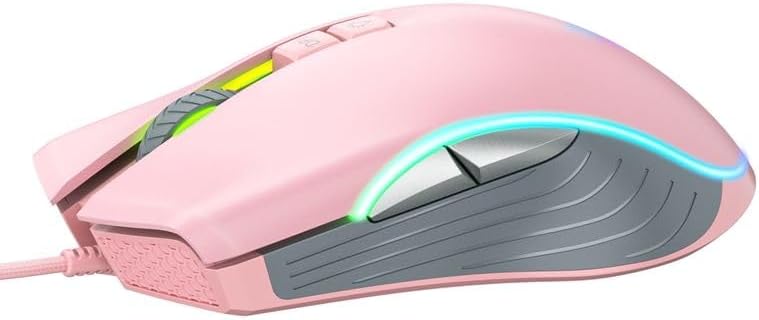
2.1 Mouse Components
- بائیں کلک کے بٹن: معیاری پرائمری کلک فنکشن۔
- دائیں کلک کے بٹن: معیاری ثانوی کلک فنکشن۔
- اسکرول وہیل: سکرولنگ اور مڈل کلک فنکشن کے لیے۔
- DPI ایڈجسٹمنٹ بٹن: DPI ترتیبات کے ذریعے سائیکل۔
- فارورڈ بٹن: میں آگے بڑھتا ہے۔ web براؤزر یا ایپلی کیشنز۔
- پسماندہ بٹن: پیچھے کی طرف تشریف لے جاتے ہیں۔ web براؤزر یا ایپلی کیشنز۔
- آرجیبی لائٹنگ: Integrated LED lighting for aesthetic appeal.
- USB کنیکٹر: For wired connection to your computer.
2.2 مصنوعات کی تصاویر
3. سیٹ اپ ہدایات
Setting up your ONIKUMA CW908 mouse is a simple plug-and-play process.
- ماؤس کو کھولیں: احتیاط سے اس کی پیکیجنگ سے ماؤس کو ہٹا دیں۔
- کمپیوٹر سے جڑیں: Plug the USB connector of the mouse into an available USB port on your personal computer or laptop.
- ڈرائیور کی تنصیب: Your operating system (Windows 7, Windows 98, Linux, or newer versions) should automatically detect and install the necessary drivers. This process may take a few moments.
- استعمال کے لیے تیار: Once the drivers are installed, the mouse will be ready for immediate use. The RGB lighting will illuminate.
4. آپریٹنگ ہدایات
The ONIKUMA CW908 mouse offers intuitive controls for both general use and gaming.
4.1 بنیادی آپریشن
- اپنی اسکرین پر کرسر کو کنٹرول کرنے کے لیے ماؤس کو چپٹی سطح پر منتقل کریں۔
- Use the Left Click Button for primary actions (e.g., selecting items, opening files)۔
- Use the Right Click Button for secondary actions (e.g., opening context menus).
- Roll the Scroll Wheel up or down to navigate through documents or web pages. Press the Scroll Wheel for its middle-click function.
4.2 ڈی پی آئی ایڈجسٹمنٹ
The mouse features an adjustable DPI (Dots Per Inch) setting, allowing you to change cursor sensitivity on the fly. The CW908 supports up to 7200 DPI.
- دبائیں ڈی پی آئی ایڈجسٹمنٹ بٹن (usually located behind the scroll wheel) to cycle through different DPI levels.
- Each press will switch to a predefined DPI setting, indicated by a change in the RGB lighting color or pattern (if applicable).
- Select the DPI level that best suits your task, whether it's precise aiming in games or fast navigation across multiple monitors.
4.3 سائیڈ بٹن
The Forward and Backward buttons on the side of the mouse provide quick navigation.
- دی فارورڈ بٹن typically moves forward in web براؤزر یا file متلاشی
- دی پسماندہ بٹن typically moves backward in web براؤزر یا file متلاشی
5. ترتیبات کو حسب ضرورت بنانا
While the ONIKUMA CW908 offers plug-and-play functionality, advanced customization for button remapping or more intricate RGB control may require dedicated software. Please check the official ONIKUMA website for any available software downloads specific to the CW908 model.
- DPI ترتیبات: As mentioned, the DPI button cycles through preset levels. Software, if available, may allow for custom DPI steps.
- بٹن پروگرامنگ: With compatible software, the 7 buttons can often be remapped to perform specific functions, macros, or keyboard shortcuts, enhancing your gaming and productivity.
- آرجیبی لائٹنگ: Software can provide more granular control over RGB effects, colors, and brightness, beyond the default cycling modes.
6 دیکھ بھال
Proper maintenance ensures the longevity and performance of your gaming mouse.
- صفائی: ماؤس کی سطح کو صاف کرنے کے لیے نرم، خشک کپڑا استعمال کریں۔ ضدی گندگی کے لیے، قدرے ڈیampur کپڑے میں پانی یا ہلکے صفائی کے محلول سے۔ سخت کیمیکلز سے پرہیز کریں۔
- سینسر کی صفائی: Occasionally, dust or debris may accumulate around the optical sensor on the underside of the mouse. Use a cotton swab or compressed air to gently clean the sensor area.
- کیبل کی دیکھ بھال: Avoid sharply bending or pulling the USB cable. Store the mouse in a way that prevents the cable from being crimped or damaged.
- ذخیرہ: جب استعمال میں نہ ہو تو ماؤس کو انتہائی درجہ حرارت سے دور صاف اور خشک ماحول میں محفوظ کریں۔
7 خرابیوں کا سراغ لگانا
If you encounter issues with your ONIKUMA CW908 mouse, refer to the following common problems and solutions:
| مسئلہ | ممکنہ وجہ | حل |
|---|---|---|
| ماؤس جواب نہیں دے رہا ہے۔ | ڈھیلا USB کنکشن، ناقص USB پورٹ، ڈرائیور کا مسئلہ۔ | یقینی بنائیں کہ USB کیبل محفوظ طریقے سے پلگ ان ہے۔ ایک مختلف USB پورٹ آزمائیں۔ اپنے کمپیوٹر کو دوبارہ شروع کریں۔ ڈرائیور کی حیثیت کے لیے ڈیوائس مینیجر کو چیک کریں۔ |
| کرسر کی حرکت بے ترتیب یا تیز ہے۔ | گندا آپٹیکل سینسر، غیر موزوں ماؤس پیڈ سطح۔ | Clean the optical sensor on the underside of the mouse. Use a clean, uniform-colored mouse pad. |
| DPI بٹن حساسیت کو تبدیل نہیں کر رہا ہے۔ | Button malfunction, software conflict. | Ensure the mouse is properly connected. If using custom software, check its settings. Try on another computer to rule out system issues. |
| آر جی بی لائٹنگ کام نہیں کر رہی ہے۔ | Power issue, software setting. | Ensure the mouse is receiving power via USB. If using custom software, check lighting settings. |
8. وضاحتیں
| فیچر | تفصیل |
|---|---|
| برانڈ | اونیکوما |
| ماڈل | CW908 |
| کنیکٹوٹی ٹیکنالوجی | USB وائرڈ |
| تحریک کا پتہ لگانا | آپٹیکل |
| DPI (ڈاٹس فی انچ) | Up to 7200 (Adjustable) |
| بٹنوں کی تعداد | 7 |
| خصوصی خصوصیات | LED Lighting (RGB), Comfortable Design, Lightweight |
| تجویز کردہ استعمال | گیمنگ |
| ہم آہنگ آلات | پرسنل کمپیوٹر، لیپ ٹاپ |
| آپریٹنگ سسٹم کی مطابقت | Linux, Windows 7, Windows 98 (and newer Windows versions) |
| انداز | جدید |
| رنگ | گلابی |
9. وارنٹی اور سپورٹ
ONIKUMA products are manufactured to high-quality standards. For specific warranty information, please refer to the warranty card included with your product or visit the official ONIKUMA website. If you require technical support or have questions not covered in this manual, please contact ONIKUMA customer service through their official channels.