
1. تعارف
Thank you for choosing the Trust Halyx 5-in-1 USB-C Hub. This manual provides essential information for the proper setup, operation, and maintenance of your device. This hub is designed to expand the connectivity of your PC, laptop, or MacBook Pro by adding four USB-C data ports and one USB-C Power Delivery (PD) port.
2. پروڈکٹ ختمview
The Trust Halyx 5-in-1 USB-C Hub (Model 25136) features a durable aluminum housing and a compact design. It connects to your host device via an integrated 10cm USB-C cable.
2.1 کلیدی خصوصیات
- 5-Port Connectivity: Adds 4 USB-C data ports and 1 USB-C Power Delivery port.
- 100W USB-C PD Power Port: Allows pass-through charging for your laptop (additional charger required).
- تیز رفتار ڈیٹا کی منتقلی: Supports data transfer speeds up to 5 Gbps.
- پائیدار ڈیزائن: Constructed with an aluminum housing for enhanced durability.
- پلگ اینڈ پلے: No drivers required for most operating systems.
2.2 پیکیج کے مشمولات
- Trust Halyx 5-in-1 USB-C Hub
- صارف دستی (یہ دستاویز)

Image: The Trust Halyx 5-in-1 USB-C Hub showing its five convenient ports and integrated USB-C cable.

تصویر: ایک تفصیلی view of the five USB-C ports on the Trust Halyx hub, including the Power Delivery port.
3. سیٹ اپ ہدایات
Follow these steps to set up your Trust Halyx 5-in-1 USB-C Hub:
- میزبان ڈیوائس سے جڑیں: Plug the integrated USB-C cable of the hub into an available USB-C port on your PC, laptop, or MacBook Pro.
- پاور کنکشن (اختیاری): If you wish to charge your laptop through the hub, connect your laptop's USB-C power adapter to the dedicated 100W USB-C PD port on the hub. Note: An additional charger is required for pass-through charging.
- پیری فیرلز کو جوڑیں: Plug your USB-C devices (e.g., external drives, keyboards, mice, other USB-C accessories) into the four USB-C data ports on the hub.
- کنکشن کی تصدیق کریں: Your operating system should automatically detect the hub and connected devices. No additional drivers are typically needed.

Image: The Trust Halyx hub connected to a laptop, demonstrating how to plug in additional USB-C devices.

Image: The 100W USB-C Power Delivery port on the Trust Halyx hub, with a power cable connected for laptop charging.
4. آپریٹنگ ہدایات
Once connected, the Trust Halyx hub operates as a direct extension of your computer's USB-C capabilities.
4.1 کنیکٹنگ ڈیوائسز
- Simply plug your USB-C peripherals into any of the four available USB-C data ports.
- The hub supports data transfer speeds of up to 5 Gbps, suitable for most external storage devices, keyboards, mice, and other accessories.
4.2 Power Delivery Functionality
- The dedicated USB-C PD port allows you to charge your laptop while using the hub. Connect your laptop's original USB-C power adapter to this port.
- The hub supports up to 100W pass-through power delivery. Ensure your power adapter is compatible with your laptop's charging requirements.

Image: A complete workstation setup utilizing the Trust Halyx hub to connect various peripherals to a laptop and external monitor.
5. دیکھ بھال اور دیکھ بھال
To ensure the longevity and optimal performance of your Trust Halyx USB-C Hub, follow these guidelines:
- صفائی: Use a soft, dry cloth to clean the hub. Avoid liquid cleaners or abrasive materials.
- ذخیرہ: Store the hub in a cool, dry place when not in use. Its compact size makes it suitable for travel.
- ہینڈلنگ: Avoid dropping the hub or subjecting it to strong impacts. Do not bend the integrated cable excessively.
- درجہ حرارت: Operate the hub within normal room temperatures. Avoid extreme heat or cold.
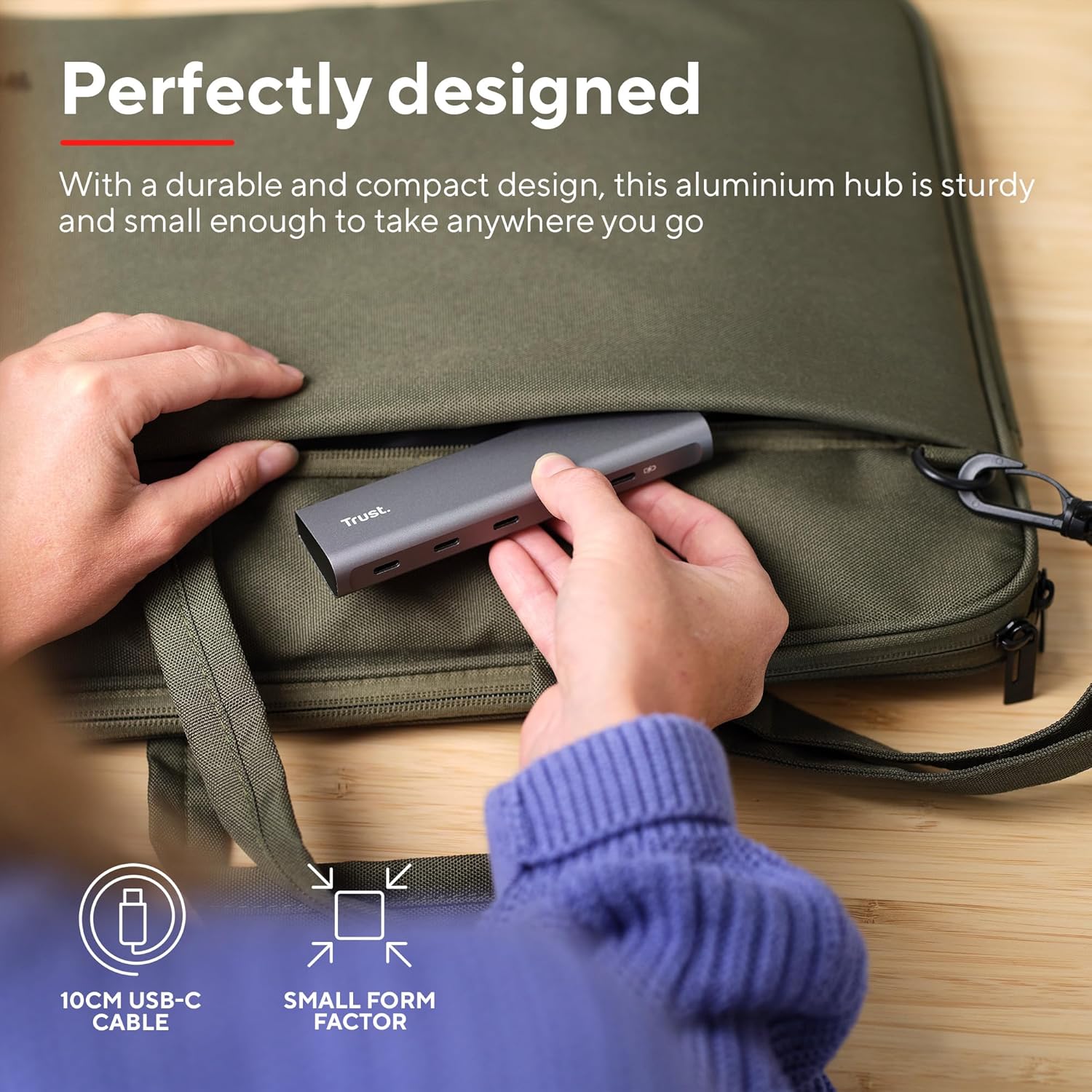
Image: The compact and durable design of the Trust Halyx hub, shown being placed into a laptop bag for portability.
6 خرابیوں کا سراغ لگانا
If you encounter issues with your Trust Halyx USB-C Hub, refer to the following common solutions:
6.1 Devices Not Detected
- کنکشن چیک کریں: Ensure the hub's USB-C cable is securely plugged into your host device and that peripherals are firmly connected to the hub.
- Restart Host Device: Sometimes, a simple restart of your computer can resolve detection issues.
- Test Peripherals Directly: Connect the peripheral directly to your computer's USB-C port (if available) to confirm it is functioning correctly.
- Try Different Port: If your computer has multiple USB-C ports, try connecting the hub to a different one.
6.2 Charging Not Working
- پاور اڈاپٹر کی تصدیق کریں: Ensure your USB-C power adapter is correctly connected to the hub's PD port and is capable of providing sufficient power for your laptop.
- Check Laptop Compatibility: Confirm your laptop supports USB-C Power Delivery for charging.
- کیبل کی سالمیت: Ensure the USB-C cable from your power adapter to the hub is not damaged.
6.3 سست ڈیٹا کی منتقلی۔
- ڈیوائس کی مطابقت: Ensure the connected peripheral supports USB 3.0 (5 Gbps) speeds. Older USB 2.0 devices will operate at their native slower speeds.
- Host Port Speed: Verify that the USB-C port on your computer supports USB 3.0 or higher data transfer rates.
- اوورلوڈنگ سے بچیں: While the hub provides multiple ports, extremely demanding devices might perform better when connected directly to the host device if possible.
7. وضاحتیں
| فیچر | تفصیل |
|---|---|
| ماڈل نمبر | 25136 |
| برانڈ | بھروسہ |
| کنیکٹوٹی | 1x USB-C Host Connector (integrated cable), 4x USB-C Data Ports, 1x USB-C Power Delivery Port |
| ڈیٹا کی منتقلی کی رفتار | 5 Gbps تک (USB 3.0) |
| پاور ڈلیوری | Up to 100W pass-through charging |
| ہاؤسنگ میٹریل | ایلومینیم |
| کیبل کی لمبائی | 10 سینٹی میٹر |
| طول و عرض (LxWxH) | 1.26 x 5 x 0.63 انچ (32 x 127 x 16 ملی میٹر) |
| وزن | 2.86 اونس (81 گرام) |
| ہم آہنگ آپریٹنگ سسٹمز | Chrome OS, Windows 10 or 11, macOS 11, 12 or 13 |
8. وارنٹی اور سپورٹ
وارنٹی کی معلومات اور تکنیکی مدد کے لیے، براہ کرم آفیشل ٹرسٹ سے رجوع کریں۔ webسائٹ یا ان کی کسٹمر سروس سے براہ راست رابطہ کریں۔ وارنٹی کے دعووں کے لیے اپنی خریداری کا ثبوت رکھیں۔
آن لائن مدد: www.trust.com/support