
KiiBoom K75
Feker K75 Mechanical Keyboard User Manual
Model: K75 | Brand: KiiBoom
تعارف
This manual provides detailed instructions for the setup, operation, maintenance, and troubleshooting of your Feker K75 75% Gasket-Mounted Mechanical Keyboard. Designed for versatility and performance, the K75 features tri-mode connectivity (wired, 2.4GHz wireless, Bluetooth), a customizable TFT LCD screen, hot-swappable switches, and vibrant RGB backlighting. Please read this manual thoroughly to ensure optimal use and longevity of your device.
پروڈکٹ ختمview
The Feker K75 is a compact 75% layout mechanical keyboard, offering an 83-key configuration. It is built with a high-quality PC material positioning plate and a multi-layered sound-shock absorbing internal structure for an enhanced typing experience.

شکل 1: اوپر سے نیچے view of the Feker K75 Mechanical Keyboard, showcasing its 75% layout with a rotary knob and LCD screen.
اہم خصوصیات:
- 75% کومپیکٹ لے آؤٹ: 83-key design for functionality without excessive size.
- ٹرائی موڈ کنیکٹیویٹی: USB-C وائرڈ، 2.4GHz وائرلیس، اور بلوٹوتھ 5.0 کنکشن کو سپورٹ کرتا ہے۔
- TFT LCD سکرین: Customizable 1.28-inch display for time, connection mode, lighting, and GIFs.
- روٹری نوب: Multi-functional knob for volume control and screen navigation.
- گرم تبدیل کرنے کے قابل ساکٹ: Compatible with 3-pin and 5-pin mechanical switches for easy customization.
- آرجیبی بیک لائٹنگ: Multi-color customizable RGB lighting.
- 5000mAh بیٹری: High-capacity battery for extended wireless use.
- Gasket-Mounted Structure: Provides a flexible and comfortable typing feel.
- OEM Height PBT Keycaps: Durable and ergonomic keycaps.
سیٹ اپ
1. ان باکسنگ اور ابتدائی معائنہ
پیکیجنگ سے تمام اجزاء کو احتیاط سے ہٹا دیں۔ تصدیق کریں کہ درج ذیل اشیاء شامل ہیں:
- Feker K75 Mechanical Keyboard
- USB-C کیبل
- 2.4GHz Wireless Dongle (typically stored magnetically within the keyboard chassis)
- کیکپ پلر
- Switch Puller (often included with keycap puller or as a separate tool)
- صارف دستی (یہ دستاویز)
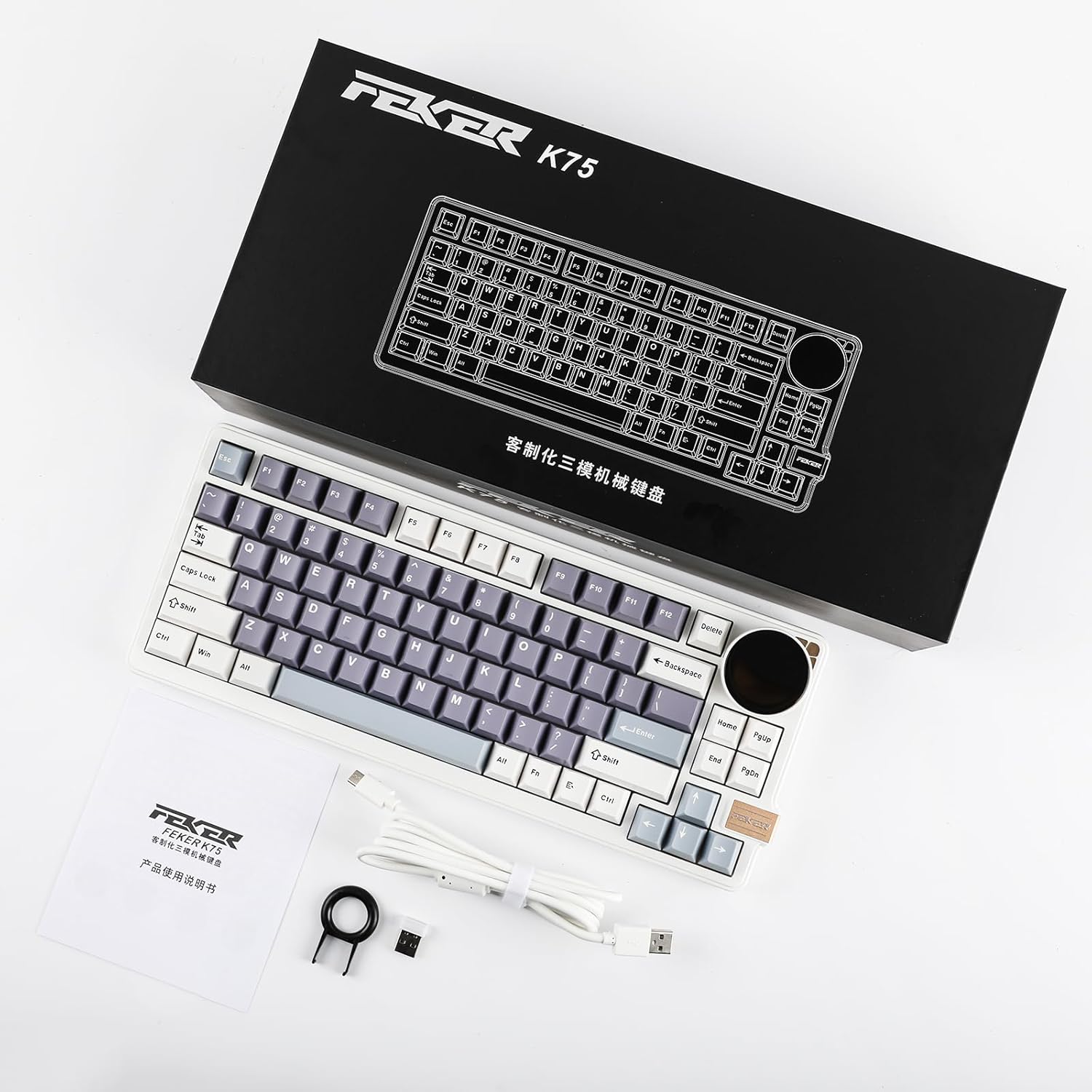
Figure 2: Contents of the Feker K75 package, including the keyboard, USB-C cable, and keycap puller.
2. بیٹری چارج کرنا
Before first use, it is recommended to fully charge the keyboard's built-in 5000mAh battery. Connect the provided USB-C cable to the keyboard's USB-C port and the other end to a USB power source (e.g., computer USB port, wall adapter). The keyboard's indicator light or LCD screen may show charging status.

Figure 3: The Feker K75 keyboard highlighting its 5000mAh rechargeable battery. Press FN+Spacebar to check battery life (numbers 1-0 represent 10%-100%).
3. کی بورڈ کو جوڑنا
The Feker K75 supports three connection modes:
- وائرڈ موڈ (USB-C):
Connect the USB-C cable directly from the keyboard to your computer's USB port. The keyboard will automatically switch to wired mode and begin charging.
- 2.4GHz وائرلیس موڈ:
Locate the 2.4GHz USB dongle, typically stored magnetically within the keyboard chassis. Plug the dongle into an available USB port on your computer. Turn on the keyboard using the switch located on the back or side. The keyboard should automatically connect. Press FN + F4 to activate 2.4G mode if needed.
- بلوٹوتھ 5.0 موڈ:
The keyboard supports up to three Bluetooth devices. To enter Bluetooth pairing mode, press FN + F1, F2، یا F3 for 3 seconds until the indicator light flashes rapidly. On your device (PC, laptop, smartphone, tablet), search for Bluetooth devices and select "Feker K75" (or similar name) to pair. Once paired, the indicator light will become solid. To switch between paired Bluetooth devices, simply press FN + the corresponding F1/F2/F3 کلید

Figure 4: The Feker K75 keyboard demonstrating its versatile tri-mode connectivity options: Bluetooth, 2.4G wireless, and USB-C wired, compatible with various devices.
آپریٹنگ ہدایات
1. TFT LCD Screen and Rotary Knob
The Feker K75 features a 1.28-inch TFT LCD screen and a multi-functional rotary knob. By default, the knob controls volume and media playback:
- Rotate knob clockwise: Volume Up
- Rotate knob counter-clockwise: Volume Down
- Press knob: Play/Pause
To enter the screen control mode and access additional functions, press FN + نوب. In screen control mode, the knob can be used to navigate through various display options:
- اسٹینڈ بائی اسکرین: Displays time, date, and battery status.
- Keyboard Connection Mode: Shows current connection status (Wired, 2.4G, BT).
- لائٹس کنٹرول: Adjust RGB lighting effects.
- Clock Screensaver: Various clock display styles.
- GIF Image: Upload and display custom GIFs.

Figure 5: The Feker K75's 1.28-inch TFT LCD screen and rotary knob, illustrating the five main functions accessible via screen control mode.
2. RGB Backlight Shortcuts
Control the keyboard's RGB backlighting using the following FN key combinations:
| کلیدی امتزاج | فنکشن |
|---|---|
| FN + \ | Switch Backlight Mode (Cycle through various effects) |
| FN + بیک اسپیس | Switch Single Light & RGB (Toggle between single color and RGB modes) |
| FN + داخل کریں۔ | بیک لائٹ آن/آف کریں۔ |
| FN + ↑ | Brightness + (Increase backlight brightness) |
| FN + ↓ | Brightness - (Decrease backlight brightness) |
| FN + ← | Speed + (Increase backlight effect speed) |
| FN + → | Speed - (Decrease backlight effect speed) |

Figure 6: Visual guide to RGB backlight shortcuts on the Feker K75 keyboard.
3. گرم بدلنے کے قابل سوئچز
The Feker K75 features hot-swappable sockets, allowing you to change mechanical switches without soldering. This keyboard is compatible with most 3-pin and 5-pin mechanical switches.
- سوئچ کو ہٹانا:
Use the provided switch puller. Align the prongs of the puller with the two clips on the top and bottom of the switch. Squeeze the clips firmly and gently pull the switch straight up and out of the socket.
- سوئچ انسٹال کرنا:
Ensure the switch pins are straight. Align the pins with the holes on the PCB (Printed Circuit Board). Gently push the switch straight down until it clicks into place. Do not force the switch; if it doesn't go in easily, check for bent pins.

Figure 7: Demonstration of hot-swapping a mechanical switch on the Feker K75 keyboard.
4. Software Customization (VIA/Proprietary Software)
The Feker K75 keyboard is software programmable, allowing for advanced customization of key mappings, macros, and screen settings. While the product description mentions VIA compatibility, some users have reported issues with the proprietary software, particularly regarding language settings for the LCD screen. It is recommended to check the official KiiBoom website or community forums for the latest software and firmware updates.
The software typically allows you to:
- اسکرین کی ترتیب: Upload custom GIFs or images to the LCD screen.
- Keys Remap: Reassign functions to individual keys.
- میکرو: Create and assign complex key sequences.
- روشنی: Fine-tune RGB lighting effects and colors.

Figure 8: The Feker K75 keyboard with a laptop displaying the customization software interface, allowing for key remapping and screen settings.
دیکھ بھال
1. کی بورڈ کی صفائی
باقاعدگی سے صفائی کی بورڈ کی ظاہری شکل اور فعالیت کو برقرار رکھنے میں مدد کرتی ہے۔
- کی کیپس: Use the keycap puller to remove keycaps. Clean them with mild soap and water, then dry thoroughly before reattaching.
- کی بورڈ باڈی: نرم، لنٹ سے پاک کپڑا استعمال کریں۔ampened with a small amount of isopropyl alcohol or a gentle cleaning solution. Avoid excessive moisture.
- چابیاں کے درمیان: Use compressed air to blow out dust and debris. A small brush can also be used to dislodge stubborn particles.
2. Switch and Keycap Replacement
As detailed in the "Hot-Swappable Switches" section, switches and keycaps can be replaced. This allows for easy repair of faulty components or customization of typing feel and aesthetics. Ensure replacement switches are compatible (3-pin or 5-pin mechanical switches).
خرابی کا سراغ لگانا
| مسئلہ | ممکنہ وجہ | حل |
|---|---|---|
| کی بورڈ منسلک نہیں ہو رہا ہے (وائرلیس/بلوٹوتھ) | Low battery, incorrect mode, dongle not plugged in, pairing issue. | Charge the keyboard. Ensure the correct mode (2.4G/BT) is selected via FN key combinations. Re-pair Bluetooth if necessary. Ensure 2.4G dongle is securely plugged in. |
| LCD Screen display issues (e.g., Chinese language, incorrect time) | Firmware/software issue, regional settings. | Check the official KiiBoom website for updated firmware or software that might address language or time synchronization issues. Some users have reported this as a known limitation. |
| چابیاں جواب نہیں دے رہی ہیں یا ڈبل ٹائپنگ نہیں کر رہی ہیں۔ | Faulty switch, debris under keycap/switch. | Remove the keycap and switch. Clean the socket with compressed air. Reinstall the switch. If the issue persists, replace the switch with a new one. |
| آر جی بی لائٹنگ کام نہیں کر رہی یا پھنس گئی۔ | Software glitch, incorrect settings. | Try cycling through RGB modes using FN shortcuts. Restart the keyboard. Check the customization software for lighting settings. |
| Keyboard not charging | Faulty cable, power source, or keyboard port. | Try a different USB-C cable and a different USB power source. Ensure the cable is fully inserted into the keyboard's port. |
وضاحتیں
| فیچر | تفصیل |
|---|---|
| مصنوعات کے طول و عرض | 13.7 x 6.4 x 1.83 انچ (34.8 x 16.3 x 4.6 سینٹی میٹر) |
| شے کا وزن | 3.54 پاؤنڈ (1.6 کلوگرام) |
| کارخانہ دار | KiiBoom |
| بیٹریاں | 1 لیتھیم آئن بیٹری (شامل)، 5000mAh |
| کنیکٹوٹی ٹیکنالوجی | Bluetooth 5.0, USB-C Wired, 2.4GHz Wireless |
| ہم آہنگ آلات | Laptop, PC, Smartphone, Tablet (Windows/Mac compatible) |
| کی بورڈ کی تفصیل | گیمنگ مکینیکل کی بورڈ |
| خصوصی خصوصیات | Backlit (RGB), Customizable Display Keys (TFT LCD), Hot-Swappable, Rechargeable, Rotary Knob |
| رنگ | White (Corgi Switch variant) |
| کی بورڈ لے آؤٹ | 75% (83 کلید) |
| کیکیپ مواد۔ | PBT (OEM Height) |
| سوئچ کی قسم | Corgi Linear Switches (or Kailh Vanilla Ice Cream Switches, depending on variant) |
وارنٹی اور سپورٹ
For warranty information and technical support, please refer to the official KiiBoom webسائٹ یا ان کی کسٹمر سروس سے براہ راست رابطہ کریں۔ کسی بھی وارنٹی دعووں کے لیے خریداری کے ثبوت کے طور پر اپنی خریداری کی رسید رکھیں۔
Official KiiBoom Store: KiiBoom Amazon Store
Ask a question about this manual
Ask about setup, troubleshooting, compatibility, parts, safety, or missing instructions. Manuals+ will review the question and use this page’s manual context to help answer it.