
تعارف
This manual provides detailed instructions for the setup, operation, and maintenance of your Prechen 10.1 inch Portable Touchscreen Monitor, Model HD-101. Please read this manual thoroughly before using the device to ensure proper functionality and to prevent damage.
مصنوعات کی خصوصیات
- Portable Touchscreen: This 10.1-inch monitor is compact and lightweight, designed for portability. The touchscreen functionality allows for intuitive navigation and interaction, enhancing productivity on the go.
- High-Resolution IPS Display: Features a 1920x1200 resolution with a 16:10 aspect ratio, delivering clear and vibrant visuals. IPS technology provides wide viewing angles and accurate color reproduction, suitable for various applications.
- ورسٹائل کنیکٹیویٹی: Equipped with HDMI and USB-C ports, offering flexible connection options. It can be easily connected to Windows PCs, laptops, and gaming consoles like Xbox. Note: USB-C is for touch functionality and power.
- مربوط اسپیکر: Built-in speakers provide clear and dynamic audio, eliminating the need for external speakers during media consumption, gaming, or virtual meetings.
- VESA ماؤنٹ ہم آہنگ: The monitor supports VESA mounting standards, allowing for attachment to compatible stands or arms for customized workspace setups and comfortable viewزاویہ
سیٹ اپ
پیکیج کے مشمولات
تصدیق کریں کہ تمام اشیاء پیکیج میں موجود ہیں:
- Prechen 10.1 inch Portable Touchscreen Monitor
- HDMI کیبل
- USB-C سے USB-C کیبل
- USB-A to USB-C Cable (for power/touch)
- پاور اڈاپٹر
- صارف دستی (یہ دستاویز)
مانیٹر کو جوڑنا
- پاور کنکشن: Connect the provided power adapter to the DC Power Port on the monitor and plug it into a power outlet. Alternatively, if your device supports power delivery, connect a USB-C to USB-C cable to the USB-C (Power & Touch) port for both power and signal.
- ویڈیو کنکشن:
- HDMI: Connect one end of the HDMI cable to the HDMI port on the monitor and the other end to the HDMI output of your computer or device.
- USB-C (DisplayPort Alternate Mode): If your device supports DisplayPort Alternate Mode over USB-C, connect a USB-C to USB-C cable to the USB-C (Power & Touch) port on the monitor and your device. This single cable can provide video, power, and touch functionality.
- ٹچ کی فعالیت: For touch functionality, ensure the USB-C (Power & Touch) port is connected to your device. If using HDMI for video, you will also need to connect a USB-A to USB-C cable from your device's USB-A port to the monitor's USB-C (Power & Touch) port.
- آڈیو آؤٹ پٹ: If you wish to use external headphones or speakers, connect them to the 3.5mm Audio Port on the monitor.
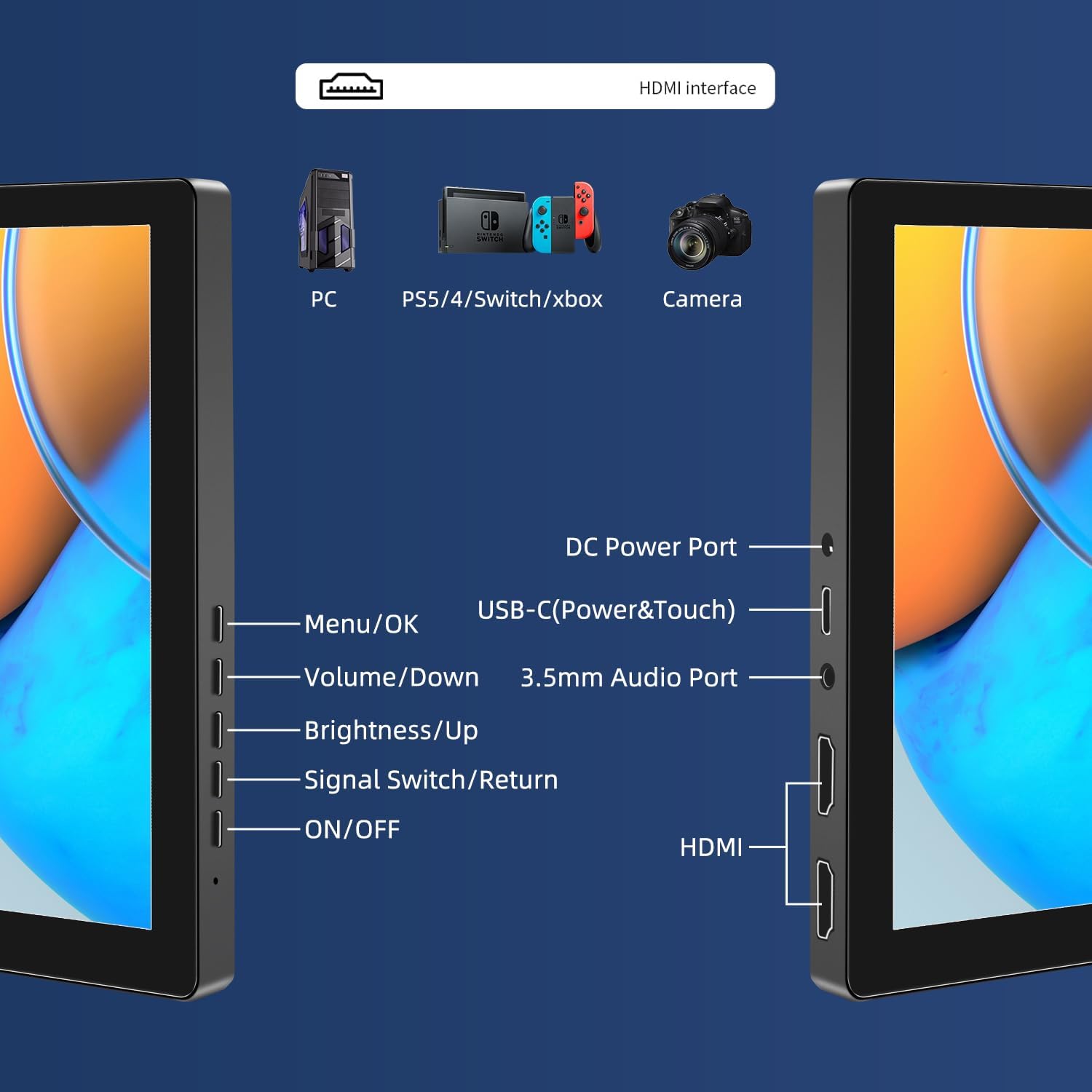
تصویر: ختمview of the monitor's ports including DC Power, USB-C (Power & Touch), 3.5mm Audio, HDMI, and control buttons.
آپریٹنگ ہدایات
پاورنگ آن/آف
- To power on the monitor, press the آن/آف بٹن
- بجلی بند کرنے کے لئے ، دبائیں اور دبائیں آن/آف button for a few seconds until the screen turns off.
آن اسکرین ڈسپلے (او ایس ڈی) مینو کا استعمال
OSD مینو آپ کو مختلف ڈسپلے سیٹنگز کو ایڈجسٹ کرنے کی اجازت دیتا ہے۔
- دبائیں مینو / ٹھیک ہے OSD مینو کو کھولنے کے لیے بٹن۔
- استعمال کریں۔ آواز کم اور چمک/اوپر مینو کے اختیارات کے ذریعے نیویگیٹ کرنے کے لیے بٹن۔
- دبائیں مینو / ٹھیک ہے کسی اختیار کو منتخب کرنے یا ترتیب کی تصدیق کرنے کے لیے۔
- دبائیں Signal Switch/Return button to go back to the previous menu or exit the OSD.
ڈسپلے موڈز کو ایڈجسٹ کرنا
The monitor supports multiple display modes when connected to a computer:
- ڈپلیکیٹ موڈ: Displays the same content on both your primary screen and the portable monitor.
- توسیع موڈ: آپ کے ڈیسک ٹاپ کو دونوں اسکرینوں پر پھیلاتا ہے، مزید ورک اسپیس فراہم کرتا ہے۔
- Second Screen Mode: ڈسپلے کے طور پر صرف پورٹیبل مانیٹر استعمال کرتا ہے۔
These modes are typically configured through your operating system's display settings (e.g., Windows Display Settings, macOS System Preferences).
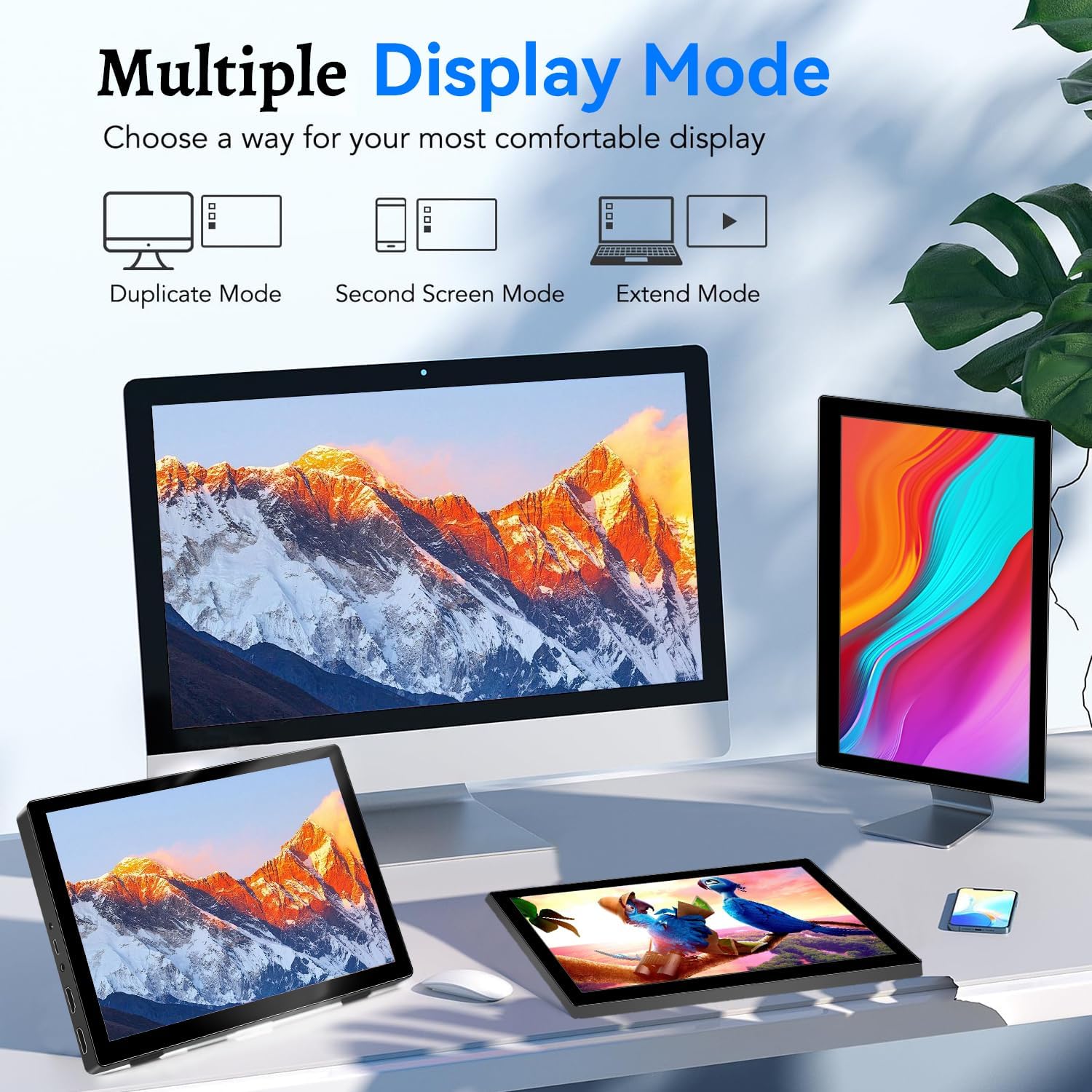
Image: Visual representation of Duplicate, Second Screen, and Extend display modes.
Using Touchscreen Functionality
The monitor supports 10-point touchscreen technology. Ensure the USB-C (Power & Touch) port is correctly connected to your device for touch input to function.

تصویر: سابقamples of 10-point touchscreen gestures for interaction.
دیکھ بھال
- سکرین کی صفائی: تھوڑا سا نرم، لنٹ سے پاک کپڑا استعمال کریں۔ampened with water or a non-abrasive screen cleaner. Do not spray cleaner directly onto the screen.
- سی کی صفائیasing: مانیٹر صاف کریں casing ایک نرم، خشک کپڑے کے ساتھ. مضبوط صابن یا سالوینٹس کے استعمال سے پرہیز کریں۔
- ذخیرہ: When not in use, store the monitor in a cool, dry place, away from direct sunlight and extreme temperatures.
- ہینڈلنگ: Avoid dropping or subjecting the monitor to strong impacts. Do not place heavy objects on top of the monitor.
خرابی کا سراغ لگانا
| مسئلہ | ممکنہ وجہ | حل |
|---|---|---|
| کوئی ڈسپلے/بلیک اسکرین نہیں۔ |
|
|
| ٹچ اسکرین جواب نہیں دے رہی ہے۔ |
|
|
| اسپیکر سے کوئی آڈیو نہیں۔ |
|
|
| Image quality issues (blurry, distorted) |
|
|
وضاحتیں
| فیچر | تفصیل |
|---|---|
| برانڈ | پریچین |
| ماڈل نمبر | HD-101 |
| اسکرین کا سائز | 10.1 انچ |
| قرارداد | 1920 x 1200 (UXGA Wide) |
| پہلو کا تناسب | 16:10 |
| پینل کی قسم | آئی پی ایس |
| ریفریش ریٹ | 60 Hz |
| رسپانس ٹائم | 1 ms |
| کنیکٹوٹی | 1x HDMI, 1x USB-C (Power & Touch), 1x 3.5mm Audio Jack, 1x DC Power Port |
| طول و عرض (L x W x H) | 21.8 x 15.8 x 1.4 سینٹی میٹر |
| وزن | 990 گرام |
| کارخانہ دار | Shenzhen Kenowa Electronics Co., LTD |
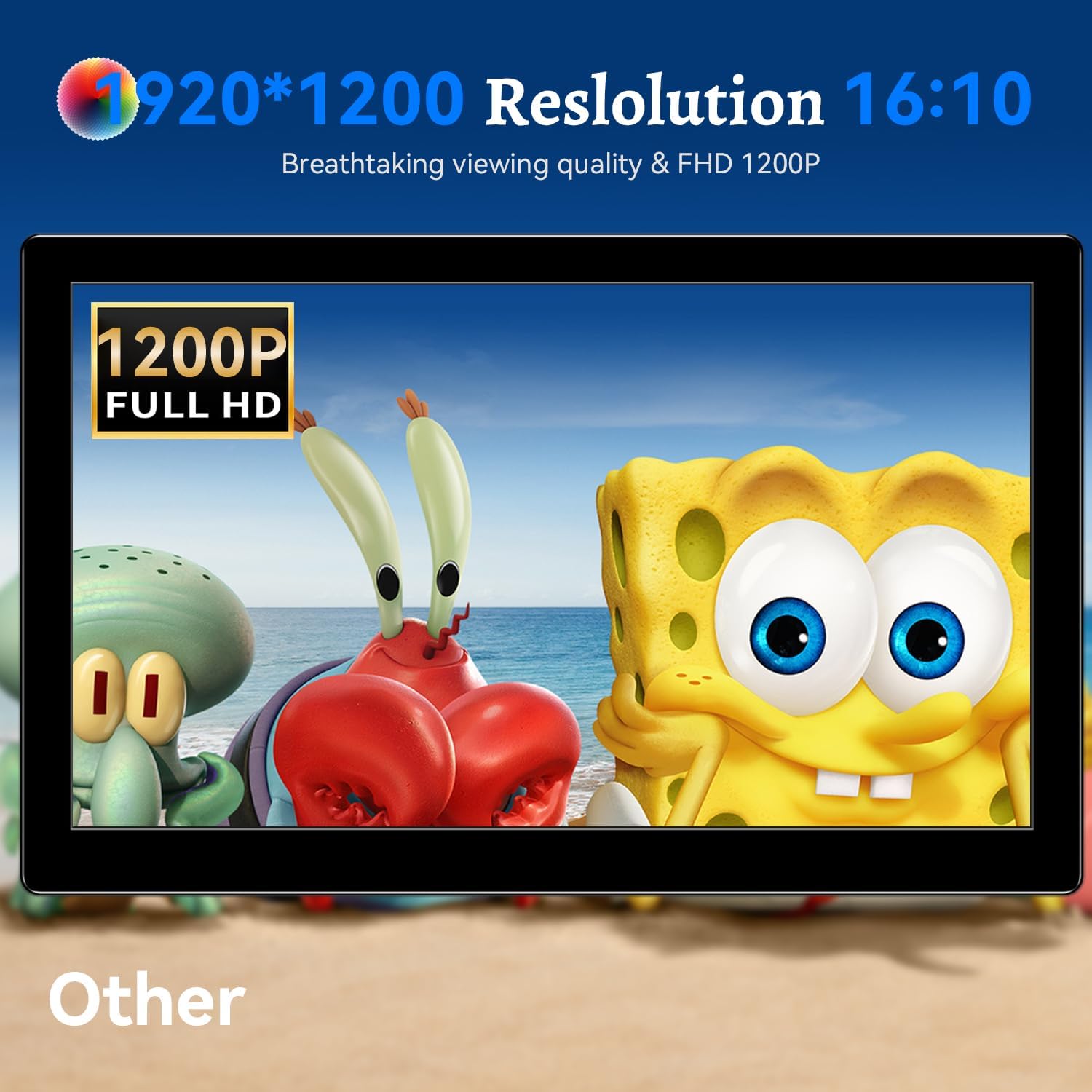
تصویر: مانیٹر شو سیasing its 1920x1200 Full HD resolution.

Image: The monitor's IPS panel offering wide viewing angles and rich colors.
وارنٹی اور سپورٹ
For warranty information and technical support, please refer to the warranty card included with your product or contact Prechen customer service through their official website. Please have your model number (HD-101) and purchase details ready when contacting support.