
1. تعارف
The Phomemo M950 Label Maker is a versatile, portable thermal label printer designed for both home and office use. It offers dual printing modes: direct input via its integrated keyboard and wireless printing via Bluetooth connection to a mobile application. This device utilizes thermal printing technology, eliminating the need for ink cartridges, and supports various label tape types for diverse labeling needs.
2. حفاظتی معلومات
- Keep the device away from water and high humidity to prevent electric shock or damage.
- آلہ کو الگ نہ کریں یا خود اس کی مرمت کرنے کی کوشش نہ کریں۔ مدد کے لیے کسٹمر سپورٹ سے رابطہ کریں۔
- Use only Phomemo-approved label tapes to ensure optimal performance and prevent damage to the print head.
- بچوں کی پہنچ سے دور رکھیں۔
- ڈیوائس کو براہ راست سورج کی روشنی یا انتہائی درجہ حرارت کے سامنے لانے سے گریز کریں۔
- Charge the device using a compatible Type-C USB power adapter.
3. پیکیج کے مشمولات
Please check the package contents upon unboxing. If any items are missing or damaged, contact your retailer or Phomemo customer support.
- Phomemo M950 لیبل میکر
- 12mm Label Tape Roll (pre-installed or included separately)
- USB ٹائپ سی چارجنگ کیبل
- صارف دستی (یہ دستاویز)
4. پروڈکٹ ختمview
Familiarize yourself with the components of your Phomemo M950 Label Maker.

Image: Phomemo M950 Label Maker showing its main features including no ink, one-touch key, keyboard editing, app editing, 203 DPI resolution, backlight support, Type-C recharge, and built-in cutter.
اہم خصوصیات:
- کی بورڈ ان پٹ: Integrated QWERTY keyboard for direct label creation.
- بلوٹوتھ کنیکٹیویٹی: Connects to smartphones for advanced label design via the Phomemo app.
- تھرمل پرنٹنگ: No ink required, uses thermal label tapes.
- بیک لائٹ اسکرین: کم روشنی والے حالات میں مرئیت کو یقینی بناتا ہے۔
- بلٹ ان کٹر: For clean and precise label cutting.
- ریچارج ایبل بیٹری: Integrated 1200mAh battery, rechargeable via Type-C port.
5. سیٹ اپ
5.1. ڈیوائس کو چارج کرنا
Before first use, fully charge the label maker.
- Connect the provided USB Type-C cable to the charging port on the side of the label maker.
- کیبل کے دوسرے سرے کو ہم آہنگ USB پاور اڈاپٹر (شامل نہیں) یا کمپیوٹر USB پورٹ سے جوڑیں۔
- The charging indicator light will show the charging status. Once fully charged, the indicator will change or turn off.

Image: Phomemo M950 Label Maker highlighting the Type-C charging port and its compact dimensions.
5.2. Loading Label Tape
Ensure the device is powered off before loading or replacing tape.
- Open the tape compartment cover located on the top or back of the device.
- Insert the label tape roll with the label side facing up, ensuring it sits securely in the compartment.
- Feed the end of the label tape through the tape guide until it protrudes slightly from the output slot.
- Close the tape compartment cover firmly.
5.3. پر / آف پاور
Press and hold the Power button (usually marked with a power symbol) for a few seconds to turn the device on or off.
6. آپریٹنگ ہدایات
The Phomemo M950 offers two primary methods for creating labels.

Image: Phomemo M950 Label Maker illustrating the two usage modes: direct printing from the keyboard and printing via a mobile device using the 'Print Master' app.
6.1. Keyboard Printing
This mode allows you to create labels directly on the device without needing a smartphone.
- پاور آن: Turn on the label maker. The screen will illuminate.
- Type Text: Use the QWERTY keyboard to type your desired label text. The text will appear on the display.
- حسب ضرورت بنائیں: Use the function keys (e.g., 'Fn', 'Shift', 'Symbol', 'Caps', 'Accent') to access various customization options such as font styles, sizes, symbols, and borders. The device supports multiple languages, borders, and symbols.
- پریview: Use the 'Preview' button to see how your label will look before printing.
- پرنٹ: Press the 'Print' button to print the label. The built-in cutter will automatically cut the label after printing.

Image: Phomemo M950 Label Maker showcasing its extensive features including support for 23+ languages, 103+ borders, and 790+ symbols and icons for label customization.
6.2. Bluetooth App Printing
For more advanced design options, connect your label maker to the 'Print Master' mobile app.
- اپلی کیشن ڈاؤن لوڈ کریں: Download the 'Print Master' app from your mobile device's app store (App Store for iOS, Google Play for Android).
- بلوٹوتھ کو فعال کریں: Ensure Bluetooth is enabled on your mobile device and the Phomemo M950.
- جڑیں: Open the 'Print Master' app and follow the on-screen instructions to connect to your M950 label maker via Bluetooth.
- Design Label: Use the app's interface to design your label. The app offers massive templates, additional fonts, borders, and icons.
- پرنٹ: Once your design is complete, tap the print icon in the app to send the label to the M950 for printing.

Image: Phomemo M950 Label Maker demonstrating the use of the 'Print Master' app with numerous templates, 270+ borders, 110+ fonts, 1500 icons, and 14+ languages for creative label design.
6.3. Adjusting Print Density
For optimal print quality, especially with ribbon tapes, adjust the print density.
- Press the 'Fn' key, then select 'Pinter Densities' (Printer Densities).
- Choose 'High' for clearer prints, particularly when using ribbon tapes.

Image: Step-by-step guide on how to set the print density to 'High' on the Phomemo M950 Label Maker for clear prints, especially for ribbon tapes.
7 دیکھ بھال
7.1. پرنٹ ہیڈ کو صاف کرنا
Regular cleaning ensures consistent print quality.
- Turn off the label maker and open the tape compartment.
- Gently wipe the print head with a soft, lint-free cloth dampisopropyl الکحل کے ساتھ ختم.
- Allow the print head to dry completely before closing the compartment and powering on the device.
7.2. Tape Storage
Store label tapes in a cool, dry place away from direct sunlight to preserve their quality and adhesive properties.
8 خرابیوں کا سراغ لگانا
If you encounter issues with your Phomemo M950, refer to the following common problems and solutions.
| مسئلہ | ممکنہ وجہ | حل |
|---|---|---|
| کوئی طاقت نہیں۔ | Low battery; Device off | Charge the device; Press and hold power button to turn on. |
| ناقص پرنٹ کوالٹی | Print head dirty; Incorrect print density; Low battery | Clean print head; Adjust print density to 'High'; Charge device. |
| Label not feeding | Tape incorrectly loaded; Tape jammed; Out of tape | Re-load tape correctly; Clear any jams; Replace tape roll. |
| بلوٹوتھ کنکشن کی ناکامی۔ | Bluetooth off; Device not paired; App issue | Ensure Bluetooth is on for both devices; Re-pair in app; Restart app/device. |
| کٹر کام نہیں کر رہا ہے۔ | Tape jammed; Cutter mechanism obstructed | Clear any tape jams; Ensure no debris is blocking the cutter. |
9. وضاحتیں
| فیچر | تفصیل |
|---|---|
| ماڈل کا نام | ایم 950 |
| برانڈ | فومیمو |
| پرنٹنگ ٹیکنالوجی | تھرمل |
| کنیکٹوٹی ٹیکنالوجی | Bluetooth, Keyboard |
| پرنٹر آؤٹ پٹ | مونوکروم |
| زیادہ سے زیادہ پرنٹ ریزولوشن | 203 ڈی پی آئی |
| زیادہ سے زیادہ میڈیا سائز | 12 ملی میٹر * 4000 ملی میٹر |
| ہم آہنگ آلات | اسمارٹ فونز |
| طاقت | 10 واٹ |
| بیٹری کی قسم | بلٹ ان 1200mAh لتیم آئن |
| چارجنگ پورٹ | USB ٹائپ سی |
| مصنوعات کے طول و عرض | 15.2 x 5.4 x 11.2 سینٹی میٹر |
| شے کا وزن | 490 گرام |
| رنگ | سفید |
| خصوصی خصوصیت | Portable, Backlight Screen, Built-in Cutter |
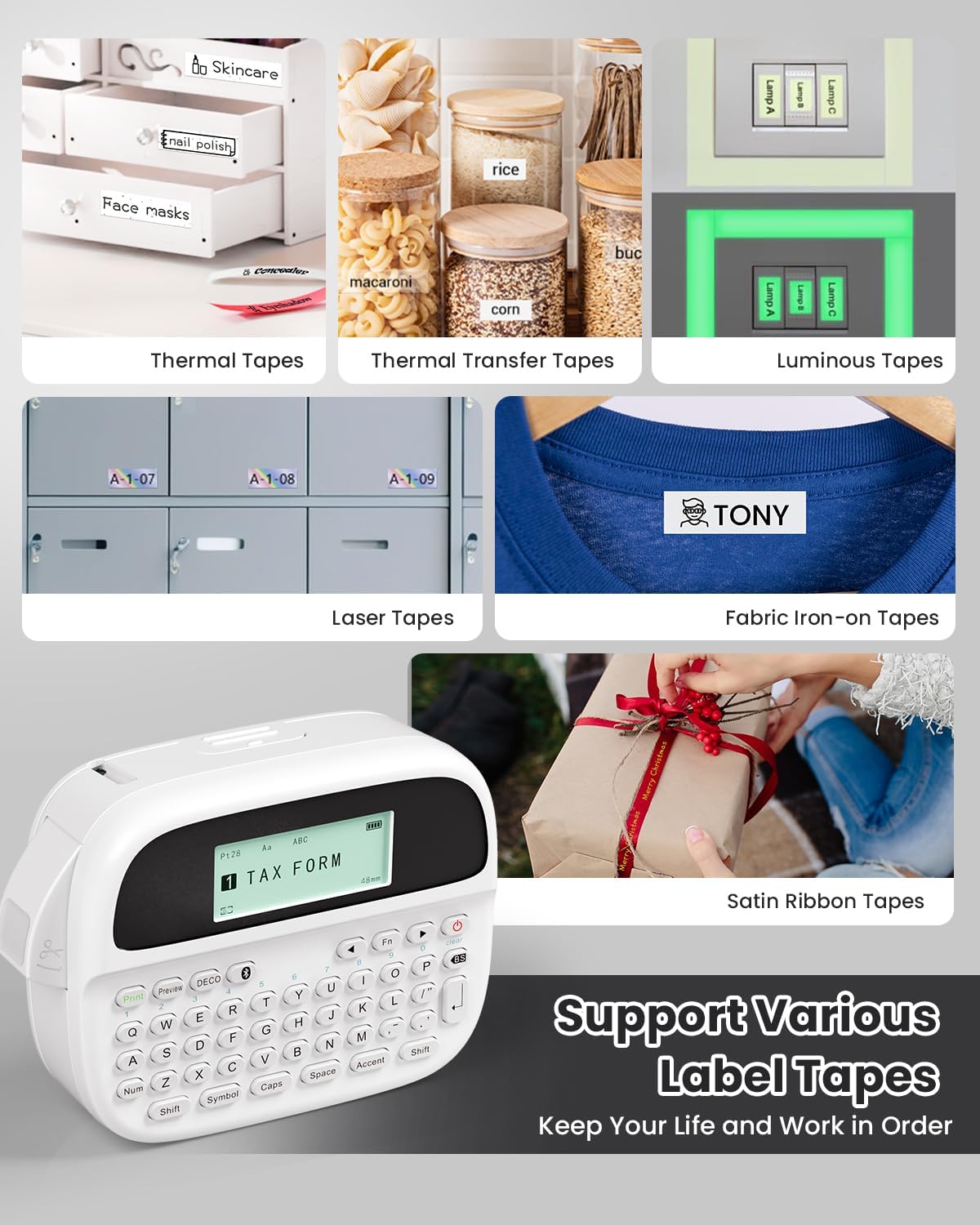
Image: Phomemo M950 Label Maker supporting various label tape types including Thermal, Thermal Transfer, Luminous, Laser, Fabric Iron-on, and Satin Ribbon tapes.

Image: Phomemo M950 Label Maker demonstrating its backlight screen feature, allowing for comfortable use even at night.
10. وارنٹی اور سپورٹ
For warranty information, technical support, or service inquiries, please refer to the official Phomemo webسائٹ یا ان کی کسٹمر سروس سے براہ راست رابطہ کریں۔ وارنٹی دعووں کے لیے خریداری کے ثبوت کے طور پر اپنی خریداری کی رسید رکھیں۔
Phomemo Official Webسائٹ: Visit Phomemo Store