
1. پروڈکٹ ختمview
This manual provides instructions for the FENIFOX Wireless Keyboard and Mouse Combo. This combo is designed for use with various operating systems, including Windows, macOS, and iOS, offering a convenient and efficient input solution.
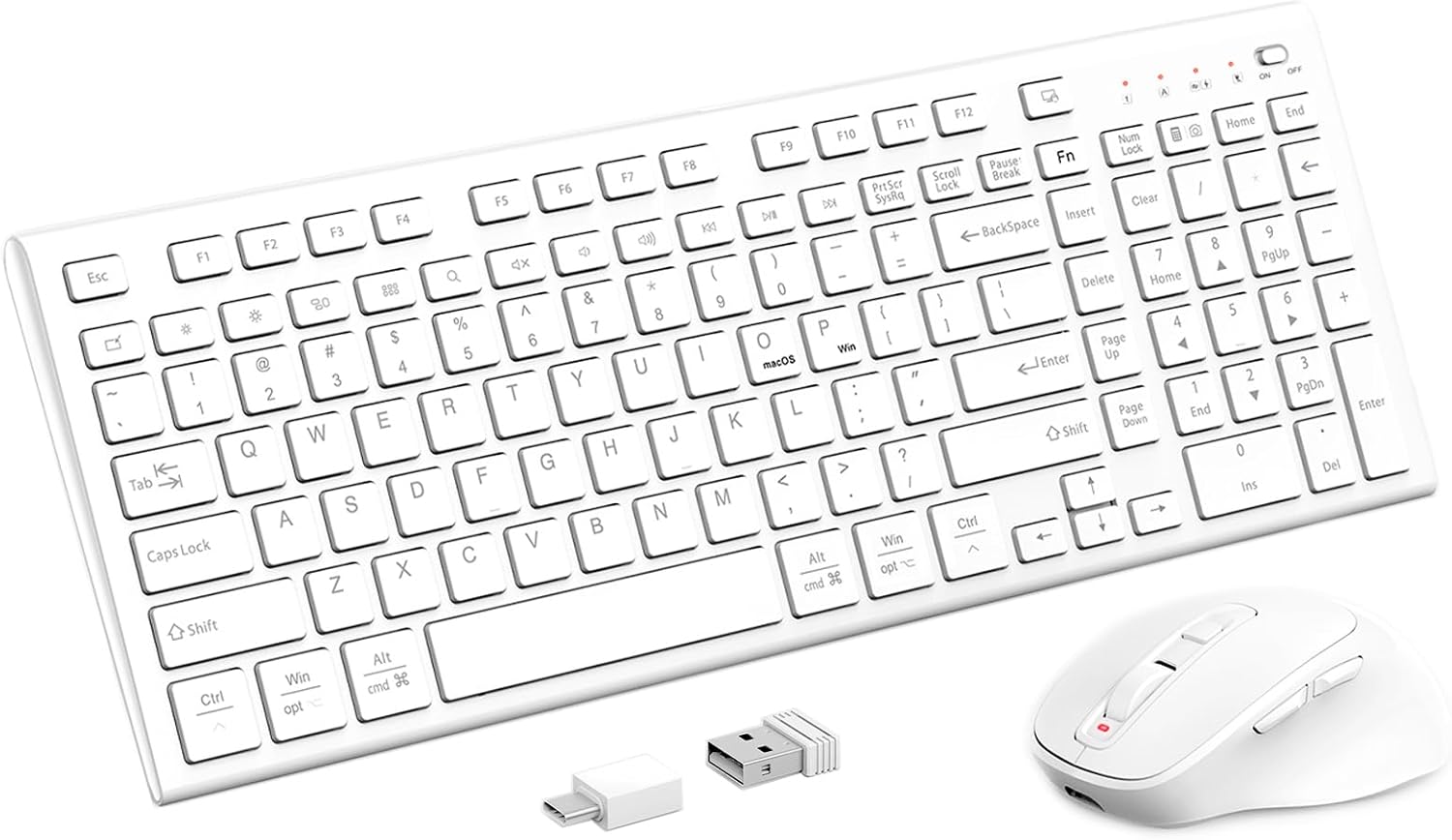
تصویر 1: FENIFOX Wireless Keyboard and Mouse Combo with USB receiver. This image displays the full white wireless keyboard, the ergonomic white wireless mouse, and the compact USB receiver.
2. پیکیج کے مشمولات
- وائرلیس کی بورڈ
- وائرلیس ماؤس
- USB Receiver (stored in the mouse battery compartment)
- USB-C چارجنگ کیبل
- صارف دستی
3. سیٹ اپ ہدایات
3.1. آلات کو چارج کرنا
The keyboard and mouse are equipped with rechargeable batteries. Before initial use, it is recommended to fully charge both devices.
- Locate the USB-C charging port on the keyboard and mouse.
- Connect the provided USB-C charging cable to the charging port on each device and to a USB power source (e.g., computer USB port, USB wall adapter).
- چارجنگ انڈیکیٹر لائٹ چارجنگ کے دوران روشن ہو جائے گی اور مکمل چارج ہونے پر بند ہو جائے گی۔
چارج کرنے کا وقت: مکمل چارج کے لیے تقریباً 2 گھنٹے۔
اسٹینڈ بائی ٹائم: Keyboard: Up to 90 days; Mouse: Up to 35 days.

تصویر 2: Charging the Wireless Keyboard and Mouse. This image shows the white wireless mouse and a portion of the white wireless keyboard, both connected to a USB-C charging cable, highlighting the 500mAh battery capacity and charging times.
3.2. اپنے آلے سے جڑنا
The keyboard and mouse connect wirelessly via a single USB receiver.
- Remove the USB receiver from the battery compartment of the mouse.
- Plug the USB receiver into an available USB-A port on your computer or tablet.
- کی بورڈ اور ماؤس کو ان کے متعلقہ پاور سوئچز کا استعمال کرتے ہوئے آن کریں۔ آلات کو خود بخود آپ کے کمپیوٹر سے جڑ جانا چاہیے۔
- No additional drivers are typically required for Windows, macOS, or iOS systems.
4. آپریٹنگ ہدایات
4.1. کی بورڈ کے افعال
The keyboard features a full layout with dedicated multimedia keys and dual OS compatibility.
- 14 Independent Multimedia Keys: Located at the top of the keyboard, these keys provide quick access to functions such as volume control, media playback, and system shortcuts.
- OS/Windows Dual Layout: The keyboard supports both Windows and macOS layouts. Keys like 'Win' and 'Alt' are labeled with their macOS equivalents ('opt' and 'cmd') for seamless switching between operating systems.
- کینچی سوئچ کیز: Designed for comfortable and responsive typing.
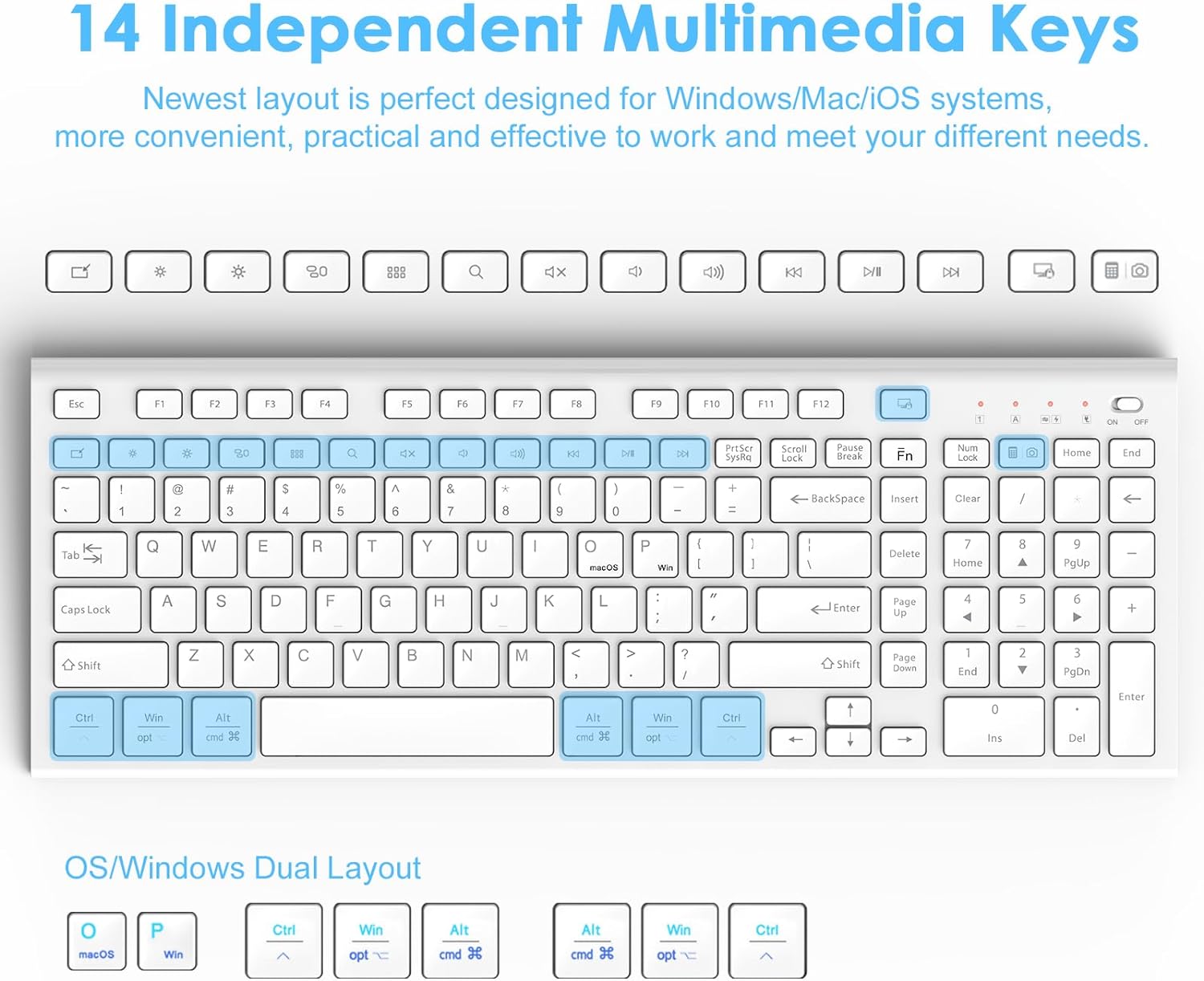
تصویر 3: Keyboard Layout and Multimedia Keys. This image highlights the 14 independent multimedia keys at the top of the keyboard and the dual OS (Windows/macOS) key labels.
4.2. Mouse Functions
The mouse offers adjustable sensitivity and silent operation.
- سایڈست DPI: The mouse features 5 adjustable DPI levels (800-1200-1600-2000-2400). Press the DPI button (usually located near the scroll wheel) to cycle through the sensitivity settings.
- پیچھے/فارورڈ بٹن: Conveniently located on the side of the mouse for easy navigation in web براؤزر اور file متلاشی
- Silent Buttons: The mouse buttons are designed to produce minimal click noise.

تصویر 4: Mouse Features. This image details the ergonomic design of the mouse, pointing out the back and forward buttons, and mentioning the 5 adjustable DPI settings and 99% noiseless buttons.
5 دیکھ بھال
5.1. صفائی
To maintain the appearance and functionality of your devices:
- Use a soft, dry, lint-free cloth to wipe the surfaces of the keyboard and mouse.
- ضدی گندگی کے لیے، قدرے ڈیampur کپڑے میں پانی یا ہلکے صفائی کے محلول سے۔ سخت کیمیکلز یا کھرچنے والے مواد سے پرہیز کریں۔
- Do not immerse the devices in water or allow liquids to enter the internal components.
5.2. بیٹری کی دیکھ بھال
- Charge the devices regularly to prolong battery life.
- Avoid exposing the devices to extreme temperatures (hot or cold) as this can affect battery performance.
- If the devices will not be used for an extended period, charge them to about 50% before storing.
6 خرابیوں کا سراغ لگانا
6.1. کنکشن کے مسائل
- کوئی رابطہ نہیں: یقینی بنائیں کہ USB ریسیور محفوظ طریقے سے کام کرنے والے USB پورٹ میں لگا ہوا ہے۔ ایک مختلف USB پورٹ آزمائیں۔
- Devices not recognized: Make sure both the keyboard and mouse are powered on. Turn them off and on again.
- مداخلت: Move the devices closer to the USB receiver. Avoid placing the receiver near other wireless devices or large metal objects that might cause interference.
6.2. Lag or Unresponsiveness
- کم بیٹری: Charge the keyboard and mouse fully.
- مداخلت: As mentioned above, check for potential sources of wireless interference.
- دوبارہ جوڑا بنانا: In rare cases, you might need to re-pair the devices. Consult FENIFOX support if this issue persists.
6.3 چارجنگ کے مسائل
- چارج نہیں: Ensure the USB-C cable is properly connected to both the device and the power source. Try a different USB-C cable or power source.
- چارجنگ انڈیکیٹر کام نہیں کر رہا: If the device is charging but the indicator light is not behaving as expected, contact support.
7. وضاحتیں
| برانڈ | FENIFOX |
| ماڈل | وائرلیس کی بورڈ اور ماؤس کومبو |
| رنگ | سفید |
| کنیکٹوٹی ٹیکنالوجی | Wireless (2.4GHz USB Receiver) |
| کی بورڈ کی خصوصیات | 14 Multimedia Keys, Dual OS Layout (Windows/macOS), Scissor-Switch Keys, Ergonomic Design (5°/9° tilt) |
| ماؤس کی خصوصیات | 5 Adjustable DPI (800-1200-1600-2000-2400), Back/Forward Buttons, Silent Clicks |
| بیٹری | Rechargeable (500mAh), USB-C Charging |
| ہم آہنگ آلات | لیپ ٹاپ، پرسنل کمپیوٹر، ٹیبلٹ |
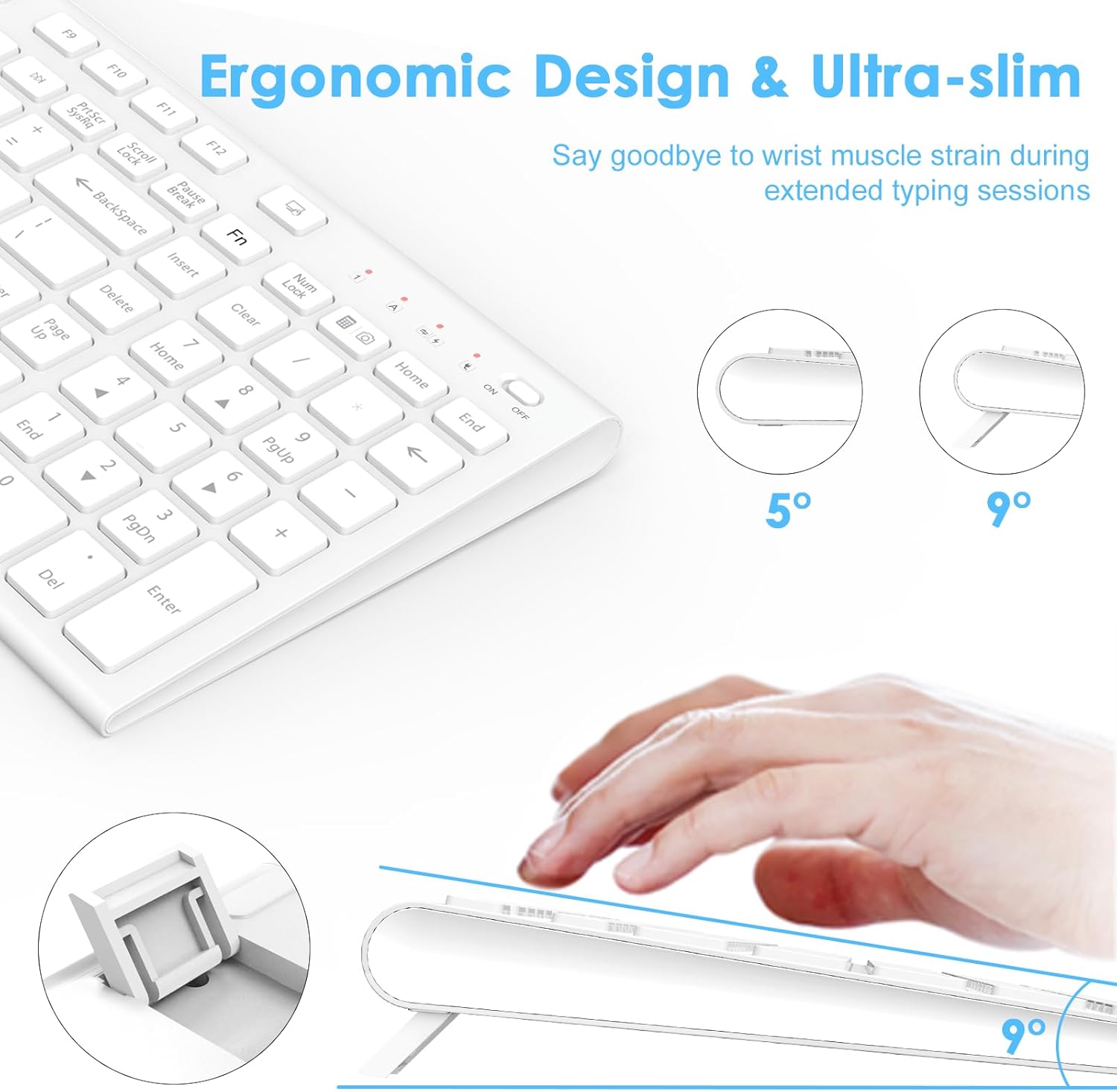
تصویر 5: Ergonomic Keyboard Design. This image illustrates the ultra-slim profile and adjustable tilt angles (5° and 9°) of the keyboard, designed for comfortable typing.
8. وارنٹی اور سپورٹ
FENIFOX products come with a standard manufacturer's warranty. For specific warranty details, please refer to the product packaging or the official FENIFOX webسائٹ
If you encounter any issues or have questions regarding your FENIFOX Wireless Keyboard and Mouse Combo, please contact FENIFOX customer support for assistance. Contact information can typically be found on the product packaging or the official FENIFOX webسائٹ