
1. تعارف
Thank you for choosing the PUTRIMS K12 Google TV Projector. This manual provides essential information for the safe and efficient use of your new projector. Please read it thoroughly before operation and keep it for future reference.

Figure 1.1: PUTRIMS K12 Projector
2. حفاظتی معلومات
- براہ راست پروجیکٹر کے لینس میں مت دیکھیں جب ایلamp پر ہے
- زیادہ گرمی سے بچنے کے لیے مناسب وینٹیلیشن کو یقینی بنائیں۔
- پروجیکٹر کو پانی یا دیگر مائعات سے دور رکھیں۔
- صرف فراہم کردہ پاور اڈاپٹر استعمال کریں۔
- پروجیکٹر کو غیر مستحکم سطحوں پر رکھنے سے گریز کریں۔
- پروجیکٹر کو خود سے جدا کرنے یا مرمت کرنے کی کوشش نہ کریں۔ مدد کے لیے کسٹمر سپورٹ سے رابطہ کریں۔
3. پیکیج کے مشمولات
تصدیق کریں کہ تمام اشیاء آپ کے پیکیج میں موجود ہیں:
- PUTRIMS K12 پروجیکٹر
- ریموٹ کنٹرول
- پاور کی ہڈی
- HDMI کیبل
- پروجیکٹر لینس کور
- صارف دستی (یہ دستاویز)
4. پروڈکٹ ختمview
The PUTRIMS K12 projector is designed for a versatile home theater and business experience. It features a sleek design with essential ports for connectivity.
شکل 4.1: سامنے view of the K12 Projector, showing the lens and auto-focus sensors.

شکل 4.2: پیچھے view of the K12 Projector, highlighting HDMI, USB, and audio ports.
Video 4.1: General product overview and feature demonstration of the PUTRIMS K12 projector.
5. سیٹ اپ
5.1 فزیکل سیٹ اپ
The K12 projector offers flexible installation options to suit various environments:
- ٹیبل ٹاپ پلیسمنٹ: پروجیکٹر کو ایک مستحکم، ہموار سطح پر رکھیں۔
- تپائی چڑھائی: Use the M5 screw hole on the bottom to attach a tripod.
- چھت چڑھانا: Securely mount the projector to the ceiling using a compatible mount.
- دیوار چڑھانا: Attach the projector to a wall using a suitable bracket.

Figure 5.1: Diverse installation methods for the K12 Projector.
5.2 ابتدائی پاور آن
- پاور کی ہڈی کو پروجیکٹر اور پاور آؤٹ لیٹ سے جوڑیں۔
- پروجیکٹر پر پاور بٹن دبائیں یا اسے آن کرنے کے لیے ریموٹ کنٹرول کو دبائیں۔
- The projector will automatically perform auto-focus and keystone correction.
5.3 نیٹ ورک کنکشن (وائی فائی)
To access online streaming services and updates, connect your projector to a WiFi network:
- پروجیکٹر پر 'سیٹنگز' مینو پر جائیں۔
- 'نیٹ ورک' یا 'وائی فائی سیٹنگز' کو منتخب کریں۔
- وائی فائی کو آن کریں اور فہرست سے اپنا مطلوبہ نیٹ ورک منتخب کریں۔
- اگر اشارہ کیا جائے تو پاس ورڈ درج کریں اور جڑیں۔
5.4 بلوٹوتھ کنکشن
Connect external Bluetooth speakers or headphones for enhanced audio:
- 'ترتیبات' پر جائیں اور 'بلوٹوتھ' کو منتخب کریں۔
- Turn on Bluetooth and put your external device into pairing mode.
- جوڑا بنانے کے لیے فہرست سے اپنا آلہ منتخب کریں۔
5.5 اسکرین مررنگ
Share content from your mobile devices or computer wirelessly:
- For iOS devices (Airplay): Ensure your iOS device and the projector are connected to the same WiFi network. Open the 'iOS Cast' interface on the projector. On your iOS device, open Control Center, tap 'Screen Mirroring', and select 'K12-xxxx' from the list.
- For Android/Windows devices (Miracast): Ensure your device and the projector are connected to the same WiFi network. Open the 'Miracast' interface on the projector. On your Android/Windows device, enable screen mirroring/cast feature and select 'K12-xxxx' to connect.
6. آپریٹنگ ہدایات
6.1 Google TV Features
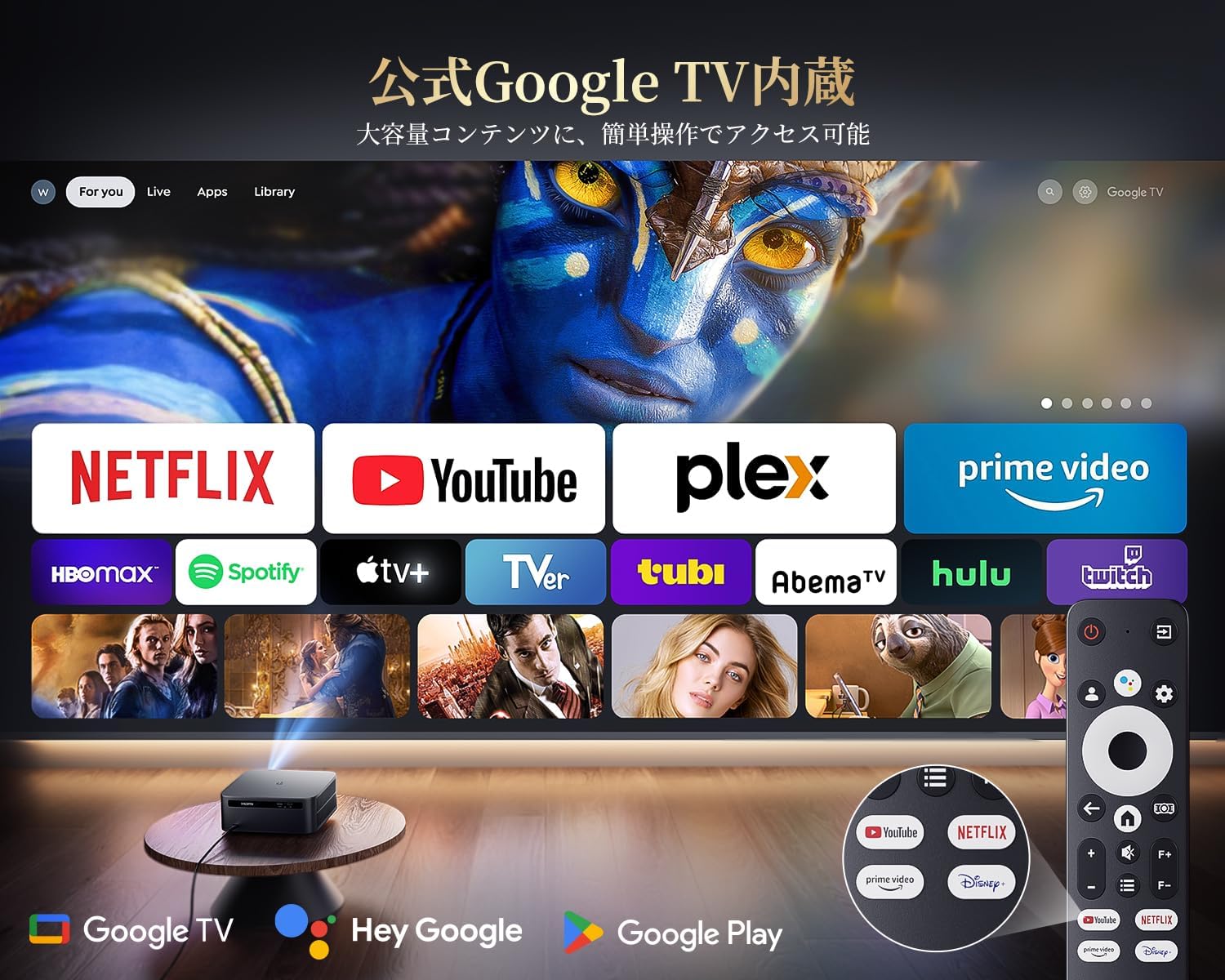
The PUTRIMS K12 comes with official Google TV, providing access to a vast library of content and applications.
- سٹریمنگ ایپس: Directly access Netflix, Disney+, YouTube, Prime Video, Hulu, and many more with a single click.
- گوگل پلے اسٹور: Download and install over 10,000 applications and games.
- باقاعدہ اپ ڈیٹس: The projector receives periodic updates to enhance security and stability.

Figure 6.1: Google TV interface with popular streaming applications.
6.2 وائس کنٹرول
Utilize the Google Voice Assistant for convenient control of your projector and content.
- Press the voice control button on your remote.
- Speak commands such as "Open Netflix," "Play One Piece," "Tell me the weather," or "Increase volume."

Figure 6.2: Using the Google Voice Assistant with the remote control.
6.3 تصویری ایڈجسٹمنٹ
The K12 projector features advanced image adjustment capabilities for optimal viewing
- آٹو فوکس: The projector automatically adjusts the focus for a clear image upon startup or movement.
- آٹو کی اسٹون تصحیح: It automatically corrects horizontal and vertical trapezoidal distortions, ensuring a perfectly rectangular image even from an angle.
- زوم فنکشن: پروجیکٹر کو حرکت دیے بغیر اسکرین کا سائز 50% سے 100% تک ایڈجسٹ کریں۔
- پہلو تناسب: Supports 4:3 and 16:9 aspect ratios.
- چمک اور تضاد: Customize brightness and contrast settings to your preference.

Figure 6.3: Automatic focus and keystone correction in action.

Figure 6.4: Projection distances and corresponding screen sizes (100", 120", 150").
6.4 بیرونی آلات کو جوڑنا
The K12 projector offers multiple connectivity options for various devices:
- HDMI ARC: Connect to soundbars, laptops, gaming consoles (Switch, PS5), or DVD players.
- USB: Play media directly from USB memory sticks.
- 3.5 ملی میٹر آڈیو پورٹ: بیرونی آڈیو سسٹمز سے جڑیں۔

Figure 6.5: Seamless connection with various external devices.
7 دیکھ بھال
7.1 لینز کی صفائی
To maintain optimal image quality, regularly clean the projector lens.
- یقینی بنائیں کہ پروجیکٹر بند اور ان پلگ ہے۔
- Gently wipe the lens with a soft, lint-free cloth or a cotton swab.
- ضدی دھبوں کے لیے، خاص طور پر آپٹیکل سطحوں کے لیے ڈیزائن کردہ عینک کی صفائی کا حل استعمال کریں۔
- Avoid using abrasive materials or harsh chemicals that could damage the lens.
8 خرابیوں کا سراغ لگانا
یہاں عام مسائل کے حل ہیں جن کا آپ کو سامنا ہو سکتا ہے:
- No image/signal: Check all cable connections (HDMI, power). Ensure the correct input source is selected on the projector.
- دھندلی تصویر: The projector features auto-focus. If the image remains blurry, ensure the lens is clean and there are no obstructions.
- Image not rectangular: The projector has auto-keystone correction. If issues persist, ensure the projector is placed on a stable surface and try repositioning it.
- کوئی آواز نہیں: Check volume settings on both the projector and connected devices. Ensure external speakers are properly connected via Bluetooth or audio cable. If using HDMI ARC, verify the connection and settings.
- WiFi/Bluetooth connection issues: Ensure the projector and your device are within range of the router/device. Restart both the projector and the router/device.
- App crashes or malfunctions (for unofficial Android TV versions): The PUTRIMS K12 has an official Google TV license, which ensures stability. If you experience issues, ensure your system is updated.
مزید مدد کے لیے، براہ کرم وارنٹی اور سپورٹ سیکشن سے رجوع کریں۔
9. وضاحتیں
| فیچر | تفصیل |
|---|---|
| برانڈ | PUTRIMS |
| ماڈل | K12 |
| چمک | 1500 اے این ایس آئی لیمنس |
| قرارداد | 1080P FHD (4K Support) |
| آپریٹنگ سسٹم | Official Google TV |
| وائس کنٹرول | گوگل وائس اسسٹنٹ |
| فوکس | Omnidirectional Auto Focus |
| کلیدی پتھر کی اصلاح | Horizontal & Vertical Auto Keystone Correction |
| زوم | 50%-100% |
| زیادہ سے زیادہ سکرین کا سائز | 300 انچ |
| وائی فائی | وائی فائی 6 |
| بلوٹوتھ | بلوٹوتھ 5.3 |
| آڈیو آؤٹ پٹ | 20W HIFI Speaker, 3.5mm Audio Jack |
| ان پٹ پورٹس | HDMI ARC, USB |
| طول و عرض | 40.5 x 30.2 x 17 سینٹی میٹر |
| وزن | 3.31 کلوگرام |
10. وارنٹی اور سپورٹ
PUTRIMS is committed to providing excellent customer service. Your K12 projector comes with comprehensive support:
- فروخت کے بعد سروس: 24 hours a day, 365 days a year.
- تکنیکی معاونت: Professional technical assistance is available.
- وارنٹی: Free exchange or 100% refund guarantee for initial defects or natural failures under normal use.
If you have any questions or require assistance, please contact PUTRIMS customer support via the official email address provided in your product packaging or on the official webسائٹ