
1. تعارف
This manual provides detailed instructions for the installation, operation, and maintenance of your Luowice Solar Security Camera. This wireless outdoor camera features a 3W solar panel for continuous power, 360° pan and tilt functionality, 3MP color night vision, and is designed to be weatherproof for reliable outdoor use. Please read this manual thoroughly before use to ensure proper setup and functionality.

Image 1.1: Luowice Solar Security Camera with integrated solar panel.
2. پروڈکٹ ختمview
2.1 کلیدی خصوصیات
- 100% Wire-Free Setup: Operates on WiFi and powered by a 3W solar panel, eliminating the need for frequent battery charging and complex wiring.
- وسیع زاویہ کوریج: Offers 355° horizontal and 90° vertical rotation for comprehensive area monitoring via the O-KAM PRO app.
- 3MP Color Night Vision: Provides clear, high-resolution video day and night, including full-color night vision with floodlights.
- Motion-Triggered Floodlights & Auto Tracking: Automatically activates floodlights and tracks human-shaped objects upon detection, enhancing security.
- دو طرفہ آڈیو: Allows real-time communication with visitors or deterrence of intruders.
- مقامی اور کلاؤڈ اسٹوریج: Supports micro SD card (up to 128GB, not included) for 24/7 loop recording and optional cloud storage services.
- ویدر پروف ڈیزائن: IP66 rated, ensuring reliable performance in various severe weather conditions.
- Multi-User Sharing & Data Encryption: Securely share camera access with family members with advanced encryption.
2.2 اجزاء
پیکیج میں عام طور پر شامل ہیں:
- Luowice Solar Security Camera
- 3W Solar Panel (integrated or separate with mounting bracket)
- بڑھتے ہوئے بریکٹ اور پیچ
- USB چارجنگ کیبل
- صارف دستی
3. سیٹ اپ ہدایات
3.1 بیٹری چارج کرنا
Before initial use, fully charge the camera's internal battery using the provided USB cable. Connect the cable to the camera's charging port and a standard 5V USB power adapter (not included). The indicator light will show charging status.
3.2 ایپ انسٹال کرنا اور اکاؤنٹ بنانا
- ڈاؤن لوڈ کریں۔ O-KAM PRO آپ کے اسمارٹ فون کے ایپ اسٹور (iOS یا Android) سے ایپ۔
- ایپ کھولیں اور نیا اکاؤنٹ بنانے کے لیے اسکرین پر دی گئی ہدایات پر عمل کریں یا اگر آپ کے پاس پہلے سے موجود ہے تو لاگ ان کریں۔
3.3 Connecting the Camera to Wi-Fi
- In the O-KAM PRO app, tap the "+" icon to add a new device.
- Select your camera model or scan the QR code on the camera if prompted.
- Follow the app's instructions to connect the camera to your 2.4 GHz Wi-Fi network. Ensure your phone is connected to the same 2.4 GHz network during setup.
- Once connected, the camera's indicator light will change, and you will receive a confirmation in the app.

Image 3.1: The camera supports 2.4 GHz Wi-Fi for stable data transmission.
3.4 کیمرہ لگانا
Choose a location with optimal sunlight exposure for the solar panel and a clear view جس علاقے کی آپ نگرانی کرنا چاہتے ہیں۔ یقینی بنائیں کہ کیمرہ آپ کے Wi-Fi نیٹ ورک کی حد میں ہے۔
- Mark the drilling positions using the mounting bracket as a template.
- اگر ضروری ہو تو سوراخ کریں اور دیوار کے اینکرز ڈالیں۔
- بڑھتے ہوئے بریکٹ کو پیچ کے ساتھ دیوار سے محفوظ کریں۔
- Attach the camera to the mounting bracket. Adjust the angle of the solar panel to maximize sunlight exposure.

Image 3.2: Camera mounted outdoors, demonstrating continuous solar power.
4. آپریٹنگ ہدایات
4.1 لائیو View اور پین/جھکاؤ کنٹرول
Open the O-KAM PRO app and select your camera to access the live view. Use the on-screen controls to pan (355° horizontal) and tilt (90° vertical) the camera to adjust its viewING زاویہ

Image 4.1: Remote pan and tilt control via the O-KAM PRO app.
4.2 دو طرفہ آڈیو
لائیو سے۔ view, tap the microphone icon to speak through the camera's speaker. Tap the speaker icon to listen to audio from the camera's vicinity.

Image 4.2: Demonstrating two-way audio communication.
4.3 حرکت کا پتہ لگانا اور الرٹس
The camera features advanced motion detection with human shape recognition. When motion is detected, the camera can automatically turn on floodlights, track the object, and send instant alerts to your phone.
- Setting Detection Sensitivity: In the app settings, adjust the detection sensitivity to minimize false alarms.
- Defining Detection Zones: Create specific detection zones to focus monitoring on critical areas and ignore irrelevant movements.
- الرٹس: Receive instant app notifications and email alerts when motion is detected.

Image 4.3: Motion detection with intelligent recognition for humans, vehicles, and pets.

Image 4.4: Configuring custom motion detection zones.
4.4 ریکارڈنگ اور اسٹوریج
The camera supports two primary storage methods:
- مائیکرو ایسڈی کارڈ: Insert a micro SD card (up to 128GB, not included) into the designated slot for continuous 24/7 loop recording, even without network access.
- کلاؤڈ اسٹوریج: Optional cloud storage services are available through the O-KAM PRO app for secure, remote access to your footage.

Image 4.5: Micro SD card slot for local storage.
5 دیکھ بھال
5.1 صفائی
- باقاعدگی سے کیمرے کے لینس اور سولر پینل کو نرم سے صاف کریں، ڈیamp cloth to remove dust and debris. This ensures optimal image clarity and solar charging efficiency.
- سخت کیمیکلز یا کھرچنے والے کلینر استعمال نہ کریں۔
5.2 موسم کی حفاظت
The camera is IP66 weatherproof, designed to withstand rain, snow, and dust. However, extreme weather conditions may temporarily affect performance. Ensure all ports are securely sealed.
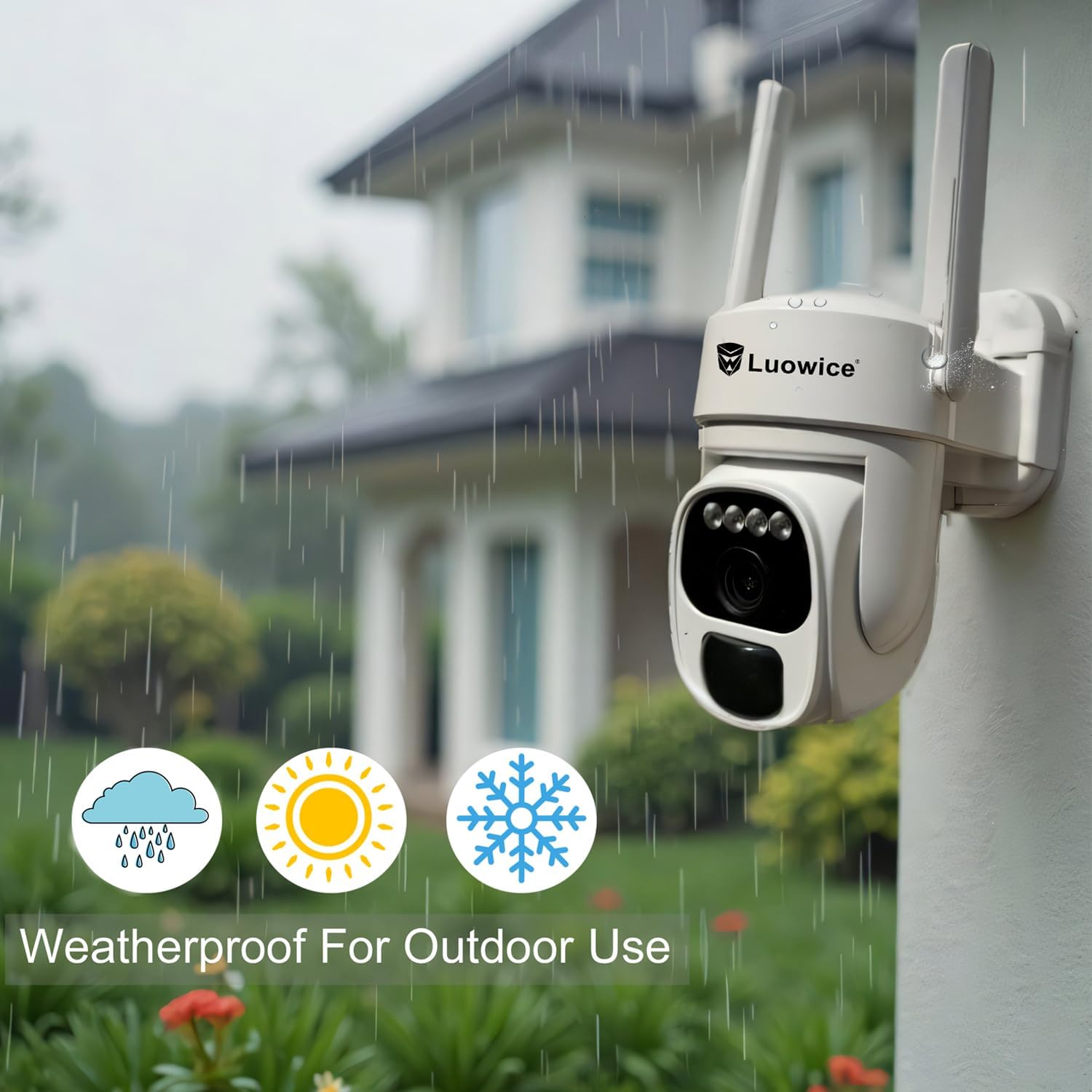
Image 5.1: The camera's weatherproof design for outdoor use.
6 خرابیوں کا سراغ لگانا
- کیمرہ وائی فائی سے منسلک نہیں ہے: Ensure your Wi-Fi is 2.4 GHz. Check Wi-Fi signal strength at the camera's location. Restart your router and the camera.
- بیٹری چارج نہیں ہو رہی ہے: Verify the solar panel is clean and receiving direct sunlight. Check the USB charging cable connection. Ensure the ambient temperature is within the operating range for charging.
- ویڈیو کا ناقص معیار: کیمرے کے لینس کو صاف کریں۔ مناسب روشنی کو یقینی بنائیں۔ اپنے انٹرنیٹ کنکشن کی رفتار چیک کریں۔
- غلط حرکت کے انتباہات: Adjust motion detection sensitivity in the app. Define specific detection zones to exclude irrelevant areas.
- Pan/Tilt not responding: Check app connectivity. Ensure there are no physical obstructions. Restart the camera.
7. وضاحتیں
| فیچر | تفصیلات |
|---|---|
| ویڈیو کیپچر ریزولوشن | 3 MP |
| طاقت کا منبع | Solar Powered (3W Solar Panel) |
| کنیکٹیویٹی پروٹوکول | Wi-Fi (2.4 GHz) |
| پین/جھکاؤ کی حد | 355° افقی، 90° عمودی |
| نائٹ ویژن | Color Night Vision with Floodlights |
| اسٹوریج کے اختیارات | مائیکرو ایس ڈی کارڈ (128 جی بی تک)، کلاؤڈ اسٹوریج |
| ویدر پروف ریٹنگ | آئی پی 66 |
| بیٹریاں درکار ہیں۔ | 1 لتیم آئن بیٹری (شامل) |
| شے کا وزن | 1.85 پاؤنڈ |
| طول و عرض | 7.87 x 6.18 x 5.55 انچ (پیکیج) |
| ہم آہنگ آلات | اسمارٹ فونز، ٹیبلٹس، کمپیوٹرز |
8. وارنٹی اور سپورٹ
8.1 وارنٹی کی معلومات
Luowice products typically come with a manufacturer's warranty. Please refer to the product packaging or the official Luowice website for specific warranty terms and conditions. Optional extended protection plans may be available for purchase.
8.2 کسٹمر سپورٹ
For technical assistance, troubleshooting, or warranty claims, please contact Luowice customer support through their official website or the contact information provided with your product. When contacting support, please have your product model (B0DF4TVZ7Z) and purchase details ready.