
1. تعارف
This manual provides detailed instructions for the setup, operation, and maintenance of your Dpofirs 5G Router with SIM Card Slot. This device offers high-speed 5G cellular network access, dual-band Wi-Fi (2.4G and 5.8G), and supports up to 32 users, making it suitable for indoor home and office environments.
2. پروڈکٹ ختمview
Familiarize yourself with the components and features of your 5G router.
2.1 پیکیج کے مشمولات
- 1 x Dpofirs 5G Router
- 1 ایکس پاور کی ہڈی
- 1 ایکس ہدایات دستی (یہ دستاویز)
- 1 X نیٹ ورک کیبل
2.2 Router Components and Indicators
The router features various ports and indicator lights for easy monitoring and connectivity.
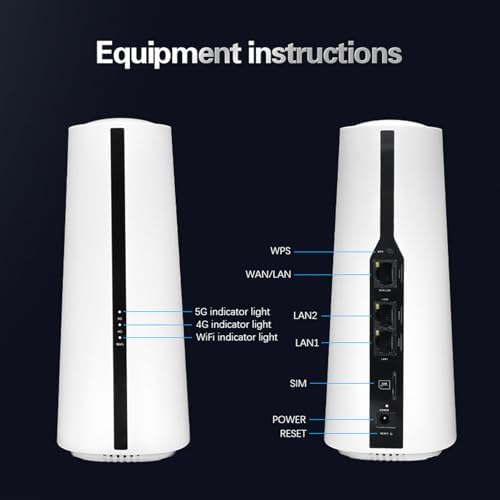
تصویر: آگے اور پیچھے view of the Dpofirs 5G Router. The front shows indicator lights for 5G, 4G, and WiFi. The back panel includes ports for WPS, WAN/LAN, LAN2, LAN1, SIM card slot, Power input, and a Reset button.
- 5G Indicator Light: 5G نیٹ ورک کی حیثیت کی نشاندہی کرتا ہے۔
- 4G Indicator Light: 4G نیٹ ورک کی حیثیت کی نشاندہی کرتا ہے۔
- WiFi Indicator Light: Indicates Wi-Fi activity.
- WPS بٹن: Wi-Fi پروٹیکٹڈ سیٹ اپ کے لیے۔
- WAN/LAN پورٹ: Connects to an external modem or acts as a LAN port.
- LAN1/LAN2 Ports: وائرڈ آلات سے جڑتا ہے۔
- سم کارڈ سلاٹ: Insert your 5G/4G SIM card here.
- پاور ان پٹ: پاور اڈاپٹر کو جوڑیں۔
- ری سیٹ بٹن: Press and hold to restore factory settings.
2.3 پروڈکٹ کے طول و عرض اور وزن
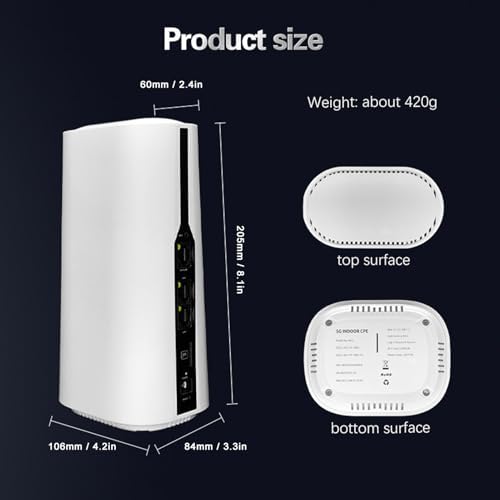
تصویر: Diagram showing the physical dimensions of the Dpofirs 5G Router. The router measures approximately 60mm (2.4in) at the top, 108mm (4.2in) at the base, 205mm (8.1in) in height, and 84mm (3.3in) in depth. Its weight is approximately 420g.
3. سیٹ اپ ہدایات
Follow these steps to set up your 5G router.
3.1 سم کارڈ داخل کرنا
- یقینی بنائیں کہ روٹر بند ہے۔
- Locate the SIM card slot on the back of the router.
- Insert your activated 5G/4G SIM card into the slot until it clicks into place. Ensure the correct orientation as indicated on the device.
- Do not force the SIM card. If it does not fit, check the orientation or SIM card size.
3.2 کنیکٹنگ پاور
- Connect the provided power adapter to the Power Input port on the router.
- Plug the other end of the power adapter into a standard electrical outlet (100-240V).
- راؤٹر خود بخود آن ہو جائے گا۔ اشارے کی لائٹس کے مستحکم ہونے کا انتظار کریں۔
3.3 Initial Network Configuration (Optional)
For advanced settings or initial setup, you can access the router's web انٹرفیس
- Connect a computer to one of the LAN ports using the provided network cable, or connect wirelessly to the default Wi-Fi network (SSID and password usually found on a sticker on the router's bottom).
- کھولنا a web براؤزر اور ڈیفالٹ IP ایڈریس درج کریں (مثال کے طور پر، 192.168.1.1) ایڈریس بار میں۔
- Log in using the default username and password (refer to the sticker on the router or the quick start guide).
- Follow the on-screen prompts for initial setup, such as changing the default Wi-Fi name and password.
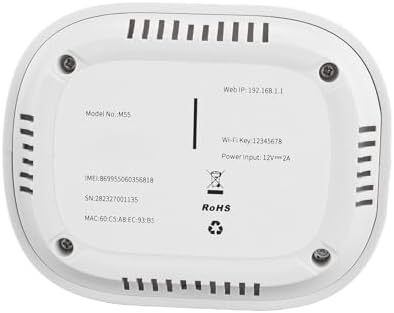
تصویر: The bottom surface of the Dpofirs 5G Router, displaying important information such as Model No.: M55, Web IP: 192.168.1.1, Wi-Fi Key: 12345678, and Power Input: 12V=2A. This information is crucial for initial setup and access.
4. آپریٹنگ ہدایات
Once set up, your router provides internet access to multiple devices.
4.1 کنیکٹنگ ڈیوائسز
- وائرلیس کنکشن: On your Wi-Fi enabled device (smartphone, laptop, tablet), search for available Wi-Fi networks. Select your router's SSID (network name) and enter the Wi-Fi password.
- وائرڈ کنکشن: Connect devices like desktop computers, gaming consoles, or smart TVs to the LAN1 or LAN2 ports using an Ethernet cable.
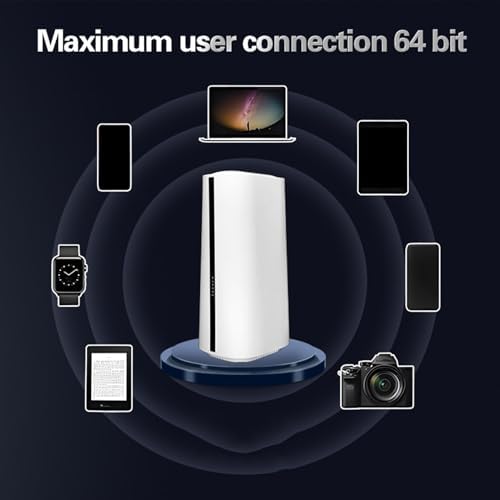
تصویر: Illustration demonstrating the Dpofirs 5G Router's capability to connect to multiple devices simultaneously. Devices shown include a laptop, smartphones, tablets, a smartwatch, and a camera, indicating support for up to 32 users.
4.2 انڈیکیٹر لائٹس کو سمجھنا
- Solid Green (5G/4G): Connected to the respective cellular network.
- Blinking Green (5G/4G): Data activity on the respective cellular network.
- Solid Blue (WiFi): وائی فائی فعال ہے۔
- Blinking Blue (WiFi): Wi-Fi data activity.
- روشنی نہیں: Network not connected or feature is off.
5 دیکھ بھال
مناسب دیکھ بھال آپ کے روٹر کی بہترین کارکردگی اور لمبی عمر کو یقینی بناتی ہے۔
5.1 عمومی نگہداشت
- روٹر کو ٹھنڈی، خشک جگہ پر رکھیں، براہ راست سورج کی روشنی اور گرمی کے ذرائع سے دور رہیں۔
- ڈیوائس کے ارد گرد مناسب وینٹیلیشن کو یقینی بنائیں۔
- باہر کو نرم، خشک کپڑے سے صاف کریں۔ مائع کلینر استعمال نہ کریں۔
- راؤٹر پر بھاری اشیاء رکھنے سے گریز کریں۔
5.2 فرم ویئر اپڈیٹس
Periodically check the router's web interface for available firmware updates. Firmware updates can improve performance, add new features, and enhance security. Follow the instructions provided within the web interface for safe updating.
5.3 راؤٹر کو دوبارہ ترتیب دینا
If you encounter persistent issues or forget your login credentials, you may need to reset the router to factory default settings. To do this, with the router powered on, use a paperclip or similar pointed object to press and hold the Reset button for approximately 10 seconds until the indicator lights flash. The router will then restart with default settings.
6 خرابیوں کا سراغ لگانا
عام مسائل کے حل کے لیے اس سیکشن کو دیکھیں۔
6.1 کوئی انٹرنیٹ کنکشن نہیں۔
- سم کارڈ چیک کریں: اس بات کو یقینی بنائیں کہ ڈیٹا پلان کے ساتھ سم کارڈ صحیح طریقے سے داخل اور فعال ہے۔
- سگنل کی طاقت: Verify the 5G/4G indicator light. If it's off or blinking slowly, the signal might be weak. Try repositioning the router.
- راؤٹر کی حیثیت: Check if the router is powered on and all necessary indicator lights are active.
- دوبارہ شروع کریں: Power cycle the router by unplugging it for 30 seconds and then plugging it back in.
- اے پی این کی ترتیبات: راؤٹر تک رسائی حاصل کریں۔ web interface and verify that the Access Point Name (APN) settings are correct for your mobile carrier.
6.2 وائی فائی کنکشن کے مسائل
- غلط پاس ورڈ: Wi-Fi پاس ورڈ کو دو بار چیک کریں۔
- سگنل کی حد: Ensure your device is within the Wi-Fi range of the router.
- مداخلت: Other electronic devices can cause interference. Try changing the Wi-Fi channel in the router's settings.
- ڈیوائس کی حد: The router supports up to 32 users. If too many devices are connected, performance may degrade.
6.3 سست انٹرنیٹ کی رفتار
- سگنل کی طاقت: A weak 5G/4G signal will result in slower speeds.
- نیٹ ورک کنجشن: During peak hours, cellular network speeds may decrease.
- صارفین کی تعداد: More connected devices sharing bandwidth can reduce individual speeds.
- راؤٹر کی جگہ کا تعین: Place the router in a central location, away from obstructions.
7. وضاحتیں
Detailed technical specifications for the Dpofirs 5G Router.
| فیچر | تفصیل |
|---|---|
| ماڈل کا نام | Dpofirsei2sngv1m5-12 |
| برانڈ | ڈیپوفرز |
| کنیکٹوٹی ٹیکنالوجی | Ethernet, 5G Cellular |
| وائرلیس مواصلات کا معیار | 802.11ac، 802.11n |
| فریکوئنسی بینڈ کلاس | ڈوئل بینڈ (2.4 GHz، 5.8 GHz) |
| ڈیٹا کی منتقلی کی شرح | 1800 Mbps تک |
| بندرگاہوں کی تعداد | 1 WAN/LAN, 2 LAN |
| ہم آہنگ آلات | Personal Computer, Laptop, Smartphone, Tablet, Gaming Console |
| سیکیورٹی پروٹوکول | WPA2-PSK، WPA3 |
| رنگ | سفید |
| پاور ان پٹ | 100-240V (یو ایس پلگ) |
| زیادہ سے زیادہ صارفین کی حمایت کی | 32 |
8. وارنٹی اور سپورٹ
This product comes with a manufacturer's warranty and support resources.
8.1 مینوفیکچرر کی وارنٹی
The Dpofirs 5G Router is covered by a 90 دن کی صنعت کار کی وارنٹی from the date of purchase. This warranty covers defects in materials and workmanship under normal use. It does not cover damage caused by misuse, accidents, unauthorized modifications, or external factors.
8.2 کسٹمر سپورٹ
For technical assistance, troubleshooting beyond this manual, or warranty claims, please contact Dpofirs customer support. Refer to the contact information provided with your purchase or visit the official Dpofirs webسپورٹ کی تفصیلات کے لیے سائٹ۔
نوٹ: اپنی خریداری کی رسید کو وارنٹی مقاصد کے لیے خریداری کے ثبوت کے طور پر رکھیں۔