
1. تعارف
The EE Smart 4G Hub 2 (model HH10E) is a versatile 4G WiFi router designed to provide high-speed internet connectivity using a mobile network SIM card. It offers an alternative to traditional fixed-line broadband, ideal for temporary setups, areas with poor fixed-line infrastructure, or mobile offices. This manual provides detailed instructions for setting up, operating, and maintaining your device to ensure optimal performance.
2. باکس میں کیا ہے۔
براہ کرم تصدیق کریں کہ آپ کے پیکیج میں درج ذیل تمام اجزاء شامل ہیں:
- Smart 4G Hub 2 (HH10E): The main router unit.
- پاور اڈاپٹر: For connecting the hub to a power outlet.
- USB Cable (Power): Used with the power adapter.
- کوئیک اسٹارٹ گائیڈ: A brief guide for initial setup.
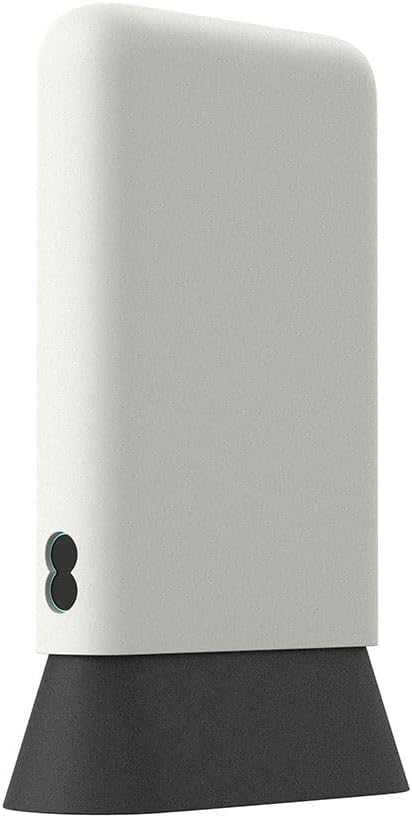
Figure 2.1: The EE Smart 4G Hub 2 and its standard accessories. Ensure all items are present before proceeding.
3. ڈیوائس لے آؤٹ
Familiarize yourself with the various ports, indicators, and buttons on your Smart 4G Hub 2.
شکل 3.1: سامنے view of the HH10E router, showing the minimalist design and status indicators.

شکل 3.2: پیچھے view displaying the LAN ports, power input, and SIM card slot.
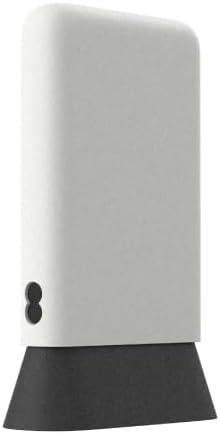
شکل 3.3: طرف view, highlighting the compact form factor.
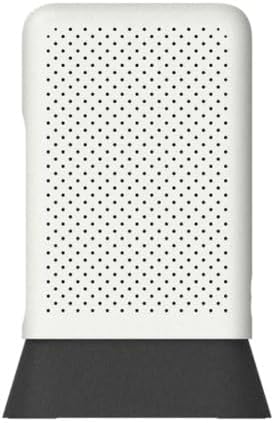
تصویر 3.4: اوپر view, showing the ventilation pattern for heat dissipation.
4. سیٹ اپ گائیڈ
4.1. سم کارڈ کی تنصیب
The Smart 4G Hub 2 requires a Nano SIM card (sold separately) to access mobile network data. Ensure the device is powered off before inserting or removing the SIM card.
- Locate the SIM card slot on the rear of the device (refer to Figure 3.2).
- Gently insert the Nano SIM card into the slot with the gold contacts facing down and the notched corner aligned correctly. Push until it clicks into place.
- To remove, gently push the SIM card inwards until it springs out.
4.2. پاورنگ آن۔
Connect the provided power adapter to the power input port on the rear of the hub, then plug the adapter into a wall outlet. The device will automatically power on and begin its startup sequence.
4.3. ابتدائی ترتیب
Upon first power-on, the hub will attempt to connect to the mobile network. The status indicator lights on the front of the device will provide feedback:
- Flashing Aqua: The device is attempting to connect to the network.
- Steady Aqua: The device is successfully connected to the network and providing internet access.
The default WiFi network name (SSID) and password (WiFi Key) are typically found on a label on the bottom or rear of the device. Use these credentials to connect your devices.
5. آپریٹنگ ہدایات
5.1. منسلک آلات
You can connect devices to the Smart 4G Hub 2 via WiFi or Ethernet cable.
- وائی فائی کنکشن: On your device (laptop, smartphone, tablet), search for available WiFi networks. Select the SSID of your Smart 4G Hub 2 and enter the WiFi Key when prompted. The hub supports up to 60 connected devices.
- ایتھرنیٹ کنکشن: For wired connections, use a standard Ethernet cable to connect a device (e.g., desktop computer, gaming console) to one of the LAN ports on the rear of the hub.
5.2. تک رسائی حاصل کرنا Web انٹرفیس
For advanced settings and monitoring, you can access the hub's webپر مبنی مینجمنٹ انٹرفیس:
- Ensure your device is connected to the Smart 4G Hub 2's WiFi network or via an Ethernet cable.
- کھولنا a web براؤزر (جیسے کروم، فائر فاکس، ایج)۔
- ایڈریس بار میں، پہلے سے طے شدہ IP ایڈریس ٹائپ کریں (عام طور پر
192.168.1.1or192.168.8.1) یا web address provided on the device label, then press Enter. - Enter the administrator username and password. These are typically found on the device label.
5.3. نیٹ ورک کی ترتیبات
کے اندر اندر web interface, you can configure various network settings, including:
- WiFi Name (SSID) and Password: Change these for better security or personalization.
- مہمان وائی فائی: Enable a separate network for guests.
- اے پی این کی ترتیبات: If your SIM card requires specific Access Point Name settings, these can be configured here.
- فرم ویئر اپ ڈیٹ: Check for and install the latest firmware to improve performance and security.
6 دیکھ بھال
To ensure the longevity and optimal performance of your EE Smart 4G Hub 2, follow these maintenance guidelines:
- جگہ کا تعین: Position the hub in a central location, away from obstructions, large metal objects, and other electronic devices that may cause interference. Avoid direct sunlight and extreme temperatures.
- صفائی: Use a soft, dry cloth to clean the exterior of the device. Do not use liquid cleaners or aerosols. Ensure ventilation holes remain clear of dust.
- فرم ویئر کی تازہ ترین معلومات: Regularly check for and install firmware updates via the web interface. Updates often include performance improvements, bug fixes, and security enhancements.
- دوبارہ شروع ہو رہا ہے۔: If you experience connectivity issues, try restarting the hub by unplugging the power adapter, waiting 10 seconds, and then plugging it back in.
7 خرابیوں کا سراغ لگانا
This section addresses common issues you might encounter with your Smart 4G Hub 2.
| مسئلہ | ممکنہ وجہ | حل |
|---|---|---|
| No internet connection (Flashing Aqua light) | No SIM card, incorrect SIM insertion, no network signal, incorrect APN settings. | Ensure SIM is correctly inserted. Check network coverage in your area. Verify APN settings via the web interface. Restart the hub. |
| Slow internet speeds | Poor network signal, too many connected devices, network congestion, hub placement. | Relocate the hub to an area with better signal. Reduce the number of active devices. Try restarting the hub. |
| وائی فائی سے منسلک نہیں ہو سکتا۔ | Incorrect WiFi password, device too far from hub, WiFi disabled. | Double-check WiFi password. Move closer to the hub. Ensure WiFi is enabled via the web انٹرفیس |
| رسائی نہیں ہو سکتی web انٹرفیس | Incorrect IP address, device not connected to hub, incorrect login credentials. | Verify the IP address (e.g., 192.168.1.1). Ensure your device is connected to the hub. Use the correct admin username and password from the device label. |
اگر ان اقدامات پر عمل کرنے کے بعد بھی مسائل برقرار رہتے ہیں، تو مزید مدد کے لیے براہ کرم کسٹمر سپورٹ سے رابطہ کریں۔
8. وضاحتیں
Key technical specifications for the EE Smart 4G Hub 2 (HH10E):
| ماڈل کا نام | HH10E |
| برانڈ | EE |
| کنیکٹوٹی ٹیکنالوجی | وائی فائی، ایل ٹی ای |
| وائرلیس مواصلات کا معیار | 802.11n, 802.11b, 802.11a, 802.11g, 802.11ac |
| فریکوئنسی بینڈ کلاس | ڈوئل بینڈ |
| سم کا سائز | نینو سم |
| LAN پورٹس | 2 |
| زیادہ سے زیادہ منسلک آلات | 60 تک |
| WiFi Radius | 30 میٹر |
| Average Download Speeds | 40 ایم بی پی ایس |
| شامل اجزاء | Smart 4G Hub, USB cable (Power), Power adapter, Quick Start Guide |
| طول و عرض (تقریبا) | 22 x 14.1 x 7.8 سینٹی میٹر |
| وزن (تقریباً) | 350 گرام |
9. وارنٹی اور سپورٹ
As this product is listed as "Renewed" by Amazon Renewed, it typically comes with a specific return policy and limited warranty provided by the seller or Amazon Renewed program. Please refer to your purchase documentation or the Amazon Renewed policy for details regarding warranty coverage and return periods.
For technical support or assistance with your EE Smart 4G Hub 2, please contact the seller directly through your Amazon order history. For general inquiries about the EE network or services, refer to the official EE support channels.