
1. تعارف
خریداری کے لیے آپ کا شکریہasing the KTC 24-inch WQHD 100Hz IPS Monitor. This manual provides essential information for the safe and efficient use of your new monitor. Please read it thoroughly before use and keep it for future reference.
This monitor features a 24-inch IPS panel with WQHD (2560x1440) resolution, offering stunning visual clarity and vibrant colors with 122% sRGB coverage. A 100Hz refresh rate and FreeSync & G-Sync compatibility ensure smooth, tear-free visuals, ideal for both office work and casual gaming. Advanced eye care technologies, including blue light reduction and flicker-free operation, provide a comfortable viewing experience even during extended use. The monitor also supports HDR10 for enhanced dynamic range and features flexible connectivity options with HDMI and DisplayPort.
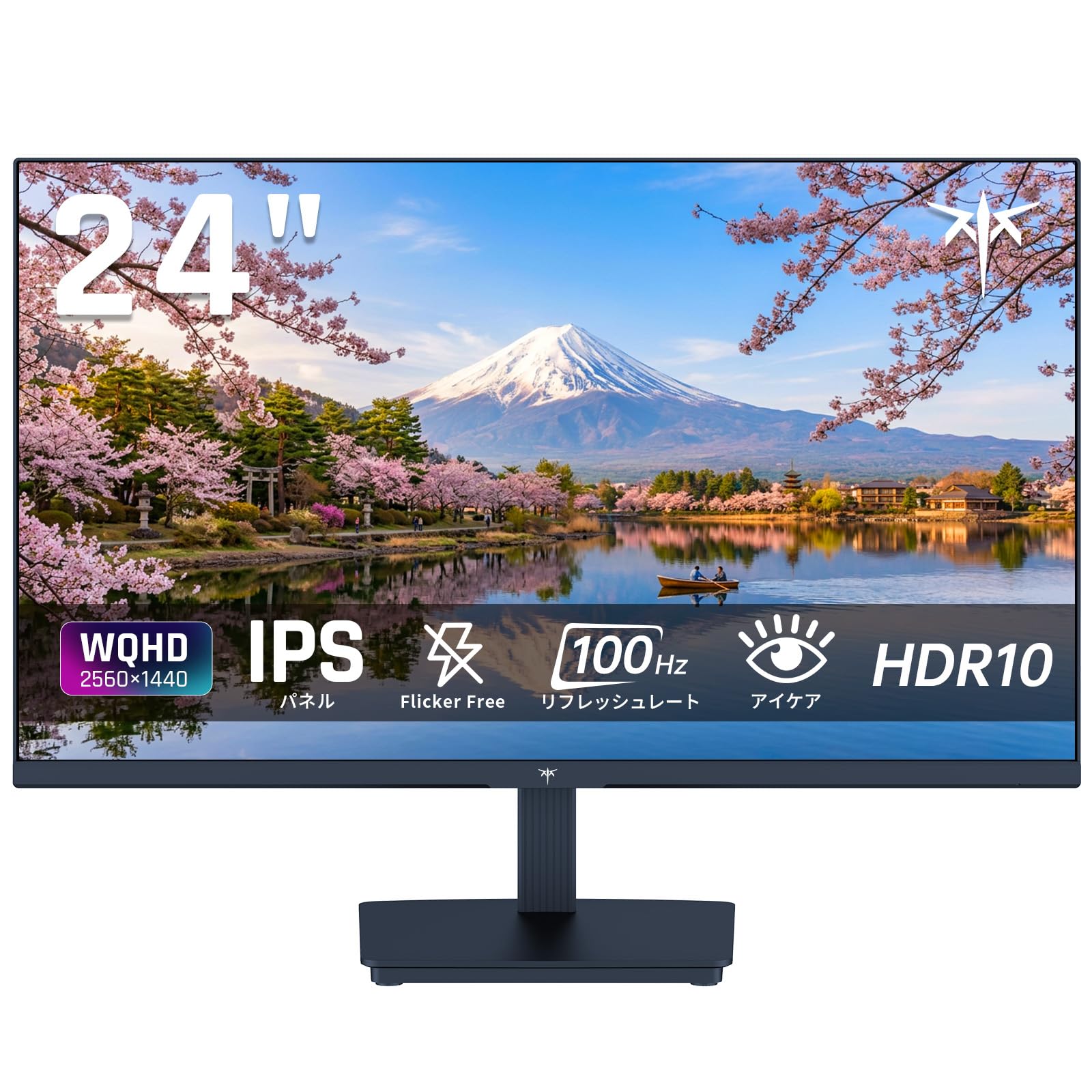
Image: KTC 24-inch WQHD 100Hz IPS Monitor.
2. حفاظتی معلومات
Please observe the following safety precautions to prevent damage to the monitor or injury to yourself or others:
- مانیٹر کو بارش، نمی، یا انتہائی درجہ حرارت کے سامنے نہ رکھیں۔
- زیادہ گرمی سے بچنے کے لیے مانیٹر کے ارد گرد مناسب وینٹیلیشن کو یقینی بنائیں۔
- مانیٹر کے ساتھ فراہم کردہ پاور اڈاپٹر ہی استعمال کریں۔
- بجلی کی تار یا مانیٹر پر بھاری اشیاء رکھنے سے گریز کریں۔
- Do not attempt to disassemble or repair the monitor yourself. Contact qualified service personnel.
- مانیٹر کو مضبوط مقناطیسی شعبوں سے دور رکھیں۔
3. پیکیج کے مشمولات
تصدیق کریں کہ تمام اشیاء پیکیج میں موجود ہیں:
- KTC 24-inch WQHD 100Hz IPS Monitor (H24T27)
- مانیٹر بیس
- HDMI کیبل
- پاور اڈاپٹر
- صارف دستی
4. سیٹ اپ
4.1 اسٹینڈ کو جمع کرنا
- Carefully remove the monitor and base from the packaging.
- مانیٹر پینل کے ساتھ اسٹینڈ کی گردن منسلک کریں۔
- Secure the base to the stand neck using the provided screws.
4.2 مانیٹر کو جوڑنا
مناسب کیبلز کا استعمال کرتے ہوئے مانیٹر کو اپنے کمپیوٹر یا دیگر آلات سے جوڑیں۔
- پاور کنکشن: پاور اڈاپٹر کو مانیٹر کے DC ان پٹ سے جوڑیں اور پھر اسے پاور آؤٹ لیٹ میں لگائیں۔
- ویڈیو کنکشن: Use the supplied HDMI cable or a DisplayPort cable to connect your computer's video output to the corresponding port on the monitor.
- آڈیو آؤٹ پٹ: If desired, connect headphones or external speakers to the 3.5mm audio output jack.

Image: Close-up of the KTC monitor's rear ports, including DC power, HDMI, DisplayPort, and audio out.
5. آپریٹنگ ہدایات
5.1 پاور آن/آف
اسے آن یا آف کرنے کے لیے مانیٹر پر موجود پاور بٹن کو دبائیں۔
5.2 آن اسکرین ڈسپلے (OSD) مینو
The OSD menu allows you to adjust various monitor settings. Use the control buttons (usually located on the back or bottom of the monitor) to navigate the menu and make selections.
5.3 ڈسپلے کی ترتیبات
- قرارداد: The monitor supports WQHD (2560x1440) resolution for sharp and detailed images. Ensure your graphics card is set to this resolution for optimal display.
- ریفریش ریٹ: Enjoy smooth visuals with a 100Hz refresh rate. This can be configured in your operating system's display settings.
- رنگین پہلو: The monitor offers 122% sRGB coverage for rich and accurate colors.

Image: KTC monitor highlighting key features like IPS panel, 100Hz, WQHD, 24-inch, Adaptive Sync, and blue light reduction.

Image: Comparison of WQHD (2560x1440) and FHD (1920x1080) resolutions, demonstrating enhanced detail with WQHD.

Image: Comparison of 100Hz and 60Hz refresh rates, showing smoother motion with 100Hz.
5.4 Adaptive Sync (FreeSync & G-Sync)
The monitor supports both FreeSync and G-Sync technologies to eliminate screen tearing and stuttering, providing a fluid gaming experience. Ensure this feature is enabled in your graphics card settings and the monitor's OSD.

Image: Monitor display showing HDR10 content on one side and standard HDR on the other, along with FreeSync & G-Sync comparison (ON/OFF).
5.5 آنکھوں کی دیکھ بھال کی خصوصیات
The monitor includes Flicker-Free technology and a Blue Light Reduction mode to minimize eye strain during prolonged use. These settings can be adjusted via the OSD menu.

Image: KTC monitor displaying eye care features: Low Blue Light (ON/OFF) and Flicker-Free (ON/OFF).
5.6 HDR10 Support
This monitor supports HDR10, providing a wider range of colors and contrasts for a more immersive viewing experience. Ensure HDR is enabled in your device's display settings for compatible content.
5.7 ایڈجسٹ اسٹینڈ
The monitor stand allows for tilt adjustment from -5° to 15°, enabling you to find the most comfortable viewING زاویہ

تصویر: سائیڈ view of the KTC monitor demonstrating the tilt-adjustable stand (-5° to 15°).
5.8 چوڑا Viewآئی اینگل
The IPS panel provides a wide 178-degree viewزاویہ، تقریبا کسی بھی نقطہ نظر سے مسلسل رنگ اور تصویر کے معیار کو یقینی بنانا.

Image: KTC monitor showcasing a wide 178-degree viewing angle with consistent color.
6 دیکھ بھال
6.1 مانیٹر کی صفائی
- صفائی سے پہلے ہمیشہ مانیٹر کو ان پلگ کریں۔
- ہلکے سے نرم، لنٹ سے پاک کپڑا استعمال کریں۔ampپانی یا ہلکے، غیر کھرچنے والے اسکرین کلینر کے ساتھ ختم کیا گیا ہے۔
- کلینر کو براہ راست اسکرین پر نہ چھڑکیں۔
- سخت کیمیکلز یا کھرچنے والے مواد کے استعمال سے پرہیز کریں۔
6.2 عمومی نگہداشت
- Keep the monitor in a clean, dry environment.
- اسکرین کو تیز چیزوں سے بچائیں۔
- When moving the monitor, handle it carefully and avoid putting pressure on the screen.
7 خرابیوں کا سراغ لگانا
اگر آپ کو اپنے مانیٹر کے ساتھ مسائل کا سامنا کرنا پڑتا ہے، تو درج ذیل عام مسائل اور حل دیکھیں:
| مسئلہ | ممکنہ حل |
|---|---|
| اسکرین پر کوئی تصویر نہیں ہے | Check power connections. Ensure video cable is securely connected to both monitor and computer. Select correct input source via OSD. |
| تصویر دھندلی یا مسخ شدہ ہے۔ | Ensure the display resolution is set to 2560x1440. Check video cable for damage. |
| سکرین پھاڑنا یا ہکلانا | Verify FreeSync/G-Sync is enabled in both monitor OSD and graphics card settings. |
| ہیڈ فون / اسپیکر سے کوئی آواز نہیں ہے۔ | Check audio cable connection. Ensure volume is not muted on monitor or computer. |
| مانیٹر آن نہیں ہو رہا ہے۔ | Check power outlet and power adapter connection. Try a different power outlet. |
اگر ان حلوں کو آزمانے کے بعد بھی مسئلہ برقرار رہتا ہے، تو براہ کرم KTC کسٹمر سپورٹ سے رابطہ کریں۔
8. وضاحتیں
Detailed technical specifications for the KTC H24T27 monitor:
| فیچر | تفصیلات |
|---|---|
| برانڈ | کے ٹی سی |
| ماڈل نمبر | H24T27 |
| اسکرین کا سائز | 24 انچ |
| قرارداد | WQHD (2560 x 1440 pixels) |
| پہلو کا تناسب | 16:9 |
| پینل کی قسم | آئی پی ایس |
| اسکرین کی سطح | غیر چکاچوند |
| ریفریش ریٹ | 100 Hz |
| رسپانس ٹائم | 7 ms |
| کنٹراسٹ ریشو | 1300:1 |
| چمک | 300 cd/m² |
| کلر گامٹ | 122% sRGB |
| Viewآئی اینگل | 178 ڈگری |
| ایچ ڈی آر ٹیکنالوجی | HDR10 |
| اڈاپٹیو سنک | FreeSync, G-Sync |
| کنیکٹوٹی | 1x HDMI، 1x ڈسپلے پورٹ، آڈیو آؤٹ |
| بجلی کی کھپت | 12 واٹ |
| والیومtage | 100 وولٹ |
| ابعاد (D x W x H) | 18.3 x 54 x 40.5 سینٹی میٹر |
| اضافی خصوصیات | Adaptive Sync, Eye Care, Flicker-Free, Blue Light Filter, Tilt Adjustment |
| ہم آہنگ آلات | Game Consoles, Laptops |
| رنگ | سیاہ |
| شکل | فلیٹ |
| اصل | چین |
9. وارنٹی اور سپورٹ
9.1 وارنٹی کی معلومات
Your KTC monitor comes with a 3 سالہ صنعت کار کی وارنٹی. In the event of a product defect, a free replacement will be provided. Please note that this warranty does not cover loss or damage caused by customer negligence.

Image: KTC's 3-year free replacement warranty details and contact information.
9.2 کسٹمر سپورٹ
For any inquiries or concerns, please feel free to contact us. We are committed to providing full support to ensure your satisfaction.
فون: 050-3606-8990
ای میل: support@ktcplay.com
You can also contact support through Amazon:

Image: Step-by-step guide on how to contact customer support via Amazon.
10. پروڈکٹ ختمview ویڈیو
بصری اوور کے لیے یہ ویڈیو دیکھیںview of the KTC QHD computer monitor and its features.
Video: This video showcases the KTC QHD computer monitor, highlighting its 2560x1440 (2K) resolution, 100Hz refresh rate, FreeSync and G-Sync compatibility, flicker-free and low blue light features, 8-bit & 116% sRGB color gamut, 3-side frameless design, -5° to 15° tilt adjustable stand, and available sizes (24, 27, 32 inches). It emphasizes its suitability for professional office use.