
تعارف
This manual provides essential information for the setup, operation, maintenance, and troubleshooting of your Onn 22 inch 1080P 100 Hz FHD LED Monitor. Please read this guide thoroughly before using the product to ensure optimal performance and safety.
The Onn 22 inch FHD LED Monitor is designed for a variety of applications, offering a vivid 1920x1080 resolution, a 100Hz refresh rate, and a 6.5ms response time for efficient performance. Its slim profile and T-shaped base are ideal for saving desk space.
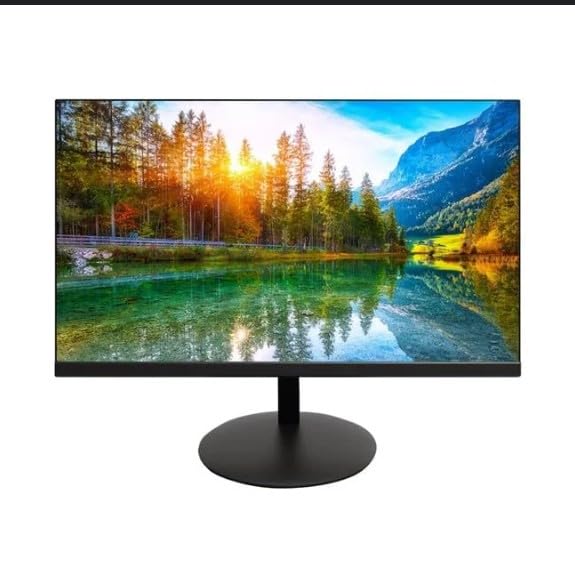
The image shows the Onn 22 inch FHD LED Monitor, highlighting its 100Hz refresh rate and 1080p resolution. The monitor features a slim design and a T-shaped base.
سیٹ اپ کی ہدایات
- پیک کھولنا: Carefully remove the monitor and all accessories from the packaging. Ensure all components are present: monitor, T-shaped base, HDMI cable, and power adapter.
- اسٹینڈ کو جمع کرنا: Attach the T-shaped base to the monitor. The design is screw-less for easy assembly. Ensure it is securely fastened.
- ڈیوائس سے جڑنا:
The monitor supports both HDMI and VGA inputs. Connect the provided HDMI cable from your computer's HDMI output to the HDMI IN port on the monitor. Alternatively, use a VGA cable for VGA input.

This image displays the rear panel of the Onn monitor, illustrating the available input ports: HDMI IN, VGA IN, and the DC 12V power input. These ports are essential for connecting the monitor to a computer or other devices.
- پاور کنکشن: Connect the power adapter to the DC 12V input port on the monitor, then plug the adapter into a power outlet.
- مانیٹر کو ایڈجسٹ کرنا: The monitor is capable of swivel, tilt, rotation, and height adjustment. Adjust the screen to your preferred viewergonomic آرام کے لئے زاویہ.
- دوہری مانیٹر سیٹ اپ: This monitor is suitable for a fully functioning dual monitor setup. Connect a second monitor using the appropriate cables and configure your operating system's display settings.
آپریٹنگ ہدایات
- پاور آن/آف: Press the power button, usually located on the bottom or back of the monitor, to turn it on or off.
- ان پٹ انتخاب: If the monitor does not automatically detect the input source, use the On-Screen Display (OSD) menu buttons to manually select between HDMI and VGA inputs.
- OSD مینو نیویگیشن: Use the physical buttons on the monitor (typically on the back or bottom edge) to navigate the OSD menu. This allows you to adjust settings such as brightness, contrast, color temperature, and input source.
- ریزولوشن اور ریفریش ریٹ: The monitor supports a native resolution of 1920x1080 at a 100Hz refresh rate. Ensure your computer's display settings are configured to these specifications for the best visual experience.
- موافقت پذیری کی مطابقت پذیری: The monitor features Adaptive Sync for gaming, which helps to reduce screen tearing and stuttering. Ensure this feature is enabled in your graphics card settings if supported.
دیکھ بھال
- سکرین کی صفائی: نرم، لنٹ فری کپڑے سے اسکرین کو آہستہ سے صاف کریں۔ ضدی نشانات کے لیے، ہلکے سے ڈیampen the cloth with water or a non-abrasive, monitor-specific cleaning solution. Avoid spraying liquids directly onto the screen.
- سی کی صفائیasing: مانیٹر کو صاف کرنے کے لیے نرم، خشک کپڑا استعمال کریں۔asing. Do not use strong detergents or solvents, as they may damage the finish.
- وینٹیلیشن: اس بات کو یقینی بنائیں کہ زیادہ گرمی سے بچنے کے لیے مانیٹر کے وینٹیلیشن کے سوراخوں کو بلاک نہیں کیا گیا ہے۔
- ذخیرہ: جب لمبے عرصے تک استعمال نہ ہو تو مانیٹر کو براہ راست سورج کی روشنی اور انتہائی درجہ حرارت سے دور کسی ٹھنڈی، خشک جگہ پر محفوظ کریں۔
خرابی کا سراغ لگانا
- کوئی طاقت نہیں:
- چیک کریں کہ آیا پاور کیبل مانیٹر اور پاور آؤٹ لیٹ دونوں سے محفوظ طریقے سے منسلک ہے۔
- تصدیق کریں کہ پاور آؤٹ لیٹ صحیح طریقے سے کام کر رہا ہے۔
- سگنل نہیں ہیں:
- Ensure the video cable (HDMI or VGA) is firmly connected to both the monitor and the computer.
- Select the correct input source using the monitor's OSD menu.
- چیک کریں کہ آیا آپ کا کمپیوٹر آن ہے اور سلیپ موڈ میں نہیں۔
- Flickering Screen or Poor Image Quality:
- نقصان یا ڈھیلے کنکشن کے لیے ویڈیو کیبل چیک کریں۔
- Adjust the resolution and refresh rate settings on your computer to match the monitor's specifications (1920x1080, 100Hz).
- Reset monitor settings to factory defaults via the OSD menu.
- بٹن جواب نہیں دے رہے ہیں:
- Unplug the monitor from the power outlet, wait for 30 seconds, and then plug it back in.
If problems persist, please refer to the support information provided in the "Support and Warranty" section.
وضاحتیں
| برانڈ | اون |
| ماڈل نمبر | 100140681 |
| ماڈل کا نام | او ٹی او |
| اسکرین کا سائز | 21.5 انچ |
| ڈسپلے کی قسم | ایل ای ڈی، ایل سی ڈی |
| قرارداد | 1920 x 1080 (FHD 1080p) |
| ریفریش ریٹ | 100 Hz |
| رسپانس ٹائم | 6.5 ملی سیکنڈز |
| ہارڈ ویئر انٹرفیس | ایچ ڈی ایم آئی ، وی جی اے۔ |
| خصوصی خصوصیات | اونچائی کی ایڈجسٹمنٹ |
| Viewآئی اینگل | 160 ڈگری |
| پہلو کا تناسب | 16:9 |
| مصنوعات کے طول و عرض | 49.2 x 20 x 37.2 سینٹی میٹر؛ 3.24 کلوگرام |
سپورٹ اور وارنٹی
For technical support, product inquiries, or warranty information, please visit the official Onn support webسائٹ یا ان کی کسٹمر سروس سے رابطہ کریں۔
- سرکاری حمایت Webسائٹ: onnsupport.ca
- وارنٹی: Specific warranty details may vary by region and purchase date. Please refer to the documentation included with your product or visit the support webتازہ ترین وارنٹی معلومات کے لیے سائٹ۔