
1. تعارف
The TobenONE USB-C Docking Station (Model: XYY-PD100CL) is a versatile 16-in-1 solution designed to expand the connectivity of your USB-C enabled laptop. It provides comprehensive port expansion, multi-monitor support, high-speed data transfer, and power delivery, enhancing productivity for both professionals and students.

Image: The TobenONE USB-C Docking Station, showcasing its compact design alongside a laptop and the included 100W GaN III charger.
2. کلیدی خصوصیات
- عالمگیر مطابقت: Seamlessly works with Windows 10+ and Chromebook devices featuring USB-C DisplayPort Alt Mode, Thunderbolt 4/3, and USB4. Compatible with HP, Dell, and Lenovo laptops. (Note: Not recommended for Mac users.)
- 16-ان-1 کنیکٹیویٹی: Offers extensive port options including dual HDMI, one DisplayPort, multiple USB-C and USB-A ports, 2.5Gbps Ethernet, 100W Power Delivery, and SD/TF card slots.
- Blazing-Fast Data Transfer: Equipped with 10Gbps USB-C and USB-A ports, enabling data transfers up to 20 times faster than traditional USB 2.0.
- 2.5Gbps Ethernet: Provides stable and high-speed internet connectivity, ideal for video calls, streaming, and large file ڈاؤن لوڈ.
- 100W PD چارجنگ: Features a robust 100W GaN power supply to keep your laptop charged during intensive work sessions, eliminating the need for a separate charger.
- شاندار بصری: Supports up to 4K@60Hz resolution for dual or triple monitor setups. A single display can achieve 8K@30Hz or 4K@120Hz for razor-sharp clarity.
- Sleek Cooling Stand Design: Ergonomically designed to elevate your laptop, promoting better airflow and heat dissipation.
3. پیکیج کے مشمولات
براہ کرم تصدیق کریں کہ تمام اشیاء آپ کے پیکیج میں موجود ہیں:
- TobenONE USB-C Docking Station (Model: XYY-PD100CL)
- 100W پاور اڈاپٹر
- 60CM (1.96 Feet) USB-C Cable

Image: The package includes the UDS041W Laptop Dock Stand, a 100W Power Adapter, and a 60CM USB-C Cable.
4. سیٹ اپ گائیڈ
اپنا TobenONE USB-C ڈاکنگ اسٹیشن قائم کرنے کے لیے ان اقدامات پر عمل کریں:
- پاور سے رابطہ کریں: Plug the 100W power adapter into the DC-IN port on the docking station, then connect the adapter to a wall outlet.
- لیپ ٹاپ سے جڑیں: Use the provided 60CM USB-C cable to connect the "HOST" USB-C port on the docking station to your laptop's USB-C port. Ensure your laptop supports USB-C DisplayPort Alt Mode, Thunderbolt 4/3, or USB4.
- کنیکٹ ڈسپلے:
- For single display: Connect your monitor to either HDMI 1, HDMI 2, or DisplayPort.
- For dual or triple displays: Connect your monitors to the available HDMI 1, HDMI 2, and DisplayPort outputs.

Image: A laptop connected to two external 4K monitors, demonstrating a dual display setup for enhanced productivity.
- پیری فیرلز کو جوڑیں: Plug your USB devices (keyboard, mouse, external drives, etc.) into the available USB 3.0, USB 3.2 (10Gbps), or USB-C (10Gbps) ports.

تصویر: ایک تفصیلی view of the docking station's rear and side ports, including Ethernet, HDMI, DisplayPort, various USB types, SD/MicroSD slots, audio, and power button.

Image: An external hard drive connected to one of the 10Gbps USB ports, highlighting the high-speed data transfer capabilities.
- ایتھرنیٹ سے جڑیں: For a stable wired internet connection, plug an Ethernet cable into the 2.5Gbps Ethernet port on the docking station.
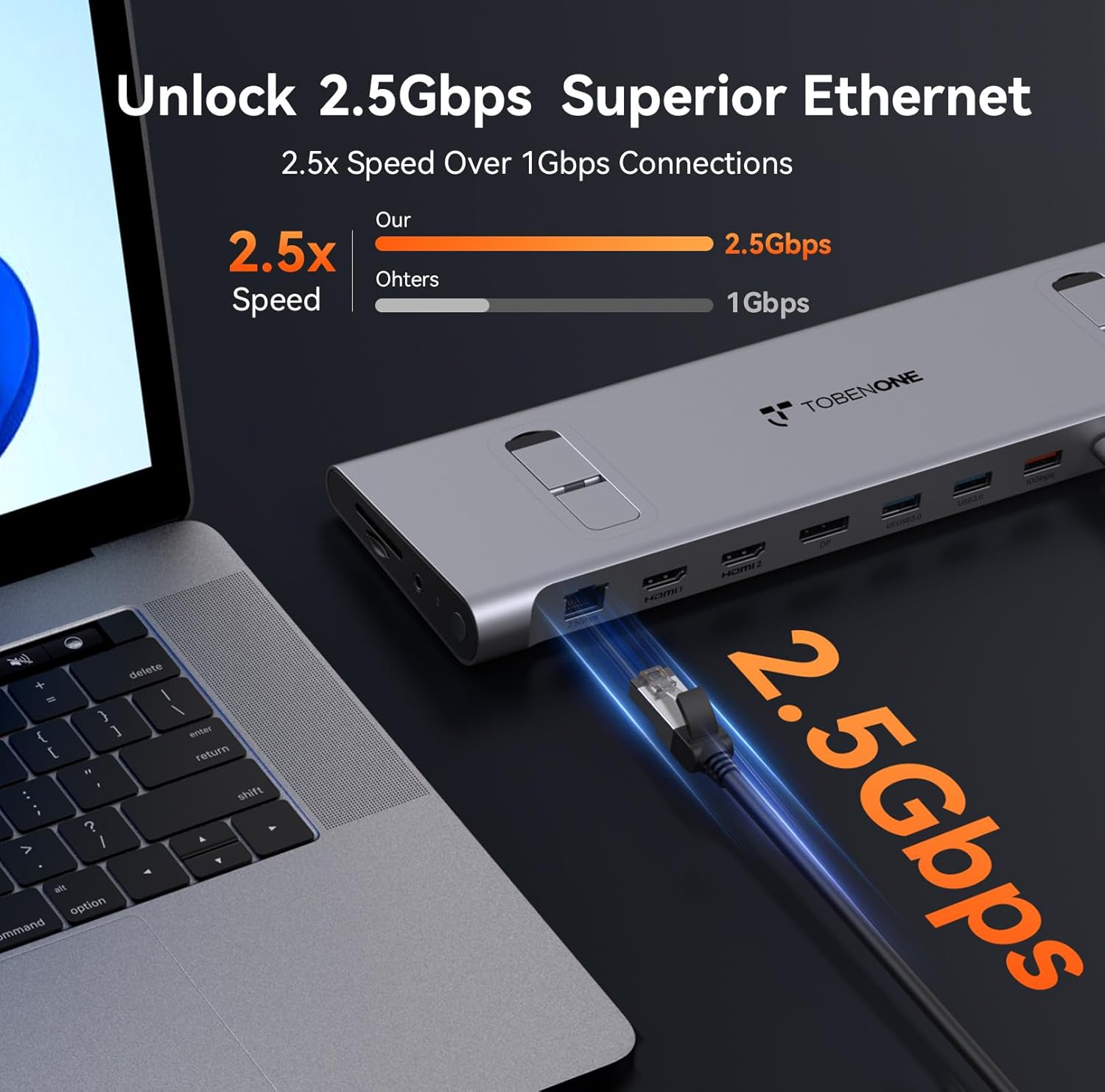
Image: An Ethernet cable connected to the 2.5Gbps Ethernet port on the docking station, ensuring a fast and reliable network connection.
- Insert SD/TF Cards: If needed, insert your SD or MicroSD cards into the dedicated slots on the side of the docking station.
- آڈیو کنکشن: Connect headphones or speakers to the 3.5mm audio port for audio output.
- پاور آن: Press the power button on the side of the docking station to turn it on.
5. آپریٹنگ ہدایات
Display Configuration (Windows/Chromebook)
The docking station supports various display configurations. Your laptop's capabilities (e.g., Thunderbolt 4/DP 1.4 with DSC vs. DP 1.2) will determine the maximum resolution and refresh rates.
| انٹرفیس سٹینڈرڈ | Thunderbolt 4/DP 1.4 (support DSC) | ڈی پی 1.2 | ||||
|---|---|---|---|---|---|---|
| HDMI1 | HDMI2 | DP | HDMI1 | HDMI2 | DP | |
| ایک ڈسپلے | 8K@30Hz | 8K@30Hz | 8K@30Hz | 4K@30Hz | 4K@30Hz | 4K@30Hz |
| 4K@60Hz | 4K@60Hz | 4K@60Hz | 1080P @ 60Hz | 1080P @ 60Hz | 1080P @ 60Hz | |
| دوہری ڈسپلے | 4K@60Hz | 1080P @ 60Hz | ||||
| 4K@60Hz | 4K@60Hz | 1080P @ 60Hz | 1080P @ 60Hz | |||
| ٹرپل ڈسپلے | 4K@60Hz | 1080P @ 60Hz | ||||
Table: This table outlines the supported display resolutions and refresh rates for single, dual, and triple monitor setups, depending on your laptop's DisplayPort interface standard.
Laptop Placement and Cooling
The docking station is designed to function as a sleek cooling stand. Place your laptop directly on top of the docking station, aligning it with the integrated supports. This ergonomic design helps improve airflow and prevent overheating during extended use.

Image: A laptop positioned on the docking station, illustrating how the design facilitates airflow for efficient cooling.
6 دیکھ بھال
- Keep the docking station clean by wiping it with a soft, dry cloth. Avoid using abrasive cleaners or solvents.
- زیادہ گرم ہونے سے بچنے کے لیے آلے کے ارد گرد مناسب وینٹیلیشن کو یقینی بنائیں۔
- جب استعمال میں نہ ہو تو ڈاکنگ اسٹیشن کو ٹھنڈی، خشک جگہ پر اسٹور کریں۔
- Handle cables and connectors carefully to prevent damage.
7 خرابیوں کا سراغ لگانا
عام مسائل اور حل:
- کوئی ڈسپلے آؤٹ پٹ نہیں:
- Ensure the docking station is powered on and properly connected to your laptop's USB-C port.
- Verify that your laptop's USB-C port supports DisplayPort Alt Mode, Thunderbolt 3/4, or USB4.
- Check all display cables (HDMI, DisplayPort) for secure connections.
- اپنے لیپ ٹاپ کے گرافکس ڈرائیورز کو اپ ڈیٹ کرنے کی کوشش کریں۔
- Confirm your laptop supports Display Stream Compression (DSC) for higher resolutions (e.g., 8K@30Hz or 4K@120Hz single display).
- لیپ ٹاپ پر پاور ڈیلیوری نہیں:
- Ensure the 100W power adapter is securely connected to the docking station and a working power outlet.
- Verify the USB-C cable connecting the dock to your laptop is capable of power delivery.
- USB آلات کی شناخت نہیں ہوئی:
- Reconnect the USB device to a different port on the docking station.
- یقینی بنائیں کہ ڈاکنگ اسٹیشن آن ہے۔
- Try connecting the device directly to your laptop to confirm it functions independently.
- ایتھرنیٹ کنکشن کے مسائل:
- Check the Ethernet cable connection to both the docking station and your router/modem.
- Verify your network settings on your laptop.
8. وضاحتیں
| وصف | تفصیل |
|---|---|
| ماڈل نمبر | XYY-PD100CL |
| مصنوعات کے طول و عرض | 11.81"L x 3.14"W x 0.86"H |
| شے کا وزن | 2.27 پاؤنڈ |
| کل USB پورٹس | 6 (including 10Gbps USB-A and USB-C) |
| کل HDMI پورٹس | 2 |
| ڈسپلے پورٹ | 1 |
| ایتھرنیٹ پورٹ | 2.5 جی بی پی ایس |
| پاور ڈلیوری | 100W (ان پٹ)، 87W (آؤٹ پٹ) |
| کارڈ ریڈر | SD/TF سلاٹس |
| آڈیو پورٹ | 3.5 ملی میٹر آڈیو |
| ہم آہنگ آلات | Supports full-featured USB-C, USB4, and Thunderbolt 3 / Thunderbolt 4 systems running Windows 10 / 11 & ChromeOS 100 or newer (e.g., HP ProBook/EliteBook/Spectre x360, Dell XPS/Latitude, Lenovo ThinkPad/IdeaPad/Yoga, Microsoft Surface Pro/Go/Book/Laptop, LG Gram). |
9. وارنٹی اور سپورٹ
TobenONE is committed to providing professional office connectivity solutions. For any questions, technical support, or warranty inquiries regarding your docking station, please refer to the official TobenONE webسائٹ یا ان کی کسٹمر سروس سے براہ راست رابطہ کریں۔ وارنٹی کے دعووں کے لیے اپنی خریداری کی رسید اپنے پاس رکھیں۔
Visit the official TobenONE Store: TobenONE Amazon Store