
1. تعارف
This user manual provides detailed instructions for the KTC M27P6 27-inch MiniLED Gaming Monitor. Please read this manual thoroughly before operating the device to ensure proper usage and optimal performance. Keep this manual for future reference.
The KTC M27P6 is a high-performance gaming monitor featuring a 27-inch MiniLED panel with 1152 local dimming zones, offering exceptional contrast and brightness up to HDR1400. It supports dual display modes: 4K resolution at 160Hz and Full HD resolution at 320Hz, providing versatility for various gaming and professional needs. Key features include a 1ms GtG response time, Adaptive Sync technology, and comprehensive connectivity options including USB-C with 65W power delivery and KVM functionality.

تصویر: ختمview of KTC M27P6 monitor's key features including MiniLED, 1152 local dimming zones, dual mode 4K@160Hz/FHD@320Hz, USB-C, KVM, HDR1400, 145% sRGB, Fast IPS, and Adaptive-Sync.
2. حفاظتی معلومات
- مانیٹر کو ہمیشہ ایک مستحکم، چپٹی سطح پر رکھیں تاکہ اسے گرنے سے روکا جا سکے۔
- بجلی کے جھٹکے یا آگ سے بچنے کے لیے مانیٹر کو بارش یا نمی کے سامنے نہ رکھیں۔
- Keep the monitor away from direct sunlight, heat sources, or extreme temperatures.
- مانیٹر کے ارد گرد مناسب وینٹیلیشن کو یقینی بنائیں۔ وینٹیلیشن کے سوراخوں کو مسدود نہ کریں۔
- Use only the power adapter and cables provided or recommended by the manufacturer.
- Unplug the power cord from the outlet if the monitor will not be used for a long period.
- خود مانیٹر کو ٹھیک کرنے کی کوشش نہ کریں۔ تمام خدمات کا حوالہ اہل سروس اہلکاروں کو دیں۔
- تیز چیزوں سے اسکرین کو چھونے سے گریز کریں۔
3. پیکیج کے مشمولات
Verify that all components are present in your package. If any items are missing or damaged, contact your retailer.
- KTC M27P6 27-inch MiniLED Gaming Monitor
- مانیٹر اسٹینڈ (بیس اور بازو)
- پاور اڈاپٹر
- پاور کیبل
- HDMI کیبل
- ڈسپلے پورٹ کیبل
- USB-C کیبل
- USB-B to USB-A Cable (for KVM/USB Hub)
- صارف دستی (یہ دستاویز)
- وارنٹی کارڈ
4. Monitor Overview
4.1 محاذ View
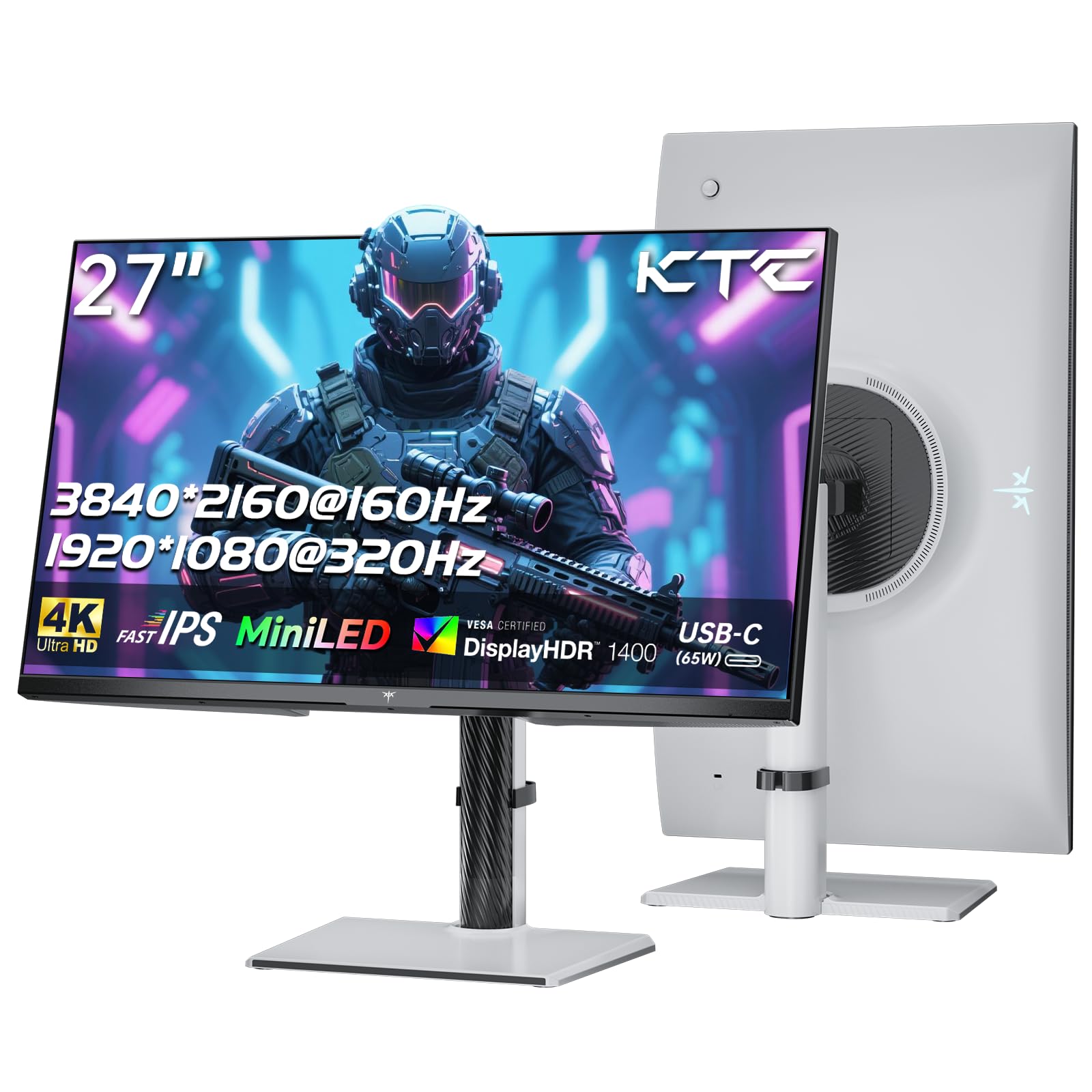
تصویر: سامنے view of the KTC M27P6 27-inch MiniLED Gaming Monitor.
The front of the monitor features the 27-inch MiniLED display panel. The KTC logo is typically located at the bottom center bezel.
4.2 پیچھے View اور بندرگاہیں

تصویر: پیچھے view of the KTC M27P6 monitor, highlighting the various input/output ports and the adjustable stand.
The rear of the monitor houses the input/output ports and the stand attachment point. The ports include:
- پاور ان پٹ: پاور اڈاپٹر کو جوڑنے کے لیے۔
- HDMI 2.1 پورٹس (x2): For connecting to devices supporting HDMI 2.1 (4K@160Hz / FHD@320Hz).
- ڈسپلے پورٹ 1.4 پورٹس (x2): For connecting to devices supporting DisplayPort 1.4 (4K@160Hz / FHD@320Hz).
- USB-C پورٹ (x1): Full-function port supporting video input (4K@160Hz / FHD@320Hz) and 65W Power Delivery.
- USB-B Upstream Port (x1): For connecting the monitor's USB hub to your computer, enabling the downstream USB-A ports and KVM functionality.
- USB-A 3.0 Downstream Ports (x3): کی بورڈز، چوہوں، یا USB ڈرائیوز جیسے پیری فیرلز کو جوڑنے کے لیے۔
- 3.5 ملی میٹر آڈیو آؤٹ: ہیڈ فون یا بیرونی اسپیکر کو جوڑنے کے لیے۔
ویڈیو: ایک اوورview of the KTC M27P6 monitor's features and design, including its connectivity options and adjustable stand.
5. سیٹ اپ
5.1 اسٹینڈ کو جمع کرنا
- پیکیجنگ سے مانیٹر اور اسٹینڈ کے اجزاء کو احتیاط سے ہٹا دیں۔
- Attach the stand arm to the monitor panel by aligning the mounting points and securing with screws (if applicable).
- Attach the stand base to the stand arm, ensuring it is firmly connected.
- جمع مانیٹر کو ایک مستحکم، چپٹی سطح پر رکھیں۔
The monitor also supports VESA mounting (100x100mm) for use with compatible wall mounts or monitor arms. Ensure the VESA mount is rated for the monitor's weight.

Image: Diagram illustrating the multi-angle adjustment capabilities of the KTC M27P6 monitor stand, including height, tilt, swivel, and pivot.
5.2 کنیکٹنگ کیبلز
- پاور کنکشن: پاور اڈاپٹر کو مانیٹر کے پاور ان پٹ سے جوڑیں، پھر پاور کیبل کو پاور آؤٹ لیٹ میں لگائیں۔
- ویڈیو کنکشن:
- For PC/Gaming Console: Connect one end of the HDMI or DisplayPort cable to your device's output and the other end to the corresponding port on the monitor.
- For USB-C Compatible Devices: Connect the USB-C cable from your device to the monitor's USB-C port for video, data, and power delivery.
- USB Hub/KVM Connection: To use the monitor's USB-A ports and KVM functionality, connect the USB-B to USB-A cable from the monitor's USB-B upstream port to a USB-A port on your computer.
- آڈیو کنکشن: If using external headphones or speakers, connect them to the 3.5mm audio out port on the monitor.
6. آپریٹنگ ہدایات
6.1 پاور آن/آف
مانیٹر کو آن یا آف کرنے کے لیے پاور بٹن (عام طور پر مانیٹر کے پیچھے یا نیچے واقع ہوتا ہے) دبائیں۔ مانیٹر آن ہونے پر پاور انڈیکیٹر لائٹ روشن ہو جائے گی۔
6.2 OSD مینو نیویگیشن
The On-Screen Display (OSD) menu allows you to adjust various monitor settings. Use the joystick or buttons (refer to your monitor's physical layout) to navigate the OSD menu:
- Press Joystick/Button: Enter OSD menu or confirm selection.
- جوائس اسٹک کو اوپر/نیچے منتقل کریں: مینو کے اختیارات کے ذریعے تشریف لے جائیں۔
- جوائس اسٹک کو بائیں/دائیں منتقل کریں: Adjust values or move to sub-menus.
- باہر نکلیں بٹن: Exit the current menu or OSD.
6.3 Dual Mode Switching (4K@160Hz / FHD@320Hz)
The KTC M27P6 supports seamless switching between two display modes: 4K (3840x2160) at 160Hz and Full HD (1920x1080) at 320Hz. This allows you to optimize performance based on your content (e.g., high-resolution graphics for AAA games or ultra-high refresh rate for competitive FPS games).
To switch modes, access the OSD menu and navigate to the "Display" or "Gaming" settings. Select the desired resolution and refresh rate. Your connected device must also support these resolutions and refresh rates for optimal performance.

Image: Illustration of the KTC M27P6 monitor's seamless dual mode switching capability, showing a 4K@160Hz gaming scene and a FHD@320Hz gaming scene.
6.4 موافق مطابقت پذیری
The monitor supports Adaptive Sync (AMD FreeSync and NVIDIA G-Sync compatible) to eliminate screen tearing and stuttering, providing a smoother gaming experience. Ensure Adaptive Sync is enabled in the monitor's OSD settings and in your graphics card control panel.

Image: Visual representation of Adaptive Sync technology, showing how it prevents screen tearing by synchronizing the monitor's refresh rate with the GPU's frame rate.
6.5 KVM فعالیت
The integrated KVM (Keyboard, Video, Mouse) switch allows you to control multiple computers or devices connected to the monitor using a single keyboard and mouse. To use KVM:
- Connect your primary computer to the monitor via DisplayPort/HDMI and the USB-B upstream cable.
- Connect your secondary device (e.g., laptop via USB-C) to the monitor.
- Connect your keyboard and mouse to the USB-A downstream ports on the monitor.
- Switch between connected devices using the KVM hotkey or OSD menu option.
6.6 Color Settings and HDR1400
The monitor features a MiniLED panel with 1152 local dimming zones and VESA DisplayHDR 1400 certification, providing high contrast and vibrant colors. You can adjust color settings (brightness, contrast, color temperature, gamma) through the OSD menu. For HDR content, ensure HDR is enabled in your operating system and the monitor's OSD. The monitor supports 10-bit color depth and a wide color gamut (145% sRGB / 99% DCI-P3).

Image: Visual comparison demonstrating the enhanced dynamic range and detail provided by HDR1400 on the KTC M27P6 monitor.
7 دیکھ بھال
- سکرین کی صفائی: نرم، لنٹ فری کپڑے سے اسکرین کو آہستہ سے صاف کریں۔ ضدی نمبروں کے لیے، ڈیampen the cloth with a small amount of screen cleaner (non-ammonia based). Do not spray cleaner directly onto the screen.
- سی کی صفائیasing: مانیٹر کو صاف کرنے کے لیے نرم، خشک کپڑا استعمال کریں۔asinجی کھرچنے والے کلینر یا سالوینٹس کے استعمال سے پرہیز کریں۔
- وینٹیلیشن: Ensure the ventilation openings on the monitor are clear of dust and debris to prevent overheating.
8 خرابیوں کا سراغ لگانا
| مسئلہ | ممکنہ وجہ | حل |
|---|---|---|
| اسکرین پر کوئی تصویر نہیں ہے | پاور کیبل منقطع؛ ویڈیو کیبل منقطع غلط ان پٹ سورس۔ | Check power and video cable connections. Select the correct input source via the OSD menu. |
| تصویر دھندلی یا مسخ شدہ ہے۔ | غلط قرارداد؛ ناقص ویڈیو کیبل۔ | Set the display resolution to the native 3840x2160 or 1920x1080. Try a different video cable. |
| گیمز میں سکرین پھاڑنا یا ہکلانا | Adaptive Sync not enabled; Graphics card driver issues. | Enable Adaptive Sync in monitor OSD and graphics card settings. Update graphics drivers. |
| USB پورٹس کام نہیں کر رہے ہیں۔ | USB-B upstream cable not connected; Driver issues. | Ensure the USB-B upstream cable is connected from the monitor to your computer. Check computer's USB drivers. |
| آڈیو آؤٹ سے کوئی آواز نہیں ہے۔ | غلط آڈیو آؤٹ پٹ منتخب والیوم بہت کم ہے۔ | Check audio output settings on your computer. Adjust monitor and device volume. |
9. وضاحتیں
| فیچر | تفصیل |
|---|---|
| برانڈ | کے ٹی سی |
| ماڈل کا نام | M27P6 |
| اسکرین کا سائز | 27 Pollici (27 inches) |
| پینل کی قسم | MiniLED, Fast IPS |
| Resolution (Native) | 3840 x 2160 (4K UHD) |
| Max Refresh Rate (4K) | 160 Hz |
| Max Refresh Rate (FHD) | 320 Hz |
| رسپانس ٹائم | 1ms GtG |
| مقامی ڈمنگ زونز | 1152 زونز |
| ایچ ڈی آر سرٹیفیکیشن | ویسا ڈسپلے ایچ ڈی آر 1400 |
| چمک | 1400 cd/m² (چوٹی) |
| کنٹراسٹ ریشو | 1,000,000:1 (متحرک) |
| کلر گامٹ | 145% sRGB، 99% DCI-P3 |
| رنگ کی گہرائی | 10 بٹ |
| اڈاپٹیو سنک | AMD FreeSync, NVIDIA G-Sync Compatible |
| Viewآئی اینگل | 178 ڈگری |
| کنیکٹوٹی | 2x HDMI 2.1, 2x DisplayPort 1.4, 1x USB-C (65W PD), 1x USB-B Upstream, 3x USB-A 3.0 Downstream, 1x 3.5mm Audio Out |
| KVM سپورٹ | جی ہاں |
| ایڈجسٹمنٹ کھڑے ہو جاؤ | اونچائی، جھکاؤ، کنڈا، محور |
| ویسا پہاڑ | 100 x 100 ملی میٹر |
| طول و عرض (DxWxH) | 21.1P x 61.7l x 54.7H سینٹی میٹر |
10. وارنٹی اور سپورٹ
KTC products are covered by a limited warranty. Please refer to the warranty card included in your package for specific terms and conditions. For technical support, troubleshooting assistance, or warranty claims, please contact KTC customer service or visit the official KTC webسائٹ
You can find more information and contact details on the KTC official store page: کے ٹی سی اسٹور.