
تعارف
This manual provides essential information for setting up, operating, maintaining, and troubleshooting your Acer AL15-33P laptop. Please read this guide thoroughly to ensure proper use and to maximize the lifespan of your device.
سیٹ اپ
1. ان باکسنگ اور ابتدائی معائنہ
Carefully remove the laptop and all accessories from the packaging. Check for any visible damage. The package should include the laptop, power adapter, and this user manual.

سامنے والا view of the Acer AL15-33P laptop with the screen displaying the Windows desktop.
2. کنیکٹنگ پاور
- Connect the AC adapter cable to the power adapter.
- Plug the DC output connector of the power adapter into the power input port on the side of your laptop.
- AC پاور کورڈ کو برقی دکان میں لگائیں۔
The battery will begin charging automatically. It is recommended to fully charge the battery before initial use.
3 ابتدائی بوٹ اور ونڈوز سیٹ اپ
- لیپ ٹاپ کا ڈھکن کھولیں۔
- Press the power button, typically located on the keyboard deck or side, to turn on the laptop.
- Follow the on-screen instructions to complete the Windows 11 setup process. This includes selecting your region, language, accepting terms, and setting up a user account.
آپ کا لیپ ٹاپ آپریٹ کرنا
1 کی بورڈ اور ٹچ پیڈ کا استعمال
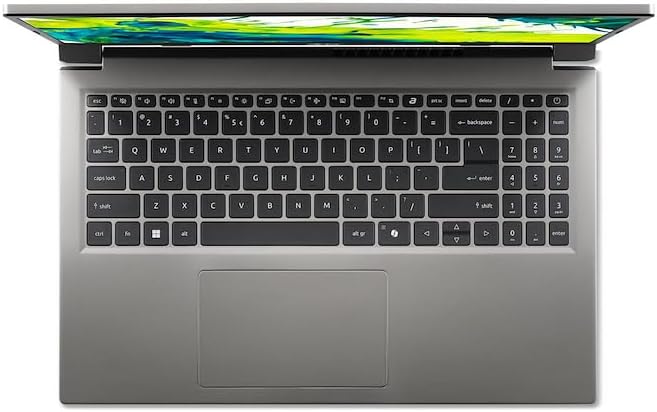
اپر سے نیچے view لیپ ٹاپ کے کی بورڈ اور ٹچ پیڈ کا۔
- کی بورڈ: The laptop features a full-size keyboard. Use the function (Fn) key in combination with F-keys for special functions like adjusting brightness, volume, or enabling/disabling Wi-Fi.
- ٹچ پیڈ: The integrated touchpad supports multi-touch gestures. Tap to click, use two fingers to scroll, and pinch to zoom.
2. پیری فیرلز کو جوڑنا
Your Acer AL15-33P laptop is equipped with various ports for connecting external devices.

Right side of the laptop showing ports including USB and audio jack.

Left side of the laptop showing ports including power, USB-C, HDMI, and USB-A.
- USB پورٹس: USB آلات جیسے کہ بیرونی ہارڈ ڈرائیوز، چوہے یا کی بورڈز کو جوڑیں۔
- HDMI پورٹ: Connect an external monitor or TV for a larger display.
- آڈیو جیک: ہیڈ فون یا بیرونی اسپیکر کو مربوط کریں۔
- USB-C پورٹ: For data transfer and potentially display output or charging, depending on the specific model configuration.
3. وائرلیس کنیکٹیویٹی
- وائی فائی: To connect to a wireless network, click the Wi-Fi icon in the taskbar, select your network, and enter the password if required.
- بلوٹوتھ: To pair Bluetooth devices, go to Windows Settings > Bluetooth & devices, and turn on Bluetooth.
4. پاور مینجمنٹ۔
- نیند موڈ: Close the lid or select 'Sleep' from the Start menu to put the laptop into a low-power state.
- شٹ ڈاؤن: To turn off the laptop completely, go to the Start menu, click the Power icon, and select 'Shut down'.
- دوبارہ شروع کریں: To restart the laptop, go to the Start menu, click the Power icon, and select 'Restart'.
دیکھ بھال
1۔ لیپ ٹاپ کی صفائی
- تھوڑا سا نرم، لنٹ سے پاک کپڑا استعمال کریں۔ampڈسپلے کو صاف کرنے کے لیے پانی یا اسکرین کلینر سے بند کیا گیا ہے۔
- کی بورڈ اور چیسس کے لیے نرم کپڑا استعمال کریں۔ سخت کیمیکلز یا کھرچنے والے مواد سے پرہیز کریں۔
- Periodically use compressed air to clear dust from the cooling vents to prevent overheating.
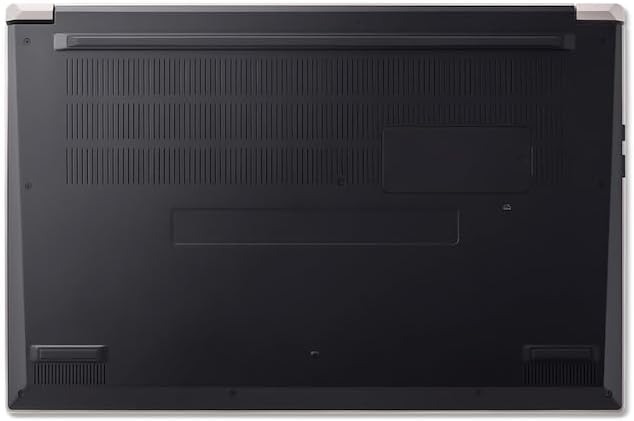
نیچے view of the laptop, highlighting the ventilation grilles.
2. بیٹری کی دیکھ بھال
- بیٹری کو کثرت سے مکمل طور پر خارج کرنے سے گریز کریں۔
- اگر لیپ ٹاپ کو لمبے عرصے کے لیے اسٹور کر رہے ہیں، تو یقینی بنائیں کہ بیٹری تقریباً 50-70% تک چارج ہوئی ہے۔
- Operate the laptop in a moderate temperature environment.
3. سافٹ ویئر اپڈیٹس
Regularly update your operating system and drivers to ensure optimal performance and security. Windows Update can be accessed via Settings > Windows Update.
4. سٹوریج کا انتظام
وقتاً فوقتاً دوبارہview اور غیر ضروری حذف کریں۔ files to free up storage space. Utilize cloud storage or external drives for backups of important data.
خرابی کا سراغ لگانا
This section addresses common issues you might encounter with your Acer AL15-33P laptop.
| مسئلہ | ممکنہ حل |
|---|---|
| Laptop does not turn on. | Ensure the power adapter is securely connected and the outlet is working. Try a different outlet. If the battery is completely drained, it may take a few minutes to show signs of life after plugging in. |
| ڈسپلے خالی یا سیاہ ہے۔ | Check if the laptop is powered on. Try pressing Fn + F6 (or the corresponding display toggle key) to cycle through display modes. Connect an external monitor to check if the issue is with the laptop's screen. |
| وائی فائی کنکشن کے مسائل۔ | Ensure Wi-Fi is enabled (Fn + F3 or check Windows settings). Restart your router and modem. Check if other devices can connect to the Wi-Fi network. Update Wi-Fi drivers. |
| لیپ ٹاپ سست چل رہا ہے۔ | Close unnecessary applications. Check Task Manager for processes consuming high CPU or memory. Run a disk cleanup. Ensure Windows and drivers are up to date. |
وضاحتیں
The following are key specifications for the Acer AL15-33P model. Note that specific configurations may vary.
- ماڈل: Acer AL15-33P
- پروسیسر: Intel Core i3-N355
- رام: 8 جی بی
- ذخیرہ: 512 جی بی ایس ایس ڈی
- ڈسپلے: 15.6 انچ
- آپریٹنگ سسٹم: ونڈوز 11
- برانڈ: ایسر
وارنٹی اور سپورٹ
Your Acer AL15-33P laptop comes with a standard manufacturer's warranty. Please refer to the warranty card included with your product for specific terms and conditions, including the warranty period and coverage details.
For technical support, driver downloads, or service inquiries, please visit the official Acer support website or contact Acer customer service directly. Have your laptop's serial number ready when contacting support.
ایسر سپورٹ Webسائٹ: www.acer.com/support