
1. تعارف
This manual provides essential information for setting up, operating, maintaining, and troubleshooting your new Vibox IV-570 Gaming PC. This high-end gaming PC offers exceptional performance for demanding gamers and creative professionals. Featuring a modern multi-core processor, a powerful dedicated graphics card, and ultra-fast memory, it effortlessly handles the latest AAA games at 1440p or 4K with the highest settings. Designed for speed, power, and scalability, it is the ideal setup for intense gaming and computationally intensive tasks.
Your Vibox IV-570 includes an AMD Ryzen 7 5700X processor (8 cores, max speed 4.6 GHz), Nvidia GeForce RTX 5070 Ti graphics card (16 GB GDDR7 RAM / HDMI 2.1 / DisplayPort), 1 TB NVMe SSD for ultra-fast storage, and 32 GB dual-channel DDR4 RAM at 3200 MHz for smooth multitasking and improved system performance. It also comes with a 300 Mbps Wi-Fi adapter and Windows 11 pre-installed.
2. سیٹ اپ گائیڈ
2.1 ان باکسنگ اور ابتدائی جگہ کا تعین
Carefully remove your Vibox IV-570 PC from its packaging. Ensure all accessories are present. Place the PC on a stable, flat surface with adequate ventilation around the chassis. Avoid placing it in enclosed spaces that could restrict airflow.

Image: The Vibox IV-570 PC case with dimensions indicated (42 x 28 x 43.5 cm), illustrating its physical size for placement considerations.
2.2 کنیکٹنگ پیری فیرلز
Connect your monitor, keyboard, mouse, and other peripherals to the appropriate ports on the rear and front of the PC. Refer to the image below for common front panel connections.
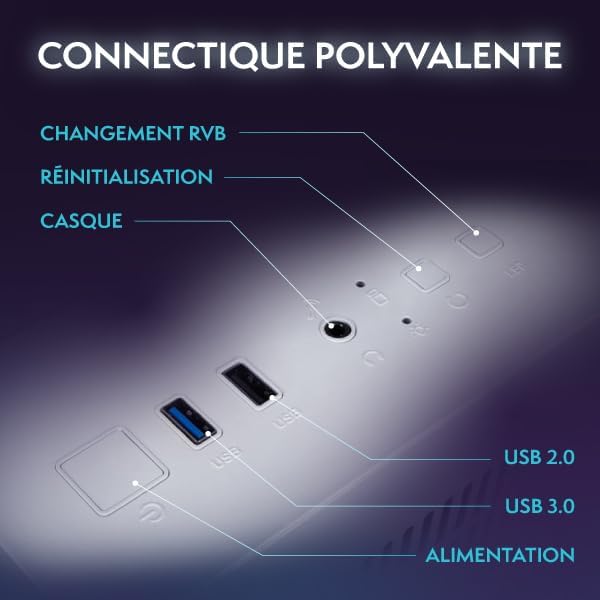
تصویر: ایک قریبی اپ view of the Vibox IV-570's front panel, showing various ports including USB 2.0, USB 3.0, headphone jack, power button, reset button, and RGB change button.
- مانیٹر: HDMI یا DisplayPort کیبل کا استعمال کرتے ہوئے اپنے مانیٹر کو وقف شدہ گرافکس کارڈ پورٹس سے جوڑیں۔
- کی بورڈ اور ماؤس: Use the USB ports for your keyboard and mouse.
- طاقت: Connect the power cable to the PC and then to a wall outlet. Ensure the power supply switch on the back of the PC is in the 'ON' position.
- نیٹ ورک: For wired internet, connect an Ethernet cable to the LAN port. For wireless, the PC includes a Wi-Fi adapter.
2.3 پہلا بوٹ
Press the power button on the front of the PC. The system will boot into Windows 11 Home. Follow the on-screen instructions to complete the initial Windows setup, including language, region, network connection, and user account creation.
3. آپریٹنگ ہدایات
3.1 ونڈوز 11 ہوم
Your Vibox IV-570 comes with Windows 11 Home pre-installed, offering a modern and optimized experience for gaming and productivity.

Image: A graphic highlighting key features of Windows 11 Home relevant to gaming, such as faster loading times with DirectStorage, AutoHDR for improved graphics, seamless Xbox Game Pass integration, and optimized CPU performance.
- ڈائریکٹ اسٹوریج: Enables faster loading times for games by allowing the GPU to access storage directly.
- AutoHDR: Automatically enhances game visuals with High Dynamic Range (HDR) on compatible displays.
- ایکس بکس گیم پاس انٹیگریشن: Easy access to a library of games with an Xbox Game Pass subscription.
- آپٹمائزڈ CPU کارکردگی: Windows 11 is designed to efficiently manage CPU resources for gaming.
3.2 Gaming and Applications
The powerful hardware in your Vibox IV-570 is designed to handle demanding games and applications. Ensure your graphics drivers are up to date for the best performance. You can download the latest drivers from the NVIDIA webسائٹ
3.3 آر جی بی لائٹنگ کنٹرول
Your PC features customizable RGB lighting for fans and internal components. Use the dedicated RGB change button on the front panel or the pre-installed software (if applicable) to adjust lighting effects and colors.

Image: A display of Vibox Hex RGB Infinity 120mm fans, showcasing their customizable lighting options in various colors and RGB modes.
4 دیکھ بھال
4.1 صفائی
- بیرونی: Use a soft, dry cloth to clean the exterior of the PC case. For glass panels, a microfiber cloth and a mild glass cleaner can be used.
- اندرونی: Periodically, and with the PC powered off and unplugged, use compressed air to remove dust from fans, heatsinks, and other internal components. Pay special attention to the CPU cooler and graphics card fans.
4.2 سافٹ ویئر اپ ڈیٹس
- ونڈوز اپ ڈیٹس: سسٹم کے استحکام اور سلامتی کو یقینی بنانے کے لیے ونڈوز اپ ڈیٹس کو باقاعدگی سے چیک کریں اور انسٹال کریں۔ پر جائیں۔ ترتیبات > ونڈوز اپ ڈیٹ.
- ڈرائیور اپڈیٹس: Keep your graphics card drivers updated by downloading the latest versions from the NVIDIA official website. Other component drivers can usually be updated via Windows Update or the manufacturer's webسائٹ
4.3 کولنگ سسٹم
The Vibox IV-570 features an advanced cooling system, including a Vibox AIO 120mm liquid cooler for the CPU and multiple case fans to ensure optimal airflow.

Image: The Vibox AIO 120mm liquid cooler, highlighting its compact design and cooling capabilities for the CPU.
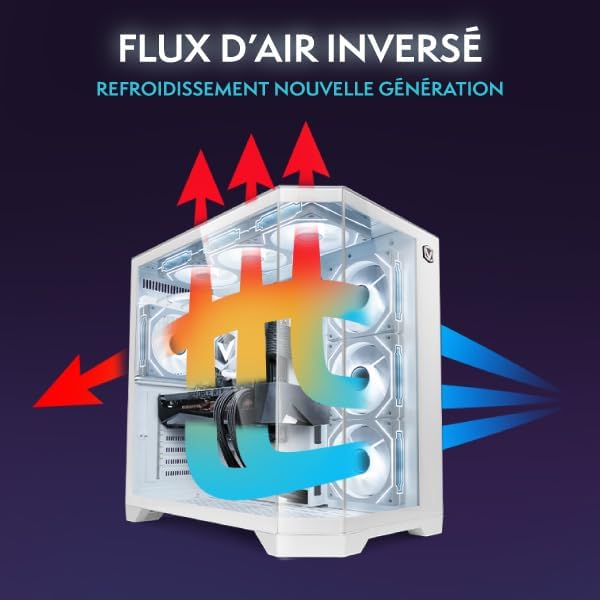
Image: An illustration of the inverse airflow design within the Vibox IV-570 PC case, showing how cool air enters and hot air is expelled for efficient cooling.
Ensure that the PC's vents are not obstructed to maintain proper airflow. Regular cleaning of dust filters (if present) and fan blades will help maintain cooling efficiency.
5 خرابیوں کا سراغ لگانا
- کوئی طاقت نہیں:
- Check if the power cable is securely connected to both the PC and the wall outlet.
- Ensure the power supply switch on the back of the PC is in the 'ON' position.
- ایک مختلف پاور آؤٹ لیٹ آزمائیں۔
- کوئی ڈسپلے نہیں:
- Verify that the monitor is powered on and correctly connected to the graphics card (not the motherboard's integrated graphics ports, if any).
- یقینی بنائیں کہ آپ کے مانیٹر پر صحیح ان پٹ سورس کا انتخاب کیا گیا ہے۔
- اگر ممکن ہو تو ایک مختلف ڈسپلے کیبل یا مانیٹر آزمائیں۔
- سسٹم منجمد یا کریش:
- یقینی بنائیں کہ تمام ڈرائیورز، خاص طور پر گرافکس ڈرائیور، تازہ ترین ہیں۔
- Check for adequate ventilation and ensure the PC is not overheating.
- Run a memory diagnostic tool (Windows Memory Diagnostic) to check for RAM issues.
- Poor Gaming Performance:
- گرافکس ڈرائیورز کو اپ ڈیٹ کریں۔
- غیر ضروری پس منظر کی ایپلی کیشنز کو بند کریں۔
- Check in-game settings; reduce graphics quality if necessary.
- Monitor CPU and GPU temperatures to ensure they are not throttling due to overheating.
6. وضاحتیں
| جزو | تفصیل |
|---|---|
| ماڈل نمبر | IV-570 |
| پروسیسر | AMD Ryzen 7 5700X (8 Cores, 3.4 GHz Base, 4.6 GHz Max Boost) |
| گرافکس کارڈ | NVIDIA GeForce RTX 5070 Ti (16 GB GDDR7 RAM, HDMI 2.1, DisplayPort) |
| رام | 32 GB DDR4 SDRAM (3200 MHz, Dual Channel, Max 128 GB) |
| ذخیرہ | 1 TB NVMe M.2 SSD |
| آپریٹنگ سسٹم | ونڈوز 11 ہوم |
| وائرلیس کنیکٹیویٹی | Wi-Fi (300 Mbps adapter included) |
| وائرڈ کنیکٹیویٹی | ایتھرنیٹ، HDMI، USB |
| USB پورٹس | 6 Total (including USB 2.0 and USB 3.0) |
| ویڈیو آؤٹ پٹ | HDMI (1), DisplayPort (2 total output ports) |
| کولنگ کا طریقہ | Water Cooling (AIO 120mm), RGB Fans |
| کیس ڈیزائن | Tempered Glass 3-Panel, White (VTX-7) |
| طول و عرض (L x W x H) | 42 x 28 x 43.5 سینٹی میٹر |
| وزن | 16.32 کلوگرام |
| پاور پلگ کی قسم | Type C/EF (European/Hybrid FR-DE) |
| ہم آہنگ آلات | Headset, Keyboard, Printer, Monitor, Mouse |
7. وارنٹی اور سپورٹ
7.1 وارنٹی کی معلومات
Your Vibox IV-570 PC comes with a comprehensive warranty:
- حصے: 2 سال
- محنت: زندگی بھر
Please retain your proof of purchase for warranty claims. The warranty covers manufacturing defects and component failures under normal use. It does not cover damage caused by misuse, accidents, unauthorized modifications, or improper maintenance.
7.2 تکنیکی معاونت
For technical assistance, troubleshooting beyond this manual, or warranty inquiries, please contact Vibox customer support. Refer to the official Vibox website for the most up-to-date contact information, including phone numbers, email, and support portals.
اسپیئر پارٹس کی دستیابی کی ضمانت خریداری کی تاریخ سے 2 سال تک ہے۔