
1. تعارف
The TABWEE 10.1 Inch WiFi Digital Calendar, Model P10, is an interactive touchscreen display designed to streamline family organization. It integrates calendars, task management, meal planning, and digital photo frame capabilities into a single device. This manual provides detailed instructions to help you set up and utilize all features of your new digital calendar.

تصویر 1.1: The TABWEE Digital Calendar in use, showcasing its calendar interface and mobile app synchronization.
2. حفاظتی معلومات
- اس بات کو یقینی بنائیں کہ حادثاتی گرنے سے بچنے کے لیے آلہ کو ایک مستحکم، چپٹی سطح پر رکھا گیا ہے۔
- صرف فراہم کردہ پاور اڈاپٹر استعمال کریں۔ غیر مجاز اڈاپٹر استعمال کرنے سے آلے کو نقصان پہنچ سکتا ہے اور وارنٹی ختم ہو سکتی ہے۔
- آلے کو پانی، نمی اور انتہائی درجہ حرارت سے دور رکھیں۔
- Do not attempt to open or repair the device yourself. Refer to qualified service personnel for any maintenance or repair needs.
- Keep out of reach of small children to prevent accidental ingestion of small parts or damage to the device.
3. پیکیج کے مشمولات
تصدیق کریں کہ تمام اشیاء پیکیج میں موجود ہیں:
- TABWEE 10.1 Inch WiFi Digital Calendar (Model P10)
- پاور اڈاپٹر
- صارف دستی (یہ دستاویز)
4. پروڈکٹ ختمview
Familiarize yourself with the physical components of your TABWEE Digital Calendar.

تصویر 4.1: Technical details and component layout of the TABWEE Digital Calendar.
- پاور آن / آف بٹن: Located on the side for turning the device on or off.
- حجم اوپر / نیچے بٹن: Adjust the device's audio output.
- روشنی سینسر: محیطی روشنی کی بنیاد پر اسکرین کی چمک کو خودکار طور پر ایڈجسٹ کرتا ہے۔
- سپورٹ اسٹینڈ: Integrated stand for desk placement.
5. سیٹ اپ
5.1 ابتدائی پاور آن
- Connect the provided power adapter to the device's power port.
- Plug the adapter into a standard electrical outlet. The device will automatically power on.
- اپنی زبان اور علاقہ منتخب کرنے کے لیے آن اسکرین پرامپٹس پر عمل کریں۔
5.2 نیٹ ورک کنکشن
- On the initial setup screen, select your Wi-Fi network from the list.
- Enter your Wi-Fi password and tap 'Connect'.
- Ensure the device is connected to a stable internet connection for full functionality.
5.3 ایپ انسٹال کرنا اور اکاؤنٹ بنانا
To fully utilize the calendar's features, download and set up the companion 'eCalendar' app on your smartphone (iOS or Android).

تصویر 5.1: Steps for downloading and creating an account on the eCalendar app.
- Scan the QR code displayed on the calendar screen or search for 'eCalendar' in your device's app store (Google Play Store for Android, Apple App Store for iOS).
- ایپ ڈاؤن لوڈ اور انسٹال کریں۔
- Open the eCalendar app and follow the prompts to create a new account or log in if you already have one.
- صارف کے معاہدے اور رازداری کی پالیسی سے اتفاق کریں۔
5.4 Device Linking
Link your TABWEE Digital Calendar to your eCalendar app account.

تصویر 5.2: Linking the calendar device to the eCalendar app and setting up your unique calendar email.
- In the eCalendar app, select the option to 'Add Device' or 'Activate a new eCalendar Frame'.
- Follow the on-screen instructions to pair your device. This may involve scanning a QR code displayed on the calendar or entering a pairing code.
- Once linked, you can set up your unique calendar email address within the app.
6. آپریشن
6.1 بنیادی نیویگیشن
The TABWEE Digital Calendar features a responsive touchscreen. Navigate through menus and features by tapping, swiping, and pinching as you would on a tablet device.
6.2 Calendar Management
The core function of your device is calendar management, allowing for seamless synchronization and event organization.
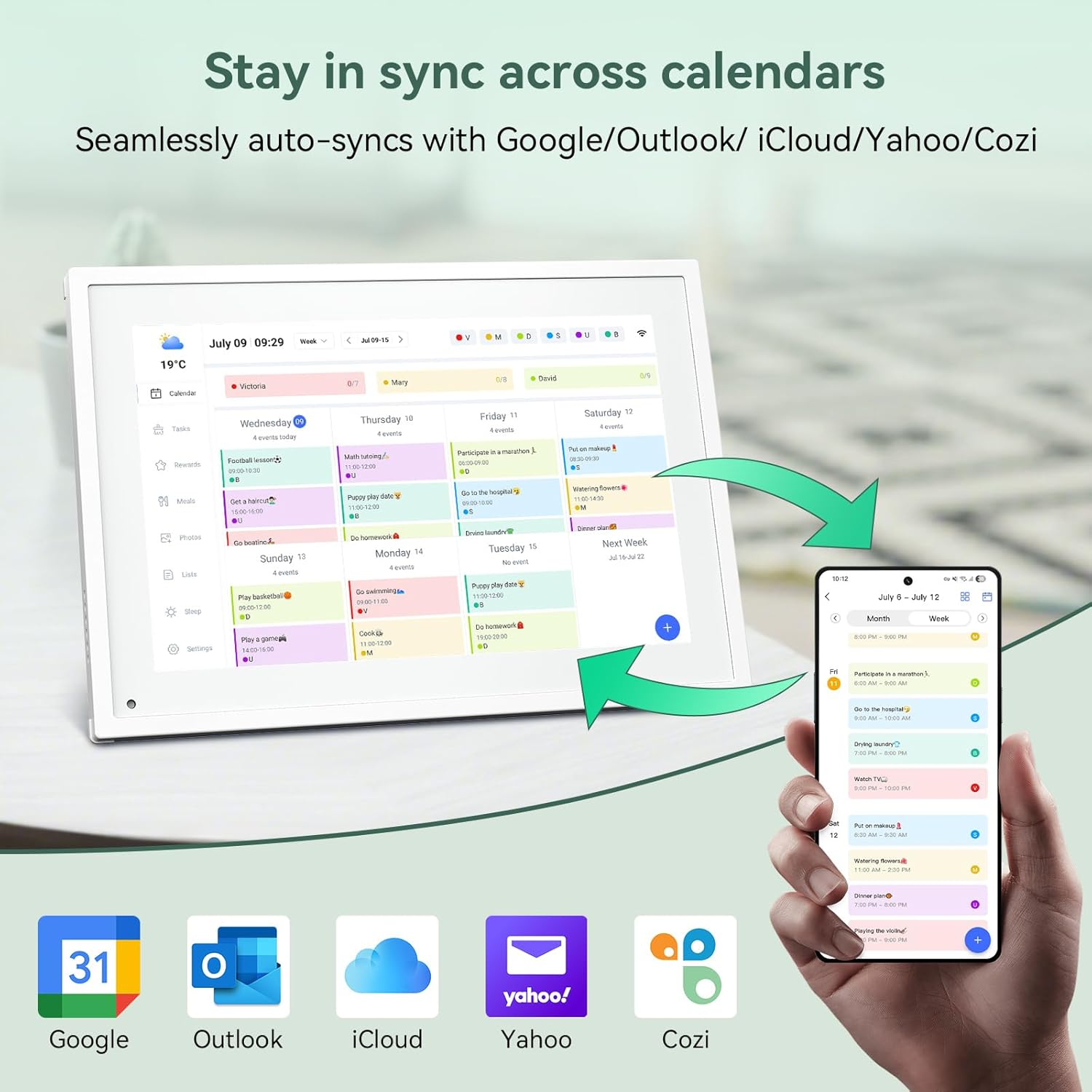
تصویر 6.1: Seamless synchronization of the digital calendar with various external calendar services.
- Syncing External Calendars: Within the eCalendar app settings, you can link your Google, Apple, Outlook, Yahoo, or Cozi calendars. Events from these linked accounts will automatically appear on your TABWEE Digital Calendar.
- Adding/Editing Events: Tap on a date or time slot on the calendar display or use the eCalendar app to add new events. You can specify event details, set reminders, and assign participants.
- اپنی مرضی کے مطابق Views: Switch between day, week, or month views directly on the device or through the app.
6.3 Task Management (Chore Chart)
Organize tasks and chores for family members with a built-in reward system.
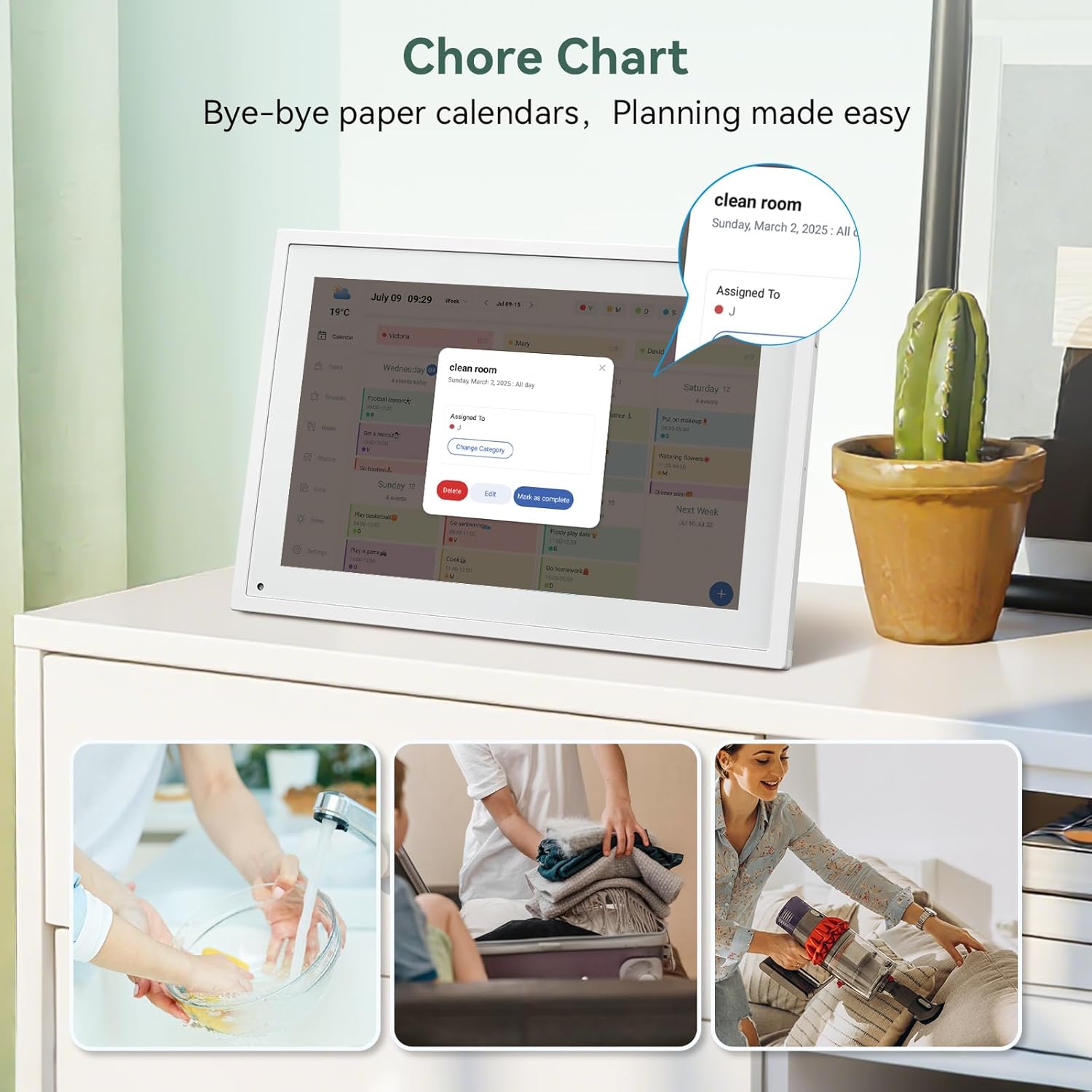
تصویر 6.2: Managing tasks and chores on the digital calendar interface.
- Creating Tasks: Use the 'Tasks' section on the device or app to create new tasks. Assign them to specific individuals, set due dates, and configure recurring tasks.
- Tracking Progress: Users can mark tasks as complete. The system tracks completion and can be configured to award points.
- انعامات کا نظام: Set up a star-point reward system within the app. Points earned from completed tasks can be redeemed for custom rewards, encouraging participation.

تصویر 6.3: The task manager and rewards interface, designed for engaging users.
6.4 Meal Planning
Plan your meals directly on the device or through the app.

تصویر 6.4: Visual meal planning interface on the digital calendar.
- Create Meal Plans: Access the 'Meals' section to plan breakfasts, lunches, dinners, and snacks for the week.
- Custom Recipes: Upload and store your favorite recipes.
- Grocery Lists: Generate grocery lists based on your meal plans.
6.5 Digital Photo Frame Functionality
The device can also function as a digital photo frame.

تصویر 6.5: The digital calendar switching between calendar and photo frame modes, in both landscape and portrait orientations.
- سوئچنگ موڈز: Navigate to the 'Photos' section on the device or app to activate the digital photo frame mode.
- تصاویر اپ لوڈ کرنا: Upload your favorite memories directly from your smartphone via the eCalendar app.
- واقفیت: The device supports both landscape and portrait orientations, automatically adjusting the display.
6.6 دیگر خصوصیات
The TABWEE Digital Calendar includes additional smart features to enhance usability.
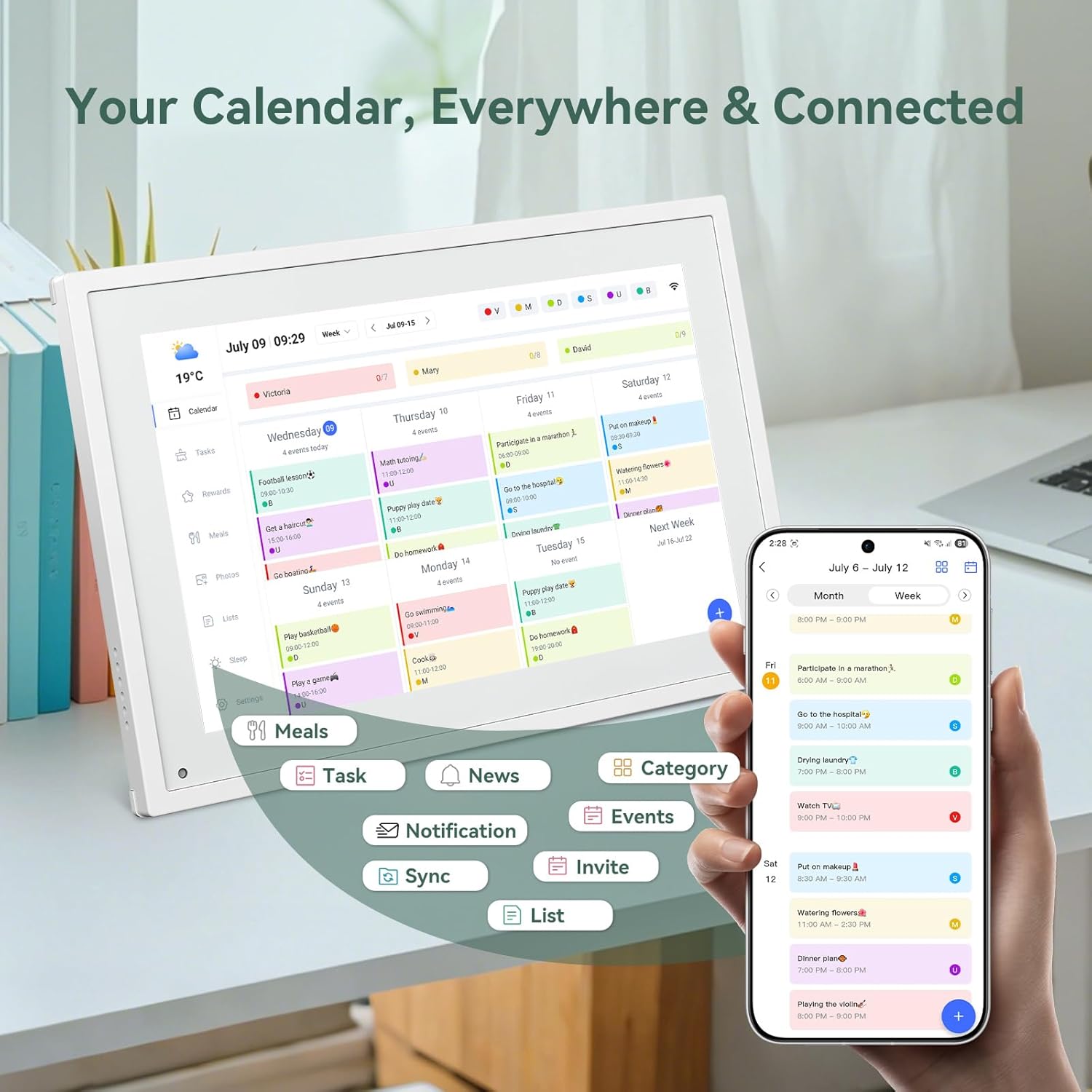
تصویر 6.6: ختمview of smart features and app connectivity.
- Live Weather Forecasts: Displays current weather conditions and forecasts.
- آٹو چمک: The built-in light sensor automatically adjusts screen brightness for optimal viewing
- نیند موڈ: Configure scheduled times for the device to enter a low-power sleep mode.
- Custom Lists: Create and manage various lists (e.g., shopping lists, packing lists).
- رنگین کوڈنگ: Assign different colors to events or tasks for easy visual identification.
7 دیکھ بھال
7.1 ڈیوائس کی صفائی
- نرم، لنٹ فری کپڑے سے اسکرین کو آہستہ سے صاف کریں۔ ضدی smudges کے لئے، تھوڑا سا dampur پانی یا سکرین کی صفائی کے محلول کے ساتھ کپڑا۔
- Avoid using harsh chemicals, abrasive materials, or aerosol sprays directly on the device.
- صاف کرنے سے پہلے یقینی بنائیں کہ آلہ بند ہے اور ان پلگ ہے۔
7.2 سافٹ ویئر اپ ڈیٹس
The device may receive periodic software updates to improve performance and add new features. Ensure your device is connected to Wi-Fi to receive these updates. You will typically be notified on-screen when an update is available.
8 خرابیوں کا سراغ لگانا
| مسئلہ | ممکنہ وجہ | حل |
|---|---|---|
| ڈیوائس آن نہیں ہوتی ہے۔ | پاور اڈاپٹر منسلک نہیں ہے یا خراب ہے۔ | یقینی بنائیں کہ پاور اڈاپٹر محفوظ طریقے سے ڈیوائس اور ورکنگ پاور آؤٹ لیٹ سے جڑا ہوا ہے۔ |
| Wi-Fi سے منسلک نہیں ہو سکتا۔ | غلط پاس ورڈ، حد سے باہر، یا نیٹ ورک کا مسئلہ۔ | Verify Wi-Fi password. Move the device closer to the router. Restart your router. |
| Calendar events are not syncing. | App not linked, external calendar not connected, or internet issue. | Check app-device linking. Ensure external calendars are correctly linked in the eCalendar app. Verify internet connection. |
| اسکرین غیر جوابدہ ہے۔ | سافٹ ویئر کی عارضی خرابی۔ | Restart the device by holding the power button until it turns off, then power it back on. |
9. وضاحتیں
| فیچر | تفصیل |
|---|---|
| ماڈل نمبر | پی 10 |
| اسکرین کا سائز | 10.1 انچ |
| ڈسپلے کی قسم | ٹچ اسکرین |
| کنیکٹوٹی | وائی فائی |
| مصنوعات کے طول و عرض | 10.51 x 0.91 x 7.32 انچ (26.7 x 2.3 x 18.6 سینٹی میٹر) |
| شے کا وزن | 2.58 پاؤنڈ (1.17 کلوگرام) |
| چڑھنے کی قسم | Desk Mount (not wall-mountable) |
| طاقت کا منبع | Plug-in (no internal battery) |
| رنگ | سفید |
10. وارنٹی اور سپورٹ
The TABWEE Digital Calendar comes with a standard manufacturer's warranty. For specific warranty terms and conditions, please refer to the warranty card included in your product packaging or visit the official TABWEE webسائٹ
For technical support, troubleshooting assistance, or any inquiries regarding your product, please contact TABWEE customer service through their official webسائٹ یا آپ کی مصنوعات کی دستاویزات میں فراہم کردہ رابطے کی معلومات۔