
1. تعارف
Thank you for choosing the PRIXTON Prado XL 15.6-inch Digital Photo Frame. This manual provides essential information for setting up, operating, and maintaining your device. Please read it carefully before use to ensure optimal performance and longevity of your digital photo frame.
The PRIXTON Prado XL features a vibrant 15.6-inch Full HD IPS touchscreen display, offering clear and vivid image reproduction. With built-in Wi-Fi, 32GB of internal memory, and support for both photos and videos, it allows you to easily share and display your cherished memories. The frame also includes integrated speakers and multiple input options, including USB Type-C, USB-A, and an SD card slot, providing versatile ways to manage your content.
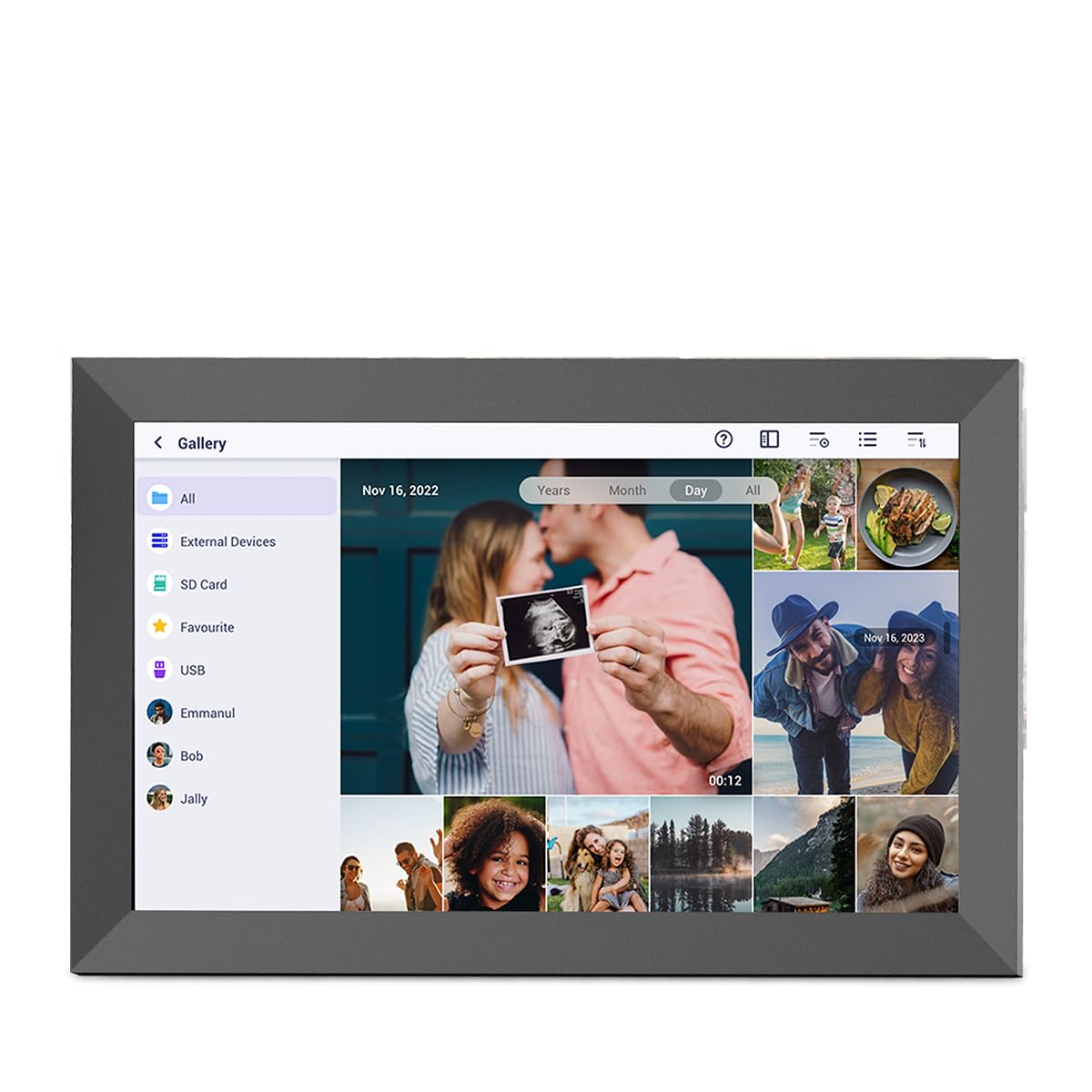
Image: The PRIXTON Prado XL digital photo frame showcasing a family picture.
2. پیکیج کے مشمولات
براہ کرم درج ذیل آئٹمز کے لیے باکس کو چیک کریں:
- PRIXTON Prado XL 15.6-inch Digital Photo Frame
- پاور اڈاپٹر
- صارف دستی (یہ دستاویز)
3. پروڈکٹ ختمview
Familiarize yourself with the various ports and controls on your digital photo frame.

Image: Back panel of the frame, highlighting the power button, USB-A, USB-C, SD card slot, and headphone jack.
کلیدی اجزاء:
- پاور بٹن: Located on the back, used to turn the frame on/off or put it into sleep mode.
- USB-A پورٹ: For connecting USB flash drives to transfer photos and videos.
- USB ٹائپ سی پورٹ: For connecting compatible devices or for data transfer.
- SD کارڈ سلاٹ: For inserting SD cards to display or transfer media.
- ہیڈ فون جیک: بیرونی آڈیو آلات کو جوڑنے کے لیے۔
- ڈی سی پاور ان پٹ: پاور اڈاپٹر کو جوڑنے کے لیے۔
- وال ماؤنٹ ہولز: For mounting the frame on a wall.
4. سیٹ اپ
4.1 پاور آن
- Connect the power adapter to the DC Power Input port on the back of the frame.
- پاور اڈاپٹر کو وال آؤٹ لیٹ میں لگائیں۔
- فریم خود بخود آن ہو جائے گا۔ اگر نہیں، تو پاور بٹن کو چند سیکنڈ کے لیے دبائے رکھیں۔
4.2 ابتدائی کنفیگریشن
Upon first startup, you will be guided through the initial setup process:
- زبان منتخب کریں: فہرست سے اپنی پسندیدہ زبان کا انتخاب کریں۔
- Wi-Fi سے جڑیں: Select your Wi-Fi network and enter the password. A stable internet connection is required for app functionality and software updates.
- تاریخ اور وقت مقرر کریں: Configure the correct date, time, and time zone.
4.3 Connecting with the Uhale App
The Uhale app allows you to easily send photos and videos directly to your frame from your smartphone.
- ایپ ڈاؤن لوڈ کریں: تلاش کریں۔ "Uhale" in your smartphone's app store (iOS or Android) and install it.
- ایک اکاؤنٹ بنائیں: Open the Uhale app and follow the instructions to create a new user account.
- فریم جوڑیں: On your digital photo frame, navigate to the "Settings" menu and find the "Bind Device" or "Add Device" option. This will display a unique code or QR code.
- Enter Code/Scan QR: In the Uhale app, select "Add Device" and either manually enter the code displayed on your frame or use your phone's camera to scan the QR code.
- جوڑا بننے کے بعد، آپ اپنے فریم میں تصاویر اور ویڈیوز بھیجنا شروع کر سکتے ہیں۔

Image: A smartphone screen showing the Uhale app interface next to the digital photo frame.
5. فریم کو آپریٹ کرنا
5.1 ٹچ اسکرین نیویگیشن
The Prado XL features a responsive touchscreen for easy navigation:
- تھپتھپائیں: کوئی آئٹم منتخب کریں یا مینو کھولیں۔
- سوائپ: Navigate through photos, menus, or lists.
- چوٹکی سے زوم: Zoom in or out on photos (if supported by software).
5.2 تصاویر اور ویڈیوز شامل کرنا
There are several ways to add media to your frame:
5.2.1 Via Uhale App
- Open the Uhale app on your paired smartphone.
- وہ تصاویر یا ویڈیوز منتخب کریں جنہیں آپ بھیجنا چاہتے ہیں۔
- Tap the "Send" or "Share" button to transfer them to your frame.
- The media will appear on your frame shortly, provided it is connected to Wi-Fi.
5.2.2 Via USB Drive or SD Card
- Insert a USB flash drive into the USB-A port or an SD card into the SD card slot.
- The frame will detect the external storage. Navigate to the "Gallery" or "Files" سیکشن۔
- Select the desired photos or videos and choose to copy them to the frame's internal memory.

Image: User interacting with the Uhale app to send content to the digital photo frame.
5.3 Managing Content and Slideshows
- گیلری: Access all your stored photos and videos. You can view them individually or start a slideshow.
- حذف کریں: Select unwanted media and choose the delete option.
- سلائیڈ شو کی ترتیبات: Customize slideshow duration, transition effects, and playback order in the settings menu.

Image: The digital photo frame displaying a lively birthday party scene.
6. ترتیبات کا مینو
Access the settings menu by tapping the gear icon on the home screen. Here you can configure various aspects of your frame:
- ڈسپلے: Adjust brightness, screen sleep time, and display mode.
- وائی فائی: اپنے نیٹ ورک کنکشن کا نظم کریں۔
- تاریخ اور وقت: Manually set or synchronize date and time.
- ذخیرہ: View internal storage usage and manage external storage devices.
- کے بارے میں: View device information, including software version and model number.
7 دیکھ بھال
7.1 اسکرین کی صفائی
ٹچ اسکرین کو صاف کرنے کے لیے، نرم، لنٹ سے پاک کپڑے سے اسے آہستہ سے صاف کریں۔ ضدی smudges کے لئے، تھوڑا سا dampur کپڑے میں پانی یا سکرین سے محفوظ صفائی کا محلول۔ سخت کیمیکلز یا کھرچنے والے مواد کے استعمال سے پرہیز کریں۔
7.2 سافٹ ویئر اپ ڈیٹس
Ensure your frame is connected to Wi-Fi to receive automatic software updates. Updates provide new features, performance improvements, and bug fixes. You can manually check for updates in the "Settings" > "About" menu.
8 خرابیوں کا سراغ لگانا
| مسئلہ | ممکنہ حل |
|---|---|
| Frame does not turn on. | یقینی بنائیں کہ پاور اڈاپٹر فریم اور ورکنگ پاور آؤٹ لیٹ دونوں سے محفوظ طریقے سے جڑا ہوا ہے۔ ایک مختلف آؤٹ لیٹ آزمائیں۔ |
| Wi-Fi سے منسلک نہیں ہو سکتا۔ | Check if your Wi-Fi router is on and working. Re-enter the Wi-Fi password carefully. Move the frame closer to the router. |
| تصاویر/ویڈیوز ظاہر نہیں ہو رہے ہیں۔ | Verify that the media has been successfully uploaded via the app or copied from USB/SD. Check file formats for compatibility. Ensure the frame is connected to Wi-Fi if using the app. |
| ٹچ اسکرین غیر جوابدہ ہے۔ | Restart the frame by holding the power button. Ensure the screen is clean and free of debris. |
| Frame is slow or freezes. | Restart the frame. Clear some internal storage if it is nearly full. |
9. وضاحتیں
| فیچر | تفصیل |
|---|---|
| ماڈل نمبر | 10006183 |
| ڈسپلے سائز | 15.6 انچ |
| ڈسپلے کی قسم | آئی پی ایس ٹچ اسکرین |
| قرارداد | 1920 X 1080 مکمل ایچ ڈی |
| اندرونی میموری | 32 جی بی فلیش |
| رام | 1 جی بی |
| کنیکٹوٹی | وائی فائی |
| بندرگاہیں | USB Type-C, USB-A, SD Card Slot, Headphone Jack |
| آڈیو | انٹیگریٹڈ اسپیکر |
| طول و عرض (L x W x H) | 14 x 21 x 2.51 سینٹی میٹر |
10. وارنٹی اور سپورٹ
PRIXTON products are designed and manufactured to the highest quality standards. For information regarding warranty coverage, please refer to the warranty card included with your product or visit the official PRIXTON webسائٹ
If you encounter any issues or have questions not covered in this manual, please contact PRIXTON customer support for assistance. You can find contact details on the PRIXTON webسائٹ یا آپ کے خریداری کے پلیٹ فارم کے ذریعے۔
آن لائن مدد: Visit the PRIXTON Store on Amazon