
1. تعارف
This manual provides essential information for the proper setup, operation, and maintenance of your Pisichen 24-inch 2K QHD 2560x1440 IPS Touchscreen Monitor. Please read this manual thoroughly before using the product to ensure optimal performance and safety.
The Pisichen 24-inch monitor features a 2K QHD (2560x1440) resolution IPS panel, a 100Hz refresh rate, and 10-point multi-touch functionality, designed for both productivity and entertainment.
2. پیکیج کے مشمولات
Verify that all items listed below are present in your product package. If any items are missing or damaged, please contact customer support.
- Pisichen 24-inch 2K QHD Touchscreen Monitor
- مانیٹر اسٹینڈ (بیس اور گردن)
- ڈی پی کیبل
- HDMI کیبل
- USB B Touch Cable
- USB CC کیبل
- ڈی سی پاور اڈاپٹر
- صارف دستی (یہ دستاویز)

تصویر 2.1: Included accessories with the Pisichen 24-inch monitor.
3. سیٹ اپ ہدایات
3.1. مانیٹر اسٹینڈ کو جمع کرنا
- پیکیجنگ سے مانیٹر اور اسٹینڈ کے اجزاء کو احتیاط سے ہٹا دیں۔
- Attach the stand neck to the monitor panel. Ensure it clicks securely into place or is fastened with the provided screws.
- Attach the stand base to the stand neck. Tighten the thumb screw at the bottom of the base to secure it.
- جمع مانیٹر کو ایک مستحکم، چپٹی سطح پر رکھیں۔
3.2. آلے سے جڑنا
The monitor offers multiple connectivity options. Choose the appropriate cable for your device.
- HDMI کنکشن: Connect one end of the HDMI cable to the HDMI port on your computer or device and the other end to the HDMI port on the monitor.
- USB-C کنکشن: Connect one end of the USB-C cable to a compatible USB-C port on your computer or device (which supports video output) and the other end to the USB-C port on the monitor. This connection can also provide power and data.
- ڈسپلے پورٹ (DP) کنکشن: Connect one end of the DP cable to the DisplayPort on your computer or device and the other end to the DP port on the monitor.
- USB B for Touch Function: For touch functionality with a PC, connect the included USB B Touch Cable from the USB-B port on the monitor to a standard USB-A port on your computer. This is essential for enabling touch input.

تصویر 3.1: Universal connectivity options for the monitor.
3.3. پاورنگ آن۔
- Connect the DC Power Adapter to the power input port on the monitor.
- پاور اڈاپٹر کو وال آؤٹ لیٹ میں لگائیں۔
- Press the power button on the monitor (location may vary, typically on the back or bottom right) to turn it on.
4. آپریٹنگ ہدایات
4.1. بنیادی آپریشن
- پاور آن/آف: مانیٹر کو آن یا آف کرنے کے لیے پاور بٹن دبائیں۔
- ان پٹ ماخذ کا انتخاب: Use the monitor's OSD (On-Screen Display) menu buttons to select the desired input source (HDMI, USB-C, DP).
- OSD مینو نیویگیشن: The monitor features physical buttons (usually on the back or bottom) to access and navigate the OSD menu. These buttons typically include Menu, Up, Down, and Exit/Select.
4.2. فنکشنلٹی کو ٹچ کریں۔
The Pisichen monitor supports 10-point multi-touch input, allowing for intuitive interaction with your content. To enable touch functionality:
- Ensure the USB B Touch Cable is connected from the monitor's USB-B port to your computer's USB-A port.
- Your operating system should automatically detect the touch input device. No additional drivers are typically required for Windows.

تصویر 4.1: Direct touch control on the monitor.
Touch Compatibility
The touch function is widely compatible with various devices. Refer to the compatibility chart below for optimal performance.

تصویر 4.2: Touch compatibility for various devices.
نوٹ: Some devices, including certain gaming consoles (PS3/4/5, Xbox, Steam Deck) and mobile devices (iPhone, iPad, Switch, Fire TV), do not support the touch functionality of this monitor due to platform-specific restrictions.
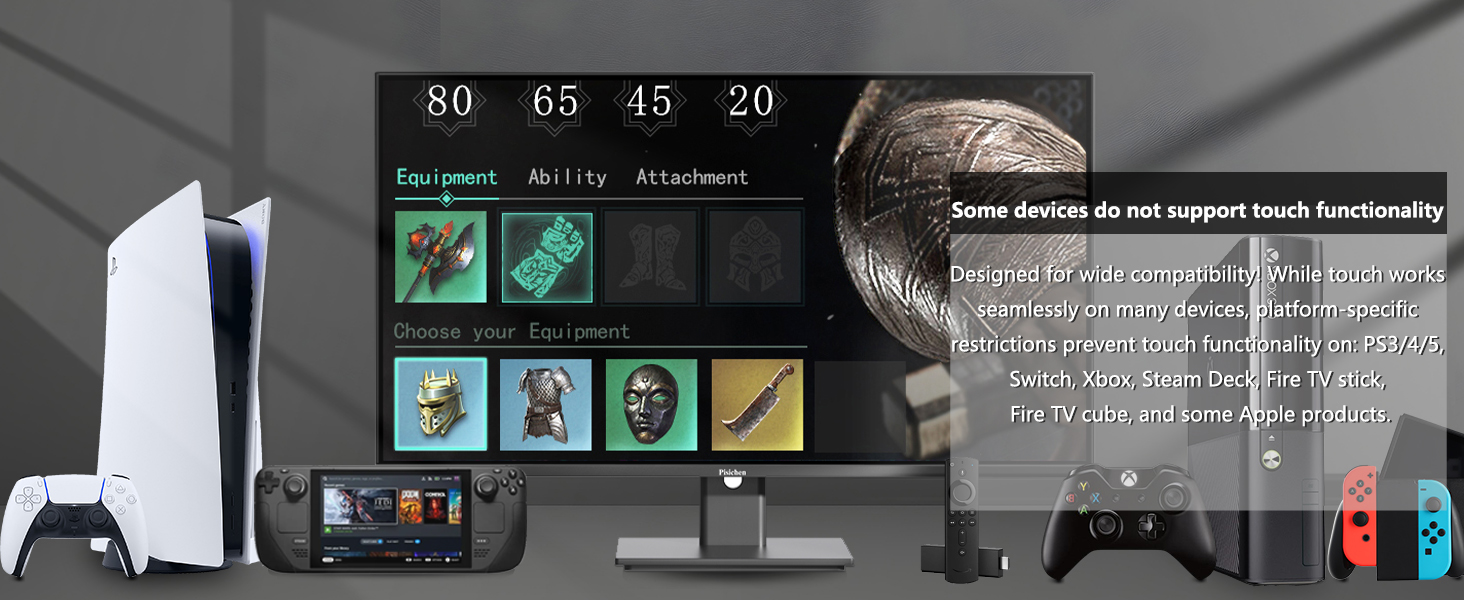
تصویر 4.3: Devices where touch functionality is not supported.
5. ڈسپلے کی ترتیبات
Access the OSD menu to adjust various display settings for optimal viewing
- قرارداد: The monitor supports a native resolution of 2560x1440 (2K QHD). Ensure your device's display settings are configured to this resolution for the sharpest image.
- ریفریش ریٹ: The monitor operates at a 100Hz refresh rate, providing smoother visuals compared to standard 60Hz monitors.
- چمک اور تضاد: Adjust these settings to suit your environment and personal preference. The monitor features 400 cd/m² brightness and a 1500:1 contrast ratio.
- رنگ کی ترتیبات: Fine-tune color temperature, gamma, and other color parameters. The IPS panel ensures wide viewزاویہ اور درست رنگ پنروتپادن.
- آنکھوں کے آرام کی خصوصیات: The monitor includes Flicker-Free technology and Low Bluelight modes to reduce eye strain during extended use.

تصویر 5.1: Visual comparison of 2K QHD vs. Full HD resolution.

تصویر 5.2: IPS panel benefits: True Color, True Vision from Any Angle.

تصویر 5.3: Advanced Eye-Comfort features.
6 دیکھ بھال
6.1 مانیٹر کی صفائی
- مانیٹر کو ہمیشہ بند کر دیں اور صفائی کرنے سے پہلے پاور کورڈ کو ان پلگ کریں۔
- تھوڑا سا نرم، لنٹ سے پاک کپڑا استعمال کریں۔ampپانی یا ہلکے، غیر کھرچنے والے اسکرین کلینر کے ساتھ ختم کیا گیا ہے۔
- اسکرین اور بیرونی سطحوں کو آہستہ سے صاف کریں۔ ضرورت سے زیادہ دباؤ لگانے سے گریز کریں۔
- Do not use alcohol, ammonia-based cleaners, or abrasive materials, as these can damage the screen surface.
6.2. ذخیرہ
If storing the monitor for an extended period, ensure it is powered off, unplugged, and stored in a cool, dry place away from direct sunlight and extreme temperatures. Use the original packaging if available for best protection.
7 خرابیوں کا سراغ لگانا
اگر آپ کو اپنے مانیٹر کے ساتھ مسائل کا سامنا کرنا پڑتا ہے تو، مندرجہ ذیل عام ٹربل شوٹنگ کے اقدامات سے رجوع کریں:
- کوئی طاقت نہیں: Ensure the power adapter is securely connected to both the monitor and a working power outlet. Check if the power indicator light on the monitor is on.
- سگنل نہیں ہیں: Verify that the video cable (HDMI, USB-C, or DP) is securely connected to both the monitor and your source device. Ensure the correct input source is selected via the OSD menu.
- کوئی ٹچ فعالیت نہیں: Confirm that the USB B Touch Cable is properly connected from the monitor to your computer. Check your computer's device manager to see if the touch device is recognized.
- چمکتی ہوئی سکرین: Check the video cable connection. Try a different cable or input port. Ensure your graphics card drivers are up to date.
- تصویری بگاڑ/غلط رنگ: OSD مینو کے ذریعے مانیٹر کو فیکٹری سیٹنگز پر ری سیٹ کریں۔ چمک، کنٹراسٹ اور رنگ کی ترتیبات کو ایڈجسٹ کریں۔
ان اقدامات سے حل نہ ہونے والے مستقل مسائل کے لیے، براہ کرم کسٹمر سپورٹ سے رابطہ کریں۔
8. وضاحتیں
| فیچر | تفصیلات |
|---|---|
| ماڈل نمبر | QHD-2k100hz-24INTS |
| اسکرین کا سائز | 24 انچ |
| قرارداد | 2560 x 1440 پکسلز (QHD وائڈ 1440p) |
| پہلو کا تناسب | 16:9 |
| ریفریش ریٹ | 100Hz |
| رسپانس ٹائم | 3ms |
| پینل کی قسم | آئی پی ایس |
| ٹچ فنکشن | 10 پوائنٹ ملٹی ٹچ |
| تصویر کی چمک | 400 Candela (cd/m²) |
| کنٹراسٹ ریشو | 1500:1 |
| اسکرین کی سطح کی تفصیل | چمکدار |
| کنیکٹوٹی | HDMI, USB-C, USB A, USB B (for Touch Function) |
| کل USB پورٹس | 2 (USB-C, USB-B) |
| مصنوعات کے طول و عرض | 1.97 x 21.26 x 12.6 انچ |
| شے کا وزن | 10.08 پاؤنڈ |
| کارخانہ دار | Shenzhen Konowa Electronics Co., LTD |
9. وارنٹی اور سپورٹ
For warranty information, please refer to the warranty card included in your product packaging or visit the official Pisichen website. If you require technical assistance, troubleshooting, or have questions about your product, please contact Pisichen customer support through their official channels.
وارنٹی کے دعووں کے لیے براہ کرم اپنی خریداری کا ثبوت اپنے پاس رکھیں۔