
1. تعارف
Thank you for choosing the Pisichen 24 inch Touch Screen Gaming Monitor. This manual provides essential information for setting up, operating, and maintaining your monitor. Please read it thoroughly before use to ensure optimal performance and safety.
This monitor features a 24-inch QHD (2560x1440P) display with a 165Hz refresh rate, 2ms response time, and 10-point projected capacitive touchscreen functionality. It supports FreeSync and HDR, offering a vibrant and responsive visual experience for both gaming and professional applications.

Image: The Pisichen 24-inch 2K 165Hz Touch Screen Monitor highlighting its key features like HDR, IPS Panel, and 10-point Touch.
2. پیکیج کے مشمولات
سیٹ اپ کے ساتھ آگے بڑھنے سے پہلے، براہ کرم تصدیق کریں کہ پیکیج میں تمام اجزاء موجود ہیں:
- Pisichen 24 inch Touch Screen Monitor
- مانیٹر اسٹینڈ (بیس اور گردن)
- ڈی پی کیبل
- HDMI کیبل
- USB B Touch Cable
- USB CC کیبل
- ڈی سی پاور اڈاپٹر
- صارف دستی (یہ دستاویز)
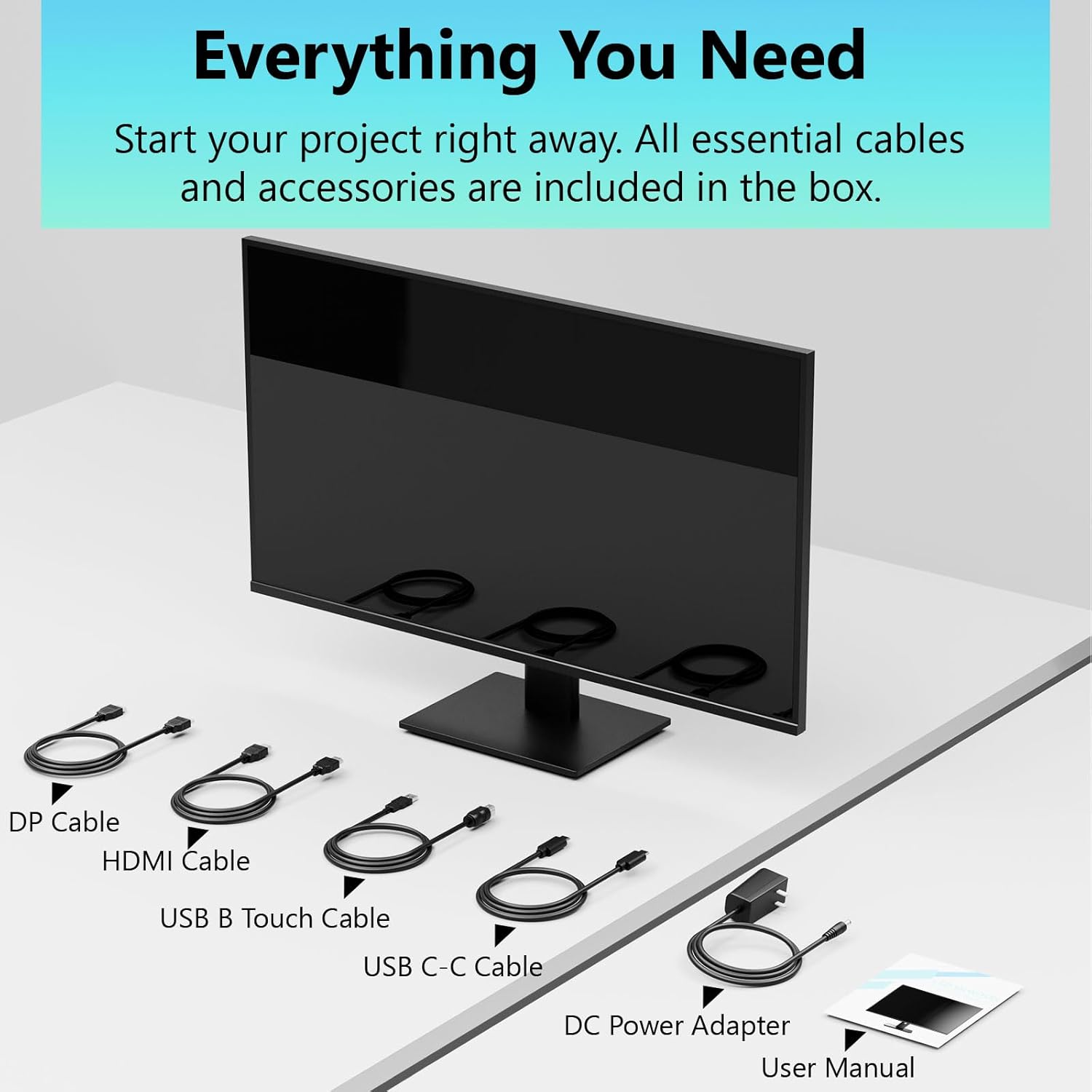
Image: All essential cables and accessories included in the box for the monitor setup.
3. سیٹ اپ ہدایات
3.1 اسٹینڈ کو جمع کرنا
- مانیٹر کو اس کی پیکیجنگ سے احتیاط سے ہٹا دیں، اسے نرم، صاف سطح پر نیچے رکھیں تاکہ خروںچ کو روکا جا سکے۔
- مانیٹر کے عقبی پینل کے ساتھ اسٹینڈ کی گردن منسلک کریں۔
- فراہم کردہ پیچ کا استعمال کرتے ہوئے اسٹینڈ بیس کو اسٹینڈ گردن تک محفوظ کریں۔
- Ensure all connections are firm before placing the monitor upright.
3.2 VESA ماؤنٹ انسٹالیشن (اختیاری)
This monitor supports VESA mounting. If you plan to use a VESA-compatible arm or wall mount, remove the stand and attach the VESA mount according to the mount's instructions. The VESA pattern is typically 75x75mm or 100x100mm (refer to specifications for exact details).
3.3 ڈیوائس سے جڑنا
مانیٹر متعدد رابطے کے اختیارات پیش کرتا ہے:
- HDMI: HDMI کیبل کے ایک سرے کو مانیٹر کے HDMI پورٹ سے اور دوسرے سرے کو اپنے کمپیوٹر کے HDMI آؤٹ پٹ سے جوڑیں۔
- ڈسپلے پورٹ (DP): Connect one end of the DP cable to the monitor's DP port and the other end to your computer's DP output.
- USB قسم-C: For compatible devices, connect the USB C-C cable to the monitor's USB Type-C port and your device's USB Type-C port. This single cable can transmit video, data, and power (charging).
- USB Type-B (for Touch Functionality): To enable the touch screen feature, connect the USB B Touch Cable from the monitor's USB Type-B port to an available USB Type-A port on your computer.

Image: The monitor's rear panel with various connectivity options, including HDMI, DisplayPort, and USB-C ports.
3.4 پاور کنکشن
Connect the DC Power Adapter to the monitor's power input port, then plug the adapter into a power outlet.
3.5 Initial Power On and Touch Compatibility
Press the power button on the monitor. The display should light up. If no image appears, ensure all cables are securely connected and the correct input source is selected on the monitor (via the OSD menu).
For touch functionality, ensure the USB B Touch Cable is connected to your computer. Touch compatibility may vary by operating system and device. Most Windows PCs support multi-touch. For Mac devices, single-touch click is generally supported, but multi-touch may require specific drivers or configurations. Game consoles (PS3/4/5, Xbox, Steam Deck) and some other devices (Fire TV, Apple products like iPhone/iPad) typically do not support touch functionality.

Image: A compatibility chart illustrating which devices support multi-touch or single-touch, and which devices do not support touch functionality with the monitor.
4. آپریٹنگ ہدایات
4.1 پاور آن/آف
اسے آن یا آف کرنے کے لیے مانیٹر پر موجود پاور بٹن کو دبائیں۔ پاور انڈیکیٹر لائٹ مانیٹر کی حیثیت دکھائے گی۔
4.2 آن اسکرین ڈسپلے (OSD) مینو
The OSD menu allows you to adjust various monitor settings. Use the control buttons (usually located on the back or bottom of the monitor) to navigate the menu. Common menu options include:
- تصویر کی ترتیبات: چمک، کنٹراسٹ، نفاست، رنگ کا درجہ حرارت، HDR موڈ۔
- ڈسپلے کی ترتیبات: Aspect Ratio, Input Source selection (HDMI, DP, USB-C).
- گیمنگ کی ترتیبات: FreeSync, Response Time (Overdrive), Crosshair.
- آڈیو کی ترتیبات: Volume (if internal speakers or audio output are present).
- سسٹم کی ترتیبات: Language, OSD Transparency, Reset to Factory Defaults.
4.3 ٹچ اسکرین کی فعالیت
The monitor supports 10-point multi-touch, allowing for intuitive interaction directly on the screen. Ensure the USB B Touch Cable is connected to your computer for this feature to work.
- سنگل نل: Equivalent to a left-click.
- تھپتھپائیں: دائیں کلک کے برابر۔
- چوٹکی سے زوم: زوم ان یا آؤٹ کرنے کے لیے دو انگلیاں استعمال کریں۔
- سوائپ: Navigate through content or scroll.

Image: A user interacting with the monitor's touch screen, highlighting its precision and responsiveness for creative tasks.
4.4 ایرگونومک ایڈجسٹمنٹ
The monitor stand allows for tilt adjustments to achieve the most comfortable viewing and touch angle. Gently adjust the screen to your preferred position.
4.5 آنکھوں کی دیکھ بھال کی خصوصیات
The monitor includes advanced eye-comfort features such as Flicker-Free technology and Low Bluelight mode to reduce eye strain during prolonged use. These settings can typically be adjusted within the OSD menu.

Image: Visual representation of the monitor's advanced eye-comfort features, including Flicker-Free and Low Bluelight technologies.
5 دیکھ بھال
5.1 مانیٹر کی صفائی
- مانیٹر کو ہمیشہ بند کر دیں اور صفائی کرنے سے پہلے پاور کورڈ کو ان پلگ کریں۔
- ہلکے سے نرم، لنٹ سے پاک کپڑا استعمال کریں۔ampپانی یا ہلکے، غیر کھرچنے والے اسکرین کلینر کے ساتھ ختم کیا گیا ہے۔
- کلینر کو براہ راست اسکرین پر نہ چھڑکیں۔ اسے پہلے کپڑے پر لگائیں۔
- بینزین، پتلا، امونیا پر مبنی کلینر یا کھرچنے والے مواد کے استعمال سے گریز کریں، کیونکہ یہ اسکرین کی سطح کو نقصان پہنچا سکتے ہیں۔
5.2 اسٹوریج
When storing the monitor for an extended period, ensure it is powered off, unplugged, and stored in a cool, dry place away from direct sunlight and extreme temperatures. Use the original packaging if available for best protection.
6 خرابیوں کا سراغ لگانا
اگر آپ کو اپنے مانیٹر کے ساتھ مسائل کا سامنا کرنا پڑتا ہے تو، مندرجہ ذیل عام ٹربل شوٹنگ کے اقدامات سے رجوع کریں:
- کوئی طاقت نہیں: Ensure the power adapter is securely connected to both the monitor and a working power outlet. Check if the power indicator light is on.
- کوئی تصویر/سگنل نہیں:
- Verify that the video cable (HDMI, DP, or USB-C) is securely connected to both the monitor and your computer.
- یقینی بنائیں کہ مانیٹر کے OSD مینو میں درست ان پٹ سورس کا انتخاب کیا گیا ہے۔
- اس بات کو یقینی بنانے کے لیے اپنے کمپیوٹر کی ڈسپلے سیٹنگز چیک کریں کہ مانیٹر کا پتہ چلا اور اسے فعال کیا گیا ہے۔
- کوئی ٹچ فعالیت نہیں:
- Confirm the USB B Touch Cable is connected from the monitor to your computer.
- Check your computer's device manager to see if the touch screen driver is installed and functioning correctly.
- Refer to the "Initial Power On and Touch Compatibility" section for device-specific limitations.
- جھلملاتی یا مسخ شدہ تصویر:
- نقصان یا ڈھیلے کنکشن کے لیے ویڈیو کیبل چیک کریں۔
- ایک مختلف ویڈیو کیبل یا پورٹ آزمائیں۔
- اپنے کمپیوٹر کی ڈسپلے سیٹنگز میں ریفریش ریٹ کو ایڈجسٹ کریں۔
- ڈیڈ پکسلز: LCD/LED ٹکنالوجی میں روشن یا گہرے پکسلز کی ایک چھوٹی سی تعداد عام ہے اور جب تک کہ وہ مینوفیکچرر کی وضاحتوں سے تجاوز نہ کریں اسے کوئی خرابی نہیں سمجھا جاتا ہے۔
اگر ان اقدامات کو آزمانے کے بعد بھی مسئلہ برقرار رہتا ہے، تو براہ کرم کسٹمر سپورٹ سے رابطہ کریں۔
7. وضاحتیں
| فیچر | تفصیلات |
|---|---|
| برانڈ | Pisichen |
| ماڈل نمبر | 24IN165HZ-QHD |
| اسکرین کا سائز | 23.8 انچ |
| قرارداد | QHD وائڈ 1440p (2560 x 1440) |
| پہلو کا تناسب | 16:9 |
| ریفریش ریٹ | 165 Hz |
| رسپانس ٹائم | 2 ملی سیکنڈز |
| ڈسپلے کی قسم | LED IPS |
| چمک | 400 Candela (cd/m²) |
| کنٹراسٹ ریشو | 3000:1 |
| Viewآئی اینگل | 178 ڈگری |
| کلر گامٹ | 99% |
| Picture Quality Enhancement | ایچ ڈی آر |
| اڈاپٹیو سنک | فری سنک |
| کنیکٹوٹی ٹیکنالوجی | DisplayPort, HDMI, USB Type-C, USB Type-B |
| اضافی خصوصیات | Tilt Adjustment, 10-Point Touchscreen |
| آئٹم کے طول و عرض (D x W x H) | 0.75"D x 21.5"W x 12.7"H |
| شے کا وزن | 5.38 کلوگرام |
| رنگ | سیاہ |
8. وارنٹی کی معلومات
This product comes with a 1-year limited warranty from the date of purchase. The warranty covers manufacturing defects and workmanship under normal use. It does not cover damage caused by misuse, accidents, unauthorized modifications, or external factors. Please retain your proof of purchase for warranty claims.
9. کسٹمر سپورٹ
For technical assistance, warranty claims, or further inquiries, please contact Pisichen customer support. You may find contact information on the official Pisichen webسائٹ یا اپنے خوردہ فروش کے ذریعے۔
اضافی وسائل اور مصنوعات کی معلومات کے لیے، ملاحظہ کریں۔ Pisichen Store on Amazon.