
تعارف
This manual provides essential information for the safe and efficient use of your Google Pixel 9 Pro 5G smartphone. Please read these instructions carefully before operating your device.

شکل 1: سامنے view of the Google Pixel 9 Pro 5G.
باکس میں کیا ہے۔
تصدیق کریں کہ تمام اشیاء پیکیجنگ میں موجود ہیں:
- گوگل پکسل 9 پرو اسمارٹ فون
- USB-C to USB-C Cable (1m, USB 2.0)
- سم ٹرے ایجیکٹر ٹول
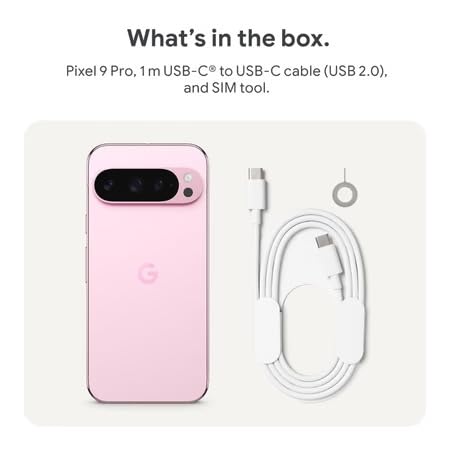
Figure 2: Included items in the Pixel 9 Pro packaging.
سیٹ اپ
1 سم کارڈ داخل کرنا
- Locate the SIM tray on the side of your Pixel 9 Pro.
- Insert the provided SIM ejector tool into the small hole on the SIM tray and press gently until the tray pops out.
- اپنے نینو سم کارڈ کو ٹرے میں رکھیں جس میں سونے کے رابطے نیچے کی طرف ہوں۔ یقینی بنائیں کہ یہ صحیح طریقے سے بیٹھا ہے۔
- Carefully push the SIM tray back into the device until it is flush.
2. ابتدائی چارجنگ
پہلے استعمال سے پہلے، یہ تجویز کی جاتی ہے کہ آپ اپنے آلے کو مکمل طور پر چارج کریں۔
- USB-C کیبل کو اپنے فون کے نیچے چارجنگ پورٹ سے جوڑیں۔
- Connect the other end of the cable to a compatible USB power adapter (sold separately) and plug it into a power outlet.
- اسکرین پر بیٹری کا آئیکن چارجنگ کی حالت کی نشاندہی کرے گا۔
3. پر / آف پاور
- پاور آن کرنے کے لیے: Press and hold the Power button (located on the right side) until the Google logo appears on the screen.
- پاور آف کرنا: پاور بٹن کو دبائیں اور تھامیں، پھر اسکرین پر 'پاور آف' کو تھپتھپائیں۔
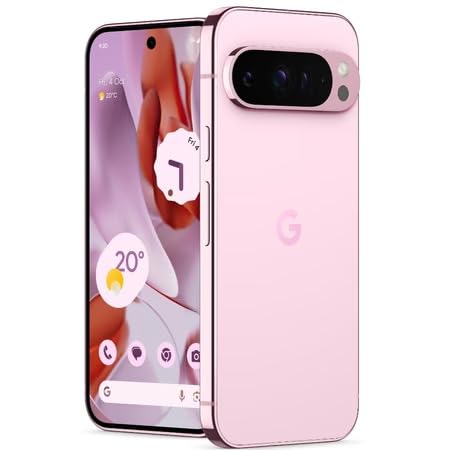
Figure 3: Power and volume buttons on the side of the device.
4. فرسٹ ٹائم سیٹ اپ وزرڈ
Upon powering on for the first time, follow the on-screen instructions to:
- اپنی زبان اور علاقہ منتخب کریں۔
- Wi-Fi نیٹ ورک سے جڑیں۔
- اپنے Google اکاؤنٹ کے ساتھ سائن ان کریں یا ایک نیا بنائیں۔
- Set up security features such as fingerprint unlock, face unlock, PIN, pattern, or password.
- پرانے آلے سے ڈیٹا منتقل کریں (اختیاری)۔
آپریٹنگ ہدایات
بنیادی نیویگیشن
- ٹچ اسکرین اشارے: Interact with the device using taps, swipes, pinches (for zoom), and long presses.
- ہوم اسکرین: Access your applications, widgets, and customize your layout.
- اطلاعات: اسکرین کے اوپر سے نیچے تک سوائپ کریں۔ view اطلاعات
- فوری ترتیبات: Swipe down twice from the top of the screen to access quick settings toggles (Wi-Fi, Bluetooth, etc.).
کیمرہ آپریشن
The Pixel 9 Pro features a powerful triple rear camera system.
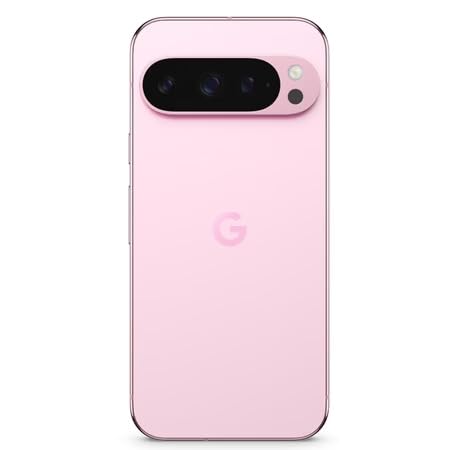
Figure 4: Rear camera system of the Pixel 9 Pro.
- کیمرہ کھولنا: Tap the Camera app icon on your home screen or lock screen.
- سوئچنگ لینس: Tap the icons on the viewfinder to switch between wide, ultrawide, and 5x telephoto lenses.
- شوٹنگ کے طریقے: Select from various modes such as Night Sight for low-light conditions, آسٹرو فوٹوگرافی for capturing stars, میکرو for close-up shots, طویل نمائش for creative effects, and پورٹریٹ for depth-of-field effects.
- سپر ریس زوم: Pinch the screen to digitally zoom up to 30x. For video, Super Res Zoom supports up to 20x.
- پرو کنٹرولز: Access advanced camera settings like shutter speed and manual focus for greater creative control.
بیٹری مینجمنٹ
- بیٹری لیول چیک کرنا: View بیٹری کا فیصدtage in the status bar or in Settings > Battery.
- ایکسٹریم بیٹری سیور: Enable this mode in Settings > Battery > Extreme Battery Saver to significantly extend battery life.
- چارج کرنا: Use the provided USB-C cable and a compatible power adapter for optimal charging speed.
حفاظتی خصوصیات
Your Pixel 9 Pro incorporates multiple hardware security layers to protect your data.
- فنگر پرنٹ انلاک: Register your fingerprints in Settings > Security & privacy > Device unlock.
- فیس انلاک: آسان کھولنے کے لیے چہرے کی شناخت سیٹ اپ کریں۔
- پن/پیٹرن/پاس ورڈ: Always set a strong screen lock method.
- سافٹ ویئر اپ ڈیٹس: Regularly install system updates to ensure your device has the latest security patches.
درجہ حرارت سینسر
The Pixel 9 Pro includes a thermometer for measuring temperature.
- Open the dedicated Thermometer app.
- Follow the on-screen instructions to measure body temperature or the temperature of objects.
- Temperature data can be saved and tracked within the Fitbit application.
دیکھ بھال
اپنے آلے کی صفائی۔
- Use a soft, lint-free cloth to clean the screen and body of your phone.
- Avoid using abrasive materials, harsh chemicals, or aerosol sprays.
- Do not submerge the device in water, despite its water-resistant rating.
سافٹ ویئر اپڈیٹس
Google regularly releases software updates to improve performance, add features, and enhance security.
- To check for updates, go to Settings > System > System update.
- Ensure your device is connected to Wi-Fi and has sufficient battery charge before installing updates.
جسمانی نگہداشت
The Pixel 9 Pro is built with Corning Gorilla Glass Victus 2 and is water-resistant, offering durability against everyday drops and spills.
- While durable, avoid excessive impacts or drops to prevent damage.
- Consider using a screen protector and a protective case for additional safeguarding.
خرابی کا سراغ لگانا
آلہ جواب نہیں دے رہا ہے۔
If your phone becomes unresponsive, perform a force restart:
- Press and hold the Power button for approximately 10-15 seconds until the device restarts.
ایپس کریش ہو رہی ہیں یا منجمد ہو رہی ہیں۔
- پریشانی والی ایپ کو بند کریں اور اسے دوبارہ کھولیں۔
- Clear the app's cache: Go to Settings > Apps > See all apps > [App Name] > Storage & cache > Clear cache.
- یقینی بنائیں کہ ایپ کو گوگل پلے اسٹور سے اس کے تازہ ترین ورژن میں اپ ڈیٹ کیا گیا ہے۔
- اپنا فون دوبارہ شروع کریں۔
Network Connectivity Issues (Wi-Fi/Cellular)
- Toggle Wi-Fi or cellular data off and then back on.
- اپنا فون دوبارہ شروع کریں۔
- Verify that your SIM card is correctly inserted.
- Reset network settings: Go to Settings > System > Reset options > Reset Wi-Fi, mobile & Bluetooth.
بیٹری تیزی سے ختم ہو رہی ہے۔
- Check battery usage in Settings > Battery to identify power-consuming apps.
- اسکرین کی چمک اور اسکرین کا وقت ختم ہونے کا دورانیہ کم کریں۔
- Disable unnecessary features like GPS, Bluetooth, and Wi-Fi when not in use.
- Enable Extreme Battery Saver mode.
فیکٹری ری سیٹ (آخری ریزورٹ)
Warning: A factory reset will erase all data from your phone. Back up all important data before proceeding.
- سیٹنگز > سسٹم > ری سیٹ آپشنز > تمام ڈیٹا مٹائیں (فیکٹری ری سیٹ) پر جائیں۔
- Confirm your decision when prompted.
وضاحتیں
| فیچر | تفصیل |
|---|---|
| برانڈ | گوگل |
| ماڈل | Pixel 9 Pro |
| آپریٹنگ سسٹم | اینڈرائیڈ 15 |
| پروسیسر | Google Tensor G4 (3.1 GHz) |
| رام | 16 جی بی |
| اندرونی اسٹوریج | 256 جی بی |
| ڈسپلے | 6.3 Inches LTPO OLED (Actua), 1280 x 2856 Pixels, 120 Hz Refresh Rate |
| پیچھے والا کیمرہ | 50 MP wide + 48 MP ultrawide (Macro) + 48 MP 5x telephoto |
| سامنے والا کیمرہ | 42 MP |
| بیٹری کی صلاحیت | 4700 ملی۔amp Hours (up to 24 hours average life) |
| کنیکٹوٹی | 5G, Wi-Fi 7, Bluetooth 5.3, NFC, UWB, USB-C |
| سم کارڈ | Single Nano SIM |
| پانی کی مزاحمت | پانی مزاحم |
| طول و عرض | 8 x 72 x 153 ملی میٹر |
| وزن | 198 گرام |
وارنٹی اور سپورٹ
وارنٹی کی معلومات
Your Google Pixel 9 Pro 5G comes with a 1 سال کی مینوفیکچرر وارنٹی خریداری کی تاریخ سے. یہ وارنٹی عام استعمال کے تحت مینوفیکچرنگ نقائص کا احاطہ کرتی ہے۔ وارنٹی کے دعووں کے لیے براہ کرم اپنی خریداری کا ثبوت اپنے پاس رکھیں۔
کسٹمر سپورٹ
For technical assistance, warranty claims, or other support inquiries, please contact Google customer service:
- مینوفیکچرر: گوگل ایل ایل سی، 1600 Ampہیتھیٹر پارک وے ، ماؤنٹین۔ View، CA 94043 ، USA
- Phone Support (India): +91 7718892303
- Importer Contact (India): Nexora Axis Private Limited (+91 7718892303)
For the most up-to-date support information, please visit the official Google Pixel support webسائٹ