
1. تعارف
1.1 پروڈکٹ اوورview
The DBIT AC1200 Dual Band Gigabit WiFi Router (Model T18-21K) is designed to provide wireless internet connectivity for home and small office environments. It supports dual-band operation (2.4GHz and 5GHz) and offers Gigabit Ethernet ports for wired connections. The router includes features such as MU-MIMO, Beamforming, and multiple operating modes to enhance network performance and coverage.
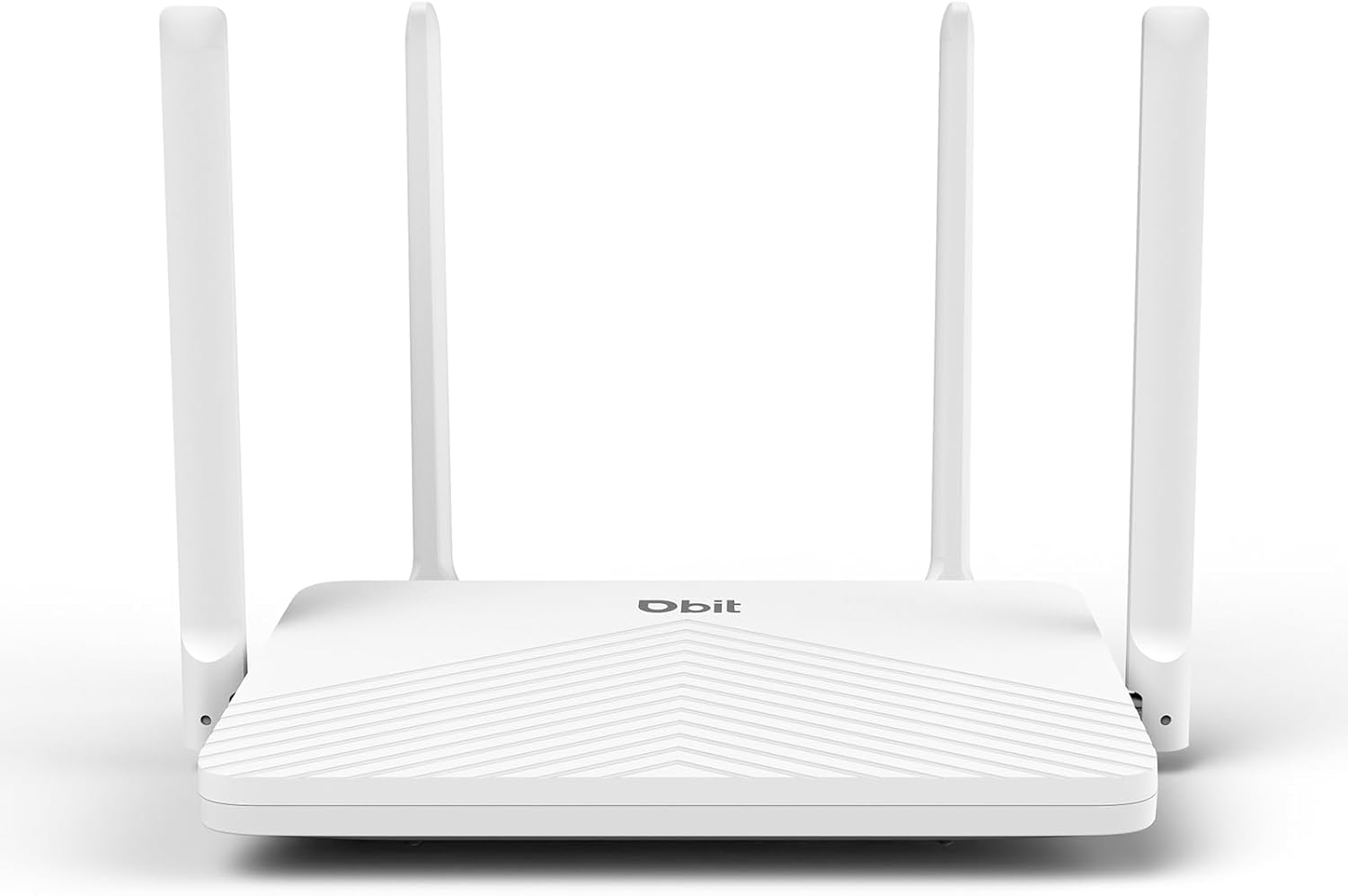
Figure 1: DBIT AC1200 WiFi Router
1.2 کلیدی خصوصیات
- AC1200 Dual-Band WiFi: Provides wireless speeds up to 1200Mbps (300 Mbps on 2.4GHz and 867 Mbps on 5GHz). The 2.4GHz band handles general tasks, while the 5GHz band supports bandwidth-intensive activities like gaming or 4K video streaming.
- Full Gigabit Ports: Equipped with one Gigabit WAN port and three Gigabit LAN ports for high-speed internet plans and stable wired connections to devices such as smart TVs, gaming consoles, or PCs.
- Triple-Mode Flexibility: Functions as a Router, Repeater, or Bridge to suit various network requirements.
- Whole-Home Coverage with Beamforming: Four external 5dBi high-gain antennas and Beamforming technology focus Wi-Fi signals towards connected devices, improving coverage.
- MU-MIMO ٹیکنالوجی: Enables simultaneous communication with multiple devices, reducing network latency.
- مضبوط سیکورٹی: Features WPA2-PSK encryption and access control to protect the network and connected devices.
- آسان سیٹ اپ: Configuration is managed through an intuitive web user interface. WPS button for quick device connection.
- عالمگیر مطابقت: Compatible with major internet service providers (requires a functioning modem).
2. پیکیج کے مشمولات
تصدیق کریں کہ تمام اشیاء آپ کے پیکیج میں موجود ہیں:
- DBIT AC1200 WiFi Router
- پاور اڈاپٹر
- ایتھرنیٹ کیبل
- کوئیک اسٹارٹ گائیڈ
3. پروڈکٹ ختمview (ہارڈ ویئر)
3.1 فرنٹ پینل
The front panel of the router typically features LED indicators that display the status of the power, internet connection, and wireless networks (2.4GHz and 5GHz).
3.2 پیچھے والا پینل (بندرگاہیں اور بٹن)
The rear panel contains all the physical connection ports and control buttons:
- ری سیٹ بٹن: راؤٹر کو فیکٹری ڈیفالٹ سیٹنگز پر بحال کرنے کے لیے استعمال کیا جاتا ہے۔ راؤٹر کے آن ہونے کے دوران تقریباً 5-10 سیکنڈ تک دبائیں اور تھامیں۔
- WPS بٹن: For quickly connecting WPS-compatible devices to the wireless network without entering a password.
- LAN Ports (LAN1, LAN2, LAN3): Three Gigabit Ethernet ports for connecting wired devices such as computers, gaming consoles, or smart TVs.
- وان پورٹ: One Gigabit Ethernet port for connecting to your modem or primary internet source.
- ڈی سی ان: Power input port for connecting the included power adapter.

Figure 2: Router Rear Panel with Ports and Buttons
4. ابتدائی سیٹ اپ
4.1 ہارڈ ویئر سے رابطہ قائم کرنا
- بجلی بند: Disconnect power from your modem and router (if replacing an old one).
- WAN پورٹ کو جوڑیں: Connect one end of the provided Ethernet cable to the WAN port of the DBIT router and the other end to your modem's Ethernet port.
- پاور سے رابطہ کریں: Connect the power adapter to the router's DC IN port and plug it into a power outlet.
- پاور آن: Power on your modem first, wait for it to fully boot up (usually indicated by stable lights), then power on the DBIT router.
- اینٹینا ایڈجسٹمنٹ: Adjust the four external antennas for optimal signal reception.
4.2 Web انٹرفیس کنفیگریشن
ہارڈویئر کنکشن کے بعد، روٹر کو اس کے ذریعے ترتیب دیں۔ web انٹرفیس:
- راؤٹر کے وائی فائی سے جڑیں: On your computer or mobile device, connect to the default Wi-Fi network broadcast by the router. The default SSID and password are usually found on a label on the bottom of the router or in the Quick Start Guide.
- رسائی Web انٹرفیس: کھولنا a web browser and enter the default login URL، عام طور پر
192.168.10.1, into the address bar. - سیٹ اپ وزرڈ کی پیروی کریں: راؤٹر کا web interface will guide you through the initial setup process, including setting up your internet connection type, Wi-Fi network name (SSID), and password.
- دوبارہ رابطہ: After configuration, reconnect your devices to the new Wi-Fi network using the updated SSID and password.

تصویر 3: Web Management Setup Steps
5۔ آپریٹنگ موڈ
The DBIT AC1200 router supports multiple operating modes to adapt to different network setups.
5.1 راؤٹر موڈ
In Router Mode, the device acts as the primary internet gateway, connecting to your modem and distributing internet access to all connected wired and wireless devices. This is the default mode for most home networks.
5.2 ریپیٹر موڈ
Repeater Mode extends the coverage of an existing wireless network. The router connects wirelessly to your main router and re-broadcasts the signal, eliminating Wi-Fi dead zones.

Figure 4: Repeater Mode Configuration
5.3 برج موڈ
Bridge Mode allows the router to convert a wired network connection into a wireless one, or to connect two separate networks. When configured as a bridge, the device can provide wireless access to devices connected to a wired network, or extend a network segment.
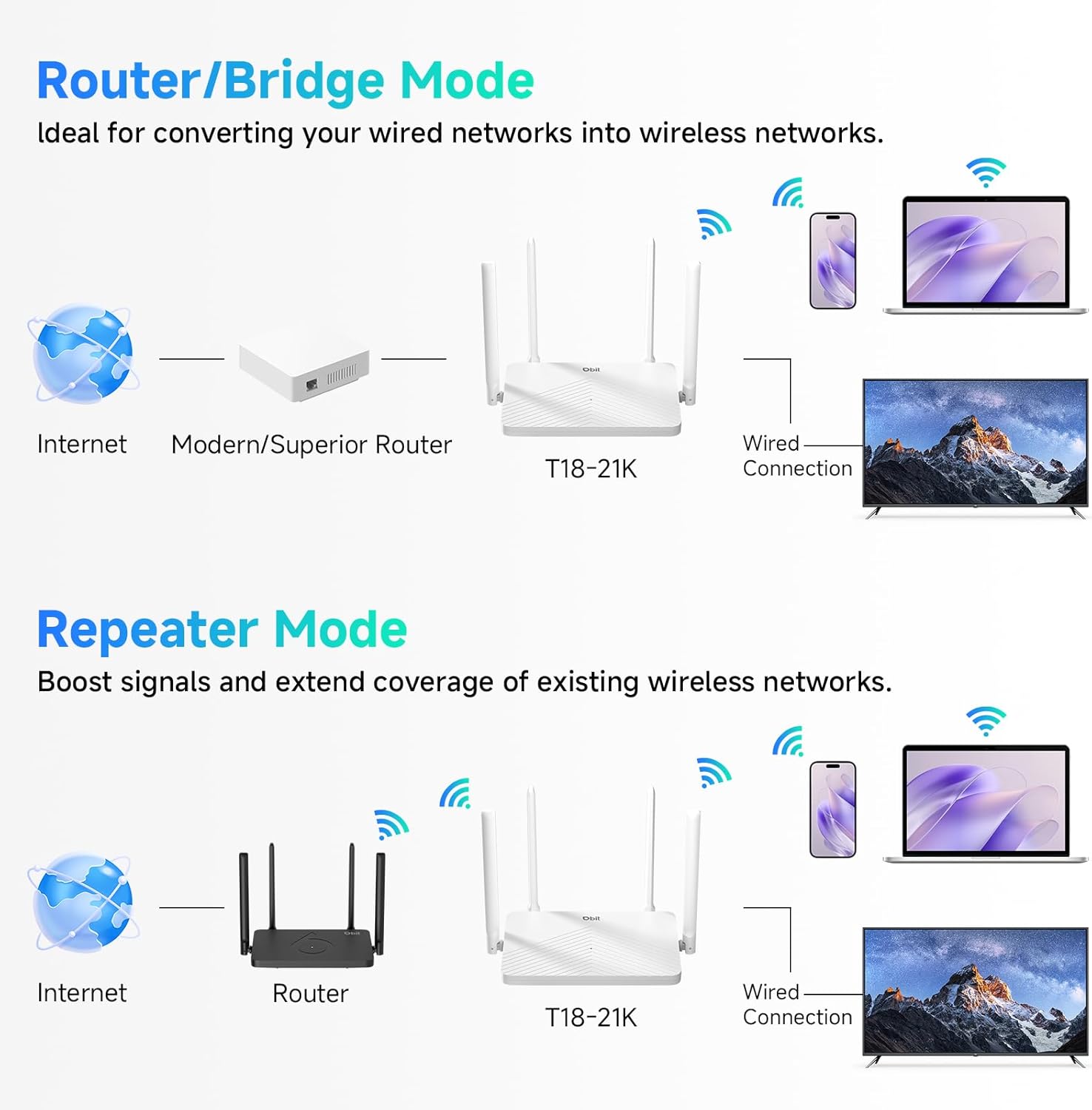
Figure 5: Router/Bridge Mode Setup
6. اعلی درجے کی خصوصیات
6.1 Dual-Band Wireless
The router operates on two distinct frequency bands: 2.4GHz and 5GHz. The 2.4GHz band offers broader coverage and better penetration through obstacles, suitable for general internet use. The 5GHz band provides higher speeds and lower latency, ideal for online gaming and high-definition video streaming.

Figure 6: Dual-Band Speed Distribution
6.2 MU-MIMO ٹیکنالوجی
Multi-User, Multiple-Input, Multiple-Output (MU-MIMO) technology allows the router to transmit data to multiple devices simultaneously, rather than sequentially. This improves network efficiency and reduces buffering when multiple devices are active on the network.

Figure 7: MU-MIMO Operation
6.3 Beamforming and Antennas
The router is equipped with four 5dBi high-gain antennas and utilizes Beamforming technology. Beamforming directs the Wi-Fi signal directly towards connected devices, improving signal strength and coverage, particularly in areas further from the router.

Figure 8: Beamforming Coverage
6.4 EasyMesh Functionality
The EasyMesh function allows for the creation of a seamless whole-home network. When multiple EasyMesh-compatible devices are used, they automatically select the best connection as you move around your home, ensuring consistent Wi-Fi coverage.

Figure 9: EasyMesh Network Coverage
6.5 نیٹ ورک سیکیورٹی
The router supports WPA2-PSK encryption to secure your wireless network. Access control features allow you to manage which devices can connect to your network, enhancing overall security.
6.6 مہمان نیٹ ورک
A guest network feature allows you to provide separate Wi-Fi access for visitors, keeping your main network private and secure.
6.7 والدین کا کنٹرول
Parental control features enable you to manage internet access times and block specific websites for connected devices, promoting a safer online environment.
7 خرابیوں کا سراغ لگانا
- انٹرنیٹ تک رسائی نہیں:
- Ensure your modem is working correctly and its internet indicator light is stable.
- Check that the Ethernet cable is securely connected between the modem's LAN port and the router's WAN port.
- اپنے موڈیم اور روٹر دونوں کو دوبارہ شروع کریں۔
- روٹر میں اپنے انٹرنیٹ کنکشن کی ترتیبات کی تصدیق کریں۔ web انٹرفیس
- کمزور وائی فائی سگنل یا ڈیڈ زون:
- Adjust the router's antennas for optimal positioning.
- راؤٹر کو اپنے گھر کے کسی مرکزی مقام پر منتقل کریں، رکاوٹوں اور مداخلت کے ذرائع (مثلاً مائیکرو ویوز، کورڈ لیس فون) سے دور۔
- Consider using Repeater Mode or adding another EasyMesh compatible device to extend coverage.
- راؤٹر تک رسائی حاصل نہیں کر سکتے Web انٹرفیس:
- یقینی بنائیں کہ آپ کا آلہ روٹر کے Wi-Fi نیٹ ورک سے یا ایتھرنیٹ کیبل کے ذریعے LAN پورٹ سے جڑا ہوا ہے۔
- Verify that you are entering the correct IP address (default is
192.168.10.1) آپ کے براؤزر میں۔ - اپنے براؤزر کا کیش صاف کریں یا کوئی مختلف براؤزر آزمائیں۔
- If you have changed the router's IP address, use the new address. If forgotten, a factory reset may be necessary.
- بھولا ہوا وائی فائی پاس ورڈ یا لاگ ان پاس ورڈ:
- Perform a factory reset by pressing and holding the RESET button for 5-10 seconds while the router is powered on. This will revert all settings, including passwords, to their factory defaults.
8. وضاحتیں
| فیچر | تفصیل |
|---|---|
| ماڈل کا نام | AC1200 وائی فائی راؤٹر۔ |
| آئٹم ماڈل نمبر | T18-21K۔ |
| مصنوعات کے طول و عرض | 8.99 x 5.78 x 6.89 انچ |
| شے کا وزن | 1.12 پاؤنڈ |
| برانڈ | ڈی بی آئی ٹی |
| کارخانہ دار | Shenzhen Dbit Network Equipment Co., Ltd. |
| فریکوئنسی بینڈ کلاس | Dual-Band (2.4GHz, 5GHz) |
| وائرلیس مواصلات کا معیار | 802.11a, 802.11ac, 802.11b, 802.11g, 802.11n |
| کنیکٹوٹی ٹیکنالوجی | ایتھرنیٹ، وائی فائی |
| ایتھرنیٹ پورٹس | 1 WAN, 3 LAN (Gigabit) |
| انٹینا | 4 x 5dBi بیرونی اینٹینا |
| خصوصی خصوصیات | Beamforming, Guest Mode, Internet Security, MU-MIMO, Parental Control |
| ہم آہنگ آلات | Gaming Console, Personal Computer, Tablet, Smart Television, Smartphone, Printer, Security Camera |
| تجویز کردہ استعمال | کاروبار، گھر |
9. وارنٹی اور سپورٹ
9.1 وارنٹی کی معلومات
Please refer to the warranty card included in your product packaging for detailed warranty terms and conditions. The warranty typically covers manufacturing defects for a specified period from the date of purchase.
9.2 تکنیکی معاونت
For technical assistance, troubleshooting, or further inquiries, please contact DBIT customer support. Contact information can usually be found on the manufacturer's official webسائٹ یا کوئیک سٹارٹ گائیڈ میں۔
Online resources, including FAQs and firmware updates, may also be available on the DBIT support page.