
تعارف
This manual provides detailed instructions for the setup, operation, maintenance, and troubleshooting of your Pisichen 24-inch Touchscreen Monitor with Built-in Webcam (Model 238TS-CMR). This monitor features a 2K QHD (2560x1440) resolution display with a 100Hz refresh rate, 10-point multi-touch functionality, and an integrated pop-up webcam, designed to enhance your productivity and interactive experience.
حفاظتی معلومات
- Always place the monitor on a stable, flat surface to prevent accidental falls.
- مانیٹر کو بارش، نمی، یا انتہائی درجہ حرارت کے سامنے نہ رکھیں۔
- زیادہ گرمی سے بچنے کے لیے وینٹیلیشن کے سوراخوں کو روکنے سے گریز کریں۔
- مانیٹر کے ساتھ فراہم کردہ پاور اڈاپٹر ہی استعمال کریں۔
- Disconnect the power cable from the outlet before cleaning or if the monitor will be unused for an extended period.
- خود مانیٹر کو الگ کرنے یا مرمت کرنے کی کوشش نہ کریں۔ تمام خدمات کو اہل اہلکاروں سے رجوع کریں۔
پیکیج کے مشمولات
براہ کرم چیک کریں کہ تمام اشیاء آپ کے پیکیج میں موجود ہیں:
- Pisichen 24-inch Touchscreen Monitor (Model 238TS-CMR)
- مانیٹر اسٹینڈ (بیس اور بازو)
- پاور اڈاپٹر اور کیبل
- HDMI کیبل
- USB-C سے USB-C کیبل
- USB-A to USB-B Cable (for touch functionality with non-USB-C devices)
- صارف دستی (یہ دستاویز)
سیٹ اپ
1. اسٹینڈ اسمبلی
- مانیٹر کو احتیاط سے اس کی پیکیجنگ سے ہٹائیں اور اسے نرم، صاف سطح پر نیچے رکھیں تاکہ خروںچ کو روکا جا سکے۔
- Attach the stand arm to the back of the monitor using the provided screws.
- Connect the stand base to the stand arm and secure it with the designated screw.
- Once assembled, carefully lift the monitor and place it upright on your desk.

Figure 1: Monitor stand assembly and adjustment capabilities.
2. اپنے آلے سے جڑنا
The monitor supports multiple connection types. Choose the appropriate cable for your device.
- پاور کنکشن: Connect the power adapter to the monitor's DC power port and then plug it into a power outlet.
- USB-C Connection (Recommended for full functionality): If your device has a USB-C port that supports DisplayPort Alternate Mode, connect the monitor using the provided USB-C to USB-C cable. This single cable can transmit video, audio, and touch signals, and may also provide power delivery to your laptop.
- HDMI or DisplayPort Connection: Connect an HDMI or DisplayPort cable from your device to the corresponding port on the monitor for video and audio. For touch functionality, you must also connect the USB-A to USB-B cable from your device's USB port to the monitor's USB-B upstream port.
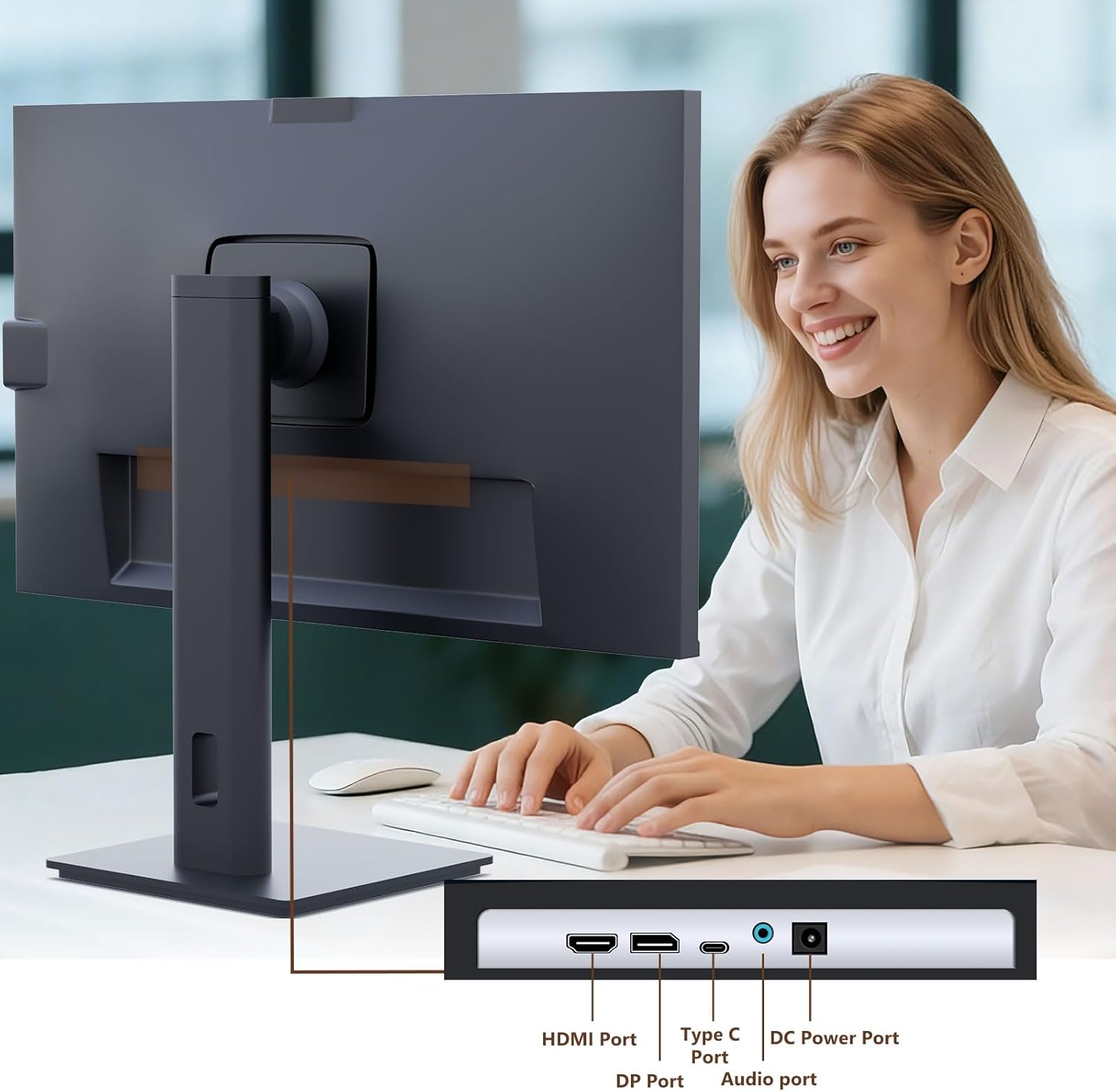
Figure 2: Available ports on the Pisichen monitor.

Figure 3: USB-C one-cable connection for simplified setup.

Figure 4: Connection options for desktop and laptop devices.
3. ابتدائی پاور آن
Press the power button located on the monitor to turn it on. The monitor will automatically detect the active input source. If multiple sources are connected, you may need to select the correct input via the On-Screen Display (OSD) menu.
آپریٹنگ ہدایات
1. ٹچ اسکرین کی فعالیت
The monitor supports 10-point multi-touch. Ensure the USB-C cable is connected (for full functionality) or the USB-A to USB-B cable is connected in addition to your video cable for touch input to work. Touch gestures are similar to those used on tablets or smartphones.
- تھپتھپائیں: Single touch for selection or activation.
- گھسیٹیں: Touch and hold, then move your finger to move items.
- چوٹکی/پھیلاؤ: زوم ان یا آؤٹ کرنے کے لیے دو انگلیاں استعمال کریں۔
- سوائپ: Move your finger across the screen to scroll or navigate.

Figure 5: Demonstrating intuitive touch interaction.

Figure 6: Collaborative use of the multi-touch display.
2. Built-in Webکیمرے کا استعمال
The monitor features a pop-up webcam for privacy and convenience. To use the webcam, gently press the top center of the monitor frame where the webcam is located. It will pop up. To retract it, gently press it down until it clicks into place.
Ensure your operating system and video conferencing software recognize the webcam. No additional drivers are typically required for basic functionality.

Figure 7: The monitor with its built-in pop-up webcam in use during a video conference.

Figure 8: High-definition video calls using the integrated webکیمرے.
3. آن اسکرین ڈسپلے (OSD) مینو
The OSD menu allows you to adjust various monitor settings. Use the buttons on the back or bottom of the monitor to navigate and select options.
- چمک / تضاد: ڈسپلے کی روشنی اور کنٹراسٹ لیولز کو ایڈجسٹ کریں۔
- رنگ کی ترتیبات: رنگ درجہ حرارت، گاما، اور رنگ سے متعلق دیگر پیرامیٹرز میں ترمیم کریں۔
- ان پٹ ماخذ: Manually select between HDMI, DisplayPort, or USB-C inputs.
- آڈیو: Adjust volume for built-in speakers or connected headphones.
- تصویر موڈ: پیش سیٹ ڈسپلے موڈز کو منتخب کریں (جیسے، سٹینڈرڈ، گیم، مووی)۔
- HDR: Enable or disable High Dynamic Range settings for improved dark detail optimization.

Figure 9: HDR feature for enhanced visual detail.
4 ایرگونومک ایڈجسٹمنٹ
مانیٹر اسٹینڈ آپ کو بہتر بنانے کے لیے مختلف ایڈجسٹمنٹ کی اجازت دیتا ہے۔ viewسکون:
- اونچائی ایڈجسٹمنٹ: Gently push or pull the monitor up or down.
- جھکاؤ: Tilt the screen forward or backward to find the ideal angle.
- کنڈا: مانیٹر کو اس کی بنیاد پر بائیں یا دائیں گھمائیں۔
- محور: پورٹریٹ موڈ کے لیے اسکرین کو 90 ڈگری گھمائیں۔ viewing
Figure 10: Ergonomic adjustments for optimal viewing
دیکھ بھال
- سکرین کی صفائی: نرم، لنٹ فری کپڑے سے اسکرین کو آہستہ سے صاف کریں۔ ضدی نمبروں کے لیے، ڈیampen the cloth slightly with water or a non-abrasive screen cleaner. Do not spray liquid directly onto the screen.
- جسم کی صفائی: مانیٹر کے سی کو صاف کرنے کے لیے نرم، خشک کپڑا استعمال کریں۔asinجی مضبوط ڈٹرجنٹ یا کھرچنے والے کلینر کے استعمال سے پرہیز کریں۔
- ذخیرہ: اگر مانیٹر کو لمبے عرصے کے لیے ذخیرہ کر رہے ہیں، تو تمام کیبلز کو منقطع کر دیں اور اسے ٹھنڈی، خشک جگہ، ترجیحاً اس کی اصل پیکیجنگ میں محفوظ کریں۔
خرابی کا سراغ لگانا
کوئی طاقت نہیں۔
- یقینی بنائیں کہ پاور کیبل مانیٹر اور پاور آؤٹ لیٹ دونوں سے محفوظ طریقے سے جڑی ہوئی ہے۔
- دوسرے آلے میں پلگ لگا کر تصدیق کریں کہ پاور آؤٹ لیٹ کام کر رہا ہے۔
- Check if the power adapter is correctly connected to the monitor.
کوئی سگنل/خالی سکرین نہیں۔
- Confirm the video cable (HDMI, DP, or USB-C) is securely connected to both the monitor and your device.
- یقینی بنائیں کہ مانیٹر کے OSD مینو میں درست ان پٹ سورس کا انتخاب کیا گیا ہے۔
- اس بات کو یقینی بنانے کے لیے اپنے کمپیوٹر کی ڈسپلے سیٹنگز چیک کریں کہ مانیٹر کا پتہ چلا اور اسے فعال کیا گیا ہے۔
- اگر دستیاب ہو تو ایک مختلف ویڈیو کیبل یا پورٹ آزمائیں۔
ٹچ کی فعالیت کام نہیں کر رہی ہے۔
- If using HDMI or DisplayPort, ensure the USB-A to USB-B cable is connected from your device to the monitor.
- If using USB-C, ensure your device's USB-C port supports DisplayPort Alternate Mode and touch data transmission.
- Check your operating system's touch settings.
- Note that some devices, such as game consoles (PS3/4/5, Xbox, Steam Deck, Fire TV Cube) and certain Apple products (iPhone, iPad, Switch), do not support touch functionality with this monitor.

Figure 11: Touch compatibility chart for various devices.
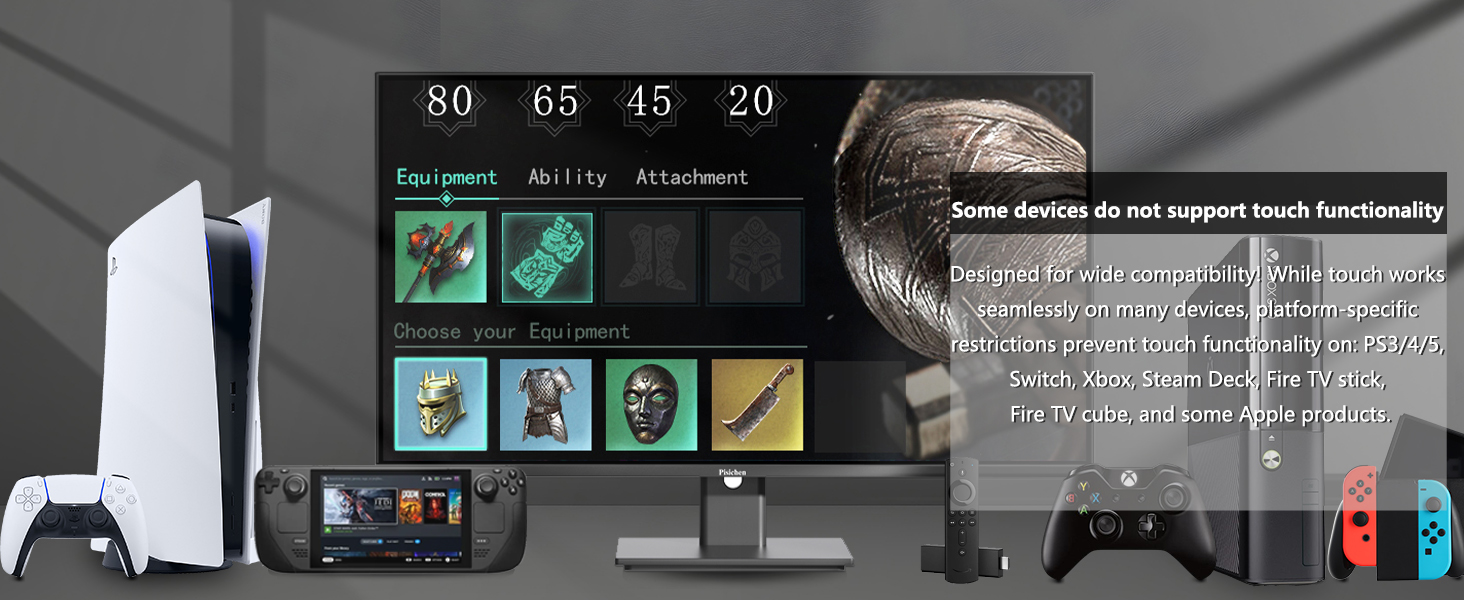
Figure 12: Devices that do not support touch functionality.
Webکیمرے کا پتہ نہیں چلا
- یقینی بنائیں webcam is fully popped up.
- Verify that the USB connection (either USB-C or USB-A to USB-B) is properly established.
- Check your operating system's privacy settings to ensure camera access is granted to applications.
- اپنے کمپیوٹر کو دوبارہ شروع کریں۔
وضاحتیں
| فیچر | تفصیل |
|---|---|
| ماڈل نمبر | 238TS-CMR |
| اسکرین کا سائز | 23.8 انچ |
| قرارداد | 2560 x 1440 (QHD وائڈ 1440p) |
| ریفریش ریٹ | 100Hz |
| چمک | 400 کینڈیلا (نٹس) |
| کنٹراسٹ ریشو | 3000:1 |
| ٹچ ٹکنالوجی | 10 پوائنٹ ملٹی ٹچ |
| Webکیمرے | Built-in Pop-up Camera |
| کنیکٹوٹی | HDMI, DisplayPort (DP), USB Type-C, USB-B (upstream), Audio Out, DC Power |
| پہلو کا تناسب | 16:9 |
| اسکرین کی سطح | چمکدار |
| مصنوعات کے طول و عرض | 1.97 x 21.26 x 12.6 انچ |
| شے کا وزن | 11.53 پاؤنڈ |
| کارخانہ دار | Shenzhen Konowa Electronics Co., LTD |
وارنٹی اور سپورٹ
Your Pisichen monitor is covered by a limited warranty. Please refer to the warranty card included in your package for specific terms and conditions, including the warranty period and coverage details.
For technical support, troubleshooting assistance, or warranty claims, please contact Pisichen customer service. Contact information can typically be found on the manufacturer's webسائٹ یا وارنٹی کارڈ پر۔
When contacting support, please have your monitor's model number (238TS-CMR) and purchase information readily available.