
1. تعارف
This manual provides essential information for the proper setup, operation, and maintenance of your Pisichen 24 Inch Touchscreen Monitor (Model 24INSXT-1080P). Please read this manual thoroughly before using the product to ensure optimal performance and safety. Keep this manual for future reference.

Image 1.1: The Pisichen 24 inch touchscreen monitor, featuring a built-in webcam and a sleek design.
2. پیکیج کے مشمولات
Verify that all items are present in the package. If any items are missing or damaged, contact your retailer for assistance.
- Pisichen 24 Inch Touchscreen Monitor
- Power Adapter (DC)
- HDMI کیبل
- وی جی اے کیبل
- USB-C کیبل
- صارف دستی
3. سیٹ اپ ہدایات
3.1 فزیکل سیٹ اپ
اسٹینڈ کو جوڑنا: Carefully place the monitor face down on a soft, clean surface. Align the stand base with the monitor's mounting points and secure it with the provided screws. Ensure the stand is firmly attached before proceeding.
VESA ماؤنٹنگ: This monitor supports VESA 100mm x 100mm mounting. If you plan to use a VESA-compatible arm or wall bracket, remove the stand and attach the monitor to your VESA mount according to the mount's instructions.

Image 3.1: The monitor's adjustable stand allows for height, tilt, swivel, and 90-degree pivot adjustments.
3.2 ڈیوائس سے جڑنا
The monitor offers multiple connectivity options. Ensure the monitor is powered off before making any connections.
- پاور کنکشن: Connect the DC power adapter to the monitor's DC Power Port and then plug it into a power outlet.
- ویڈیو کنکشن: درج ذیل اختیارات میں سے ایک کو منتخب کریں:
- HDMI: Connect one end of the HDMI cable to the monitor's HDMI Port and the other end to your computer's HDMI output.
- وی جی اے: Connect one end of the VGA cable to the monitor's VGA Port and the other end to your computer's VGA output.
- USB-C: Connect one end of the USB-C cable to the monitor's Type C Port and the other end to your computer's USB-C port. Ensure your computer's USB-C port supports DisplayPort Alternate Mode for video output. This connection also supports touch functionality and data transfer.
- آڈیو کنکشن: If using HDMI or USB-C, audio will typically transmit automatically. For other setups or external speakers, use the Audio Port.

تصویر 3.2: تفصیلی view of the monitor's rear ports, including HDMI, VGA, Type C, DC Power, and Audio ports.
3.3 Touchscreen and Webکیم سیٹ اپ
For touchscreen functionality and webcam operation, ensure the USB-C cable is connected between the monitor and your computer, or a separate USB-A to USB-B cable (not always included, check package contents) is connected from the monitor's upstream USB port to your computer. Most operating systems will automatically detect and install the necessary drivers.

Image 3.3: Compatibility chart for touchscreen functionality. Multi-touch is supported on laptops, smartphones, tablets, all-in-one PCs, and desktop hosts. Single-touch is supported on MacBooks. Touch functionality is not supported on iPhones, iPads, Nintendo Switch, Xbox, PlayStation consoles, Fire TV devices, and Steam Deck.
4. آپریٹنگ ہدایات
4.1 پاور آن/آف
اسے آن یا آف کرنے کے لیے مانیٹر پر موجود پاور بٹن کو دبائیں۔ مانیٹر کے فعال ہونے پر پاور انڈیکیٹر لائٹ روشن ہو جائے گی۔
4.2 ٹچ اسکرین کا استعمال
The monitor features a 10-point multi-touch screen for intuitive interaction. Use gestures such as tapping, swiping, pinching to zoom, and dragging, similar to a tablet or smartphone. Ensure your operating system is configured for touch input.

Image 4.1: Demonstrating precise and fluid interaction with the 10-point multi-touch screen.
4.3 Webcam and Microphone Usage
بلٹ میں webcam and microphone are designed for video conferencing and online communication. Once connected via USB-C or a dedicated USB cable, they should be automatically recognized by your computer's operating system and video conferencing applications. Adjust privacy settings within your operating system or application as needed.

Image 4.2: The integrated webcam facilitates clear video calls and online meetings.
4.4 ڈسپلے ایڈجسٹمنٹ
The monitor's stand allows for various ergonomic adjustments:
- اونچائی ایڈجسٹمنٹ: مانیٹر کو اپنی پسند کے مطابق اٹھائیں یا کم کریں۔ viewاونچائی.
- جھکاؤ: بہترین کے لیے اسکرین کے عمودی زاویہ (آگے یا پیچھے) کو ایڈجسٹ کریں۔ viewing
- کنڈا: Rotate the monitor horizontally (left or right) on its base.
- محور: Rotate the screen 90 degrees to switch between landscape and portrait modes. This is useful for coding, document review, or specific creative tasks.
4.5 آن اسکرین ڈسپلے (OSD) مینو
The OSD menu allows you to adjust various display settings such as brightness, contrast, color temperature, input source, and audio volume. Access the OSD menu using the buttons located on the monitor (refer to the physical layout for exact button locations).
5 دیکھ بھال
5.1 مانیٹر کی صفائی
مانیٹر اسکرین کو صاف کرنے کے لیے، نرم، لنٹ سے پاک کپڑے سے اسے آہستہ سے صاف کریں۔ ضدی نشانات کے لیے، ہلکے سے ڈیampen the cloth with water or a non-abrasive screen cleaner. Avoid using alcohol, ammonia, or abrasive cleaners, as these can damage the screen surface. For the monitor casinجی، نرم، خشک کپڑا استعمال کریں۔
5.2 اسٹوریج
When storing the monitor for an extended period, ensure it is powered off and disconnected from all cables. Store it in a cool, dry place, preferably in its original packaging, to protect it from dust and physical damage.
6 خرابیوں کا سراغ لگانا
اگر آپ کو اپنے مانیٹر کے ساتھ مسائل کا سامنا کرنا پڑتا ہے، تو درج ذیل عام مسائل اور حل دیکھیں:
| مسئلہ | ممکنہ وجہ | حل |
|---|---|---|
| اسکرین پر کوئی تصویر نہیں ہے | Power cable loose; Video cable loose or incorrect input selected; Monitor is off. | Check power connections; Ensure video cable is securely connected and correct input source is selected via OSD; Press power button. |
| ٹچ اسکرین جواب نہیں دے رہی ہے۔ | USB-C cable not connected or not supporting data; Drivers not installed; Device not compatible with touch. | Ensure USB-C cable is fully connected and supports data/touch; Check device compatibility (refer to Image 3.3); Restart computer. |
| Webcam/Microphone not working | USB-C cable not connected or not supporting data; Privacy settings blocking access; Drivers not installed. | Verify USB-C connection; Check privacy settings in your operating system and application; Restart computer. |
| مانیٹر اسپیکر سے کوئی آواز نہیں ہے۔ | Volume too low; Incorrect audio output selected on computer; Audio cable not connected (if applicable). | Adjust monitor volume via OSD; Select monitor as audio output in computer settings; Ensure audio cable is connected if using VGA. |
| Screen flickers or displays distorted image | Loose video cable; Incorrect resolution/refresh rate; Interference. | Check video cable connection; Adjust display settings on your computer to 1920x1080 at 60Hz; Move away from other electronic devices. |
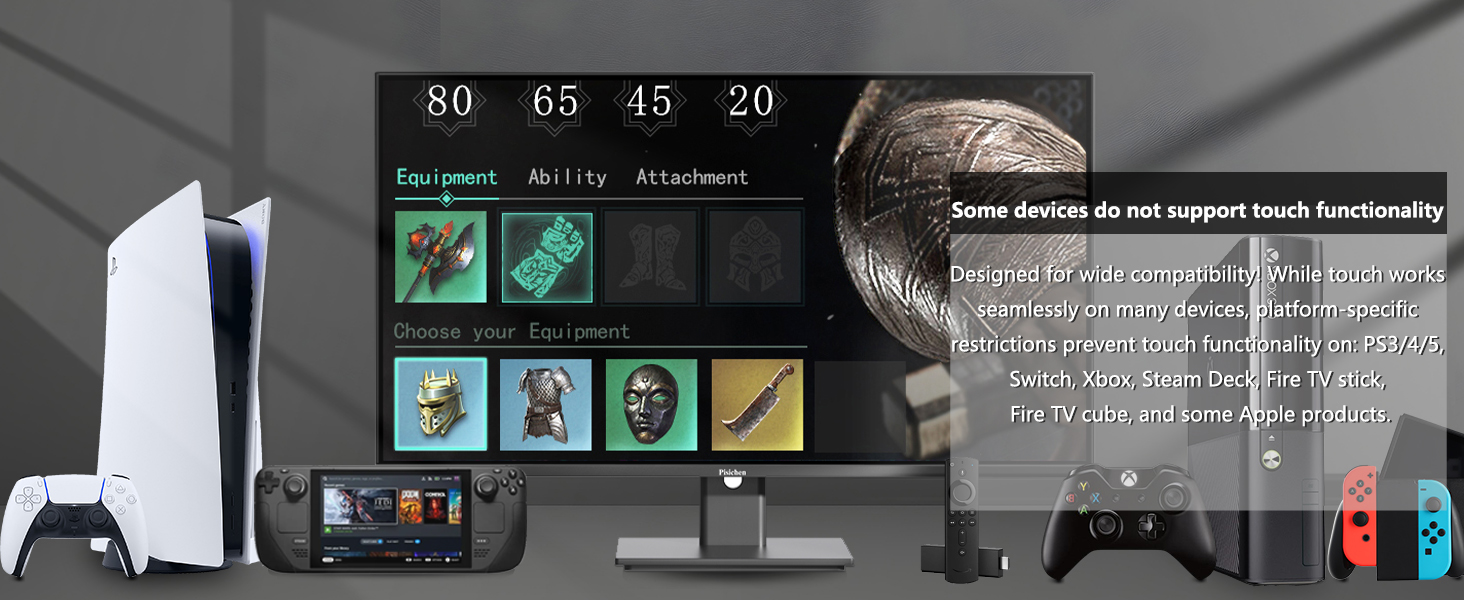
Image 6.1: Some devices, such as specific game consoles (PS3/4/5, Xbox, Steam Deck) and certain Apple products, do not support touch functionality with this monitor due to platform-specific restrictions.
7. وضاحتیں
| فیچر | تفصیلات |
|---|---|
| ماڈل نمبر | 24INSXT-1080P |
| اسکرین کا سائز | 23.8 انچ |
| قرارداد | FHD 1920 x 1080p |
| ڈسپلے ٹیکنالوجی | آئی پی ایس ایل ای ڈی |
| ریفریش ریٹ | 60 Hz |
| چمک | 400 کینڈیلا |
| کنٹراسٹ ریشو | 3000:1 |
| رسپانس ٹائم | 5 ملی سیکنڈز |
| ٹچ اسکرین | 10-Point Multi-touch |
| کنیکٹوٹی | 1x HDMI, 1x VGA, 1x USB 3.1 Type C, Audio Port, DC Power Port |
| اضافی خصوصیات | Built-In Speakers, Built-In Webcam, Swivel Adjustment, Tilt Adjustment, Height Adjustment, Pivot (90-degree rotation) |
| VESA مطابقت | 100 ملی میٹر x 100 ملی میٹر |
| ابعاد (D x W x H) | 1.97"D x 21.26"W x 12.6"H (Monitor only, without stand) |

Image 7.1: Detailed product dimensions for the Pisichen 24 Inch Touchscreen Monitor.
8. وارنٹی اور سپورٹ
8.1 وارنٹی کی معلومات
This product comes with a limited warranty. Please refer to the warranty card included in your package or contact Pisichen customer support for detailed warranty terms and conditions. The warranty typically covers manufacturing defects for a specified period from the date of purchase.
8.2 کسٹمر سپورٹ
For technical assistance, troubleshooting not covered in this manual, or warranty claims, please contact Pisichen customer support. Contact information can usually be found on the product packaging, the official Pisichen webسائٹ، یا آپ کی خریداری کی دستاویزات۔