
1. تعارف
Thank you for choosing the Pisichen 27-inch 4K UHD Touchscreen Monitor with Webcam. This manual provides essential information for the safe and efficient operation of your new monitor. Please read it thoroughly before use and retain it for future reference.
2. حفاظتی معلومات
- طاقت کا منبع: Use only the power adapter supplied with the monitor. Ensure the power outlet meets the voltage کی ضروریات.
- وینٹیلیشن: وینٹیلیشن کے سوراخوں کو مسدود نہ کریں۔ مناسب ہوا کے بہاؤ کے لیے مانیٹر کے ارد گرد مناسب جگہ کی اجازت دیں۔
- مائع کی نمائش: مانیٹر کو مائعات سے دور رکھیں۔ اسے بارش یا نمی سے بے نقاب نہ کریں۔
- صفائی: Disconnect the power cable before cleaning. Use a soft, dry cloth. Avoid abrasive cleaners.
- جگہ کا تعین: مانیٹر کو ایک مستحکم، چپٹی سطح پر رکھیں تاکہ اسے گرنے سے روکا جا سکے۔
- سروسنگ: خود مانیٹر کی خدمت کرنے کی کوشش نہ کریں۔ تمام خدمات کو اہل اہلکاروں سے رجوع کریں۔
3. پیکیج کے مشمولات
براہ کرم پیک کھولنے پر پیکیج کے مواد کو چیک کریں۔ اگر کوئی چیز غائب یا خراب ہو تو اپنے خوردہ فروش سے رابطہ کریں۔
- Pisichen 27-inch 4K UHD Touchscreen Monitor
- مانیٹر اسٹینڈ (بیس اور بازو)
- پاور اڈاپٹر
- HDMI کیبل
- USB-B to USB-A Cable (for Touch Function)
- صارف دستی
4. پروڈکٹ ختمview
4.1 کلیدی خصوصیات
- Ultra HD 4K Touchscreen Display: 27-inch 4K Ultra HD screen with vibrant colors, sharp details, and wide viewing angles. Features a responsive 10-point touchscreen for intuitive control.
- Built-in High-Definition Webکیمرے: مربوط webcam for video calls, online meetings, and streaming, reducing desk clutter.
- ورسٹائل کنیکٹیویٹی: Multiple ports including HDMI, DisplayPort, and USB-C for easy connections to various devices. Supports both touch and traditional input.
- Optimized for Productivity and Creativity: Large 4K touch display for precise control and streamlined workflows, ideal for graphic designers, content creators, and multitasking.
- Sleek and Functional Design: Modern design with an adjustable stand for optimal viewing angles and comfort during extended use.
4.2 مانیٹر پورٹس
The monitor features various ports for connecting to your devices. Refer to the image below for port identification.
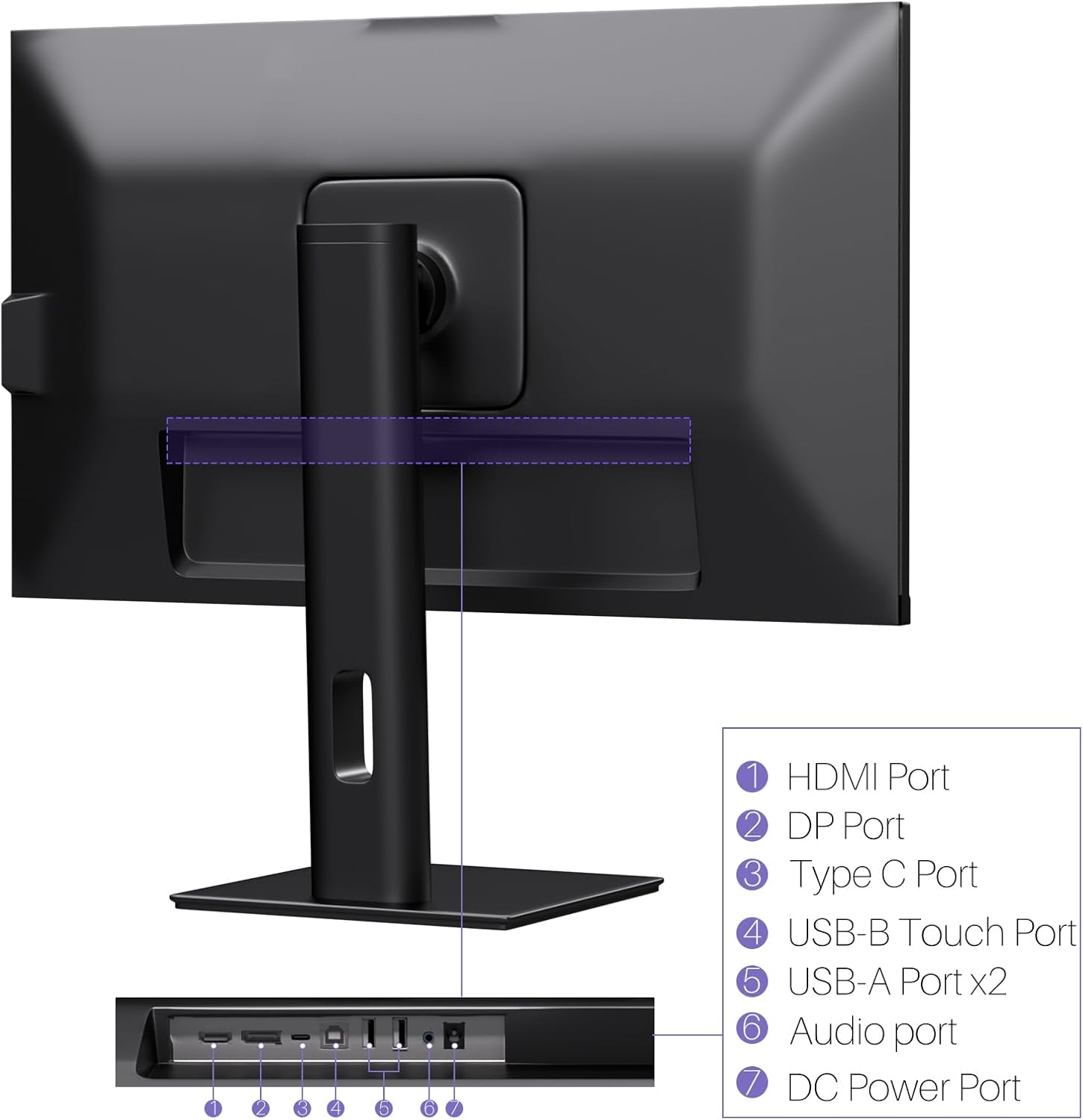
تصویر: پیچھے view of the monitor displaying the HDMI, DP, Type-C, USB-B Touch, USB-A, Audio, and DC Power ports.
- HDMI پورٹ: Connects to devices via HDMI cable for video and audio input.
- ڈی پی پورٹ: Connects to devices via DisplayPort cable for video and audio input.
- قسم سی پورٹ: Connects to devices via USB-C cable for video, audio, and power delivery. (Requires USB-C port on signal device to support DisplayPort Alternate Mode for touch functionality).
- USB-B Touch Port: Connects to your computer via USB-B to USB-A cable to enable touchscreen functionality.
- USB-A پورٹ (x2): For connecting USB peripherals.
- آڈیو پورٹ: بیرونی آڈیو آلات کو جوڑنے کے لیے۔
- ڈی سی پاور پورٹ: پاور اڈاپٹر سے جوڑتا ہے۔
5. سیٹ اپ ہدایات
5.1 اسٹینڈ کو جمع کرنا
- پیکیجنگ سے مانیٹر اور اسٹینڈ کے اجزاء کو احتیاط سے ہٹا دیں۔
- Attach the stand arm to the monitor's VESA mounting points.
- Secure the stand base to the arm using the provided screws.
- Ensure all connections are tight and the monitor is stable.
5.2 ڈیوائس سے جڑنا
The monitor supports various connection types. Choose the appropriate cable for your device.

Image: Connection diagrams illustrating how to connect the monitor as a secondary display (HDMI/DP + DC), a touchscreen monitor (HDMI/DP + USB-B + DC), or via USB-C (USB-C + DC).
- For Video and Audio (Non-Touch): Connect an HDMI or DisplayPort cable from your computer to the corresponding port on the monitor.
- For Video, Audio, and Touch (Windows PC): Connect an HDMI or DisplayPort cable for video/audio. Additionally, connect the USB-B to USB-A cable from the monitor's USB-B Touch Port to a USB-A port on your computer.
- For Video, Audio, and Touch (USB-C Compatible Device): Connect a USB-C cable from your device to the monitor's Type-C port. Ensure your device's USB-C port supports DisplayPort Alternate Mode for touch functionality.
5.3 پاور کنکشن
- Connect the power adapter to the monitor's DC Power Port.
- پاور اڈاپٹر کو وال آؤٹ لیٹ میں لگائیں۔
6. آپریٹنگ ہدایات
6.1 پاور آن/آف
اسے آن یا آف کرنے کے لیے مانیٹر پر موجود پاور بٹن کو دبائیں۔
6.2 آن اسکرین ڈسپلے (OSD) مینو
Use the control buttons (typically located on the back or bottom of the monitor) to navigate the OSD menu. This menu allows you to adjust settings such as brightness, contrast, color temperature, input source, and other display parameters.
6.3 ٹچ اسکرین کی فعالیت
The monitor features a 10-point multi-touch screen. Ensure the USB-B to USB-A cable (or USB-C cable for compatible devices) is connected to enable touch functionality.

Image: A user's hand interacting with the monitor screen, highlighting the responsive 10-point touch experience.
- Basic Touch: Tap to click, swipe to scroll.
- ملٹی ٹچ اشارے: Use two fingers to zoom in/out, rotate, or pan, depending on the application.
- Touch Calibration (Windows Only): If the cursor does not align with your touch, calibration may be required. Go to Control Panel > Hardware and Sound > Tablet PC Settings > Calibrate. Follow the on-screen prompts.
6.4 بلٹ ان کا استعمال Webکیمرے
مربوط webcam is automatically detected by most operating systems and video conferencing applications. No additional drivers are typically required.

Image: The monitor displaying a video conference call, showcasing its integrated webcam for seamless communication.
- اپنا پسندیدہ ویڈیو کانفرنسنگ سافٹ ویئر کھولیں (مثلاً زوم، مائیکروسافٹ ٹیمز، اسکائپ)۔
- Select the integrated webcam as your video input device in the application's settings.
6.5 Adjusting Display Resolution
To set the resolution of the monitor (Windows):
- Right-click on your desktop and select "Display Settings."
- Find your monitor (if multiple displays are connected).
- Under "Display resolution," select the recommended resolution of 3840 x 2160.
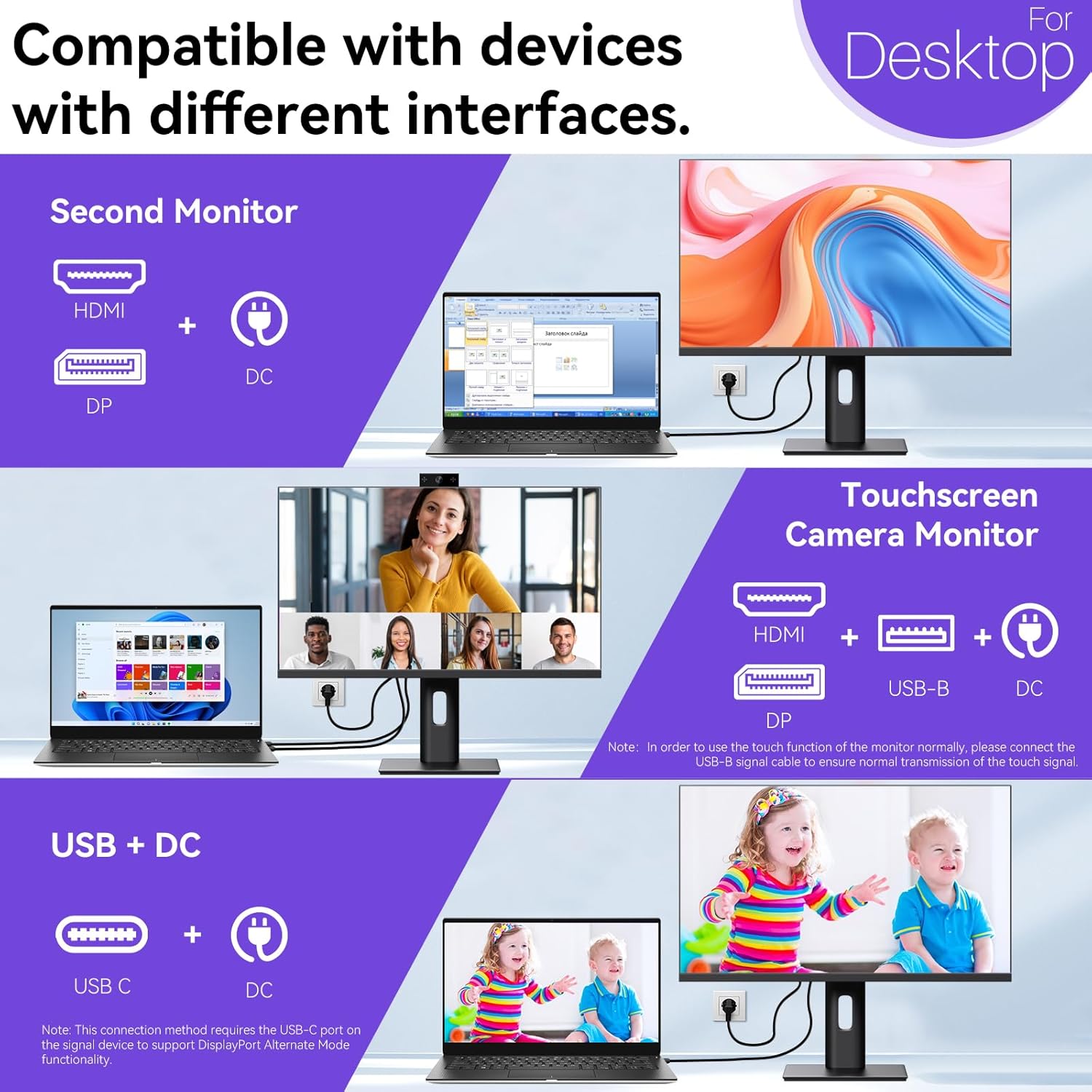
Image: A visual comparison demonstrating the superior clarity of 4K UHD (3840x2160) compared to FHD (1920x1080) and QHD (2560x1440) resolutions.
7 دیکھ بھال
- سکرین کی صفائی: نرم، لنٹ فری کپڑے سے اسکرین کو آہستہ سے صاف کریں۔ ضدی نشانات کے لیے، ہلکے سے ڈیampur پانی کے ساتھ کپڑے یا اسکرین کے لیے مخصوص صفائی کا محلول۔ مائع کو براہ راست اسکرین پر نہ چھڑکیں۔
- سی کی صفائیasing: مانیٹر کو صاف کرنے کے لیے نرم، خشک کپڑا استعمال کریں۔asing.
- ذخیرہ: اگر مانیٹر کو لمبے عرصے کے لیے اسٹور کر رہے ہیں، تو اسے پاور سے منقطع کریں، اسے اس کی اصل پیکیجنگ میں پیک کریں، اور اسے ٹھنڈی، خشک جگہ پر اسٹور کریں۔
8 خرابیوں کا سراغ لگانا
If you encounter issues with your monitor, refer to the following troubleshooting guide. For problems not listed, please contact customer support.
| مسئلہ | ممکنہ وجہ | حل |
|---|---|---|
| اسکرین پر کوئی تصویر نہیں ہے | پاور کیبل منقطع؛ ویڈیو کیبل منقطع غلط ان پٹ سورس کا انتخاب کیا گیا۔ | Ensure power cable is securely connected. Check video cable (HDMI/DP/USB-C) connections. Select correct input source via OSD menu. |
| ٹچ اسکرین جواب نہیں دے رہی ہے۔ | USB-B cable not connected; USB-C port not supporting DisplayPort Alternate Mode; Device incompatibility (e.g., iPhone). | Ensure the USB-B to USB-A cable is connected from the monitor to your computer. If using USB-C, verify your device's USB-C port supports DisplayPort Alternate Mode. Note: Touch function is not supported when connected to an iPhone due to iOS system restrictions. |
| Cursor moves incorrectly (Windows) | Touchscreen calibration required. | Perform touchscreen calibration: Go to Control Panel > Hardware and Sound > Tablet PC Settings > Calibrate. |
| Webکیمرے کا پتہ نہیں چلا | USB connection issue; Software settings. | Ensure all necessary USB cables are connected. Check your application's settings to select the correct webکیمرے. |
9. وضاحتیں
| فیچر | تفصیل |
|---|---|
| برانڈ | Pisichen |
| ماڈل نمبر | 27INTSCMR-4K |
| اسکرین کا سائز | 27 انچ |
| قرارداد | 3840 x 2160 پکسلز (4K UHD 2160p) |
| پہلو کا تناسب | 16:9 |
| تصویر کی چمک | 400 کینڈیلا |
| اسکرین کی سطح کی تفصیل | چمکدار |
| مصنوعات کے طول و عرض | 14.37 x 24.21 x 16.54 انچ |
| شے کا وزن | 16.59 پاؤنڈ |
| کارخانہ دار | Shenzhen Konowa Electronics Co., LTD |
| کنیکٹوٹی | HDMI, DisplayPort, USB-C, USB-B (for touch), USB-A (x2), Audio Port |
10. وارنٹی اور سپورٹ
This product comes with a manufacturer's warranty. Please refer to the warranty card included in your package for specific terms and conditions. For technical support or inquiries, please contact Pisichen customer service at support_2308@163.com. When contacting support, please provide your model number and a detailed description of the issue, including any relevant pictures or videos.