
1. تعارف
The Huawei OptiXstar K251a-21 is a sub-FTTR (Fiber to the Room) unit designed to extend the high-speed network provided by the Huawei FTTR OptiXstar F50 Plus main unit. This device supports ultra-Gigabit high-speed access via upstream fiber optic lines and delivers Ultra Gigabit dual-band Wi-Fi and ultra-Gigabit network ports to users. It integrates next-generation Wi-Fi 7 technology for higher speeds and lower latency, ensuring a superior home network experience.
2. حفاظتی معلومات
Please read and understand all safety instructions before using this device. Failure to follow these instructions may result in injury, damage to the device, or property damage.
- صرف ڈیوائس کے ساتھ فراہم کردہ پاور اڈاپٹر استعمال کریں۔
- آلے کو پانی، نمی، یا انتہائی درجہ حرارت کے سامنے نہ رکھیں۔
- آلہ کو گرمی کے ذرائع کے قریب یا براہ راست سورج کی روشنی میں رکھنے سے گریز کریں۔
- زیادہ گرمی سے بچنے کے لیے مناسب وینٹیلیشن کو یقینی بنائیں۔
- Do not attempt to open or repair the device yourself. Contact qualified service personnel for assistance.
- آلے کو بچوں اور پالتو جانوروں سے دور رکھیں۔
3. پیکیج کے مشمولات
تصدیق کریں کہ تمام اشیاء آپ کے پیکیج میں موجود ہیں:
- Huawei OptiXstar K251a-21 Sub FTTR Device
- پاور کیبل
- فوری آغاز گائیڈ (اگر شامل ہو)
4. پروڈکٹ ختمview
ڈیوائس کے اجزاء اور اشارے سے خود کو واقف کرو۔
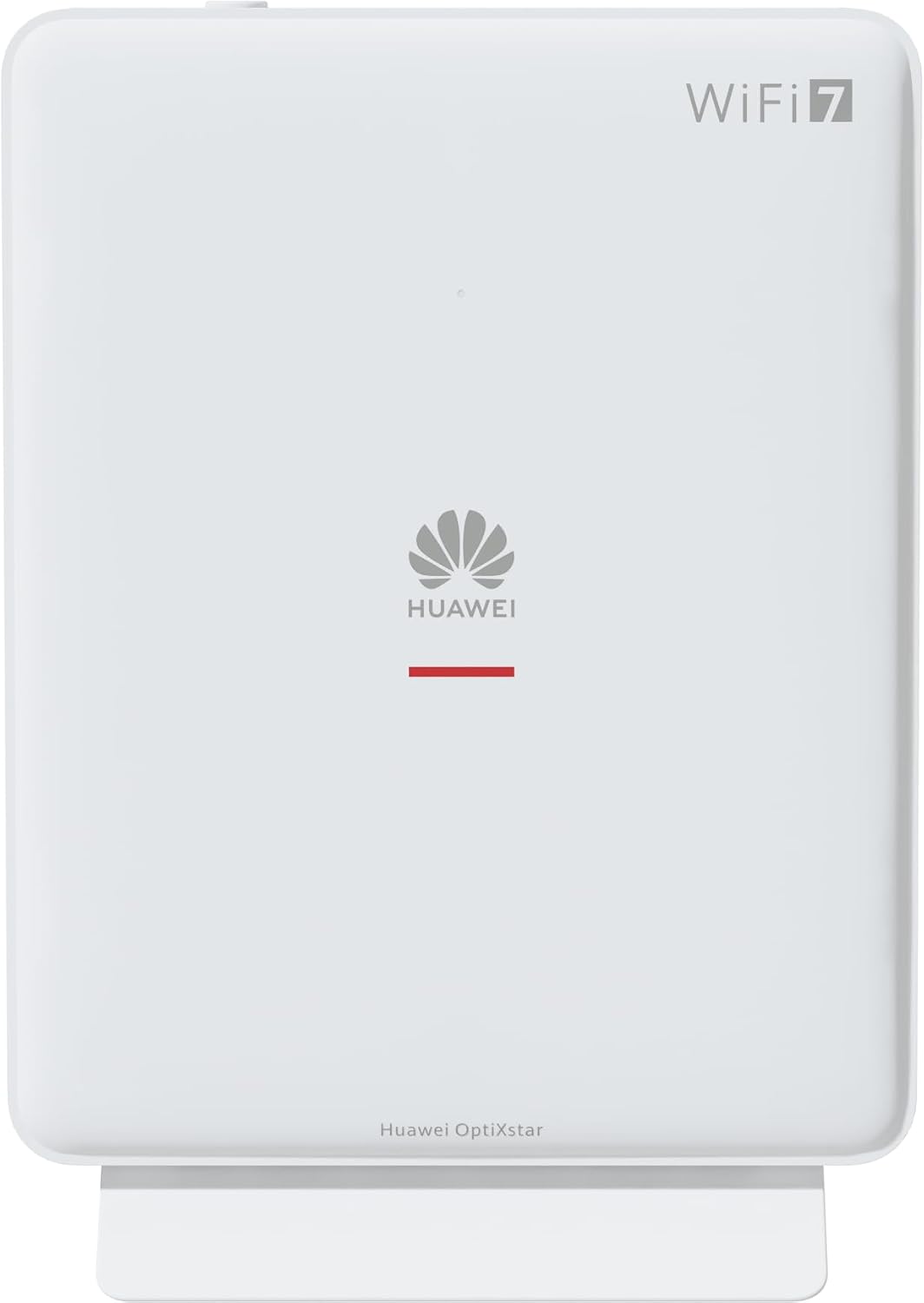
شکل 1: سامنے view of the Huawei OptiXstar K251a-21 Sub FTTR device, showing the Huawei logo and "WiFi 7" branding.

شکل 2: سامنے کا زاویہ view of the Huawei OptiXstar K251a-21 Sub FTTR, highlighting its sleek design and ventilation.

شکل 3: پیچھے view of the Huawei OptiXstar K251a-21 Sub FTTR, displaying the ports (Reset, 2-GE, 1-2.5GE, Power, FTTR) and mounting options.

شکل 4: سائیڈ پروfile of the Huawei OptiXstar K251a-21 Sub FTTR, showing its slim form factor and ventilation grilles.

شکل 5: زاویہ والا پیچھے view of the Huawei OptiXstar K251a-21 Sub FTTR, providing a clear look at the port labels and layout.

تصویر 6: اوپر view of the Huawei OptiXstar K251a-21 Sub FTTR, featuring the WPS/LED button.
بندرگاہیں اور بٹن:
- FTTR Port: Connects to the main FTTR unit via a fiber optic cable.
- 1-2.5GE Port: Gigabit Ethernet port for high-speed wired connections.
- 2-GE Port: Gigabit Ethernet port for wired connections.
- پاور پورٹ: پاور اڈاپٹر سے جوڑتا ہے۔
- ری سیٹ بٹن: Used to restore factory settings (press and hold for 5-10 seconds).
- WPS/LED Button: Initiates Wi-Fi Protected Setup (WPS) for easy device connection and controls LED indicators.
5. سیٹ اپ
Follow these steps to set up your Huawei OptiXstar K251a-21 Sub FTTR device:
- جگہ کا تعین: Choose a central location in your home for optimal Wi-Fi coverage. The device is suitable for various installation scenarios, including vertical placement on a desk, wall-mounting, plugging into a power strip, or mounting in an 86mm junction box with a bracket.
- فائبر آپٹک کیبل کو جوڑیں: Connect one end of the fiber optic cable to the FTTR port on the Sub FTTR unit and the other end to the corresponding FTTR port on your Huawei FTTR OptiXstar F50 Plus main unit or wall outlet. Ensure the connection is secure.
- پاور سے رابطہ کریں: Plug the power adapter into the Power port on the Sub FTTR unit, then plug the other end into a power outlet.
- پاور آن: The device will automatically power on. Wait for the indicator lights to stabilize, typically indicating a successful connection to the main FTTR unit and active Wi-Fi.
- Wired Connections (Optional): For wired devices, connect an Ethernet cable from the 1-2.5GE or 2-GE ports on the Sub FTTR to your computer, gaming console, or other network devices.
6. آپریٹنگ
Once set up, your OptiXstar K251a-21 provides seamless Wi-Fi 7 connectivity.
- وائی فائی کنکشن: تلاش کریں۔ the Wi-Fi network name (SSID) broadcast by your FTTR system on your devices (smartphones, laptops, etc.). Enter the Wi-Fi password. The system's unique SRCN (Seamless Roaming Coordinate Network) technology ensures seamless roaming throughout your home.
- C-WAN Architecture: The C-WAN architecture centrally controls and coordinates network-wide Wi-Fi resources via the Main FTTR, providing an ultra-Gigabit high-speed experience.
- IoT Casing: The device features an IoT casing designed to protect home network security and privacy.
- WPS فنکشن: Press the WPS/LED button briefly to use Wi-Fi Protected Setup (WPS) for quick connection of compatible devices without entering the password.
- ایل ای ڈی اشارے: The LED indicators provide status information. Refer to the main FTTR unit's manual or the device's specific documentation for detailed LED status meanings.
7 دیکھ بھال
Regular maintenance helps ensure optimal performance and longevity of your device.
- صفائی: Gently wipe the device with a soft, dry cloth. Do not use liquid cleaners or abrasive materials.
- فرم ویئر اپ ڈیٹس: Huawei periodically releases firmware updates to improve performance and security. These updates are typically managed through the main FTTR unit or a dedicated mobile application. Ensure your system is always running the latest firmware.
- وینٹیلیشن: اس بات کو یقینی بنائیں کہ زیادہ گرمی سے بچنے کے لیے وینٹیلیشن کے سوراخوں کو مسدود نہیں کیا گیا ہے۔
- کیبل مینجمنٹ: Keep fiber optic and power cables neatly organized and free from kinks or excessive bending.
8 خرابیوں کا سراغ لگانا
اگر آپ کو مسائل کا سامنا کرنا پڑتا ہے، تو درج ذیل ٹربل شوٹنگ کے اقدامات کو آزمائیں۔
- کوئی طاقت نہیں: Check if the power cable is securely connected to both the device and the power outlet. Try a different outlet.
- کوئی انٹرنیٹ کنکشن نہیں:
- Verify that the fiber optic cable is correctly connected to the FTTR port.
- Check the status indicators on both the Sub FTTR and the main FTTR unit.
- Restart both the Sub FTTR and the main FTTR unit by unplugging them from power for 30 seconds and then plugging them back in.
- Ensure your main FTTR unit has an active internet connection.
- سست وائی فائی رفتار:
- Ensure the device is placed optimally, away from obstructions and interference sources.
- Check if too many devices are connected to the network.
- Update the firmware of your FTTR system.
- Consider using a wired connection for bandwidth-intensive tasks.
- Wi-Fi سے کنیکٹ نہیں ہو سکتا:
- تصدیق کریں کہ آپ درست وائی فائی پاس ورڈ درج کر رہے ہیں۔
- Try using the WPS button to connect.
- Restart your device and the Sub FTTR unit.
- از سرے نو ترتیب: If issues persist, you may need to perform a factory reset. With the device powered on, use a pointed object (like a paperclip) to press and hold the Reset button for 5-10 seconds until the indicators change. Note that this will erase all custom settings.
9. وضاحتیں
| فیچر | تفصیلات |
|---|---|
| برانڈ | HUAWEI |
| ماڈل نمبر | K8M251a-21G02 |
| طول و عرض (پیکیج) | 24.5 x 23.7 x 7.4 سینٹی میٹر |
| وزن (پیکیج) | 300 گرام |
| خصوصی خصوصیت | انٹرنیٹ سیکیورٹی |
| فریکوئنسی بینڈ کلاس | ڈوئل بینڈ |
| وائرلیس مواصلات کا معیار | 802.11ax (Wi-Fi 7 Generation) |
| ہم آہنگ آلات | پرسنل کمپیوٹر |
| تجویز کردہ استعمال | گھر |
| شامل اجزاء | پاور کیبل |
| کنیکٹوٹی ٹیکنالوجی | Ethernet, FTTR, Wi-Fi, Fiberglass |
| رنگ | سفید |
| بندرگاہوں کی تعداد | 4 (FTTR, 1-2.5GE, 2-GE, Power) |
| ڈیٹا کی منتقلی کی شرح | 1 Gigabits per second |
| اسمارٹ ہوم مطابقت | Compatible with smart home systems |
| انٹرنیٹ کنیکٹیویٹی | جی ہاں |
| کنیکٹیویٹی پروٹوکول | وائی فائی |
10. وارنٹی اور سپورٹ
وارنٹی معلومات اور تکنیکی مدد کے لیے، براہ کرم آفیشل Huawei سے رجوع کریں۔ website or contact your local Huawei customer service. Keep your purchase receipt for warranty claims.
آن لائن وسائل: Visit the official Huawei support webاکثر پوچھے گئے سوالات، تازہ ترین کتابچے، اور سافٹ ویئر ڈاؤن لوڈز کے لیے سائٹ۔
کسٹمر سروس: Contact details for customer support can typically be found on the Huawei website or in the documentation provided with your main FTTR unit.