تعارف
This manual provides essential information for the installation, operation, maintenance, and troubleshooting of your NVIDIA 699-51030-0501-101 graphics card. This component is designed for desktop computer systems to enhance graphics processing capabilities. Please read this manual thoroughly before proceeding with installation or use.
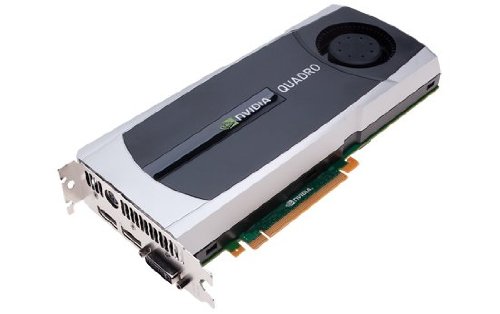
Image: NVIDIA 699-51030-0501-101 Graphics Card. This image displays the graphics card from an angled perspective, showing the cooling fan, heatsink, and the PCIe connector.
حفاظتی رہنما خطوط
پروڈکٹ کو پہنچنے والے نقصان یا اپنے آپ کو چوٹ سے بچانے کے لیے درج ذیل حفاظتی تدابیر پر عمل کریں:
- Always disconnect power from your computer before installing or removing any components.
- جامد بجلی کو خارج کرنے کے لیے اینٹی سٹیٹک کلائی کا پٹا پہنیں یا زمینی دھات کی کسی چیز کو بار بار چھویں۔
- حساس اجزاء کو چھونے سے بچنے کے لیے گرافکس کارڈ کو اس کے کناروں سے ہینڈل کریں۔
- زیادہ گرمی سے بچنے کے لیے اپنے کمپیوٹر کیس کے اندر مناسب وینٹیلیشن کو یقینی بنائیں۔
- مصنوعات کو نمی اور انتہائی درجہ حرارت سے دور رکھیں۔
سیٹ اپ
1. Pre-installation Checks
- تصدیق کریں کہ آپ کے پاور سپلائی یونٹ (PSU) میں واٹ کافی ہے۔tage and appropriate connectors for the graphics card.
- Ensure your motherboard has an available PCI Express (PCIe) x16 slot.
- Confirm your computer case has adequate space for the graphics card dimensions.
- ضروری اوزار جمع کریں: فلپس ہیڈ سکریو ڈرایور، اینٹی سٹیٹک کلائی کا پٹا (تجویز کردہ)۔
2. ہارڈ ویئر کی تنصیب
- پاور آف اور منقطع: اپنے کمپیوٹر کو مکمل طور پر بند کریں اور وال آؤٹ لیٹ سے پاور کورڈ کو ان پلگ کریں۔
- اوپن کیس: مدر بورڈ تک رسائی کے لیے اپنے کمپیوٹر کیس کے سائیڈ پینل کو ہٹا دیں۔
- PCIe سلاٹ تلاش کریں: Identify an available PCI Express x16 slot on your motherboard. This is typically the longest slot.
- سلاٹ کور کو ہٹا دیں: Remove the metal slot cover(s) from the back of your computer case corresponding to the PCIe slot you will use.
- گرافکس کارڈ داخل کریں: Carefully align the graphics card with the PCIe slot. Press down firmly and evenly on both ends of the card until it is fully seated in the slot. You should hear a click from the retention clip.
- محفوظ کارڈ: Secure the graphics card to the computer case using the screw(s) removed from the slot cover(s).
- پاور کو جوڑیں (اگر قابل اطلاق ہو): If your graphics card requires additional power, connect the appropriate PCIe power cables from your PSU to the graphics card. This model (NVIDIA 699-51030-0501-101) may not require external power, but always check the card itself for connectors.
- بند کیس: اپنے کمپیوٹر کیس کے سائیڈ پینل کو تبدیل کریں۔
- Reconnect Peripherals: Reconnect your monitor cable to one of the display outputs on the new graphics card. Reconnect all other peripherals and the power cord.
3 ڈرائیور کی تنصیب
- پاور آن: اپنا کمپیوٹر آن کریں۔
- ڈرائیورز ڈاؤن لوڈ کریں: سرکاری NVIDIA پر جائیں۔ webسائٹ (www.nvidia.com/drivers) and download the latest drivers compatible with your NVIDIA 699-51030-0501-101 graphics card and operating system.
- ڈرائیورز انسٹال کریں: ڈاؤن لوڈ کردہ ڈرائیور انسٹالر کو چلائیں اور اسکرین پر دی گئی ہدایات پر عمل کریں۔ اگر اشارہ کیا جائے تو صاف تنصیب کرنے کی سفارش کی جاتی ہے۔
- دوبارہ شروع کریں: ڈرائیور کی تنصیب مکمل ہونے کے بعد اپنے کمپیوٹر کو دوبارہ شروع کریں۔
آپریٹنگ
Once installed and drivers are updated, your NVIDIA 699-51030-0501-101 graphics card will automatically handle graphics processing for your system. You can verify its operation through your operating system's device manager or NVIDIA Control Panel.
- NVIDIA کنٹرول پینل: Access the NVIDIA Control Panel (usually via right-click on desktop or through Windows Control Panel) to adjust display settings, 3D settings, and monitor various aspects of your graphics card.
- ڈرائیور اپڈیٹس: NVIDIA کو باقاعدگی سے چیک کریں۔ website for driver updates to ensure optimal performance and compatibility with new software and games.
دیکھ بھال
مناسب دیکھ بھال آپ کے گرافکس کارڈ کی لمبی عمر اور بہترین کارکردگی کو یقینی بناتی ہے۔
- دھول ہٹانا: Periodically (e.g., every 6-12 months), power off and unplug your computer. Open the case and use compressed air to gently clear dust from the graphics card's heatsink and fan. Hold the fan blades to prevent over-spinning during cleaning.
- ماحولیاتی حالات: Operate your computer in a clean, dry, and well-ventilated environment. Avoid extreme temperatures and humidity.
خرابی کا سراغ لگانا
اگر آپ کو مسائل کا سامنا کرنا پڑتا ہے تو، مندرجہ ذیل عام ٹربل شوٹنگ کے اقدامات سے رجوع کریں:
- کوئی ڈسپلے آؤٹ پٹ نہیں:
- یقینی بنائیں کہ مانیٹر کیبل محفوظ طریقے سے گرافکس کارڈ اور مانیٹر سے جڑی ہوئی ہے۔
- تصدیق کریں کہ مانیٹر درست ان پٹ سورس پر سیٹ ہے۔
- Check if the graphics card is fully seated in its PCIe slot.
- If applicable, ensure all PCIe power connectors are securely attached.
- اگر ممکن ہو تو مختلف مانیٹر یا کیبل سے ٹیسٹ کریں۔
- ڈرائیور کے مسائل:
- Reinstall the latest drivers from the NVIDIA webسائٹ
- Try rolling back to a previous driver version if issues started after an update.
- Use Display Driver Uninstaller (DDU) in Safe Mode to completely remove old drivers before installing new ones.
- کارکردگی کے مسائل (کم FPS، ہکلانا):
- یقینی بنائیں کہ ڈرائیور اپ ٹو ڈیٹ ہیں۔
- Check for overheating using monitoring software (e.g., MSI Afterburner, HWMonitor). Clean dust if necessary.
- Verify that your system meets the minimum requirements for the applications or games you are running.
- پاور سپلائی یونٹ (PSU) واٹ چیک کریں۔tage; an insufficient PSU can cause performance issues.
- System Instability (Crashes, Blue Screens):
- Check for driver conflicts or corruption.
- Monitor temperatures to rule out overheating.
- Ensure the graphics card is properly seated and secured.
- RAM کے مسائل کی جانچ کرنے کے لیے میموری تشخیصی ٹولز چلائیں۔
تکنیکی وضاحتیں
Key specifications for the NVIDIA 699-51030-0501-101 graphics card:
| ماڈل نمبر | NVIDIA 699-51030-0501-101 |
| برانڈ | NVIDIA |
| گرافکس کا پروسیسر | NVIDIA 699-51030 |
| گرافکس پروسیسر بنانے والا | NVIDIA |
| ہم آہنگ آلات | ڈیسک ٹاپ |
| ASIN | B01NBI92VC |
| پہلی تاریخ دستیاب ہے۔ | 8 دسمبر 2016 |
وارنٹی اور سپورٹ
This NVIDIA graphics card is covered by the manufacturer's standard warranty. For specific warranty terms, duration, and to register your product, please refer to the official NVIDIA website or contact NVIDIA customer support directly.
For technical assistance, driver downloads, and further support resources, visit the official NVIDIA support portal:
- NVIDIA Support: www.nvidia.com/support


