تعارف
This manual provides essential instructions for the installation, operation, maintenance, and troubleshooting of your SonicWall TZ400 Network Security Appliance. Please read this document thoroughly before setting up your device to ensure proper functionality and security.
1. سیٹ اپ اور انسٹالیشن
1.1 پیکیج کے مشمولات
تصدیق کریں کہ تمام اشیاء پیکیج میں موجود ہیں:
- SonicWall TZ400 Appliance
- پاور اڈاپٹر
- پاور کی ہڈی
- ایتھرنیٹ کیبل
- کوئیک اسٹارٹ گائیڈ (تفصیلی ہدایات کے لیے اس دستی سے رجوع کریں)
1.2 جسمانی تنصیب
- جگہ کا تعین: Position the appliance in a cool, dry, and well-ventilated area. Ensure adequate space around the device for airflow. Avoid placing it near heat sources or in direct sunlight.
- پاور کنکشن: Connect the power adapter to the appliance's power input and then plug the power cord into a suitable electrical outlet. The device will power on automatically.
- نیٹ ورک کا رابطہ:
- Connect your Internet Service Provider's (ISP) modem or router to the وان port (typically labeled X1) on the SonicWall TZ400 using an Ethernet cable.
- اپنے اندرونی نیٹ ورک ڈیوائسز (مثلاً، سوئچ، کمپیوٹر) سے جڑیں۔ LAN ports (typically labeled X0, X2-X6) using Ethernet cables.
- For initial configuration, connect a computer directly to the X0 (LAN) port.

تصویر 1.1: سامنے والا view of the SonicWall TZ400 appliance, showing LED indicators, a USB port, and network port labels.
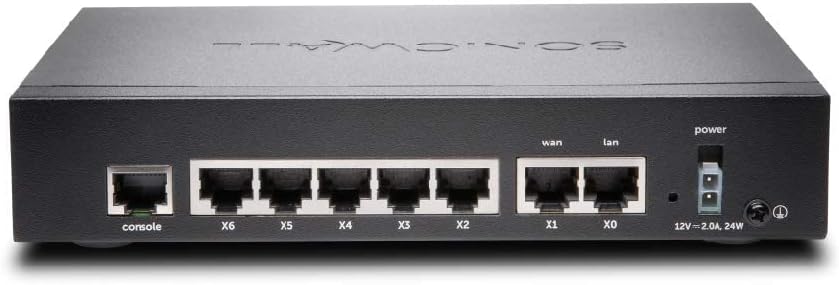
تصویر 1.2: پیچھے view of the SonicWall TZ400 appliance, displaying the console port, multiple LAN/WAN Ethernet ports (X0-X6), and the power input.
1.3 کنفیگریشن کی ابتدائی رسائی
- Ensure your computer is connected to the X0 (LAN) port of the TZ400.
- Configure your computer's network adapter to obtain an IP address automatically (DHCP). The TZ400's X0 interface typically acts as a DHCP server.
- کھولنا a web browser and navigate to the default management IP address, usually http://192.168.168.168.
- Log in using the default credentials (refer to the Quick Start Guide or device label for initial username and password). You will be prompted to change the password upon first login.
- Follow the on-screen setup wizard to configure basic network settings, including WAN connectivity and time zone.
2. آپریشن
2.1 نیٹ ورک کی تشکیل
The SonicWall TZ400 provides extensive options for network configuration. Access these settings via the web مینجمنٹ انٹرفیس.
- WAN ترتیبات: Configure your Internet connection type (e.g., Static IP, DHCP, PPPoE).
- LAN کی ترتیبات: Manage IP addressing, DHCP server settings, and VLANs for your internal network.
- Wireless (if applicable): If your model includes wireless capabilities, configure SSIDs, security protocols, and wireless channels. The TZ400 supports 802.11ac wireless type.
2.2 حفاظتی خصوصیات
The TZ400 is designed to provide robust network security. Key features include:
- فائروال کے اصول: Create and manage access rules to control traffic flow between network zones.
- مداخلت کی روک تھام کا نظام (IPS): Protect against network-based attacks and vulnerabilities.
- Gateway Anti-Virus/Anti-Spyware: Scan incoming and outgoing traffic for malicious content.
- VPN (ورچوئل پرائیویٹ نیٹ ورک): Establish secure connections for remote access or site-to-site communication.
- مواد فلٹرنگ: Control access to inappropriate or unproductive web مواد
2.3 Monitoring and Reporting
The appliance offers tools to monitor network activity and generate reports:
- سسٹم لاگز: View detailed logs of network events, security alerts, and system status.
- ریئل ٹائم مانیٹرنگ: Observe current network traffic, connections, and resource utilization.
- رپورٹس: Generate customizable reports on security threats, user activity, and bandwidth usage.
3 دیکھ بھال
3.1 فرم ویئر اپڈیٹس
Regularly update the appliance firmware to ensure optimal performance, security, and access to new features. Firmware updates can be performed via the web مینجمنٹ انٹرفیس.
- Download the latest firmware from the official SonicWall support portal.
- Navigate to the firmware update section in the web انٹرفیس
- ڈاؤن لوڈ کردہ فرم ویئر اپ لوڈ کریں۔ file and follow the on-screen prompts. The device will reboot after the update.
3.2 بیک اپ اور ریسٹور کنفیگریشن
It is recommended to regularly back up your configuration settings. This allows for quick recovery in case of misconfiguration or system issues.
- بیک اپ: From the management interface, locate the backup option to save your current configuration to your computer.
- بحال کریں: Use the restore option to upload a previously saved configuration file آلے کو.
3.3 باقاعدہ چیکس
Perform periodic checks to ensure the appliance is functioning correctly:
- Monitor system logs for unusual activity or errors.
- Verify that all security services (e.g., IPS, Anti-Virus) are active and up-to-date.
- Check the physical connections and LED indicators for normal operation.
4 خرابیوں کا سراغ لگانا
4.1 عام مسائل
- انٹرنیٹ تک رسائی نہیں:
- Verify the WAN cable connection to your ISP modem.
- Check WAN status in the management interface.
- یقینی بنائیں کہ آپ کا ISP کنکشن فعال ہے۔
- مینجمنٹ انٹرفیس تک رسائی حاصل نہیں کر سکتے:
- Confirm your computer is connected to a LAN port (e.g., X0) and has an IP address from the TZ400.
- Try pinging the default gateway (192.168.168.168).
- Clear your browser cache or try a different browser.
- سست نیٹ ورک کی کارکردگی:
- Check for high CPU or memory usage in the system monitoring section.
- Review firewall logs for excessive blocked traffic or attacks.
- Ensure firmware is up-to-date.
4.2 ایل ای ڈی اشارے
فرنٹ پینل ایل ای ڈی اسٹیٹس کی معلومات فراہم کرتے ہیں:
- پاور ایل ای ڈی: Indicates power status. Solid green for normal operation.
- Activity LEDs (10/100/act, 1000/act): Indicate network activity and link speed for each port.
- Refer to the device's specific documentation for a complete list of LED behaviors and their meanings.
4.3 فیکٹری ری سیٹ
A factory reset will revert all configuration settings to their default values. This should be used as a last resort for troubleshooting.
- Locate the reset button on the device (often recessed).
- With the device powered on, use a paperclip or similar pointed object to press and hold the reset button for approximately 10-15 seconds until the device reboots.
- After the reset, the device will return to its default IP address and credentials.
5. وضاحتیں
| فیچر | تفصیل |
|---|---|
| برانڈ | سونک وال |
| ماڈل کا نام | TZ400 |
| آئٹم ماڈل نمبر | TZ400 |
| آپریٹنگ سسٹم | SonicOS 6.x |
| وائرلیس قسم | 802.11ac |
| فریکوئنسی بینڈ کلاس | ڈوئل بینڈ |
| کنیکٹوٹی ٹیکنالوجی | ایتھرنیٹ |
| اینٹینا کی قسم | اندرونی |
| شے کا وزن | 0.16 اونس (تقریباً 4.54 گرام) |
| پروڈکٹ کے طول و عرض (LxWxH) | 5.28 x 7.48 x 3.26 انچ |
| پہلی تاریخ دستیاب ہے۔ | 4 جون 2015 |
6. وارنٹی اور سپورٹ
6.1 پروڈکٹ وارنٹی
The SonicWall TZ400 Network Security Appliance typically comes with a manufacturer's limited warranty. For specific warranty terms and conditions, including duration and coverage, please refer to the documentation provided with your purchase or visit the official SonicWall website. Warranty details may vary based on region and reseller.
6.2 تکنیکی معاونت
For technical assistance, firmware downloads, and additional resources, visit the official SonicWall support portal. Please note that access to certain technical support services, including direct assistance from SonicWall, may require an active support license or subscription. Ensure your device is registered on MySonicWALL to manage licenses and access available support options.
مزید معلومات کے لیے، ملاحظہ کریں: سونک وال سپورٹ


