1. تعارف
This manual provides detailed instructions for the installation, operation, and maintenance of your Aerocool Streak Mid-Tower ATX PC Gaming Case. Designed for both new and experienced PC builders, the Streak case offers a compact design with a polished aluminum front panel, vibrant RGB lighting, and a full tempered glass side panel to showcase your components. It supports various cooling configurations to ensure optimal performance for your system.
2. حفاظتی معلومات
Please read and understand all safety instructions before installing or operating the PC case. Failure to do so may result in personal injury or damage to the product.
- Always disconnect the power supply from the wall outlet before performing any installation or maintenance.
- Be aware of sharp edges inside the case. Handle components with care to avoid cuts.
- چھوٹے حصوں اور پیچ کو بچوں سے دور رکھیں۔
- بجلی کے جھٹکے سے بچنے کے لیے مناسب گراؤنڈنگ کو یقینی بنائیں۔
- Do not expose the case to water or excessive humidity.
3. پیکیج کے مشمولات
تصدیق کریں کہ تمام اشیاء پیکیج میں موجود ہیں:
- Aerocool Streak Mid-Tower ATX PC Gaming Case
- آلات خانہ (اسکرو، اسٹینڈ آف، کیبل ٹائی وغیرہ)
- صارف دستی (یہ دستاویز)
4. Case Components Overview
Familiarize yourself with the various parts of your Aerocool Streak case.

تصویر 4.1: زاویہ دار view of the Aerocool Streak PC case, showcasing the RGB front panel and tempered glass side panel.

تصویر 4.2: اوپر سے نیچے کا زاویہ view of the Aerocool Streak PC case, highlighting the top panel and front I/O ports.
4.1 فرنٹ I/O پورٹس
The front I/O panel provides convenient access to essential connections.
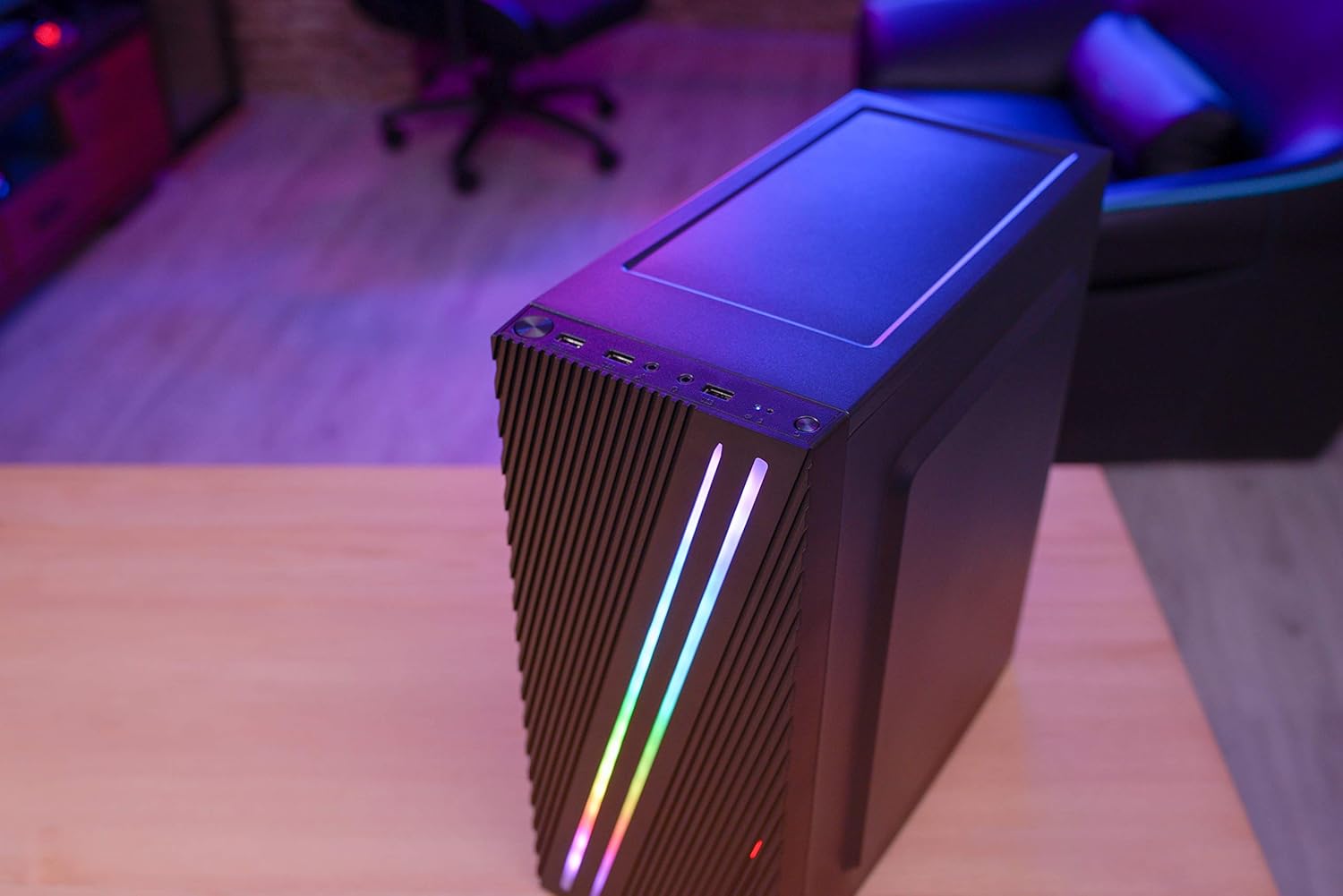
تصویر 4.3: Close-up of the front I/O panel, showing the power button, LED control button, USB 3.0 port, two USB 2.0 ports, and HD audio/microphone jacks.
- پاور بٹن: سسٹم کو آن/آف کرنے کے لیے۔
- LED Control Button: To cycle through RGB lighting modes.
- USB 3.0 پورٹ (x1): تیز رفتار ڈیٹا کی منتقلی کے لیے۔
- USB 2.0 پورٹس (x2): معیاری USB آلات کے لیے۔
- HD Audio & Mic Jacks: ہیڈ فون اور مائکروفون کو جوڑنے کے لیے۔
4.2 Interior Layout
The interior is designed for efficient component installation and cable management.

تصویر 4.4: اندرونی view of the Aerocool Streak PC case, showing the motherboard tray, drive bays, and cable routing cutouts.
5. سیٹ اپ اور انسٹالیشن
Follow these steps to assemble your PC components within the Aerocool Streak case.
5.1 تیاری
- Unpack the case and remove all packaging materials.
- کیس کو ایک مستحکم، چپٹی سطح پر رکھیں۔
- Gather necessary tools: Phillips head screwdriver, cable ties (included in accessory box).
- Remove the tempered glass side panel by unscrewing the four thumb screws.
5.2 مدر بورڈ انسٹالیشن
The Aerocool Streak supports ATX, Micro-ATX, and Mini-ITX motherboards.

تصویر 5.1: Diagram illustrating the compatible motherboard sizes (Mini-ITX, Micro-ATX, ATX) within the case.
- Install the necessary motherboard standoffs into the motherboard tray according to your motherboard's form factor.
- Place your motherboard carefully onto the standoffs, aligning the screw holes.
- فراہم کردہ پیچ کے ساتھ مدر بورڈ کو محفوظ کریں۔
5.3 پاور سپلائی یونٹ (PSU) کی تنصیب
The case features a bottom-mount PSU design.
- Slide the PSU into its designated compartment at the bottom rear of the case.
- Secure the PSU to the case rear with screws.
5.4 اسٹوریج ڈرائیو کی تنصیب
Install your 2.5" SSDs and 3.5" HDDs.
- 2.5" SSDs: Mount SSDs to the designated 2.5" drive trays or mounting points on the motherboard tray.
- 3.5" HDDs: PSU کفن کے نیچے واقع ڈرائیو کیج میں HDDs انسٹال کریں۔
5.5 Expansion Card Installation (Graphics Card, etc.)
The case supports high-end graphics cards up to 335mm in length.
- کیس کے عقبی حصے سے ضروری PCIe سلاٹ کور کو ہٹا دیں۔
- Insert your expansion card into the corresponding PCIe slot on the motherboard.
- کارڈ کو سکرو سے محفوظ کریں۔
5.6 کولنگ سسٹم کی تنصیب
The Aerocool Streak supports both air and liquid cooling solutions.

تصویر 5.2: Diagram showing air cooling options, including front 120mm fans (optional) and a rear 80mm fan (included).

تصویر 5.3: Diagram illustrating liquid cooling support, specifically a 240mm radiator at the front (optional).
- ایئر کولنگ: The case supports up to two 120mm fans at the front (optional) and includes one 80mm fan at the rear.
- مائع کولنگ: A 240mm radiator can be installed at the front of the case (optional).
- Install fans or radiators into their respective mounting points and secure them with screws.
5.7 کیبل مینجمنٹ
Utilize the cable routing cutouts and tie-down points behind the motherboard tray to organize cables for improved airflow and aesthetics.
- Route all power and data cables through the designated cutouts.
- Use cable ties to bundle and secure cables neatly.
6. آپریٹنگ ہدایات
6.1 Powering On Your System
- Ensure all components are correctly installed and all cables are securely connected.
- Connect the power cable to your PSU and then to a wall outlet.
- PSU پر پاور سوئچ کو 'آن' پوزیشن پر پلٹائیں۔
- Press the power button on the front I/O panel of the case to start your system.
6.2 آر جی بی لائٹنگ کنٹرول
The Aerocool Streak features 18 distinct RGB lighting modes on its front panel.

تصویر 6.1: The Aerocool Streak PC case with its vibrant RGB lighting illuminated on the front panel.
- دبائیں ایل ای ڈی کنٹرول بٹن on the front I/O panel to cycle through the 18 available lighting modes.
- These modes include 11 RGB flow modes and 7 static color modes.
7 دیکھ بھال
باقاعدگی سے دیکھ بھال آپ کے کمپیوٹر کیس اور اجزاء کی لمبی عمر اور بہترین کارکردگی کو یقینی بنانے میں مدد کرتی ہے۔
7.1 کیس کی صفائی
- بیرونی: ایک نرم استعمال کریں، ڈیamp بیرونی سطحوں کو صاف کرنے کے لیے کپڑا۔ کھرچنے والے کلینر سے پرہیز کریں۔
- اندرونی: Periodically use compressed air to remove dust buildup from inside the case, especially around fans and heatsinks.
7.2 ڈسٹ فلٹر کی بحالی
The case may include removable dust filters to prevent dust ingress. Clean these filters regularly.
- Locate and carefully remove any dust filters (e.g., top, bottom, front).
- Clean the filters with water and mild soap, or use compressed air.
- یقینی بنائیں کہ فلٹرز دوبارہ انسٹال کرنے سے پہلے مکمل طور پر خشک ہیں۔
8 خرابیوں کا سراغ لگانا
If you encounter issues with your Aerocool Streak case, refer to the following common problems and solutions.
- System does not power on:
- Check all power connections, including the PSU to the wall, PSU switch, and motherboard power cables.
- یقینی بنائیں کہ فرنٹ پینل پاور سوئچ کیبل صحیح طریقے سے مدر بورڈ سے جڑی ہوئی ہے۔
- RGB lighting is not working:
- Verify that the RGB lighting cables are properly connected to the power supply or motherboard RGB header.
- Press the LED control button to cycle through modes, as it might be on a static black mode.
- Poor airflow/overheating:
- Ensure all case fans are spinning correctly.
- کسی بھی ڈسٹ فلٹرز اور اندرونی اجزاء کو صاف کریں۔
- Verify proper fan orientation for optimal airflow (intake/exhaust).
9. وضاحتیں
| فیچر | تفصیلات |
|---|---|
| ماڈل کا نام | اسٹریک |
| ماڈل نمبر | ACCM-PV19012.11 |
| کیس کی قسم | وسط ٹاور |
| مدر بورڈ مطابقت | ATX، Micro-ATX، Mini-ITX |
| مواد | Tempered Glass (side panel) |
| رنگ | سیاہ |
| فرنٹ I / O بندرگاہیں | 1x USB 3.0, 2x USB 2.0, HD Audio, Mic, LED Control Button, Power Button |
| آر جی بی لائٹنگ | 18 Lighting Modes (11 flow, 7 static) |
| CPU کولر کلیئرنس | 151 ملی میٹر تک |
| گرافکس کارڈ کی لمبائی | 335 ملی میٹر تک |
| PSU ماؤنٹنگ | نیچے کا پہاڑ |
| کولنگ کا طریقہ | ہوا، پانی |
| شائقین شامل ہیں۔ | 1x 80mm Rear Fan |
| Optional Fan Support | فرنٹ: 2x 120mm |
| ریڈی ایٹر سپورٹ | Front: 1x 240mm (optional) |
10. وارنٹی اور سپورٹ
The Aerocool Streak PC Gaming Case comes with a 2-year warranty on parts. For technical support, warranty claims, or further assistance, please contact your retailer or the official Aerocool support channels. Keep your proof of purchase for warranty validation.


