1. تعارف
This manual provides instructions for the setup, operation, and maintenance of your Logitech Brio 301 Full HD Webcam. The Brio 301 is designed to deliver clear video and audio for your online communications, featuring 1080p resolution, automatic light correction, a noise-reducing microphone, and an integrated privacy cover.
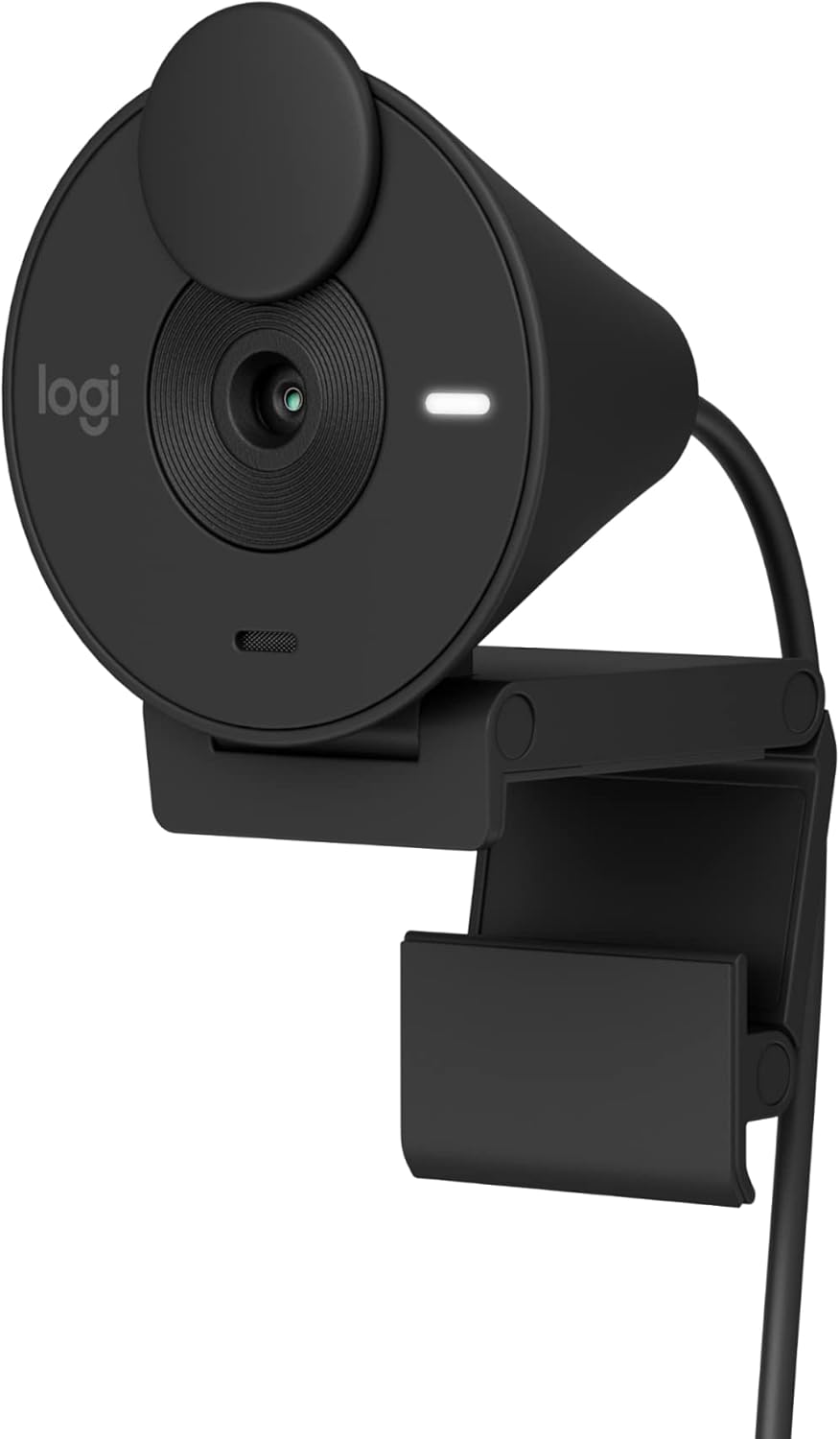
Image 1.1: Logitech Brio 301 Full HD Webcam, black color, shown from a front-side angle with its monitor clip.
2. باکس میں کیا ہے۔
The Logitech Brio 301 package includes the following components:
- Logitech Brio 301 Webcam (with integrated USB-C cable)

تصویر 2.1: اوپر سے نیچے view of the Logitech Brio 301 webcam with its integrated USB-C cable coiled below it. The image also indicates the cable length (5 ft / 1.5 m) and product weight (2.63 oz / 74.6 g).
3. سیٹ اپ ہدایات
- پوزیشننگ Webکیمرے:
Open the integrated mounting clip. Place the webcam on top of your computer monitor or laptop screen. Adjust the clip to securely hold the webcam in place. Ensure the webcam lens is facing you and is at an appropriate height for eye-level communication.
- اپنے کمپیوٹر سے جڑنا:
Plug the integrated USB-C cable from the Brio 301 webcam into an available USB-C port on your computer. If your computer only has USB-A ports, you may need a USB-C to USB-A adapter (sold separately).
- ڈرائیور کی تنصیب:
The Logitech Brio 301 is a plug-and-play device. Your operating system (Windows 10 or later, macOS 10.15 or later, ChromeOS) should automatically detect and install the necessary drivers. No manual driver installation is typically required.
- Software Configuration (Optional):
For advanced settings and customization, download the free Logi Tune application from the Logitech website. Logi Tune allows you to adjust color, image quality, and other video experiences. (Note: Logi Tune is not available for Chrome OS).

Image 3.1: The Brio 301 webcam positioned on top of a computer monitor, displaying a user in a full HD video call.
4. آپریٹنگ ہدایات
4.1. Starting a Video Call
Once connected, the Brio 301 will be recognized by most video conferencing applications (e.g., Zoom, Microsoft Teams, Google Meet). Select "Logitech Brio 301" as your camera and microphone input within your chosen application's settings.

Image 4.1: The Brio 301 webcam shown above a monitor displaying a video call, with logos indicating compatibility with Zoom, Chromebook, Google Meet, and Microsoft Teams.
4.2. Using the Privacy Shutter
The Brio 301 features an integrated privacy shutter. To cover the lens and ensure privacy, simply spin the shutter clockwise until the lens is fully obscured. To uncover the lens, spin it counter-clockwise.

Image 4.2: The Brio 301 webcam with an arrow indicating the rotation of the privacy shutter to cover the lens.
5. کلیدی خصوصیات
- مکمل HD 1080p ریزولوشن: Provides clear and natural image quality for video calls.
Image 5.1: A screen capture from a video call demonstrating the full HD clarity of the Brio 301 webcam at 1080p and 30 frames per second.
- Auto Light Correction (RightLight 2): Automatically adjusts to poor lighting conditions, ensuring you are seen clearly even in low-light environments.

Image 5.2: A side-by-side comparison showing a person in a video call, with the left image appearing dim and the right image appearing brighter and clearer due to auto light correction.
- شور کم کرنے والا مائیکروفون: The integrated mono microphone suppresses background noise, allowing your voice to be heard clearly during calls.

Image 5.3: The Brio 301 webcam with a graphic illustrating sound waves, emphasizing the noise-reducing capabilities of its microphone.
- Integrated Privacy Shutter: A physical shutter that can be spun to cover the camera lens for instant privacy.
- USB-C کنیکٹیویٹی: Modern and reversible USB-C connection for easy setup.
- پلیٹ فارم مطابقت: Certified for Zoom, Microsoft Teams, and Google Meet, ensuring seamless integration. Also compatible with Nintendo Switch 2's new GameChat mode.
- پائیدار ڈیزائن: Made with a minimum of 48% post-consumer recycled plastic (percentage varies by color).

Image 5.4: A detailed diagram labeling key components of the Brio 301 webcam, including the privacy shutter, full HD lens, 70° field of view, auto light correction, mono noise-reducing mic, LED activity light, and USB-C connectivity.
6. Logi Tune Software
The Logi Tune application provides additional control over your Brio 301 webcam. You can download this free software from the official Logitech webسائٹ
6.1. Features of Logi Tune:
- Adjusting color and image quality settings.
- Customizing your video experience.
نوٹ: Logi Tune is not available for Chrome OS. Headset voice prompts within the Logi Tune app are supported in English, French, German, Italian, Spanish, and Portuguese.

Image 6.1: Screenshots of the Logi Tune application interface, showing options for image adjustments such as auto exposure, white balance, brightness, and contrast.
7 دیکھ بھال
- لینز کی صفائی: Use a soft, lint-free cloth specifically designed for optics to gently wipe the webcam lens. Avoid abrasive materials or harsh cleaning chemicals, which can scratch or damage the lens.
- جسم کی صفائی: کے بیرونی حصے کو صاف کریں۔ webایک نرم کے ساتھ کیمرے، ڈیamp کپڑا کو غرق نہ کریں۔ webپانی میں کیم یا ضرورت سے زیادہ نمی کا استعمال کریں.
- ذخیرہ: When not in use, especially during transport, ensure the privacy shutter is closed to protect the lens from dust and scratches. Store the webcam in a clean, dry environment.
8 خرابیوں کا سراغ لگانا
| مسئلہ | ممکنہ حل |
|---|---|
| Webکمپیوٹر کے ذریعے کیمرے کا پتہ نہیں چلا۔ |
|
| No video or black screen in video application. |
|
| خراب ویڈیو کا معیار (دھندلا، سیاہ، دانے دار)۔ |
|
| Microphone not working or poor audio quality. |
|
9. وضاحتیں
| فیچر | تفصیل |
|---|---|
| ماڈل نمبر | 960-001513 |
| زیادہ سے زیادہ ویڈیو ریزولوشن | 1920x1080 pixels (Full HD 1080p) |
| فوٹو سینسر ٹیکنالوجی | CMOS |
| کا میدان View | 70 ڈگری |
| مائیکروفون | Mono, Noise-Reducing |
| کنیکٹوٹی | USB-C (integrated cable, 1.5m / 5ft) |
| آٹو لائٹ تصحیح | RightLight 2 |
| رازداری کی خصوصیت | انٹیگریٹڈ پرائیویسی شٹر |
| آپریٹنگ سسٹم کی مطابقت | Windows 10 or later, macOS 10.15 or later, ChromeOS |
| طول و عرض (LxWxH) | 2.09 x 1.78 x 2.58 انچ (5.3 x 4.5 x 6.5 سینٹی میٹر) |
| شے کا وزن | 2.63 اونس (74.6 گرام) |
| مواد | Minimum 48% post-consumer recycled plastic (varies by color) |
10. وارنٹی اور سپورٹ
For detailed warranty information and technical support, please visit the official Logitech support website. You can find product registration, FAQs, and contact information for customer service there.
لاجٹیک سپورٹ Webسائٹ: support.logi.com


