1. تعارف
Thank you for choosing the Mecer 23.8 Inch Full HD LED Monitor. This manual provides essential information for setting up, operating, and maintaining your monitor. Please read it thoroughly before use to ensure proper functionality and longevity of your device.
This monitor features a 23.8-inch Full HD (1920 x 1080) display, offering crisp and clear visuals. It incorporates TFT LED panel technology for energy efficiency and vibrant colors, with a 16:9 aspect ratio suitable for widescreen viewing. Connectivity options include VGA and HDMI, making it compatible with various devices. Built-in speakers provide basic audio, and wide 178° viewing angles ensure comfortable use. With a 2ms response time, it is suitable for general computing and multimedia consumption.
2. حفاظتی معلومات
- طاقت کا منبع: مانیٹر کے ساتھ فراہم کردہ پاور اڈاپٹر ہی استعمال کریں۔ یقینی بنائیں کہ پاور آؤٹ لیٹ مناسب طریقے سے گراؤنڈ ہے۔
- وینٹیلیشن: وینٹیلیشن کے سوراخوں کو مسدود نہ کریں۔ زیادہ گرمی کو روکنے کے لیے مناسب ہوا کے بہاؤ کے لیے مانیٹر کے ارد گرد مناسب جگہ دیں۔
- جگہ کا تعین: Place the monitor on a stable, flat surface. Avoid placing it in direct sunlight, near heat sources, or in environments with excessive dust or humidity.
- صفائی: Disconnect the power cord before cleaning. Use a soft, dry cloth for the screen and a slightly damp cloth for the casinجی کھرچنے والے کلینر یا سالوینٹس کے استعمال سے پرہیز کریں۔
- مائع کی نمائش: Keep liquids away from the monitor. If liquid enters the monitor, disconnect power immediately and contact qualified service personnel.
- بے ترکیبی: Do not attempt to disassemble or repair the monitor yourself. Refer all servicing to qualified service personnel.
3. پیکیج کے مشمولات
تمام اشیاء کی موجودگی کو یقینی بنانے کے لیے براہ کرم پیکیج کے مواد کو چیک کریں:
- Mecer 23.8 Inch LED Monitor
- مانیٹر اسٹینڈ (بیس اور گردن)
- پاور اڈاپٹر اور کیبل
- HDMI کیبل
- وی جی اے کیبل
- صارف دستی (یہ دستاویز)
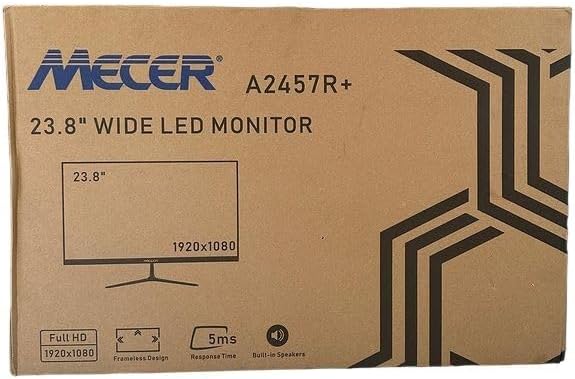
تصویر 3.1: The monitor packaging box, indicating the model A2457R+ and key features like 23.8" display, Full HD 1920x1080 resolution, frameless design, 5ms response time, and built-in speakers.
4. سیٹ اپ
4.1. مانیٹر اسٹینڈ کو جمع کرنا
- پیکیجنگ سے مانیٹر اور اسٹینڈ کے اجزاء کو احتیاط سے ہٹا دیں۔
- ٹیبز کو سیدھ میں کرکے اور اس وقت تک مضبوطی سے دھکیلتے ہوئے مانیٹر پینل کے ساتھ اسٹینڈ نیک کو جوڑیں جب تک کہ یہ جگہ پر نہ آجائے۔
- Attach the stand base to the stand neck, securing it with the provided screw (usually hand-tightened).
- جمع مانیٹر کو ایک مستحکم، چپٹی سطح پر رکھیں۔

تصویر 4.1: سامنے والا view of the Mecer 23.8 Inch LED Monitor with its stand assembled, ready for connection.
4.2 کمپیوٹر سے جڑنا
The monitor supports both HDMI and VGA connections. Choose the appropriate cable for your computer.
- HDMI کنکشن: Connect one end of the HDMI cable to the HDMI port on your computer's graphics card and the other end to the HDMI port on the monitor. HDMI transmits both video and audio signals.
- VGA کنکشن: Connect one end of the VGA cable to the VGA port on your computer's graphics card and the other end to the VGA port on the monitor. VGA transmits only video signals.

تصویر 4.2: پیچھے view of the Mecer 23.8 Inch LED Monitor, showing the input ports including HDMI and VGA, as well as the power input.
4.3. پاور کنکشن
- Connect the power adapter cable to the DC IN port on the back of the monitor.
- پاور اڈاپٹر کو وال آؤٹ لیٹ میں لگائیں۔
5. آپریٹنگ ہدایات
5.1. پر / آف پاور
Press the power button, typically located on the bottom right side or rear of the monitor, to turn the monitor on or off. The power indicator light will illuminate when the monitor is on.
5.2. ان پٹ ماخذ کا انتخاب
If you have multiple devices connected, you may need to manually select the input source. Use the monitor's control buttons (usually located near the power button) to navigate to the input selection menu and choose between HDMI or VGA.
5.3. آن اسکرین ڈسپلے (OSD) مینو
The OSD menu allows you to adjust various display settings. Use the monitor's control buttons to:
- OSD مینو تک رسائی حاصل کریں۔
- Navigate through menu options (e.g., Brightness, Contrast, Color Settings, Input Source).
- Adjust values or select options.
- OSD مینو سے باہر نکلیں۔
عام سایڈست ترتیبات میں شامل ہیں:
- چمک / تضاد: روشنی اور تاریک علاقوں کے درمیان مجموعی روشنی اور فرق کو ایڈجسٹ کریں۔
- رنگ کی ترتیبات: Adjust color temperature, RGB values, or select preset color modes.
- پہلو تناسب: Change between 16:9, 4:3, or other available options.
- آڈیو: Adjust volume for the built-in speakers.
5.4. بلٹ ان اسپیکرز
The monitor includes built-in speakers for basic audio output. If using an HDMI connection, audio will be transmitted automatically. For VGA connections, ensure your computer's audio output is configured correctly. Adjust the volume through the OSD menu or your computer's operating system.
6 دیکھ بھال
6.1 مانیٹر کی صفائی
- صاف کرنے سے پہلے ہمیشہ مانیٹر کو پاور آؤٹ لیٹ سے ان پلگ کریں۔
- سکرین: نرم، لنٹ فری کپڑے سے اسکرین کو آہستہ سے صاف کریں۔ ضدی نشانات کے لیے، ہلکے سے ڈیampur کپڑے کو پانی یا ایک خصوصی سکرین کلینر (یقینی بنائیں کہ یہ الکحل سے پاک اور امونیا سے پاک ہے) اور احتیاط سے صاف کریں۔ مائع کو براہ راست اسکرین پر نہ چھڑکیں۔
- Casing: مانیٹر کو صاف کرنے کے لیے نرم، خشک کپڑا استعمال کریں۔asinجی اگر ضروری ہو تو، تھوڑا سا ڈیamp کپڑا استعمال کیا جا سکتا ہے، اس کے بعد خشک کپڑا۔
6.2. ذخیرہ
اگر مانیٹر کو لمبے عرصے تک ذخیرہ کر رہے ہیں تو، تمام کیبلز کو منقطع کریں، اسے اس کی اصل پیکیجنگ میں پیک کریں (اگر دستیاب ہو)، اور اسے براہ راست سورج کی روشنی اور انتہائی درجہ حرارت سے دور کسی ٹھنڈی، خشک جگہ پر اسٹور کریں۔
7 خرابیوں کا سراغ لگانا
اگر آپ کو اپنے مانیٹر کے ساتھ مسائل کا سامنا کرنا پڑتا ہے، تو درج ذیل عام مسائل اور حل دیکھیں:
- کوئی طاقت نہیں:
- Ensure the power cable is securely connected to the monitor and the wall outlet.
- دوسرے آلے میں پلگ لگا کر تصدیق کریں کہ پاور آؤٹ لیٹ کام کر رہا ہے۔
- Check if the power adapter is working correctly.
- سگنل نہیں ہیں:
- Ensure the video cable (HDMI or VGA) is securely connected to both the monitor and the computer.
- Verify that the correct input source is selected on the monitor (via the OSD menu).
- Check if your computer is powered on and outputting a video signal.
- اگر دستیاب ہو تو ایک مختلف ویڈیو کیبل آزمائیں۔
- تصویر دھندلی یا مسخ شدہ ہے:
- یقینی بنائیں کہ مانیٹر کی ریزولوشن آپ کے کمپیوٹر کی ڈسپلے سیٹنگز میں اس کی مقامی ریزولوشن (1920 x 1080) پر سیٹ ہے۔
- Adjust the monitor's OSD settings for brightness, contrast, and sharpness.
- For VGA connections, use the 'Auto Adjust' function in the OSD menu if available.
- No Audio from Built-in Speakers:
- Ensure the monitor's volume is not muted or set too low in the OSD menu.
- Check your computer's audio output settings to ensure the monitor is selected as the playback device.
- If using VGA, ensure your computer's audio is routed to an external speaker system, as VGA does not carry audio.
8. وضاحتیں
| فیچر | تفصیلات |
|---|---|
| برانڈ | Mecer |
| ماڈل نمبر | A2457R+ |
| ڈسپلے سائز | 23.8 انچ |
| قرارداد | 1920 x 1080 پکسلز (مکمل ایچ ڈی) |
| ڈسپلے کی قسم | LED (TFT LED Panel) |
| پہلو کا تناسب | 16:9 |
| رسپانس ٹائم | 2 ملی سیکنڈز |
| ریفریش ریٹ | 75 Hz |
| Viewزاویے | 178° افقی / 178° عمودی |
| کنیکٹوٹی | 1x HDMI، 1x VGA |
| بلٹ ان اسپیکرز | جی ہاں |
| رنگ | سیاہ |
| پروڈکٹ کے طول و عرض (D x W x H) | 560D x 42W x 410H ملی میٹر |
| خصوصی خصوصیات | High performance intelligent multi-frequency scanning, Micro Computer digital technology control, no radiation, no glare, Comply with VESA DPMS international power saving regulation, Support DDC 1/2B and Windows PNP Plug and Play |
9. وارنٹی اور سپورٹ
This Mecer monitor comes with a 1 سال کی محدود وارنٹی خریداری کی تاریخ سے. وارنٹی کے دعووں کے لیے براہ کرم اپنی خریداری کا ثبوت اپنے پاس رکھیں۔
For technical support, service, or warranty inquiries, please contact your retailer or the authorized Mecer service center in your region. Do not attempt to repair the product yourself, as this may void your warranty.


