تعارف
This manual provides essential instructions for setting up, operating, maintaining, and troubleshooting your OPPO Reno 12 F 5G CPH2637 smartphone. Please read this guide thoroughly to ensure proper use and to maximize the device's capabilities.
1. سیٹ اپ
1.1 ان باکسنگ اور ابتدائی معائنہ
احتیاط سے پیکیجنگ سے تمام اشیاء کو ہٹا دیں. تصدیق کریں کہ درج ذیل اجزاء موجود ہیں:
- OPPO Reno 12 F 5G CPH2637 Smartphone
- USB ٹائپ سی کیبل
- پاور اڈاپٹر
- سم ایجیکٹر ٹول
- فوری آغاز گائیڈ (یہ دستاویز)
آگے بڑھنے سے پہلے کسی بھی جسمانی نقصان کے لیے آلہ کا معائنہ کریں۔
1.2 سم کارڈ داخل کرنا
The OPPO Reno 12 F 5G CPH2637 supports Dual SIM functionality.
- آلہ کے سائیڈ پر سم کارڈ ٹرے کا پتہ لگائیں۔
- سم ایجیکٹر ٹول کو ٹرے کے ساتھ والے چھوٹے سوراخ میں داخل کریں اور ٹرے کے باہر آنے تک آہستہ سے دبائیں
- اپنے نینو سم کارڈز کو ٹرے پر مقرر کردہ سلاٹس میں رکھیں، اس بات کو یقینی بناتے ہوئے کہ سونے کے رابطے نیچے کی طرف ہوں۔
- ٹرے کو احتیاط سے آلے میں واپس دھکیلیں جب تک کہ یہ سائیڈ سے فلش نہ ہوجائے۔
1.3 ڈیوائس کو چارج کرنا
پہلے استعمال سے پہلے، آلہ کو مکمل چارج کرنے کی سفارش کی جاتی ہے۔
- USB Type-C کیبل کو فون کے نیچے چارجنگ پورٹ سے جوڑیں۔
- کیبل کے دوسرے سرے کو پاور اڈاپٹر سے جوڑیں۔
- پاور اڈاپٹر کو وال آؤٹ لیٹ میں لگائیں۔
- چارجنگ انڈیکیٹر اسکرین پر ظاہر ہوگا۔
1.4 پاور آن اور ابتدائی کنفیگریشن
To power on the device, press and hold the Power button located on the side until the OPPO logo appears. Follow the on-screen instructions to complete the initial setup, including language selection, Wi-Fi connection, Google account setup, and security settings.
2. آپریٹنگ ہدایات
2.1 بنیادی نیویگیشن
The OPPO Reno 12 F 5G CPH2637 features a touchscreen interface. Use gestures such as tapping, swiping, pinching, and spreading to interact with the device. The navigation bar at the bottom of the screen typically includes Back, Home, and Recent Apps buttons.
2.2 کال کرنا اور پیغامات بھیجنا
کال کرنے کے لیے، کھولیں۔ فون ایپ، نمبر درج کریں، اور کال آئیکن کو تھپتھپائیں۔ پیغام بھیجنے کے لیے، کھولیں۔ پیغامات ایپ، نئے پیغام کے آئیکن کو تھپتھپائیں، وصول کنندہ اور اپنا پیغام درج کریں، پھر بھیجیں پر ٹیپ کریں۔
2.3 نیٹ ورکس سے جڑنا
Your device supports both Wi-Fi and 5G cellular networks.
- وائی فائی: پر جائیں۔ ترتیبات > Wi-Fi, turn on Wi-Fi, select your desired network, and enter the password if required.
- 5G Cellular Data: Ensure your SIM card has an active 5G plan. Go to Settings > Mobile Network > Data usage to manage your cellular data.
2.4 کیمرہ استعمال کرنا
کھولیں۔ کیمرہ app from your home screen or app drawer. Tap the shutter button to take a photo. Swipe left or right to switch between different camera modes such as Photo, Video, Portrait, and Night. Tap on the screen to focus on a specific area.
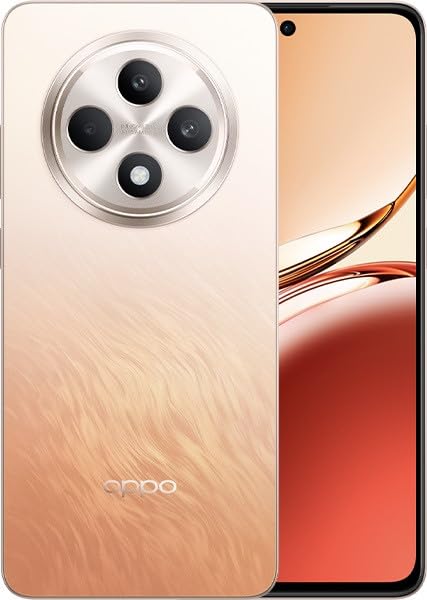
Image: OPPO Reno 12 F 5G CPH2637 smartphone in Amber Orange. This image displays the front and back of the device, highlighting its design and camera module.
2.5 حفاظتی خصوصیات
The device offers various security options to protect your data:
- فنگر پرنٹ انلاک: اپنے فنگر پرنٹس کو اندراج کریں۔ Settings > Password & Biometrics > Fingerprint.
- فیس انلاک: میں چہرے کی شناخت سیٹ اپ کریں۔ Settings > Password & Biometrics > Face.
- سکرین لاک: Choose a PIN, pattern, or password for screen lock in Settings > Password & Biometrics > Lock screen password.
3 دیکھ بھال
3.1 ڈیوائس کی صفائی
Use a soft, lint-free cloth to clean the screen and body of your phone. Avoid using harsh chemicals, abrasive materials, or aerosol sprays, as these can damage the device's finish and coatings. For stubborn smudges, slightly dampپانی کے ساتھ کپڑے.
3.2 سافٹ ویئر اپ ڈیٹس
بہترین کارکردگی، سیکورٹی، اور نئی خصوصیات تک رسائی کو یقینی بنانے کے لیے باقاعدگی سے سافٹ ویئر اپ ڈیٹس کو چیک کریں اور انسٹال کریں۔ پر جائیں۔ Settings > About device > Up to date دستیاب اپ ڈیٹس کو چیک کرنے کے لیے۔
3.3 بیٹری کی دیکھ بھال
To prolong battery life, avoid exposing the device to extreme temperatures. It is recommended to keep the battery charge between 20% and 80% for daily use. Avoid leaving the phone plugged in for extended periods after it is fully charged.
3.4 اسٹوریج مینجمنٹ
وقتاً فوقتاً دوبارہview اور غیر ضروری حذف کریں۔ files, apps, and media to free up storage space. You can check storage usage in Settings > About device > Storage.
4 خرابیوں کا سراغ لگانا
4.1 ڈیوائس آن نہیں ہو رہی ہے۔
If your device does not turn on, ensure it is sufficiently charged. Connect it to the charger for at least 15 minutes, then try pressing and holding the Power button again for 10-15 seconds.
4.2 نیٹ ورک کنیکٹیویٹی کے مسائل
If you experience issues with cellular data or Wi-Fi:
- ہوائی جہاز کے موڈ کو آن اور آف ٹوگل کریں۔
- ڈیوائس کو دوبارہ شروع کریں۔
- For cellular issues, ensure your SIM card is properly inserted and your plan is active.
- For Wi-Fi issues, restart your router and ensure you are within range.
4.3 ایپس کریش یا منجمد ہو رہی ہیں۔
If an app is not responding, try force-closing it from the Recent Apps screen. If the issue persists, clear the app's cache and data in Settings > Apps > [App Name] > Storage usage. آخری حربے کے طور پر، ایپ کو ان انسٹال اور دوبارہ انسٹال کریں۔
4.4 فیکٹری ری سیٹ
A factory reset will erase all data on your device and restore it to its original factory settings. فیکٹری ری سیٹ کرنے سے پہلے تمام اہم ڈیٹا کا بیک اپ لیں۔ پر جائیں۔ Settings > System settings > Back up and reset > Reset phone > Erase all data.
5. وضاحتیں
| فیچر | تفصیلات |
|---|---|
| برانڈ | OPPO |
| ماڈل کا نام | Reno 12 F 5G |
| ماڈل نمبر | CPH2637 |
| میموری ذخیرہ کرنے کی صلاحیت | 256 جی بی |
| RAM میموری انسٹال شدہ سائز | 12 جی بی |
| سیلولر ٹیکنالوجی | 5G |
| کنیکٹوٹی ٹیکنالوجی | 5G |
| سم کارڈ سلاٹ کاؤنٹ | ڈوئل سم |
| رنگ | Amber Orange |
| ہیومین انٹرفیس ان پٹ | ٹچ اسکرین |
| فارم فیکٹر | سلیٹ |
6. وارنٹی اور سپورٹ
Your OPPO Reno 12 F 5G CPH2637 is covered by a limited warranty. Please refer to the warranty card included in your product packaging for specific terms and conditions, including warranty period and coverage details. For technical support, service inquiries, or further assistance, please visit the official OPPO support webسائٹ یا اپنے علاقے میں ان کی کسٹمر سروس ہاٹ لائن سے رابطہ کریں۔


